What changed in One UI 8.5: 6 settings that moved or were renamed
- Shown on
- Galaxy S26 (One UI 9.0) and Galaxy A57 5G (One UI 8.5)
- Checked
- November 2026
- Real screenshots
- 7 of 7 steps
Quick answer
Since One UI 8.5, and still on One UI 9, Samsung Internet is Samsung Browser, lock screen notifications sit under Notifications, Customization Service is in General management, the battery percentage switch is gone, network resets are separate rows and Auto rotate has a switch per screen.
Steps
- 1
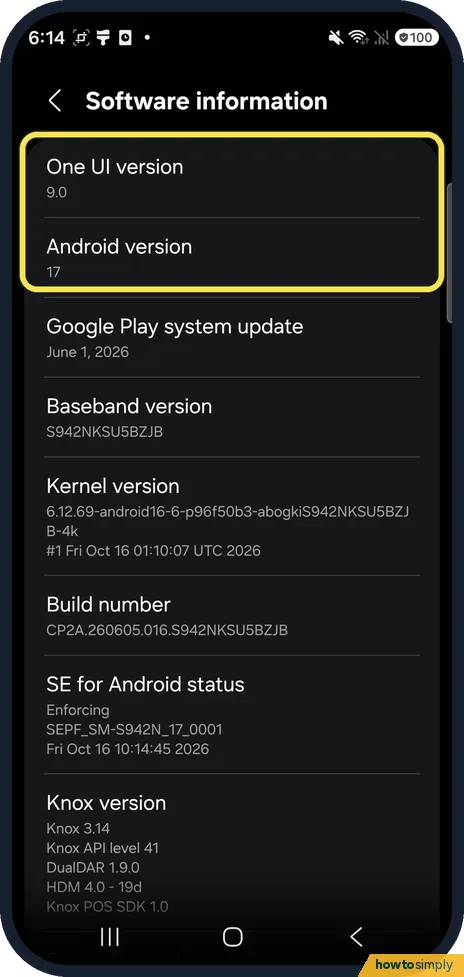
Check your One UI version
Settings, About phone, Software information. The first row shows the One UI version. These changes came with One UI 8.5 and were the same on our Galaxy S26 with One UI 9.0 and Android 17.
- 2
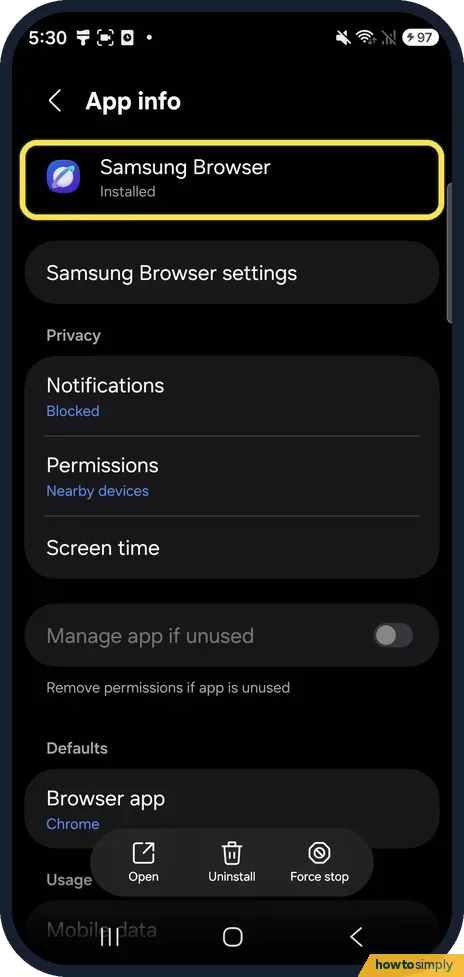
Samsung Internet is now Samsung Browser
Same app, new name. Full guide: Samsung Internet is now Samsung Browser.
- 3
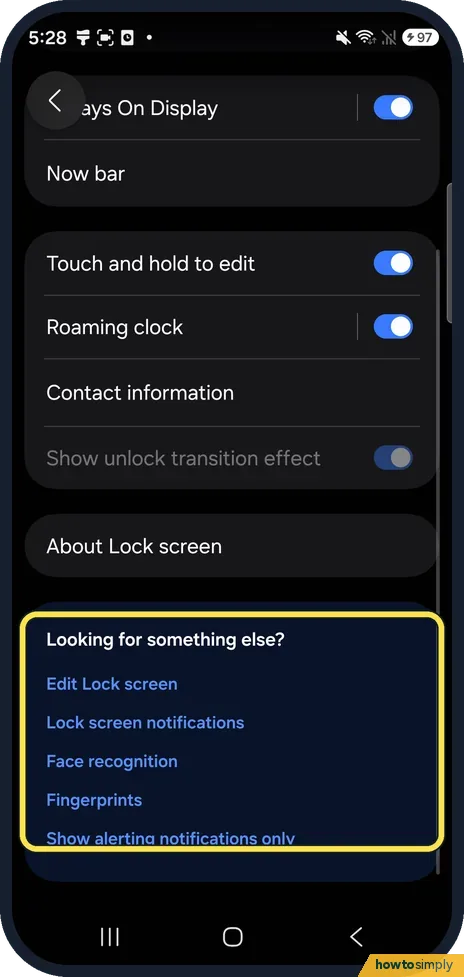
Lock screen notifications moved
The Lock screen and AOD page has no Notifications row. Tap Lock screen notifications under Looking for something else? at the bottom. Full guide: Samsung lock screen notifications gone on One UI 8.5.
- 4
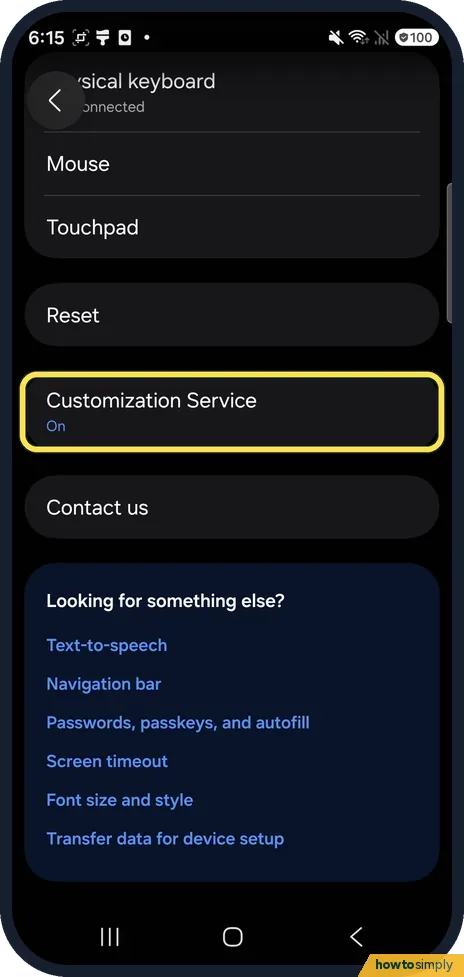
Customization Service moved to General management
Samsung's privacy notice still points to Settings, Privacy, but on our phones it was further down General management, below Reset and above Contact us. On our Galaxy S26 it read On. Full guide: Where is Customization Service on One UI 8.5?.
- 5
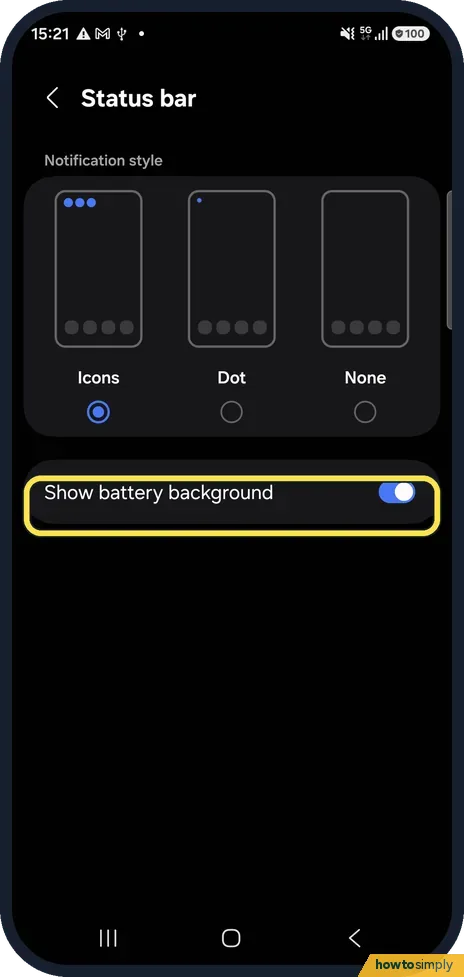
The battery percentage switch is gone
The percentage is always shown as a number inside the battery icon. Settings, Notifications, Status bar now has Show battery background instead. Full guide: How to show battery percentage on a Samsung Galaxy.
- 6
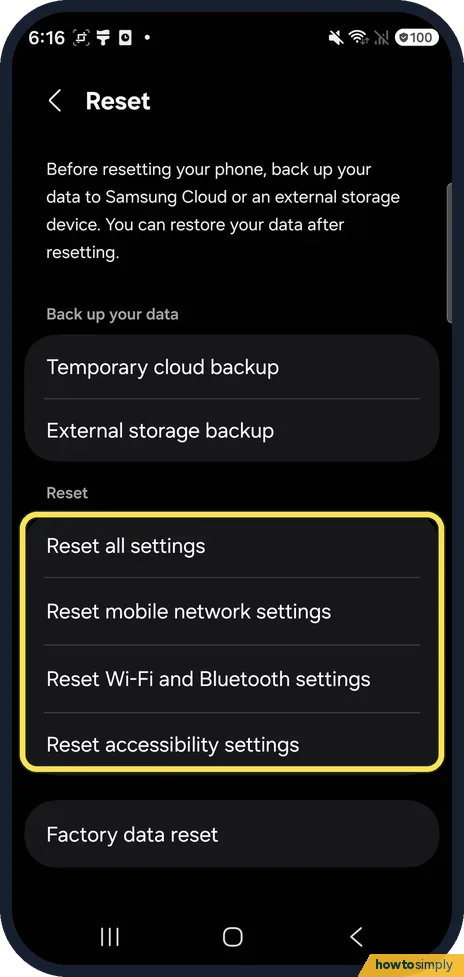
The network reset is split in two
Settings, General management, Reset now lists Reset all settings, Reset mobile network settings, Reset Wi-Fi and Bluetooth settings, Reset accessibility settings and Factory data reset as separate rows. We tapped none of them. Full guide: How to reset network settings on a Samsung Galaxy phone.
- 7
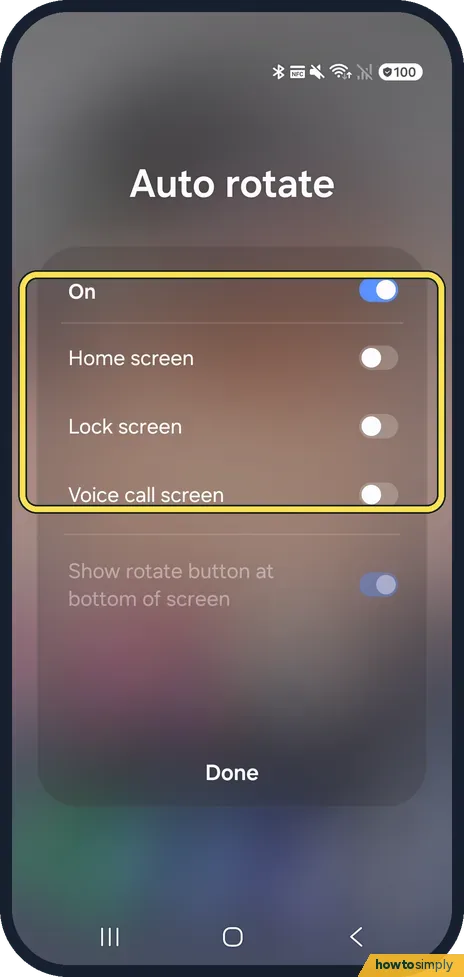
Auto rotate has a switch per screen
Touch and hold Auto rotate in the quick panel: the Home screen, Lock screen and Voice call screen each have their own switch. On ours Auto rotate was on and all three were off. Full guide: Samsung Galaxy screen won't rotate? 5 fixes.
Where we checked these steps
- Galaxy S26, One UI 9.0 (Android 17)
- Galaxy A57 5G, One UI 8.5 (Android 16)
We have not checked other phones or older versions. If a menu looks different on yours, the notes under each step and the fixes further down cover the differences we found.
If you do not see this option
- Your phone does not have One UI 8.5 yet Samsung says when the update reaches you, and its version number, depend on your region and network. Check Settings, Software update; depending on the carrier the button may say Download and install, Check for system updates or Check for software updates. Source: Status bar issues on your Galaxy phone after the One UI 8.5 update
- You still see Show battery percentage Samsung says One UI 8.5 renamed the option: Show battery percentage became Show battery background. Source: Status bar issues on your Galaxy phone after the One UI 8.5 update
If this does not work
- Notification icons appear twice in the status bar Samsung says this comes from Prioritize notifications: Settings, Notifications, Notification highlights, Prioritize notifications, and turn it off.
- The signal icons overlap Samsung says this is the new One UI 8.5 design on phones with two SIMs (a SIM card and an eSIM). The icons separate when you open the quick panel.
- Status bar icons look smaller or larger? Samsung links this to a change of screen resolution (HD+, FHD+ or QHD+). It says to restart the phone, then check Settings, Software update.
- The clock vanishes in one app? Samsung says the app may be set up to use the status bar area this way, and suggests getting in touch with whoever made the app.
Good to know
Looking for a setting that is not listed here? Open Settings and use the search.
About this guide
Some instructions, including Samsung's own Customisation Service privacy notice, point to rows we did not find on our phones. These are the changes we found on our own phones, each with the full guide linked.
- Device
- Android
- Shown on
- Samsung Galaxy S26 (SM-S942N, Korean model), One UI 9.0, Android 17 (build CP2A.260605.016.S942NKSU5BZJB), Samsung Galaxy A57 5G (SM-A576B), One UI 8.5, Android 16
- App
- Settings
- Real screenshots
- 7 of 7 steps
- What we did
- Observed: looked at each screen, changed nothing
- Checked
- November 2026
- Sources
- 6 official, linked below
The screenshots are from a Samsung Galaxy S26 with One UI 9.0 and Android 17, in Dark mode, apart from step 5, from our Galaxy A57 with One UI 8.5. Samsung points out that which screens and settings you see can depend on the model and software version.
Sources
- Google Play: Samsung Browser by Samsung Electronics
- Samsung AE: Where can I find the lock screen notification settings in One UI 7?
- Samsung: Customisation Service Privacy Notice (UK)
- Samsung US: Status bar issues on your Galaxy phone after the One UI 8.5 update
- Samsung CA: How to reset your Samsung Galaxy with 5 different methods
- Samsung CA: Managing screen rotation on your Galaxy phone
Did this guide work for you?
Sorry about that. What happened?
Get new guides by email
Our newest guides, sent to your inbox. Free, and you can unsubscribe in one click.
We'll email you to confirm. How we use your email
Follow howtosimply on Facebook
We share our new guides on our Facebook page, so the next fix turns up in your feed.
Follow on Facebook