How to show battery percentage on a Samsung Galaxy (One UI 8.5)
- Shown on
- Galaxy A57 5G (One UI 8.5) and Galaxy S26 (One UI 9.0)
- Checked
- November 2026
- Real screenshots
- 4 of 4 steps
- Where it is
- Settings › Notifications › Status bar › Show battery background
Quick answer
On One UI 8.5 and One UI 9 the battery percentage is always shown as a number inside the battery icon. The old Show battery percentage switch is gone. Settings, Notifications, Status bar now has Show battery background, which only turns the oval behind the number on or off.
Watch these steps
Video: on our Galaxy S26 (One UI 9) we open Settings, then Notifications, then Status bar, where Show battery background is on. No sound.
Steps
- 1
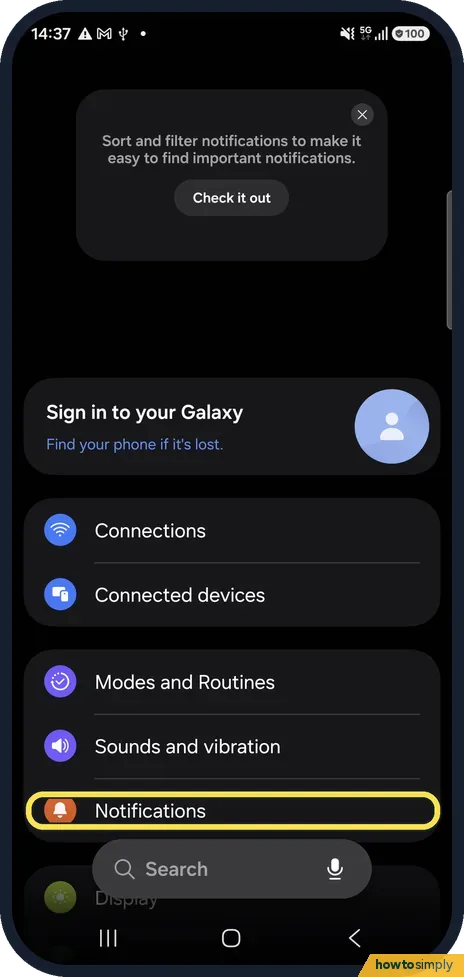
Open Notifications
Open Settings and tap Notifications.
- 2
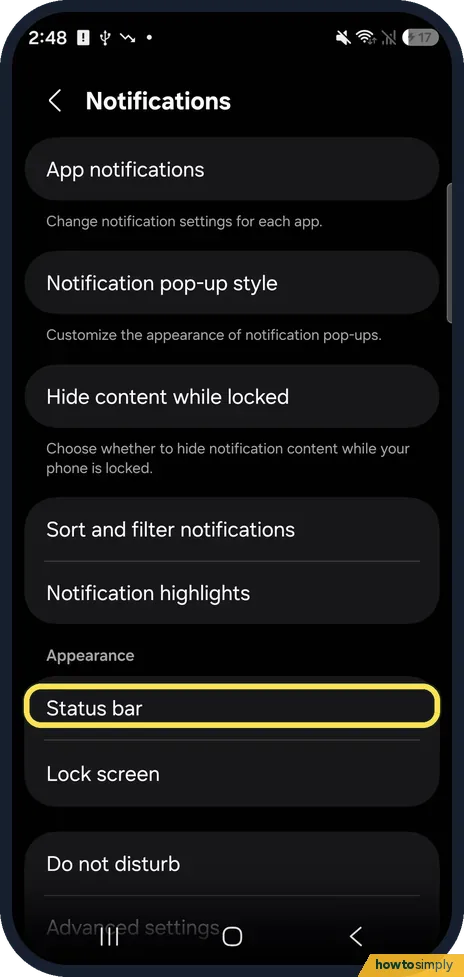
Tap Status bar
It is in the Appearance group.
- 3
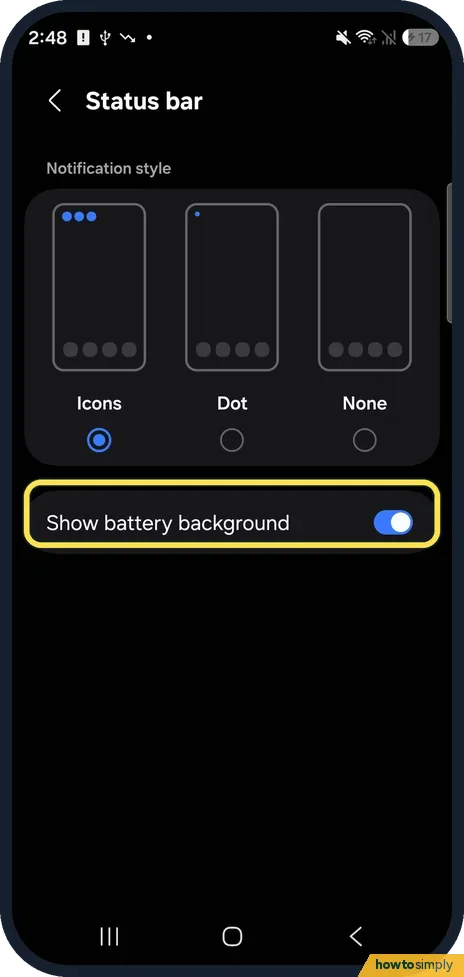
Find Show battery background
This is where Show battery percentage used to be. Switch it off and the battery shows as a plain number without the oval. On our Galaxy S26 it was on.
- 4
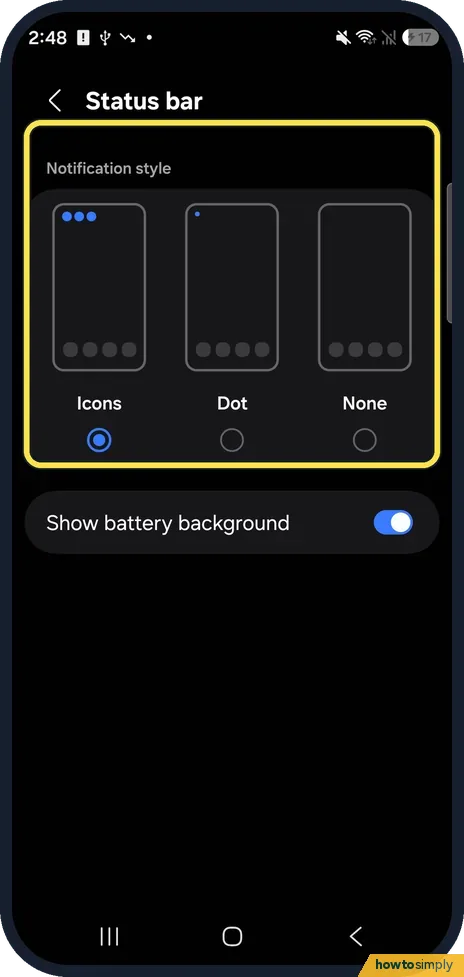
Choose the notification icons
Above it, Notification style sets whether app icons, a single dot or nothing appears in the status bar. On our Galaxy S26 the choices are Icons, Dot and None, and Icons was selected.
Where we checked these steps
- Galaxy A57 5G, One UI 8.5 (Android 16)
- Galaxy S26, One UI 9.0 (Android 17)
We have not checked other phones or older versions. If a menu looks different on yours, the notes under each step and the fixes further down cover the differences we found.
If this does not work
- The battery icon looks thinner and smaller That is not a fault on your side. Samsung says this is how One UI 8.5 now looks. Switch Show battery background off if you'd like only the number. It is that easy.
- The clock or icons vanish in one app Samsung says some apps set up the status bar area themselves, so the clock or icons can disappear while that app is open. Samsung suggests contacting the app developer for support.
- Status bar icons look stretched or the wrong size? Samsung says this can happen after changing the screen resolution between HD+, FHD+ and QHD+. Restart the phone first. If that does not help, check Settings, Software update for a fix, as Samsung expects a patch.
- The same notification icon shows twice? Samsung links this to Prioritize notifications. Open Settings, Notifications, Notification highlights, tap Prioritize notifications and turn off the switch at the top.
- Signal bars overlap next to the battery? With a physical SIM and an eSIM, the signal icons may overlap; Samsung says this is a new design in One UI 8.5. However, open the Quick panel and you will see them separately.
Good to know
Then there are older phones. Before One UI 8.5, the switch was called Show battery percentage.
Battery running down too fast? Samsung Galaxy battery draining fast? 6 fixes.
Turning off Show battery background hides the battery oval image. It has no effect on charging, battery life or battery health, and you can switch it back on at any time in the same place. The number shown is the charge level the phone reports; if it seems stuck below 100, a charging limit may be set. See Samsung Galaxy won't charge to 100: battery protection explained.
About this guide
Well, it is a little unsettling when a familiar switch simply vanishes after an update. After the One UI 8.5 update, many people went looking for the Show battery percentage switch and could not find it. It is not your phone: Samsung replaced it. The number stays; only the background shape around it can be switched off.
The Notifications and Status bar screenshots are from a Samsung Galaxy S26 with One UI 9.0 and Android 17; the Settings screen is from our Galaxy A57 with One UI 8.5. One UI 9 kept the One UI 8.5 layout: our S26 has no Show battery percentage switch either. We only looked at these screens on our phones and changed nothing.
- Device
- Android
- Shown on
- Samsung Galaxy A57 5G (SM-A576B), One UI 8.5, Android 16, Samsung Galaxy S26 (SM-S942N, Korean model), One UI 9.0, Android 17 (build CP2A.260605.016.S942NKSU5BZJB)
- App
- Settings
- Path
- Settings › Notifications › Status bar › Show battery background
- Real screenshots
- 4 of 4 steps
- What we did
- Observed: looked at each screen, changed nothing
- Checked
- November 2026
- Sources
- 1 official, linked below
What changed: rewritten for One UI 8.5 with our own screenshots. The battery percentage switch is gone; the number sits in the icon.
Sources
Links checked October 2026. Menus and features can change with updates.Did this guide work for you?
Sorry about that. What happened?
Get new guides by email
Our newest guides, sent to your inbox. Free, and you can unsubscribe in one click.
We'll email you to confirm. How we use your email
Follow howtosimply on Facebook
We share our new guides on our Facebook page, so the next fix turns up in your feed.
Follow on Facebook