Samsung Galaxy screen brightness keeps changing? 5 causes
- Shown on
- Galaxy A57 (One UI 9) and Galaxy S26 (One UI 9.0)
- Checked
- November 2026
- Real screenshots
- 4 of 5 steps
Quick answer
Adaptive brightness changes the screen with the light around you; turn it off under Settings, Display. Power saving, a hot phone and a nearly empty battery also dim the screen. Eye comfort shield changes the colour, not the brightness.
Watch these steps
 Watch on YouTubeA video of this task from our YouTube channel · opens YouTube
Steps
- 1
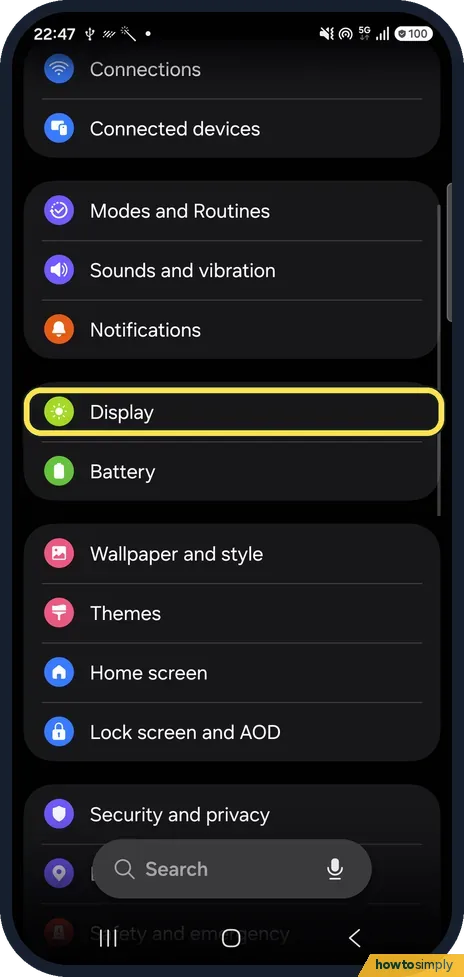
Open Display
Open Settings and tap Display.
- 2
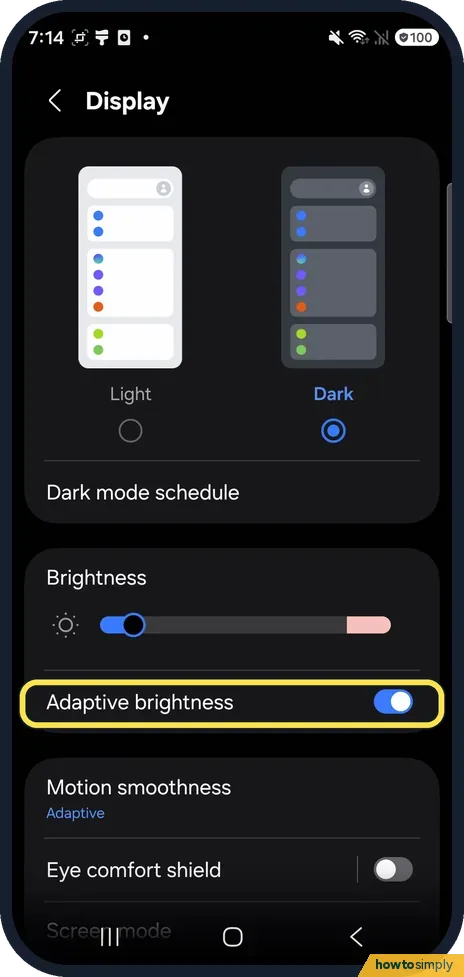
Switch off Adaptive brightness
It was on on our phone. Off, the brightness stays where you set the slider above it. It can also be switched from the quick panel.
- 3
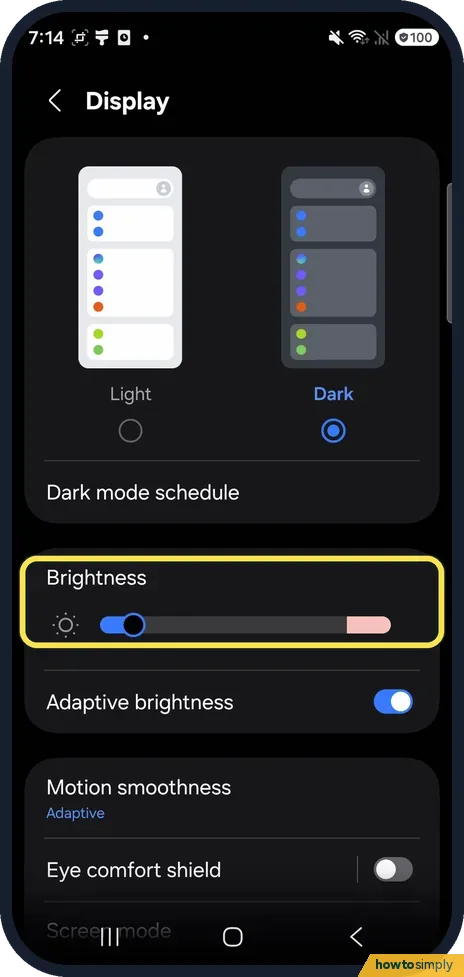
Set the level yourself
Drag the Brightness slider. Samsung notes a prompt to turn Adaptive brightness back on may appear once after a restart if you set it above 90%.
- 4
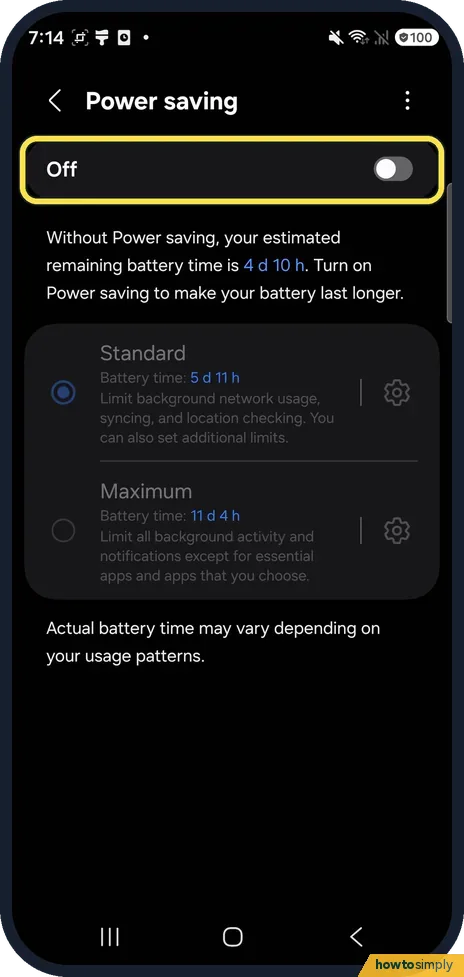
Check Power saving
Settings, Battery, Power saving lowers brightness to save battery. It was off on ours.
- 5
Let a hot phone cool down
The phone dims itself when it overheats, for example in the sun, while charging or gaming, or when the battery is critically low. This is protection, not a fault.
Illustration
Where we checked these steps
- Galaxy A57, One UI 9 (Android 17)
- Galaxy S26, One UI 9.0 (Android 17)
We have not checked other phones or older versions. If a menu looks different on yours, the notes under each step and the fixes further down cover the differences we found.
If you do not see this option
- Adaptive brightness is not where you expect Samsung says you can also swipe down, touch and hold the Brightness slider in the quick panel and turn Adaptive brightness off there. Source: What to do if the screen brightness changes automatically on your Samsung Galaxy device
- The Power saving settings are greyed out Samsung says you can only change the Power saving settings while Power saving is off. Source: Stop the screen brightness from dimming on your Galaxy phone or tablet
If this does not work
- The screen dims or goes dark by itself Samsung says a case or screen cover over the proximity sensor near the top of the screen can dim or turn off the screen. If you have just put on a new case or screen protector, look there first. Clean the sensor with a dry microfibre cloth.
- It dims when the battery is low Nothing is broken here. Samsung says brightness may drop to stretch the battery when the level is very low. Charge the phone. Its brightness page adds that the phone can change brightness to protect itself when it's overheating or working hard.
- The screen dims, then switches off? That may be Screen timeout, which turns the screen off automatically after a set time. Samsung says to set a longer time under Settings, Display, Screen timeout; the longest is 10 minutes. Samsung lists Auto lock when screen turns off, under Lock screen, Secure lock settings, as a separate setting for how long the phone stays unlocked after the screen switches off.
- It dims while you are reading? Samsung suggests Keep screen on while viewing, which you can find by searching Settings. On older software it may be called Smart stay.
Good to know
Eye comfort shield makes the screen warmer and yellower, which can look darker. It was off on ours: how to turn on Eye comfort shield on a Samsung Galaxy phone.
Even darker than the lowest setting? How to use Extra dim on a Samsung Galaxy phone.
With Adaptive brightness off, you raise or lower the brightness yourself depending on your surroundings. To return to automatic control, switch Adaptive brightness on again in Display, or swipe down the quick panel, touch and hold the Brightness slider and switch it there, as Samsung's brightness page shows.
About this guide
It is tiring to set the screen just right and watch it go darker on its own a minute later. Samsung says the brightness follows the surrounding light, the phone's temperature and the battery level. You can switch off Adaptive brightness. The other changes protect the phone when it's overheating or working hard, or make the battery last when it's nearly flat.
- Device
- Android
- Shown on
- Samsung Galaxy A57 (SM-A576B), One UI 9, Android 17 (build A576BXXU6BZIE), Samsung Galaxy S26 (SM-S942N, Korean model), One UI 9.0, Android 17 (build CP2A.260605.016.S942NKSU5BZJB)
- App
- Settings
- Real screenshots
- 4 of 5 steps
- What we did
- Observed: looked at each screen, changed nothing
- Checked
- November 2026
- Sources
- 3 official, linked below
The screenshots are from a Samsung Galaxy S26 with One UI 9.0 and Android 17, in Dark mode, apart from step 1, from our Galaxy A57 with One UI 9.0. The names of menus, the paths to them and how the screens look can change with the model and software version. We only looked at these screens on our phones and changed nothing.
Sources
Links checked October 2026. Menus and features can change with updates.Did this guide work for you?
Sorry about that. What happened?
Get new guides by email
Our newest guides, sent to your inbox. Free, and you can unsubscribe in one click.
We'll email you to confirm. How we use your email
Follow howtosimply on Facebook
We share our new guides on our Facebook page, so the next fix turns up in your feed.
Follow on Facebook