How to zoom in on a Samsung Galaxy screen with Magnification
- Shown on
- Galaxy A57 5G (One UI 8.5) and Galaxy S26 (One UI 9.0)
- Checked
- November 2026
- Real screenshots
- 8 of 8 steps
- Where it is
- Settings › Accessibility › Vision enhancements › Magnification
Quick answer
Open Settings, Accessibility, Vision enhancements, Magnification and switch on Magnification shortcut. Then use the shortcut, tap inside the outline to zoom, pinch to change the zoom and swipe with two fingers to move around.
Steps
- 1
Open Vision enhancements
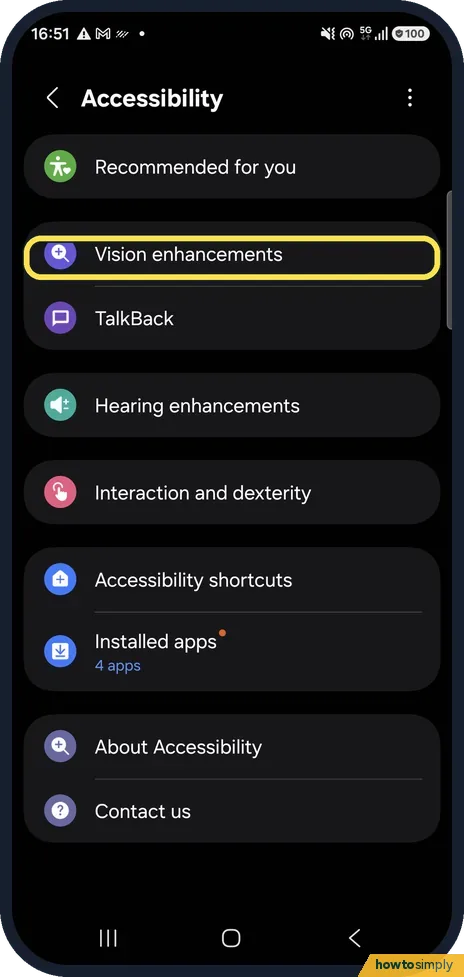
Open Settings, Accessibility and tap Vision enhancements.
- 2
Open Magnification
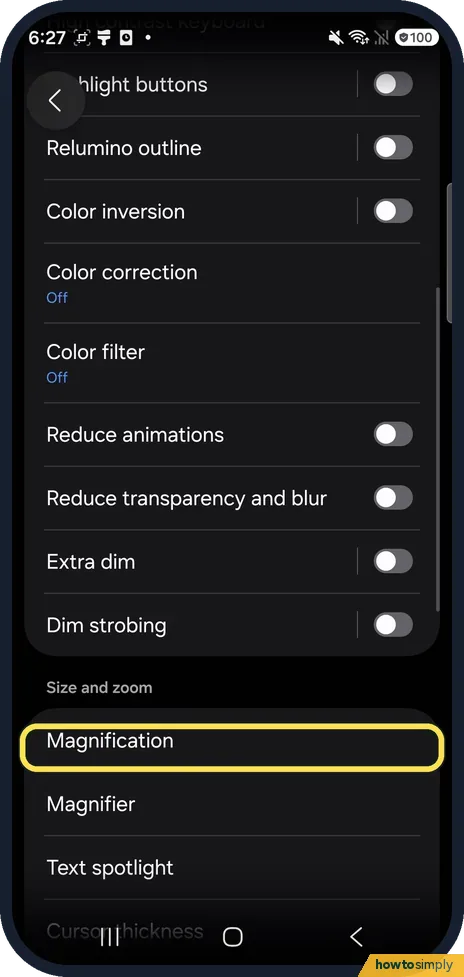
Scroll down the Vision enhancements page and tap Magnification, under Size and zoom.
- 3
Tap Magnification shortcut
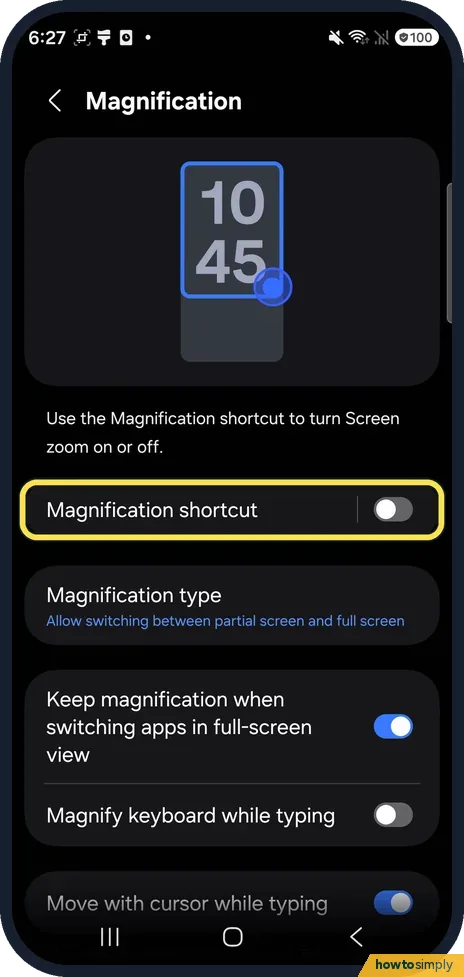
The Magnification page has a preview at the top. Magnification shortcut was off on ours; tap the row.
- 4
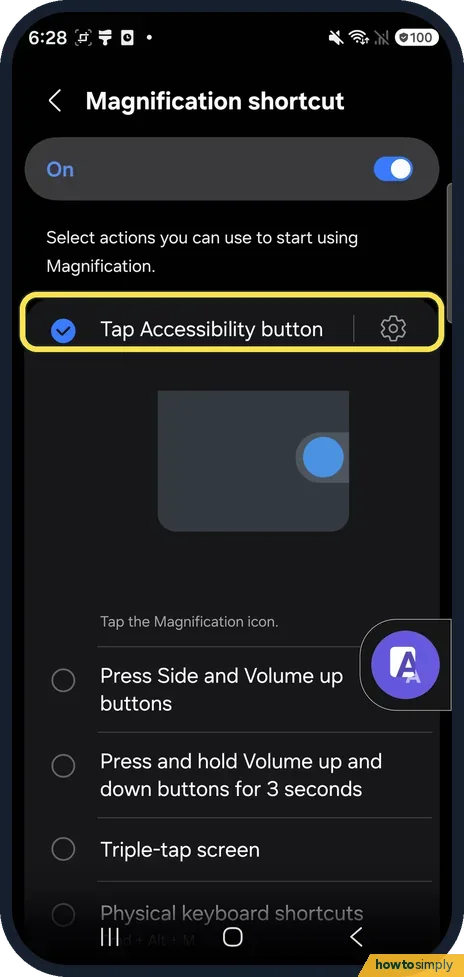
Switch it on and pick how to start it
Switch on the shortcut at the top, then tick how you want to start it: Tap Accessibility button, Press Side and Volume up buttons, Press and hold Volume up and down buttons for 3 seconds, Triple-tap screen or Physical keyboard shortcuts. In our picture Tap Accessibility button is ticked.
- 5
Start magnification
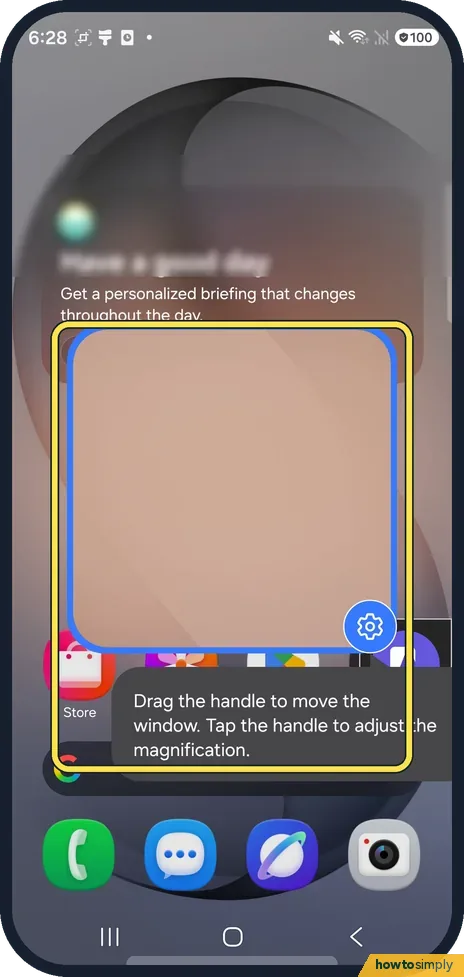
Use your shortcut. On ours, tapping the floating Accessibility button put a blue outline window over the Home screen with a settings handle, and a tip: Drag the handle to move the window. Tap the handle to adjust the magnification.
- 6
Zoom in and move around
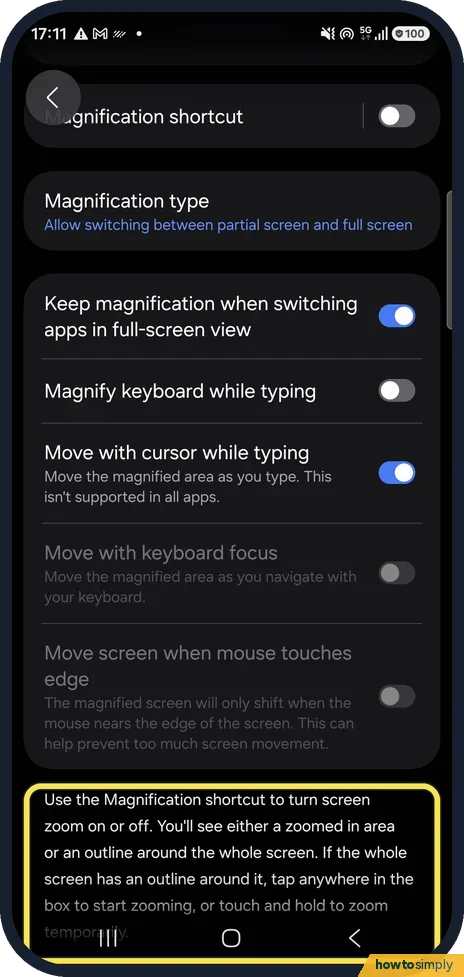
The page explains it: use the shortcut, then tap anywhere inside the outline to zoom, or touch and hold to zoom only while you hold. Pinch to change the zoom, swipe with two fingers to scroll.
- 7
Choose partial or full screen
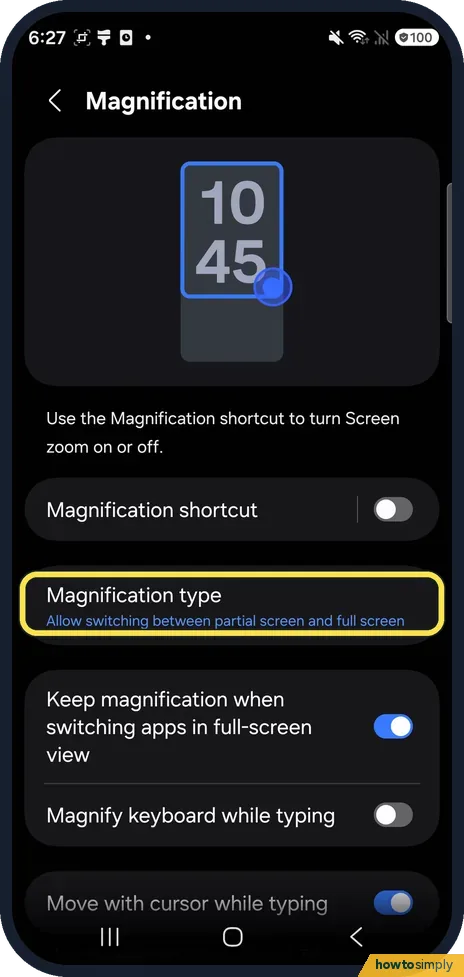
Magnification type decides whether a window magnifies part of the screen or the whole screen is enlarged, and lets you switch between them.
- 8
Magnify the keyboard too
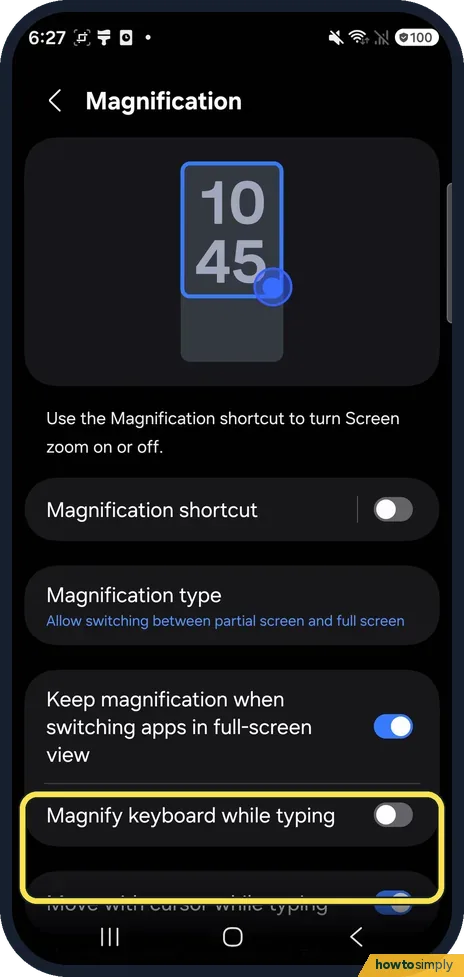
Magnify keyboard while typing is off on ours, so the keyboard stays normal size. Move with cursor while typing makes the zoomed area follow what you type.
Where we checked these steps
- Galaxy A57 5G, One UI 8.5 (Android 16)
- Galaxy S26, One UI 9.0 (Android 17)
We have not checked other phones or older versions. If a menu looks different on yours, the notes under each step and the fixes further down cover the differences we found.
If you do not see this option
- There is no Vision enhancements page Google's route on other Android phones is Settings, Accessibility, Magnification. Source: Use magnification on your screen
- You only want to zoom for a moment Google says to use the shortcut, then touch and hold the screen; drag to move and lift your finger to stop. Source: Use magnification on your screen
If this does not work
- Tapping does not zoom It is usually just where the tap landed. Google says to tap any part of the screen apart from the keyboard or the navigation bar.
- It zooms into a window, not the whole screen Google says to switch under Magnification, Magnification type, between full screen and partial screen.
- Taps feel slow after setting it up? Google says the triple-tap shortcut may slow the phone down: single taps take slightly longer because the phone checks whether they are part of a triple-tap. Pick a button shortcut instead if that bothers you.
- Stuck zoomed in? It can feel as if the phone has pressed its nose right up against the glass, but getting back out is simple. Google says to use your magnification shortcut again to stop it. With a temporary zoom, simply lift your finger.
Good to know
If everything is just a little too small, larger text may be enough: how to make text bigger on a Samsung Galaxy phone.
Magnification only changes what you see while it is on; apps, text size and layout stay the same. To turn the feature off completely, go back to the Magnification page and switch off Magnification shortcut. The shortcut you chose is then free again, for example the Side and Volume up buttons. I hope the small print on your screen is a lot friendlier from now on.
About this guide
Some of the text on a phone is so small you end up holding the phone at arm's length like a menu in a dim restaurant, and plenty of apps will not let you pinch it bigger. Magnification lets you zoom in to see your screen better. It is different from making text bigger, which changes the whole phone, and that is why it is handy when you only need a closer look now and then. We switched the shortcut on for the pictures and back off afterwards.
- Device
- Android
- Shown on
- Samsung Galaxy A57 5G (SM-A576B), One UI 8.5, Android 16, Samsung Galaxy S26 (SM-S942N, Korean model), One UI 9.0, Android 17 (build CP2A.260605.016.S942NKSU5BZJB)
- App
- Settings
- Path
- Settings › Accessibility › Vision enhancements › Magnification
- Real screenshots
- 8 of 8 steps
- Checked
- November 2026
- Sources
- 1 official, linked below
The screenshots are from a Samsung Galaxy S26 with One UI 9.0 and Android 17, in Dark mode, apart from steps 1 and 6, from our Galaxy A57 with One UI 8.5. Other Galaxy phones on One UI 8.5 and 9 use similar menus; on older One UI versions a few names and positions differ. The Home screen shows our wallpaper.
Sources
Links checked October 2026. Menus and features can change with updates.Did this guide work for you?
Sorry about that. What happened?
Get new guides by email
Our newest guides, sent to your inbox. Free, and you can unsubscribe in one click.
We'll email you to confirm. How we use your email
Follow howtosimply on Facebook
We share our new guides on our Facebook page, so the next fix turns up in your feed.
Follow on Facebook