How to turn on voice typing on Android (Gboard)
- Shown on
- Pixel 10a
- Software
- Android 17More Android 17 guides
- Checked
- October 2026
- Real screenshots
- 5 of 5 steps
- Where it is
- Gboard settings › Voice typing › Use voice typing
Quick answer
Open Gboard settings, tap Voice typing and switch on Use voice typing. Then tap the microphone at the top right of the keyboard, allow Gboard to record audio the first time, and speak when it says "Speak now".
Steps
- 1
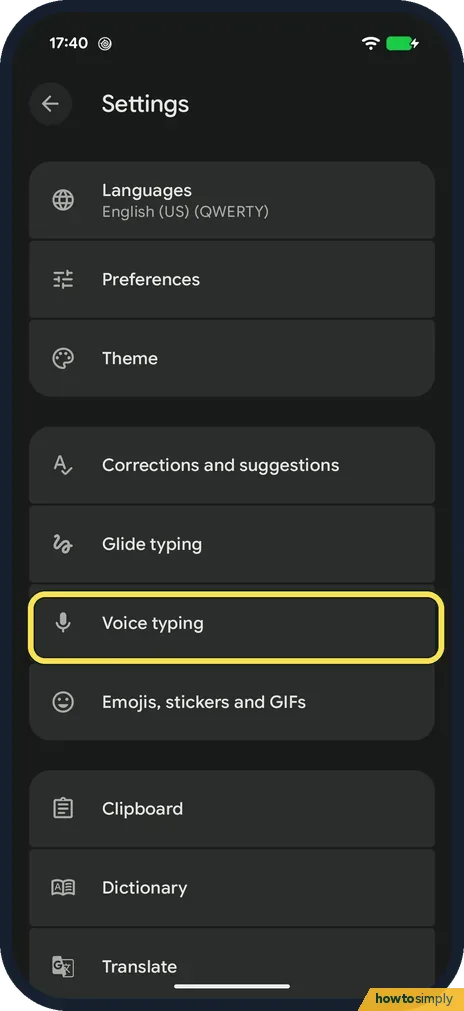
Open Gboard settings
Settings, System, Keyboard, Keyboard apps, Gboard (or search Settings for "Gboard"). Tap Voice typing.
- 2
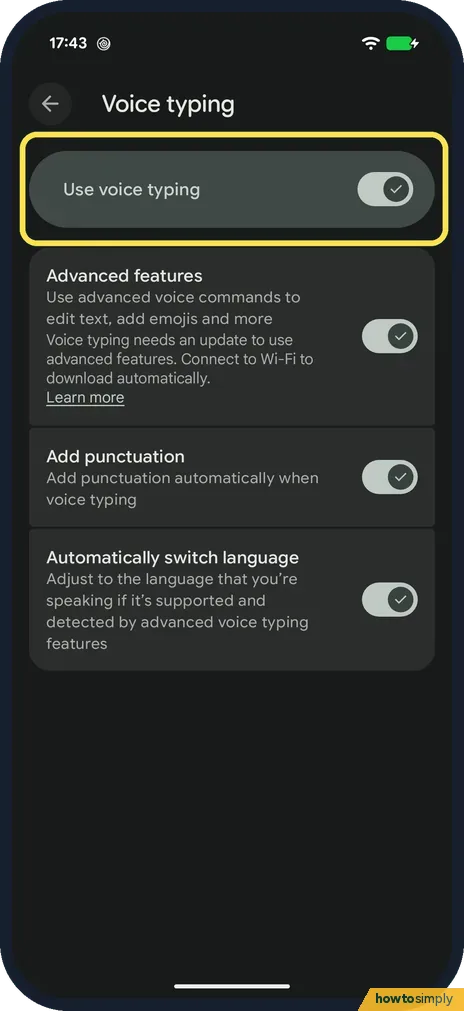
Switch on Use voice typing
Ours was already On, as were Add punctuation and Automatically switch language. Advanced features needed an update over Wi-Fi first. The Redmi had Faster voice typing instead (download dictation, Off).
- 3
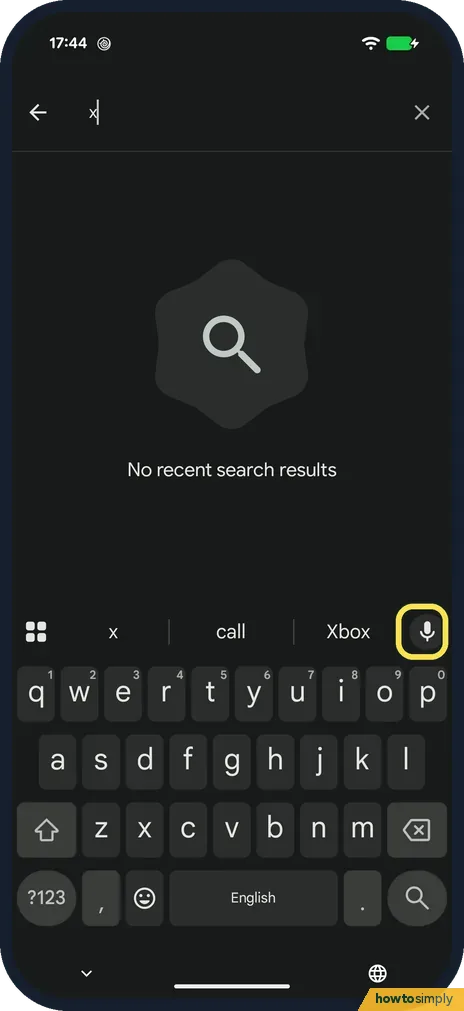
Tap the microphone
Open the keyboard in any text box. The microphone is at the right end of the suggestion strip.
- 4
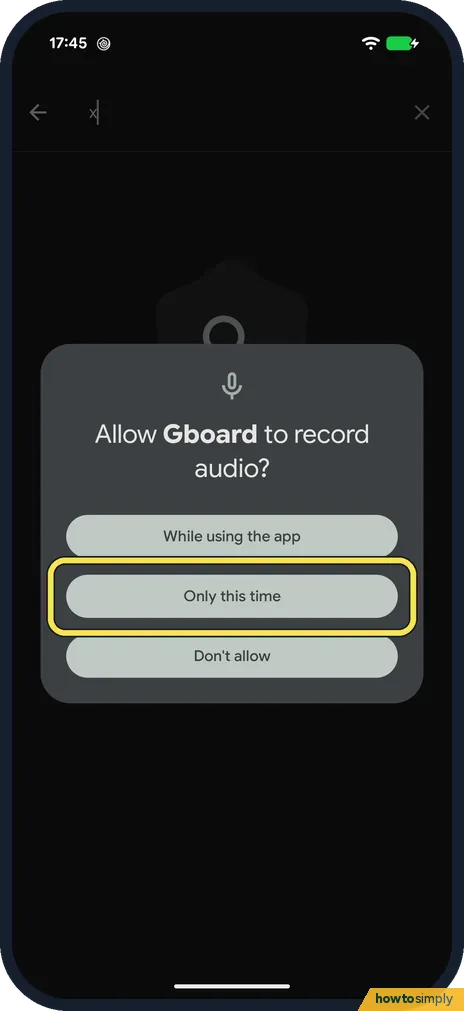
Allow Gboard to record audio
The first time, Android asks. While using the app keeps the permission; Only this time asks again later. Ours then asked for access to contacts and accounts, which we did not allow, and voice typing still started.
- 5
Speak
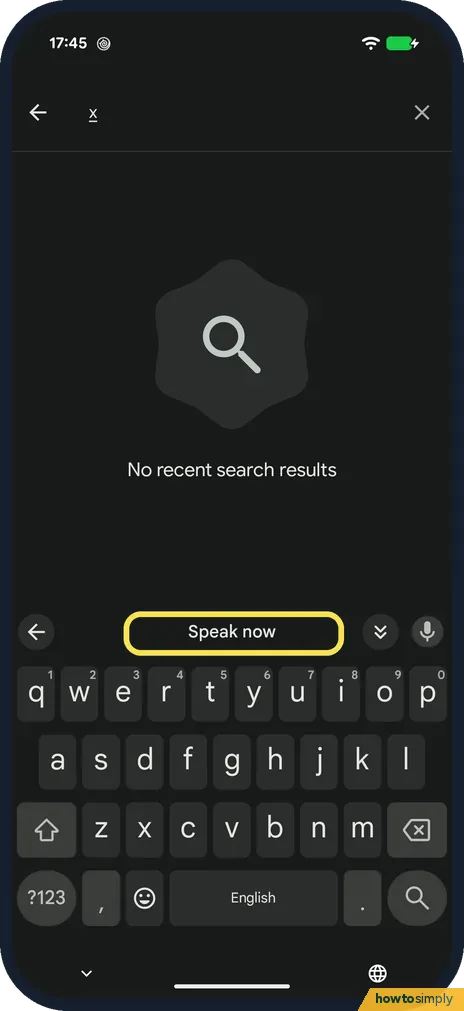
The suggestion strip says "Speak now". Talk, then tap the microphone again to stop.
If you do not see this option
- No microphone on the keyboard? Make sure Voice typing is turned on (step 2). If another keyboard takes over from Gboard, you can swap back. Source: Type with your voice
- Mic greyed out or nothing happens? Check that Gboard has microphone access: Settings, Apps, Gboard, Permissions, Microphone. Source: Type with your voice
If this does not work
- Wrong language? Talk-to-text only works in some languages. Add the one you speak: add a keyboard language on Android.
- Without internet? Download the language for offline use in the Voice typing settings (Faster voice typing on our Redmi).
- Advanced voice typing not working on a new Pixel? Google says that on a brand-new Pixel, the updates it needs can take a few hours to arrive. Stay on Wi-Fi, restart the phone and leave it charging overnight, then try again.
- Advanced features greyed out? Google says the Advanced voice typing features only work when your main Gboard language matches the phone's language. Check both match, or carry on with standard voice typing.
- Microphone still does nothing? The first fix here is the gentle one. Google suggests clearing Gboard's cache in its storage settings. If the issue persists, Google says to tap Clear data, which resets Gboard to its default state.
Good to know
More Gboard settings: change Gboard settings on a Google Pixel.
You can speak instead of typing almost anywhere a keyboard works. That matters for private messages: Google says Gboard's talk-to-text sends your voice to Google to turn into text. To stop using it, switch Use voice typing off again, which also removes the microphone from the keyboard, or take away the microphone permission under Settings, Apps, Gboard, Permissions. For other keyboard changes, see change Gboard settings on a Google Pixel.
About this guide
Talking is often easier than tapping out a long message, whether your hands are full, your thumbs are tired or typing is simply hard for you. Gboard can turn your speech into text almost anywhere you'd normally type. Pixels use Gboard, and so does our Redmi Note 15 Pro 5G (HyperOS 3.0.308.0, Android 16).
- Device
- Android
- Shown on
- Google Pixel 10a, Android 17 (build CP3A.261005.005)
- App
- Gboard settings
- Path
- Gboard settings › Voice typing › Use voice typing
- Real screenshots
- 5 of 5 steps
- Checked
- October 2026
- Sources
- 2 official, linked below
The screenshots are from our Google Pixel 10a with Android 17 (build CP3A.261005.005), in Dark mode, taken on 18 October 2026. We opened the keyboard in the Settings search box, said nothing and cancelled.
Sources
Links checked October 2026. Menus and features can change with updates.Did this guide work for you?
Sorry about that. What happened?
Get new guides by email
Our newest guides, sent to your inbox. Free, and you can unsubscribe in one click.
We'll email you to confirm. How we use your email
Follow howtosimply on Facebook
We share our new guides on our Facebook page, so the next fix turns up in your feed.
Follow on Facebook