You are viewing the iOS 26 version of this guide, recorded on iOS 26.7.1 (iPhone 14 Pro) on 5 October 2026. It is kept as it was and not updated. See the iOS 27 version.
howtosimply.com/guides/how-to-turn-on-low-power-mode-on-an-iphone/ · Checked 5 October 2026 · iPhone 14 Pro · iOS 26.7.1
In this guide
Open Settings, tap Battery and switch on Low Power Mode at the bottom of the page. The battery icon turns yellow, and the mode switches off by itself when the phone is charged to 80%.
2 of 4 steps with real screenshots · 1 official source below
- Device
- iPhone
- Shown on
- iOS 26.7.1 (iPhone 14 Pro)
- App
- Settings
- Path
- Settings › Battery › Low Power Mode
- Real screenshots
- 2 of 4 steps
- Checked
- 5 October 2026
- Sources
- 1 official, linked below
Step by step
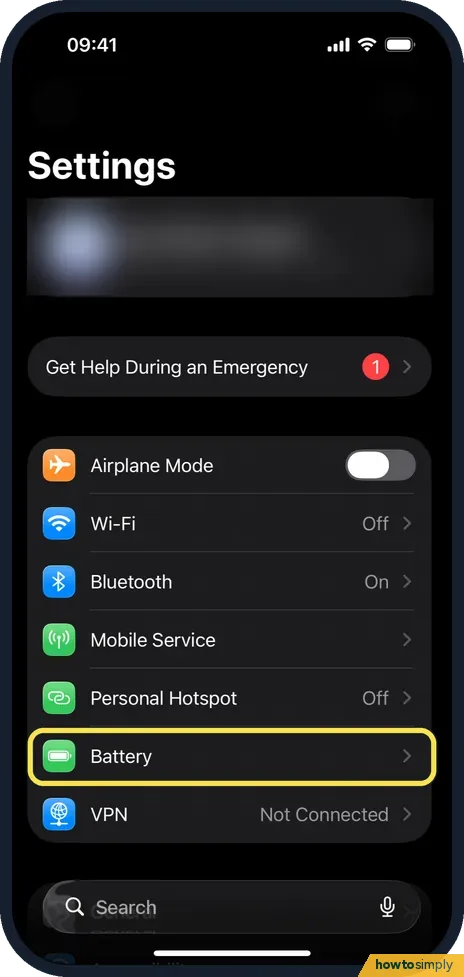
Open Settings and tap Battery
Battery has a green icon in the main list.
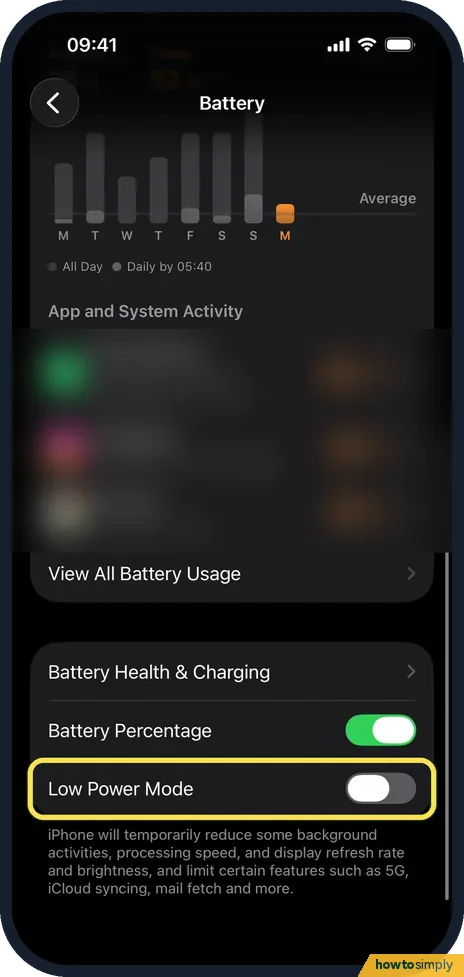
Tap Power Mode and switch on Low Power Mode
On our iPhone 14 Pro with iOS 26.7.1 the Low Power Mode switch is at the bottom of the Battery page. The battery symbol in the status bar turns yellow.
Check the battery symbol
With Low Power Mode on, the battery symbol in the status bar turns yellow. On our iPhone 17e it was yellow on the Home Screen, at the top right. We switched Low Power Mode off again afterwards.
Add it to Control Centre
Open Control Centre, touch and hold an empty area, tap Add a Control and type Low Power in the search field. On ours, Low Power Mode was listed under Utilities. Tap it to add it. After that it is one tap away.
If this does not work
- Low Power Mode turned itself off. Apple says it turns off when the iPhone is charged to 80% or higher. Source: Use Low Power Mode to save battery life on your iPhone
- Low Power Mode turned on by itself below 20%? Apple says that happens when the iPhone supports Adaptive Power and Adaptive Power is on. Source: Use Low Power Mode to save battery life on your iPhone
- New emails only arrive when you open Mail? Apple lists email fetch among the things Low Power Mode turns off, along with automatic downloads and Background App Refresh. If you need it, turn the mode off. Source: Use Low Power Mode to save battery life on your iPhone
- The screen looks dimmer than usual? That is expected: Apple says Low Power Mode reduces display brightness and turns off some visual effects. Source: Use Low Power Mode to save battery life on your iPhone
About this guide
Low Power Mode cuts down background work so the battery lasts longer. It also turns off email fetch and some visual effects and reduces display brightness. Apple pitches it for when your battery is running low. The pictures are our own, from an iPhone 14 Pro and an iPhone 17e, both on iOS 27.0.1 in dark mode.
Good to know
The iPhone offers Low Power Mode by itself at 20% and again at 10%.
While it is on, Auto-Lock is set to 30 seconds, iCloud Photos is paused temporarily, and on iPhone 12 and 13 5G is kept on for streaming and large downloads.
To turn it on automatically, open the Shortcuts app, tap Automation, choose Battery Level and add the action Set Low Power Mode.
If the battery drains fast all the time, see why your phone battery drains fast and how to check battery health.
In short: Settings, Battery, Power Mode, Low Power Mode.
Links checked in October 2026. Menus and features can change after software updates. These steps match the version named at the top.
📷 See real photos from the iPhone 14 Pro in our Camera Lab, next to 10 other phones.
Did this guide work for you?
Sorry about that. What happened?
Get new guides by email
Our newest guides, sent to your inbox. Free, and you can unsubscribe in one click.
We'll email you to confirm. How we use your email
Follow howtosimply on Facebook
We share our new guides on our Facebook page, so the next fix turns up in your feed.
Follow on Facebook