How to turn on clipboard history on Windows 11
- Shown on
- Microsoft Cloud PC
- Software
- Windows 11
- Checked
- October 2026
- Real screenshots
- 5 of 6 steps
- Where it is
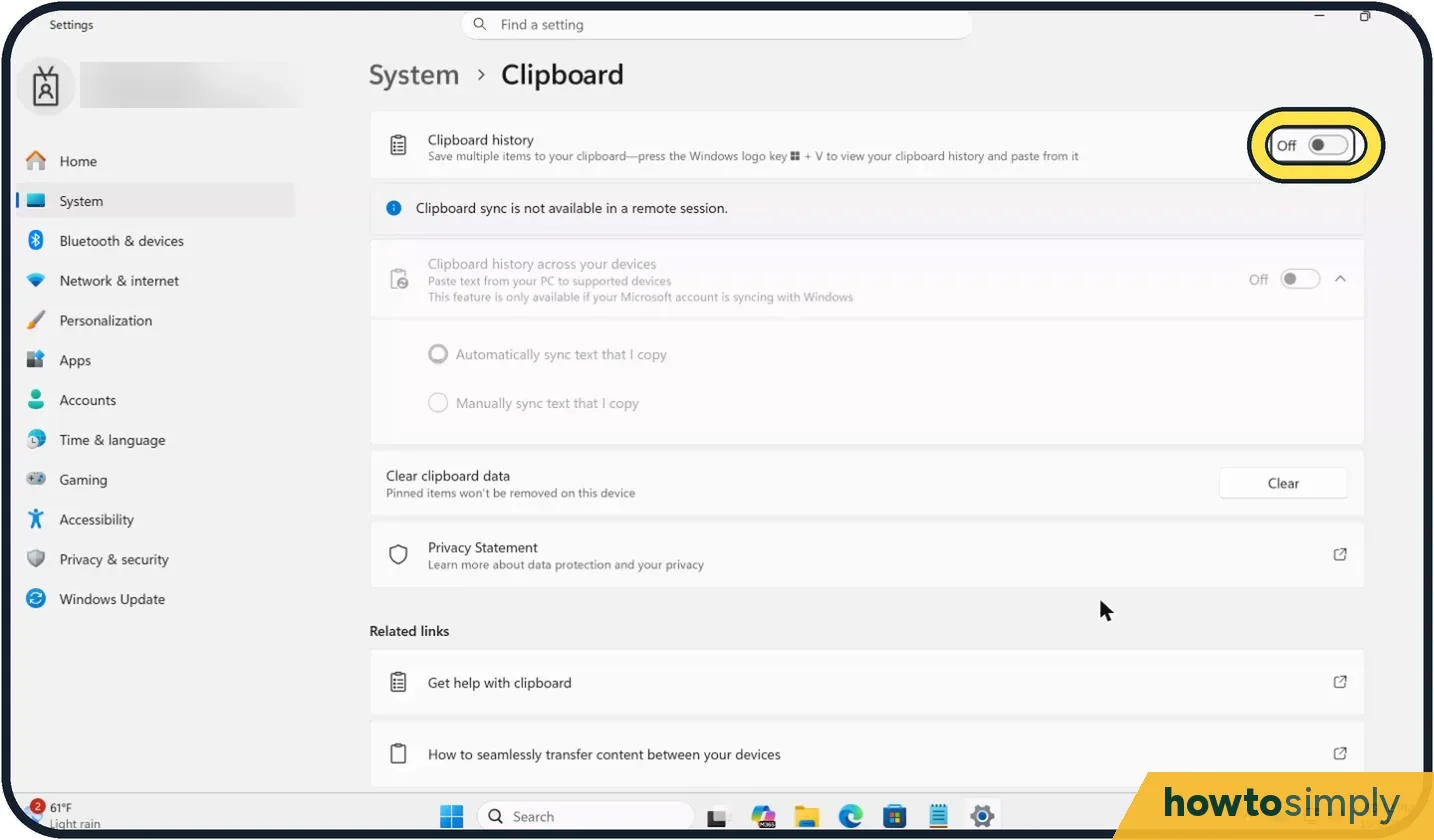
- Settings › System › Clipboard › Clipboard history On
 Real screenshot · Microsoft Cloud PC, Windows 11
Quick answer
Open Settings, System, Clipboard and switch on Clipboard history, or press Windows + V and click Turn on. From then on, Windows + V shows the things you copied; click one to paste it. Pin entries you want to keep.
Steps
- 1
Open the Clipboard settings
Press Windows + I, click System and then Clipboard. On our PC Clipboard history was Off.
- 2
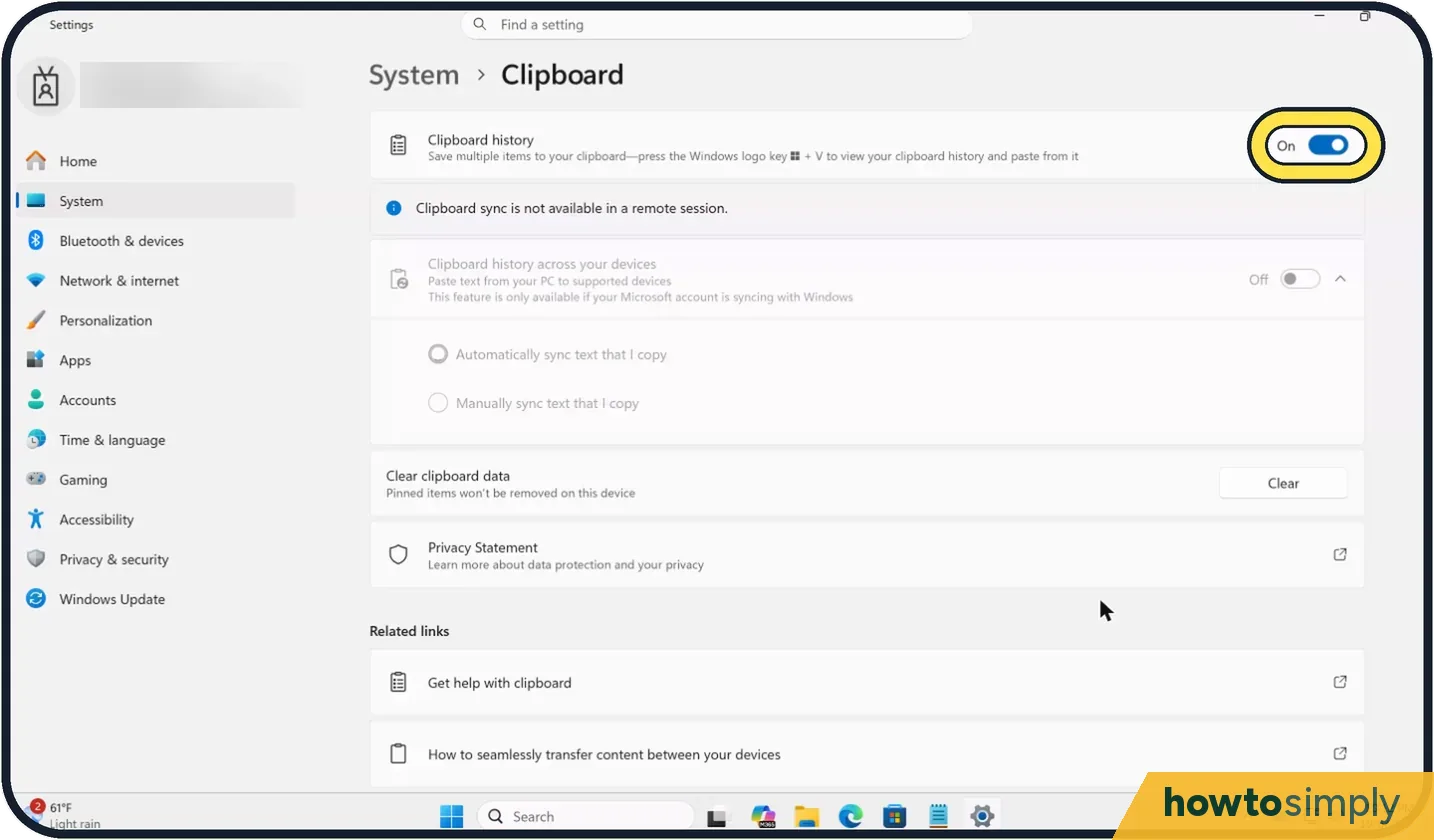
Switch on Clipboard history
Click the switch so it reads On. Pressing Windows + V and clicking Turn on does the same.
- 3
Copy as usual
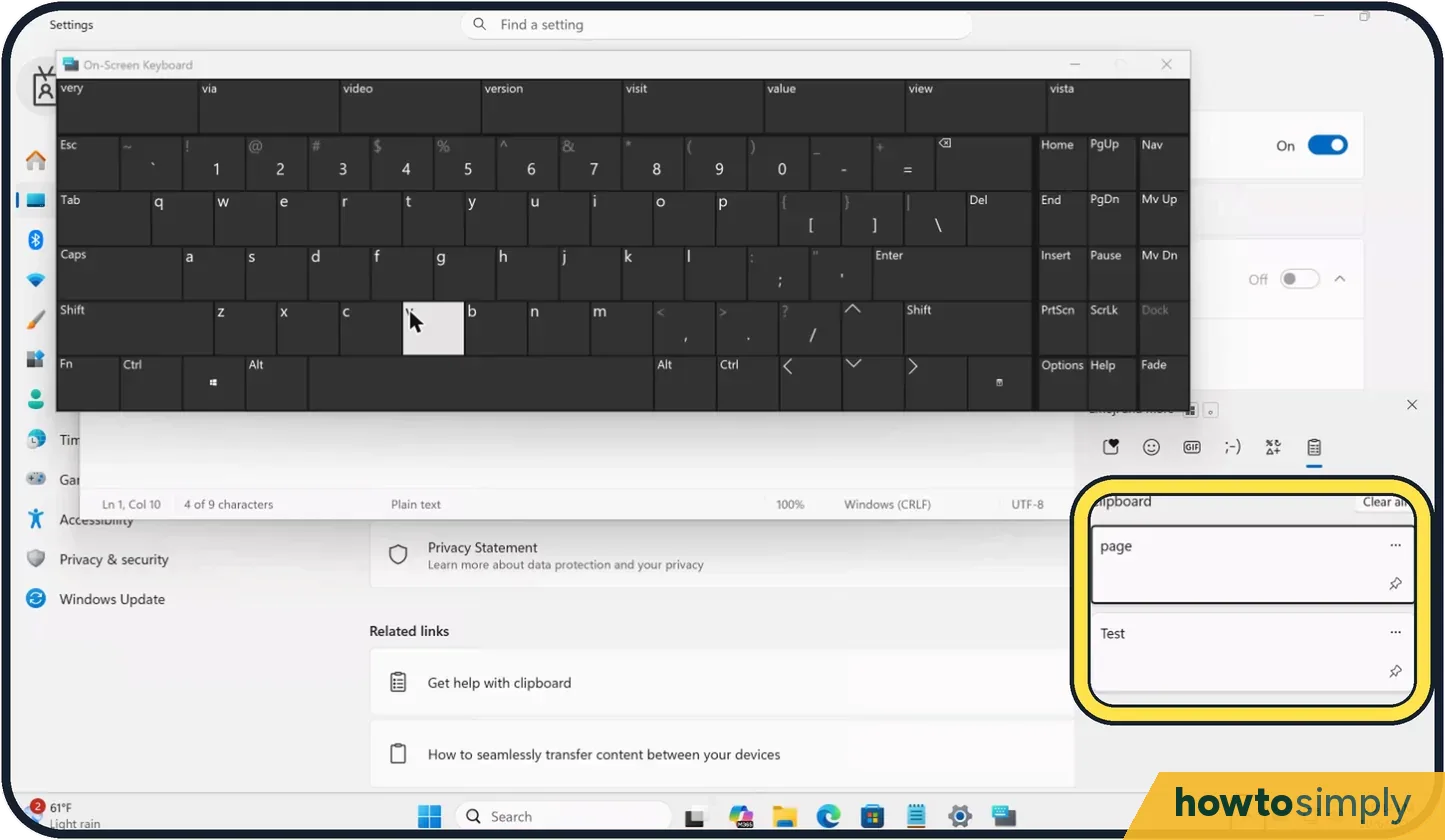
Use Ctrl + C. Each copied text or picture is added to the history. We copied two words in Notepad; they appear as page and Test in the next step.
- 4
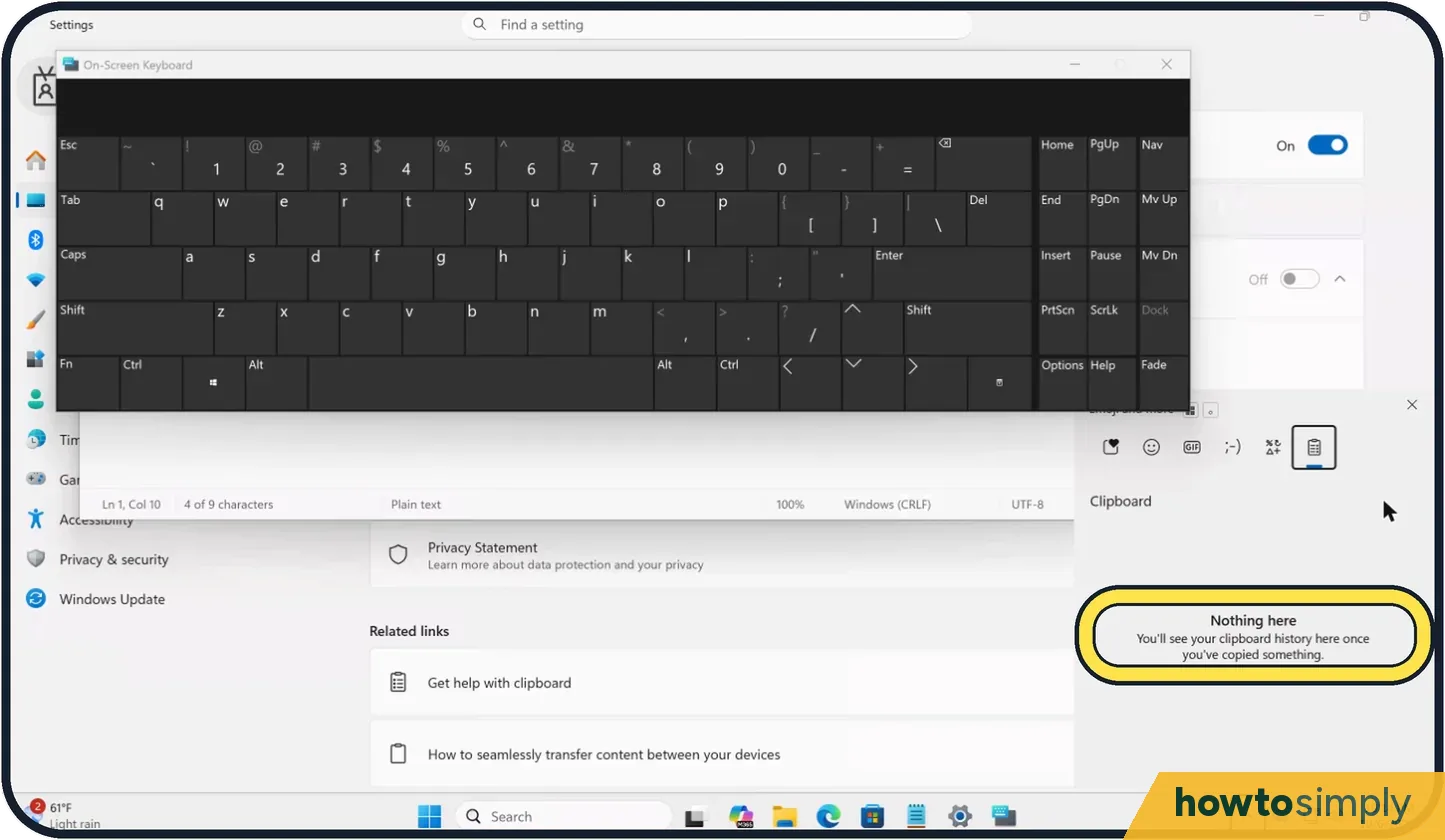
Press Windows + V
Click where you want to paste and press Windows + V. The newest entry is at the top; click one to paste it. On our Cloud PC we pressed the keys on the On-Screen Keyboard, which you see above the panel.
- 5
Pin or delete an entry
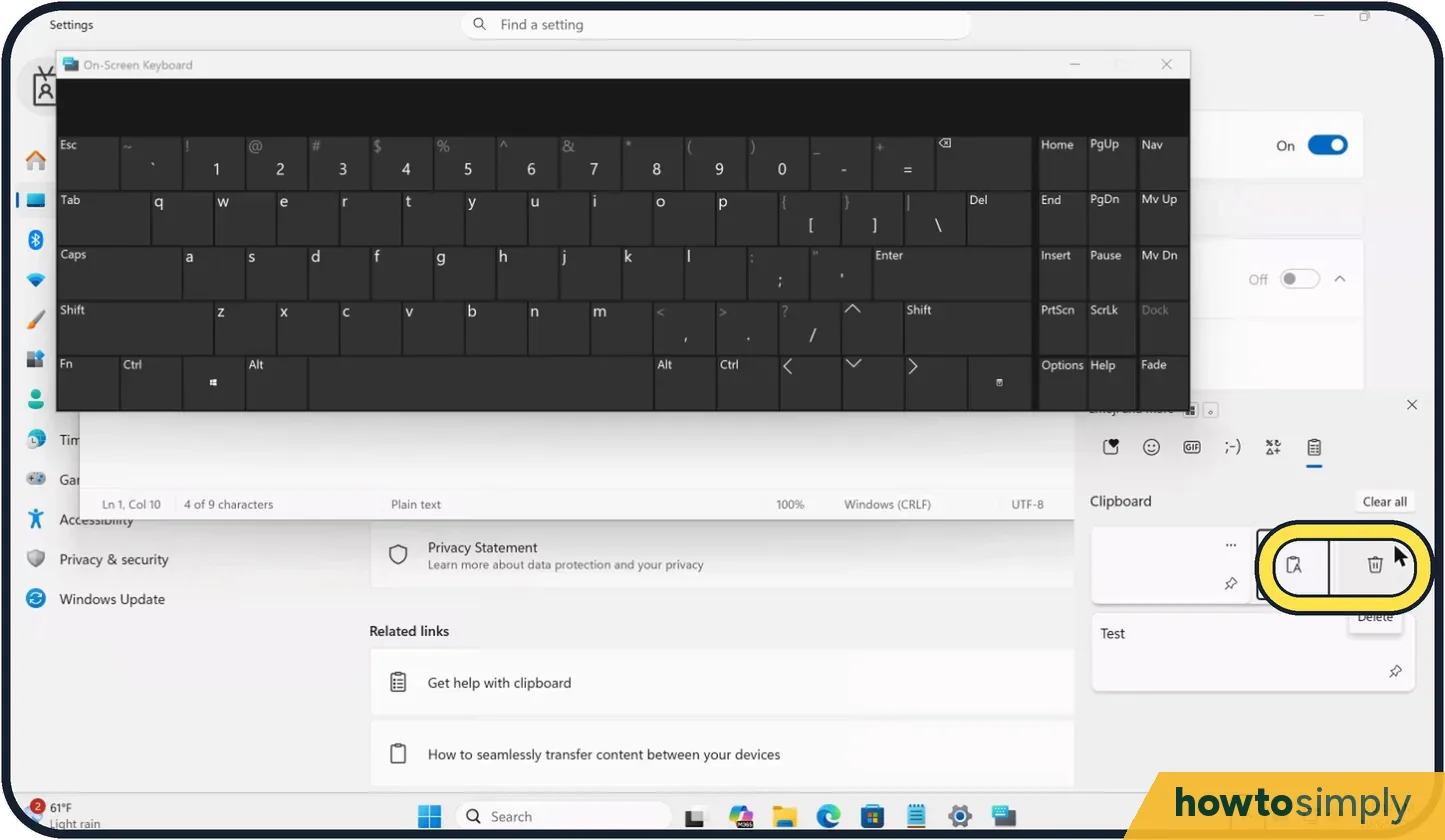
Click the three dots on an entry. On our Cloud PC two icons appeared: a clipboard icon and a bin icon labelled Delete. The pin icon keeps an entry when the rest is cleared.
- 6
Clear the history
Click Clear all at the top right of the panel, where it shows in the pictures for steps 4 and 5. Pinned entries stay. Our panel then showed Nothing here.


If you do not see this option
- Clipboard history across your devices cannot be used. Our Cloud PC said clipboard sync is not available in a remote session. On other PCs, Microsoft says sync needs the same Microsoft or work account on every device. Source: Using the clipboard
- There is no Delete next to an entry. Microsoft says to select See more (…) next to the item and then Delete. Source: Using the clipboard
- Clipboard history stays off on a work PC Microsoft's Allow Clipboard History policy lets an organisation decide this: when the policy is disabled, the history of clipboard contents isn't stored. Ask your IT team. Source: Experience Policy CSP
If this does not work
- Windows + V shows no history. Microsoft says to check that clipboard history is on: press Windows + V and select Turn on. Things copied before that are not in it.
- The history is empty after a restart. Microsoft says it is cleared each time the PC restarts, except for pinned items. Pin what you want to keep.
- Copied text does not reach your other PC. Microsoft says to switch on Clipboard history across your devices and select Automatically sync text that I copy. With the manual option you have to press the sync button on each item.
Good to know
The history holds up to 25 entries of up to 4 MB each, as text, formatted text or pictures. It is cleared when the PC restarts, except for pinned entries.
"Clipboard history across your devices" on the same Settings page shares copied text between PCs; Microsoft says it is tied to your Microsoft account or work account, so use the same sign-in on all of them. Our Cloud PC says clipboard sync is not available in a remote session, so we could not show it. Leave it off if you copy passwords.
The Clear button under Clear clipboard data on the Settings page wipes everything apart from pinned items, both on the PC and in the cloud.
About this guide
Anything you copy on your PC goes onto the clipboard, ready to paste. With clipboard history you can paste multiple items you copied, including text and pictures.
- Device
- Windows
- Shown on
- Windows 11 Enterprise 25H2 (build 26200.9457), Microsoft Cloud PC
- App
- Settings
- Path
- Settings › System › Clipboard › Clipboard history On
- Real screenshots
- 5 of 6 steps
- Checked
- October 2026
- Sources
- 2 official, linked below
The screenshots are our own, taken on Windows 11 Enterprise 25H2 running as a Microsoft Cloud PC, a Windows PC that runs in the cloud.
Sources
Links checked October 2026. Menus and features can change with updates.Did this guide work for you?
Sorry about that. What happened?
Get new guides by email
Our newest guides, sent to your inbox. Free, and you can unsubscribe in one click.
We'll email you to confirm. How we use your email
Follow howtosimply on Facebook
We share our new guides on our Facebook page, so the next fix turns up in your feed.
Follow on Facebook