How to take a screenshot on an iPhone
- Shown on
- iPhone 17e
- Software
- iOS 27.0.1More iOS 27 guides
- Checked
- October 2026
- Real screenshots
- 5 of 5 steps
Quick answer
On a Face ID iPhone such as our iPhone 17e, press the side button and volume up button together, then let go. On an iPhone with a Home button, press the side or top button and the Home button together. On iOS 27 it opens full screen: swipe up, or tap the tick, to save it in Photos.
Watch these steps
 Watch on YouTubeThe same task, recorded on our iPhone 17e · opens YouTube
Steps
- 1
Press the side button and volume up together
Press the side button on the right and the volume up button on the left at the same moment, then let go quickly. Holding them down opens the power-off screen instead.
On an iPhone with a Home button, press the side button (the top button on the first iPhone SE and older) and the Home button together.
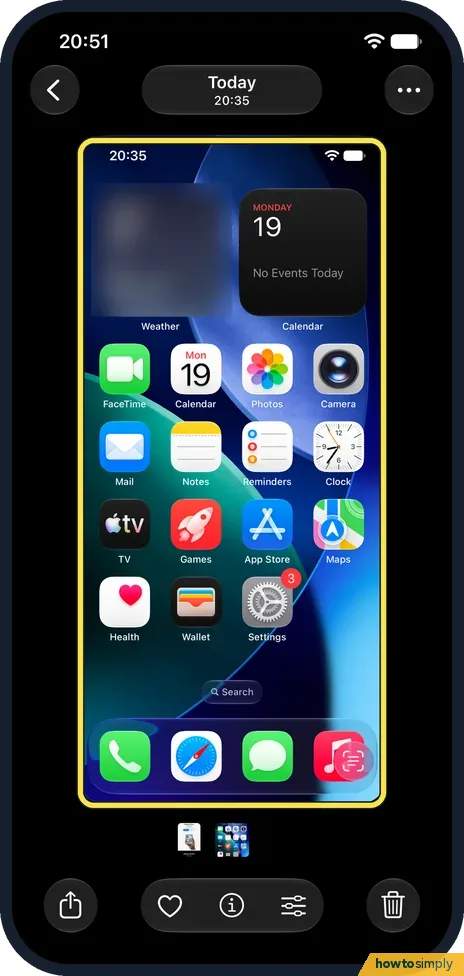
The picture shows one we took of our Home Screen this way, opened in Photos.
- 2
Full screen or a small thumbnail
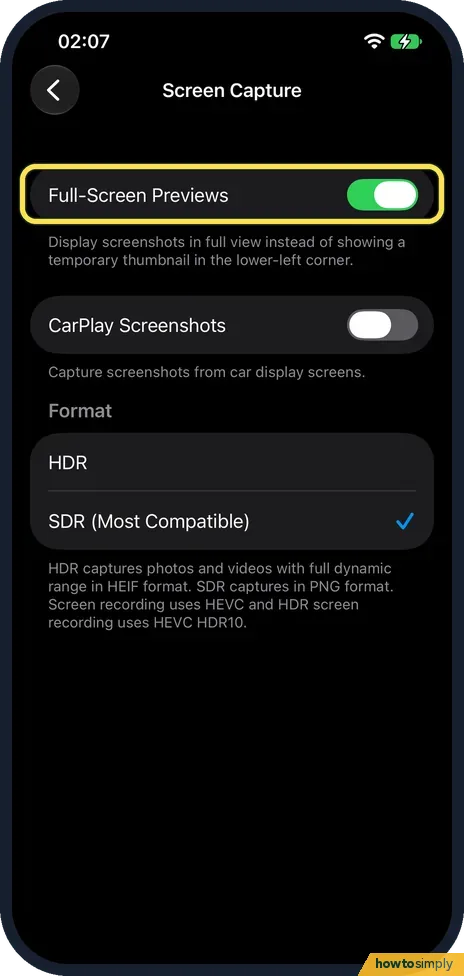
Open Settings, General, Screen Capture. On our iPhone 17e, Full-Screen Previews was on: the switch's note says it displays screenshots in full view instead of showing a temporary thumbnail in the lower-left corner. Switch it off to get the thumbnail.
- 3
Find the screenshot
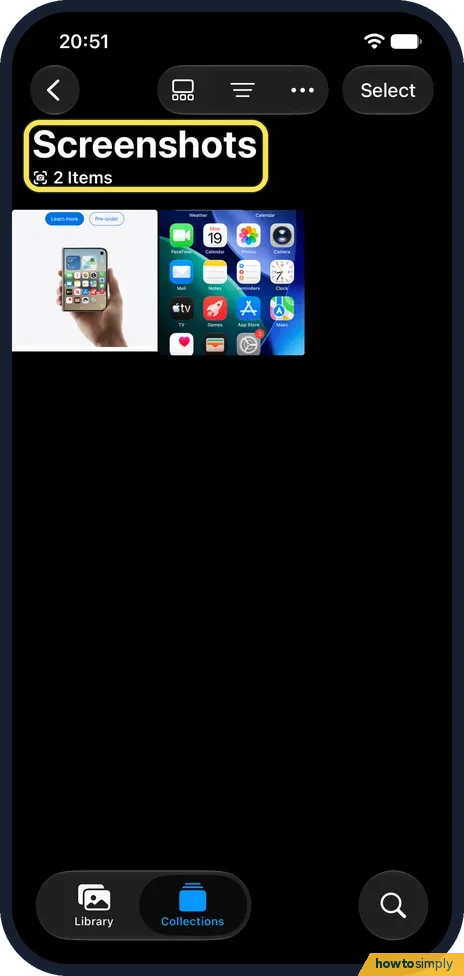
Open Photos, tap Collections, then Media Types and Screenshots. Ours showed the 2 we had taken. Tap one to open it. Screenshots are also in your Library with your other photos.
- 4
No buttons? Open Back Tap
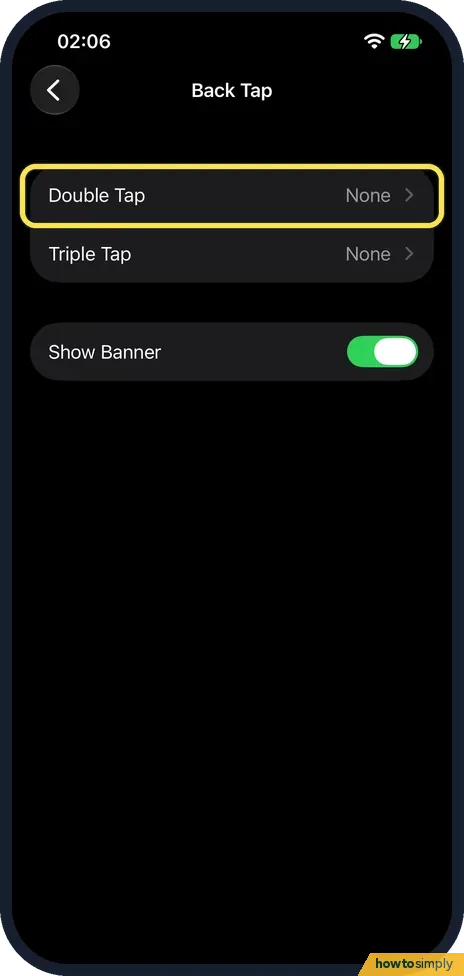
Open Settings, Accessibility, Touch, Back Tap. On ours, Double Tap and Triple Tap were both set to None. Tap Double Tap.
- 5
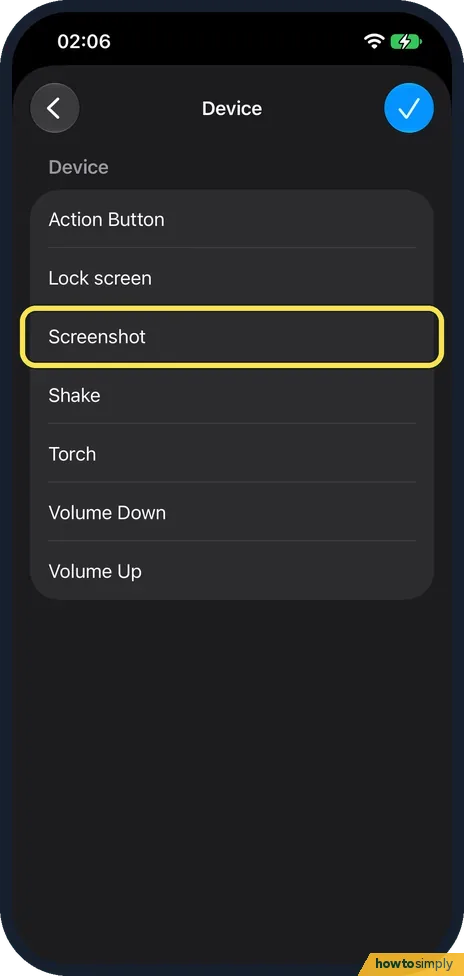
Choose Device, then Screenshot
In iOS 27 the actions are grouped: tap Device, then Screenshot. Then a double tap on the back of the iPhone grabs the screen. We opened the list without choosing anything, so ours stayed at None.
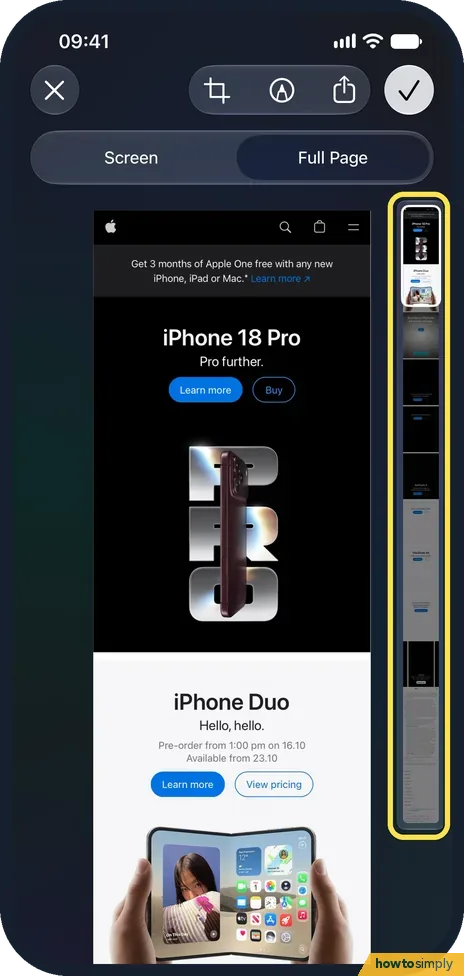
Take a full-page screenshot in Safari
- Tap Full Page Take the screenshot in Safari as usual, then tap Full Page at the top of the editor. A narrow preview of the whole page appears on the right. Tap the tick and choose Save PDF to Files. Every step, with our iPhone 17e screens: how to take a full-page screenshot on an iPhone. Source: Take a screenshot on iPhone
Screenshot without buttons (Back Tap / AssistiveTouch)
- Back Tap Apple says you can use Back Tap instead of the buttons. Set Double Tap or Triple Tap to Screenshot under Settings, Accessibility, Touch, Back Tap: steps 4 and 5 above show it on our iPhone 17e. Source: Take a screenshot on iPhone
- AssistiveTouch Apple also lists AssistiveTouch, the on-screen button. Not shown: we have no picture of its Screenshot action yet. To set it up, see how to use AssistiveTouch if an iPhone button is broken. Source: Take a screenshot on iPhone
If you do not see this option
- A small thumbnail appears instead of the full-screen picture Full-Screen Previews is off. Tap the thumbnail in the lower-left corner to open it, or switch Full-Screen Previews on under Settings, General, Screen Capture (step 2).
- Your iPhone has a Home button Press the side or top button and the Home button together instead of volume up (Apple). Source: Take a screenshot on your iPhone
- No Screenshots album in Media Types In Photos, tap Collections, scroll to Media Types and tap Screenshots (Apple).
If this does not work
- The power-off screen appears instead The buttons were held too long, which is easy to do when you press them like you mean it. Apple says to press the side button and volume up together, then let go of both straight away.
- Back Tap does nothing Tapping harder will not help. Check that Double Tap or Triple Tap is set to Screenshot under Settings, Accessibility, Touch, Back Tap. Ours showed None for both until one is chosen.
Good to know
Under Format on the Screen Capture page, ours was set to SDR (Most Compatible). The page says SDR captures in PNG format and HDR in HEIF.
The same page has CarPlay Screenshots, which captures the car display too. It was off on ours.
Apple's support page on screenshots, published 15 October 2026, says that on iOS 26 the screenshot pops up straight away with quick tools ready to use. On iOS 18 and older you get a small thumbnail in the bottom-left corner: tap it to open, or swipe it left to get rid of it. Apple's iOS 27 guide adds that a full-screen screenshot is saved when you swipe up, or tap the tick and choose an option, while screenshots shown as a thumbnail save by themselves.
Back Tap can run other actions too, such as the torch or Control Centre: how to use Back Tap on an iPhone. If you would rather always get the small thumbnail, turning off full-screen screenshot previews takes one switch.
About this guide
Say you want to keep a train time or a funny message from the family chat: a screenshot saves exactly what is on your screen as a picture. You can crop it or draw on it before sharing.
The steps below also cover iPhones with a Home button.
- Device
- iPhone
- Shown on
- iOS 27.0.1 (iPhone 17e)
- App
- Photos
- Real screenshots
- 5 of 5 steps
- Checked
- October 2026
- Sources
- 3 official, linked below
The screenshots are from our iPhone 17e with iOS 27.0.1, in dark mode, taken on 19 October 2026.
What changed: added full-page screenshots in Safari and screenshots without the buttons (Back Tap, AssistiveTouch).
Sources
Links checked October 2026. Menus and features can change with updates.Did this guide work for you?
Sorry about that. What happened?
Get new guides by email
Our newest guides, sent to your inbox. Free, and you can unsubscribe in one click.
We'll email you to confirm. How we use your email
Follow howtosimply on Facebook
We share our new guides on our Facebook page, so the next fix turns up in your feed.
Follow on Facebook