How to switch to 3-button navigation on Android
- Shown on
- Pixel 10a (Android 17) and Galaxy S26 (One UI 9.0)
- Checked
- November 2026
- Real screenshots
- 9 of 9 steps
- Where it is
- Settings › System › Navigation mode
Quick answer
Open Settings, tap System, then Navigation mode, and choose 3-button navigation. On a Samsung Galaxy it is Settings, Display, Navigation bar, Buttons. The Back, Home and Recents buttons then appear at the bottom of the screen.
Steps
- 1
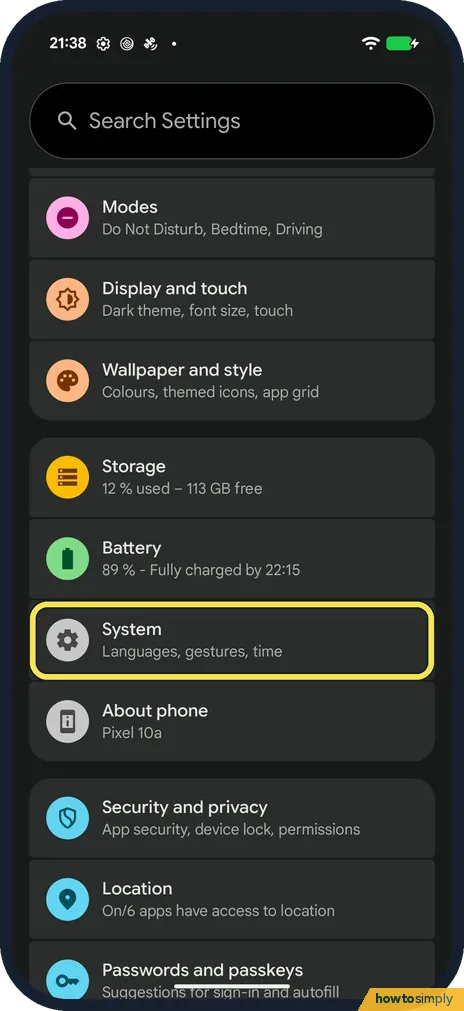
Open Settings and tap System
Scroll down and tap System.
On our Pixel 10a, System sits between Battery and About phone, with the line Languages, gestures, time underneath.
- 2
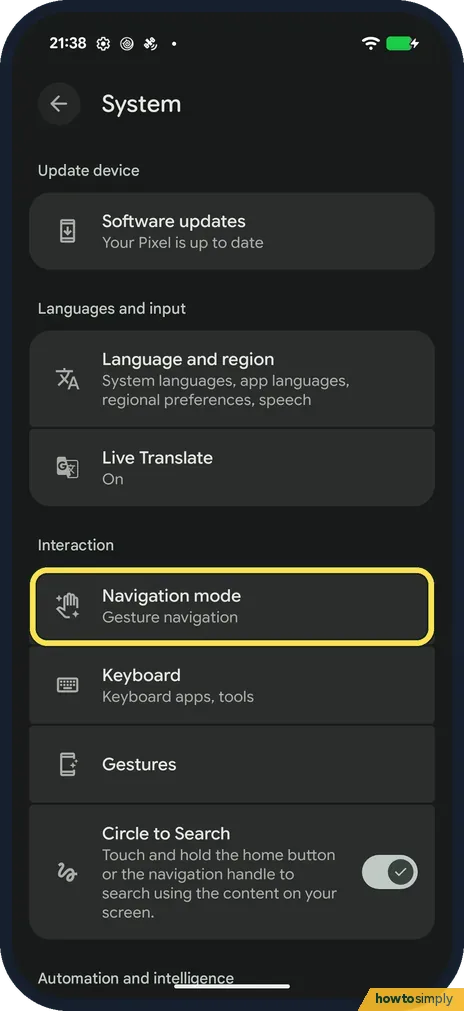
Tap Navigation mode
On our Pixel 10a, Navigation mode is under the Interaction heading on the System page, below Software updates and Language and region.
Underneath it shows the current choice, Gesture navigation.
- 3
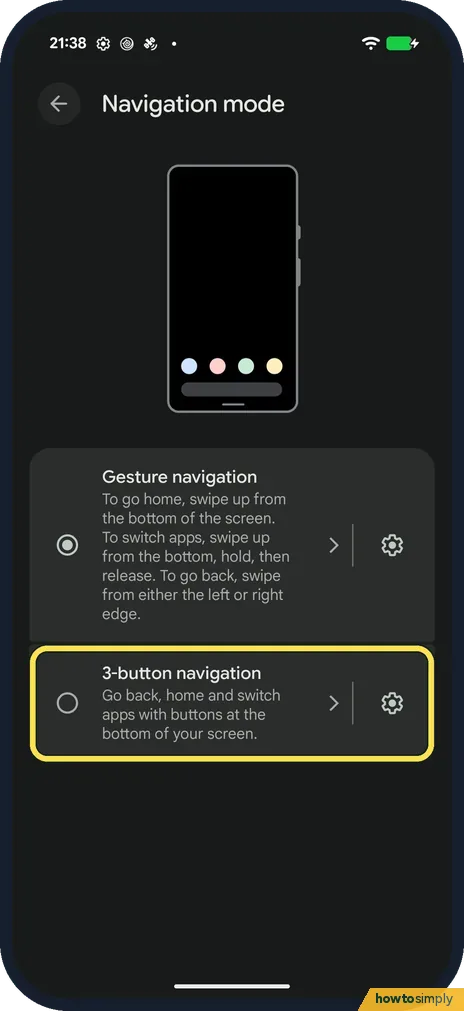
Choose 3-button navigation
On our Pixel 10a the page offers two options, Gesture navigation and 3-button navigation, and Gesture navigation was selected at first.
Tap 3-button navigation.
- 4
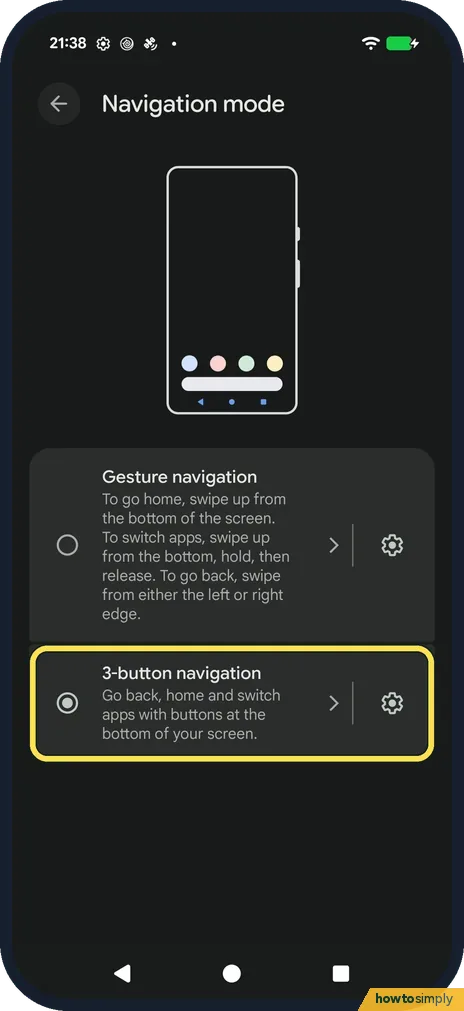
Check that it is selected
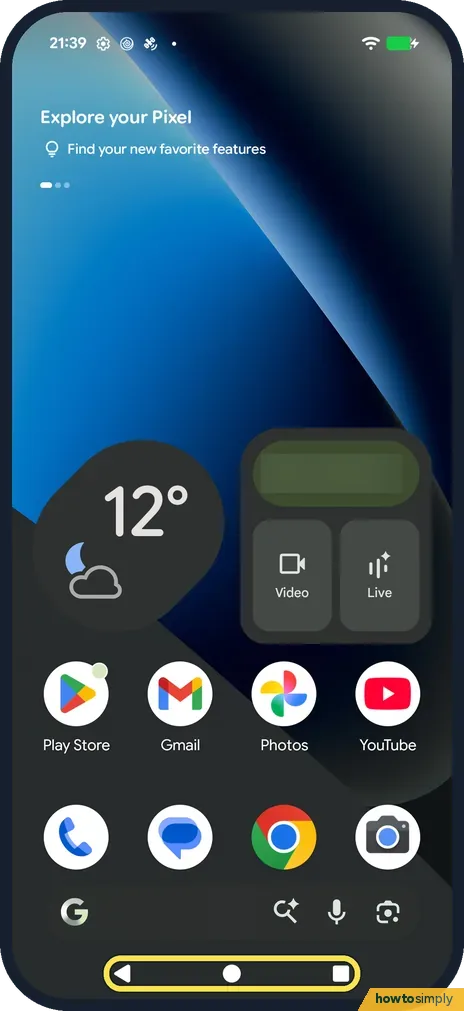
The circle next to 3-button navigation fills in, and the bar with three buttons appears at the bottom of the screen straight away.
- 5
Learn the three buttons
On our Pixel 10a the order is Back, Home, Recents, with Back on the left.
Back returns to the previous screen, Home opens the Home screen and Recents shows your open apps.
- 6
Samsung Galaxy: open Display, then Navigation bar
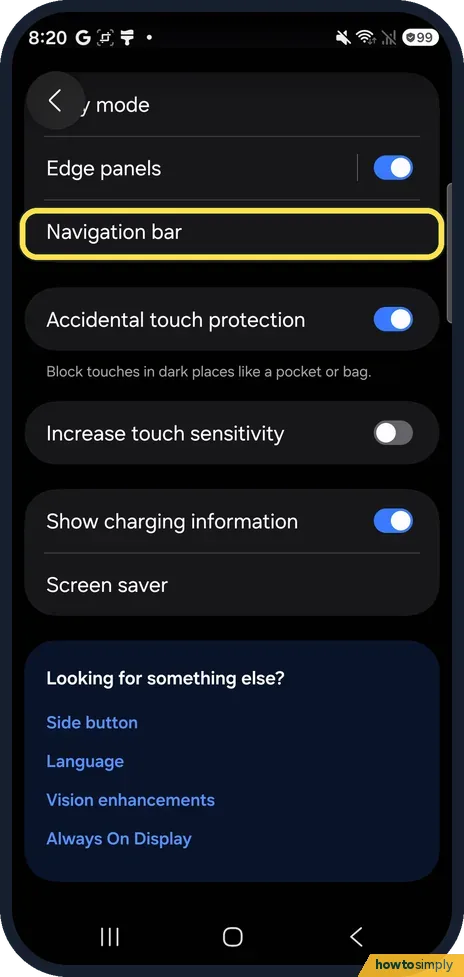
Samsung puts the setting under Display. Open Settings, tap Display and scroll down to Navigation bar.
- 7
Samsung Galaxy: choose Buttons
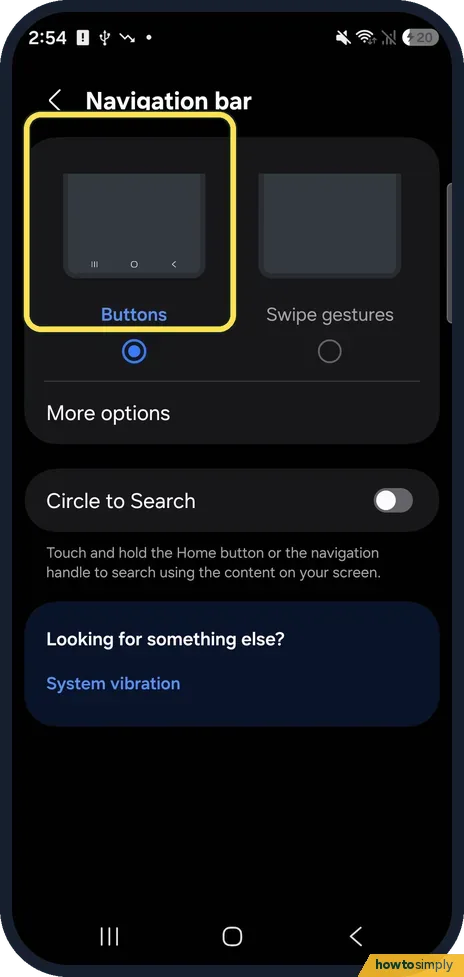
The page offers Buttons and Swipe gestures. Our Galaxy S26 was already on Buttons, with a Circle to Search switch below.
- 8
Samsung Galaxy: check the button order
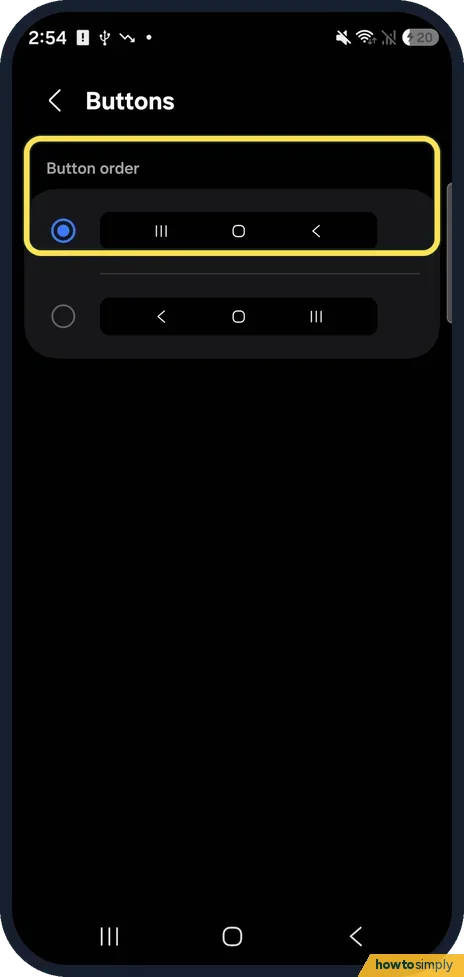
Tap More options. On the Buttons page, Button order offers two layouts. On our Galaxy S26 it was Recents, Home, Back, so Back is on the right: the opposite of the Pixel. Pick Back, Home, Recents if you want Back on the left.
- 9
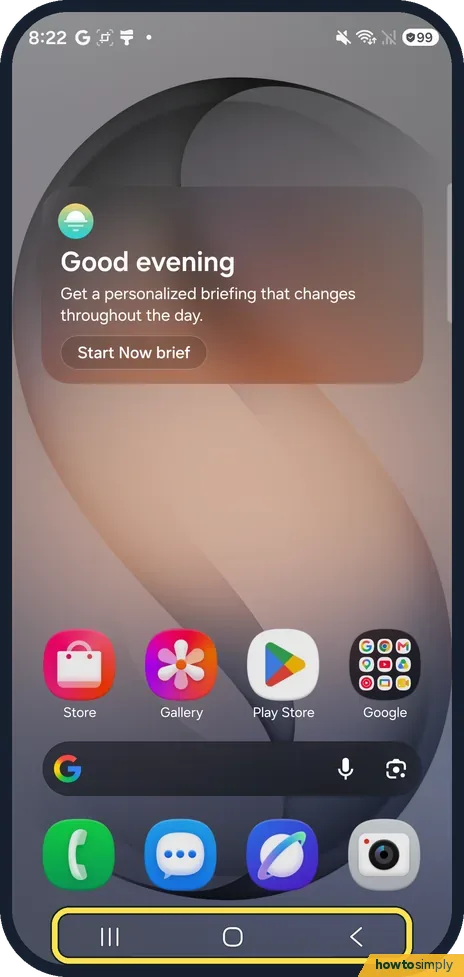
Samsung Galaxy: check the buttons
The three buttons sit at the bottom of the Home screen, here in the order Recents, Home, Back.
Where we checked these steps
- Pixel 10a, Android 17
- Galaxy S26, One UI 9.0 (Android 17)
We have not checked other phones or older versions. If a menu looks different on yours, the notes under each step and the fixes further down cover the differences we found.
If you do not see this option
- Navigation mode is not under System On our Pixel 10a it sits under Settings, System. On our Samsung Galaxy S26 it is under Settings, Display, Navigation bar (steps 6 to 9).
- You cannot see Navigation mode on the System page On our Pixel 10a it is under the Interaction heading, below Language and region and Live Translate, so scroll down a little.
- The options have different names On our Pixel 10a they are called Gesture navigation and 3-button navigation. On our Samsung Galaxy S26 the choice is Buttons or Swipe gestures.
If this does not work
- The buttons do not appear This is quick to check. Go back to Settings, System, Navigation mode and check that the circle next to 3-button navigation is filled in. On our Pixel 10a the buttons appeared at once.
- You want gestures back Open Navigation mode again and choose Gesture navigation. The three buttons disappear and swiping takes over.
- Back is on the wrong side on a Samsung Galaxy On our Galaxy S26 the order was Recents, Home, Back. If you want Back on the left, choose Back, Home, Recents. Change it under Navigation bar, More options, Button order (step 8).
Good to know
If you ever want to give gestures another go, choose Gesture navigation in the same place. Then you swipe up from the bottom for Home, swipe in from the left or right edge for Back, and swipe up from the bottom, hold, then release to switch apps.
About this guide
Gestures are not for everyone. With gesture navigation, you use swipe gestures rather than buttons to get around. If you prefer the three classic buttons, they are one setting away: choose 3-button navigation in Navigation mode settings.
Steps 1 to 5 are on our Pixel 10a. Steps 6 to 9 are on our Galaxy S26 with One UI 9, where the setting has another name and the buttons sit the other way round.
- Device
- Android
- Shown on
- Google Pixel 10a, Android 17 (build CP3A.260905.009), Samsung Galaxy S26 (SM-S942N, Korean model), One UI 9.0, Android 17 (build CP2A.260605.016.S942NKSU5BZJB)
- App
- Settings
- Path
- Settings › System › Navigation mode
- Real screenshots
- 9 of 9 steps
- Checked
- November 2026
- Sources
- 1 official, linked below
Sources
Links checked October 2026. Menus and features can change with updates.Did this guide work for you?
Sorry about that. What happened?
Get new guides by email
Our newest guides, sent to your inbox. Free, and you can unsubscribe in one click.
We'll email you to confirm. How we use your email
Follow howtosimply on Facebook
We share our new guides on our Facebook page, so the next fix turns up in your feed.
Follow on Facebook