How to switch between buttons and swipe gestures on a Samsung Galaxy phone
- Shown on
- Galaxy A57 5G (One UI 8.5) and Galaxy S26 (One UI 9.0)
- Checked
- November 2026
- Real screenshots
- 5 of 6 steps
- Where it is
- Settings › Display
Quick answer
Open Settings, Display, Navigation bar and choose Buttons or Swipe gestures. With Buttons you get Recents, Home and Back at the bottom; with Swipe gestures, you swipe from the sides to go back and up from the bottom to go home. More options changes the button order.
Watch these steps
 Watch on YouTubeThe same task, recorded on our Galaxy A57 · opens YouTube
Steps
- 1
Open Display
Open Settings and tap Display.
- 2
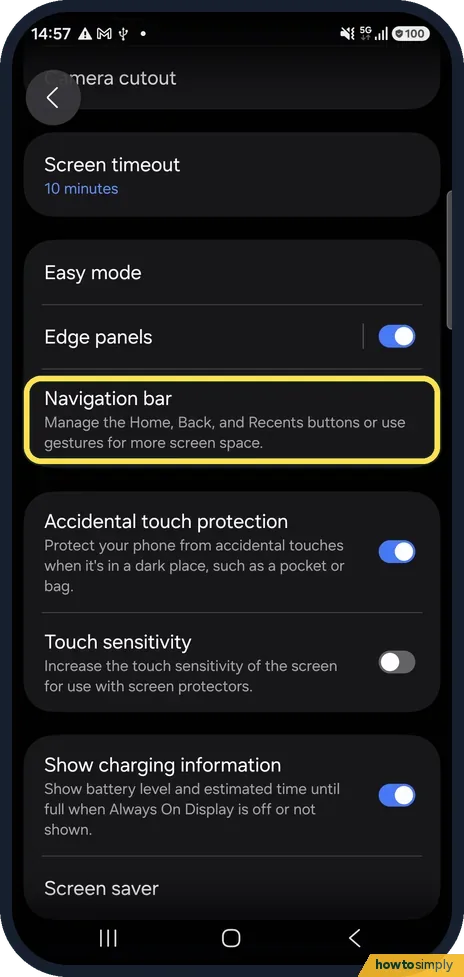
Open Navigation bar
Scroll down the Display page and tap Navigation bar.
- 3
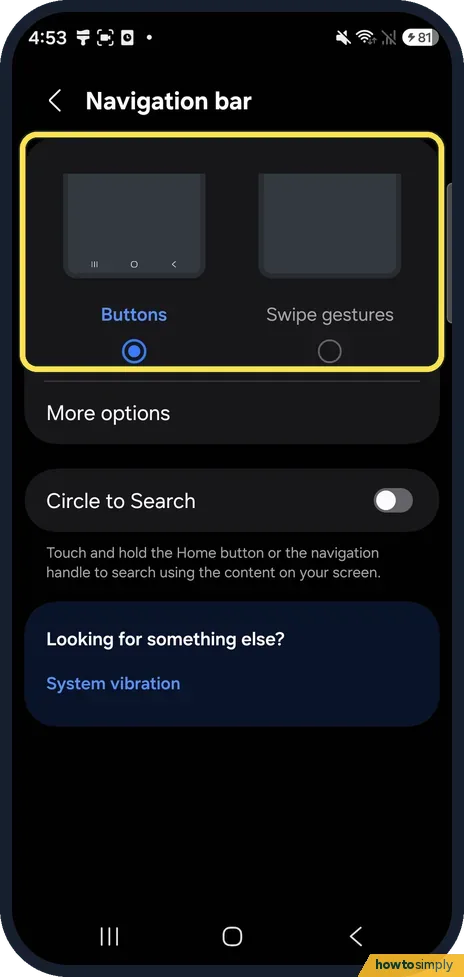
Choose Buttons or Swipe gestures
Tap Buttons for the three buttons, or Swipe gestures to remove them and use swipes instead. The change applies straight away.
- 4
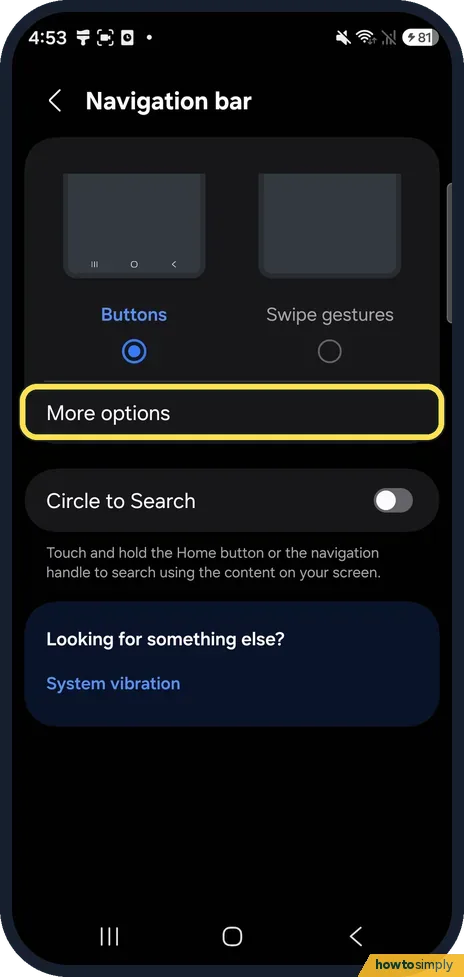
Change the button order
With Buttons selected, tap More options to swap the order of the Back and Recents buttons.
- 5
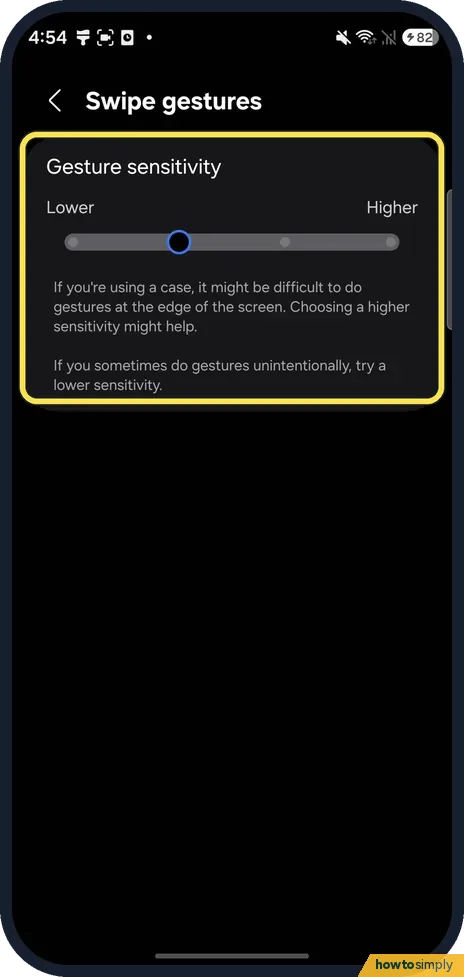
Set the gesture sensitivity
With Swipe gestures selected, More options has Gesture sensitivity instead, from Lower to Higher. The page says a higher setting can help if a case makes it hard to swipe at the edge of the screen, and a lower one if you do gestures by accident.
- 6
Use the gestures
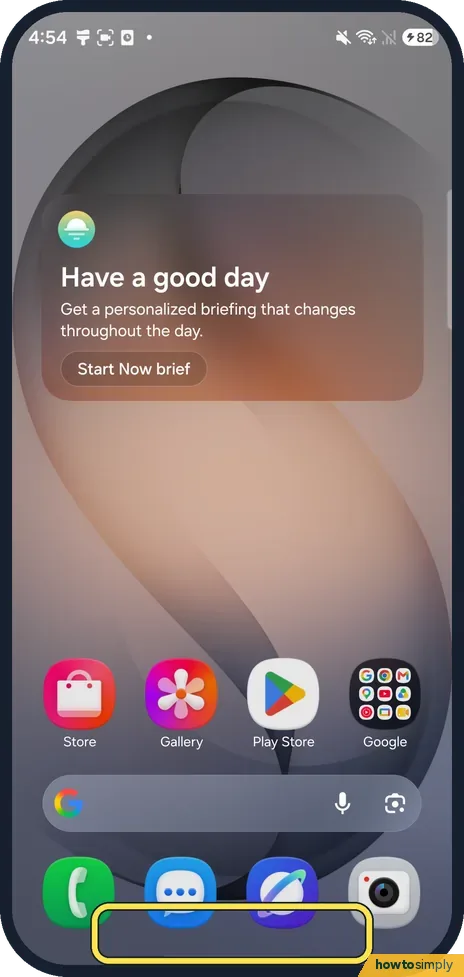
With Swipe gestures on One UI 6.1 and later: swipe in from either side to go back, swipe up from the bottom to go home, and swipe up and hold to see recent apps. The buttons are replaced by a thin handle at the bottom.
Where we checked these steps
- Galaxy A57 5G, One UI 8.5 (Android 16)
- Galaxy S26, One UI 9.0 (Android 17)
We have not checked other phones or older versions. If a menu looks different on yours, the notes under each step and the fixes further down cover the differences we found.
If you do not see this option
- There is no Gesture hint switch Samsung says gesture hints are not available on One UI 6.1 or later, and the swipe direction can no longer be changed there. Source: Customize the Navigation bar on your Galaxy phone or tablet
- The gestures work differently on your phone Samsung says that on One UI 6.0 you swipe up from the left for recent apps, the middle for Home and the right for Back, instead of swiping in from the sides. Source: Customize the Navigation bar on your Galaxy phone or tablet
- No way to hide the keyboard with gestures? Samsung lists Show button to hide keyboard as a Swipe gestures option, which it says enables the buttons when using Portrait mode. See how to show or hide the keyboard button on the Samsung navigation bar. Source: Customize the Navigation bar on your Galaxy phone or tablet
- Buttons sit in a corner on a Fold or tablet? Samsung says the main screen of a Galaxy Z Fold and Galaxy Tab has Button position, with Left, Center or Right. With the Taskbar on, only left or right is possible. Source: Customize the Navigation bar on your Galaxy phone or tablet
If this does not work
- The bar disappears in a game or video It has not gone for good. Samsung says the navigation bar can hide in full-screen apps; swipe up to bring it back for a moment.
- Back swipes trigger too easily, or not at all Samsung says to tap More options under Swipe gestures to adjust the gesture sensitivity.
- Back swipes fail with a thick case? Google says raising the edge sensitivity can help when a phone case gets in the way of edge swipes. On a Galaxy, the sensitivity is under More options with Swipe gestures selected.
- Gestures misfire while writing with an S Pen? Samsung lists Block gestures with S Pen among the Swipe gestures options. It stops accidental commands while you draw or write.
Good to know
Circle to Search, on the same page, works with both: touch and hold the Home button or the navigation handle.
If you are worried about losing anything by trying, you will not. Switching style changes nothing else on the phone: your apps, Home screen and Recents stay the same, and you can switch back at any time from the same page. Swipe gestures clear the buttons off the screen so it looks tidier. Google recommends three-button navigation for people with limited dexterity or who find precise gestures hard.
About this guide
Well, if a swipe just sent you to the Home screen when all you wanted was to go back, that is the phone's navigation style, not you. Galaxy phones can be navigated with three buttons at the bottom of the screen or with swipes. Neither is better, so pick the one your thumb prefers.
- Device
- Android
- Shown on
- Samsung Galaxy A57 5G (SM-A576B), One UI 8.5, Android 16, Samsung Galaxy S26 (SM-S942N, Korean model), One UI 9.0, Android 17 (build CP2A.260605.016.S942NKSU5BZJB)
- App
- Settings
- Path
- Settings › Display
- Real screenshots
- 5 of 6 steps
- Checked
- November 2026
- Sources
- 2 official, linked below
The screenshots are from a Samsung Galaxy S26 with One UI 9.0 and Android 17, in Dark mode, apart from step 2, from our Galaxy A57 with One UI 8.5. Samsung says which screens and settings you see can depend on your network, software version and phone model. We switched to Swipe gestures for the pictures and back to Buttons afterwards.
Sources
Links checked October 2026. Menus and features can change with updates.Did this guide work for you?
Sorry about that. What happened?
Get new guides by email
Our newest guides, sent to your inbox. Free, and you can unsubscribe in one click.
We'll email you to confirm. How we use your email
Follow howtosimply on Facebook
We share our new guides on our Facebook page, so the next fix turns up in your feed.
Follow on Facebook