Samsung Galaxy won't charge to 100%? Battery protection explained
- Shown on
- Galaxy S26 (One UI 9.0) and Galaxy A57 (One UI 9)
- Checked
- November 2026
- Real screenshots
- 5 of 6 steps
- Where it is
- Settings › Battery
Quick answer
A Galaxy that stops at 80%, 85% or 95% is usually doing it on purpose. Open Settings, Battery, Battery protection. Basic lets the level drop to 95% before charging again, Maximum stops at the level you set, and Sleep time protection holds at 80% overnight.
Watch these steps
 Watch on YouTubeA video of this task from our YouTube channel · opens YouTube
Steps
- 1
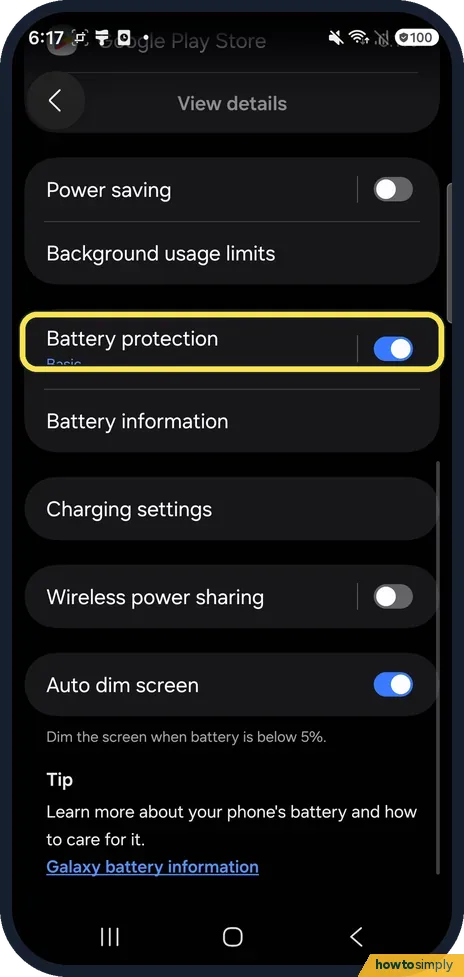
Open Battery protection
Open Settings, Battery and scroll down to Battery protection.
- 2
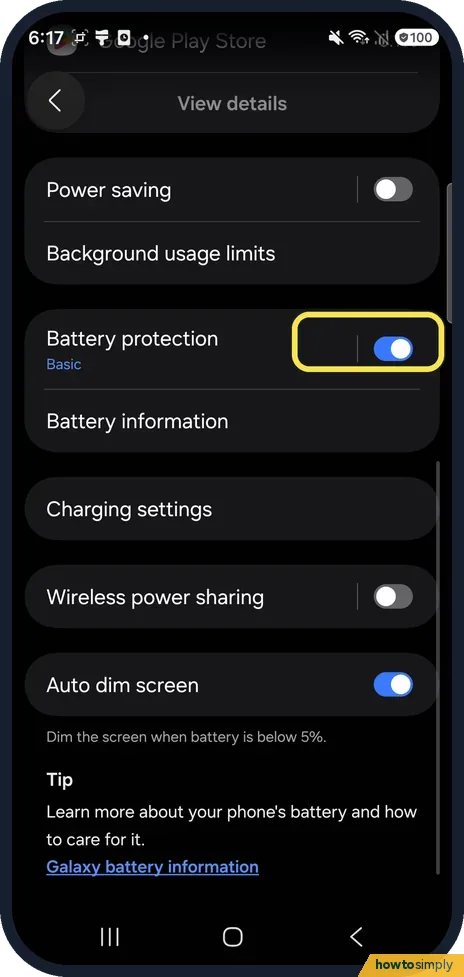
See whether it is on
Settings, Battery. The switch next to Battery protection shows whether it is on, and the word underneath shows the mode. Ours was on, with Basic. If it is off, the limits below do not apply and the cause is elsewhere (see the last step).
- 3
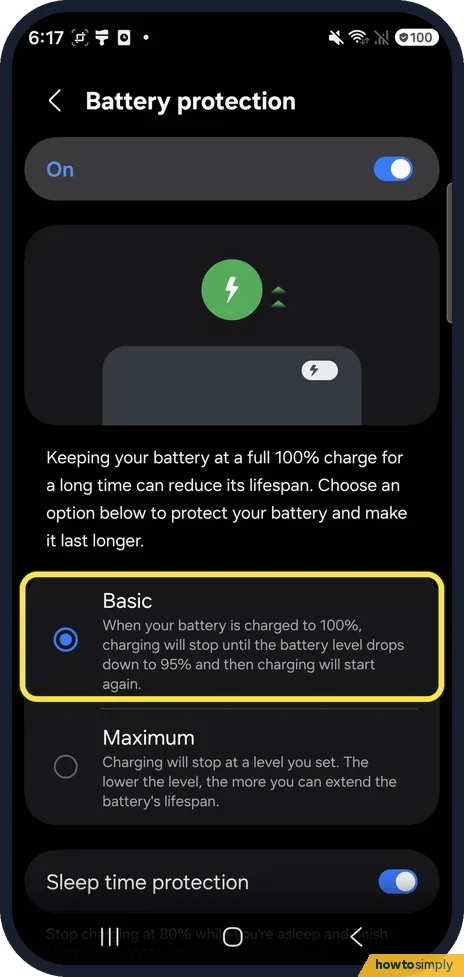
Stuck between 95% and 99%? That is Basic
With Basic, charging pauses at 100% and doesn't restart until the battery falls to 95%. Unplugging at 96% after a long charge is normal.
- 4
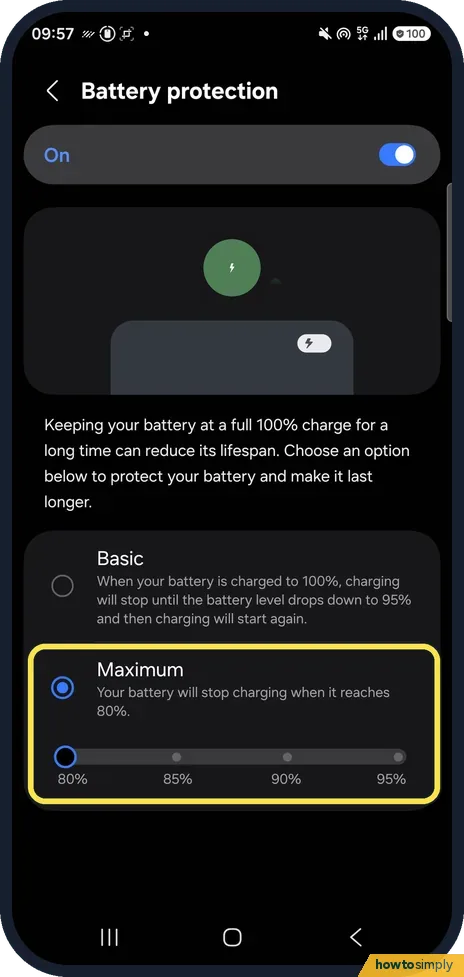
Stopped at 80%, 85% or 90%? That is Maximum
Maximum stops charging at the level you chose with its slider. Ours offered 80%, 85%, 90% and 95%. Pick Basic or switch Battery protection off to charge further.
- 5
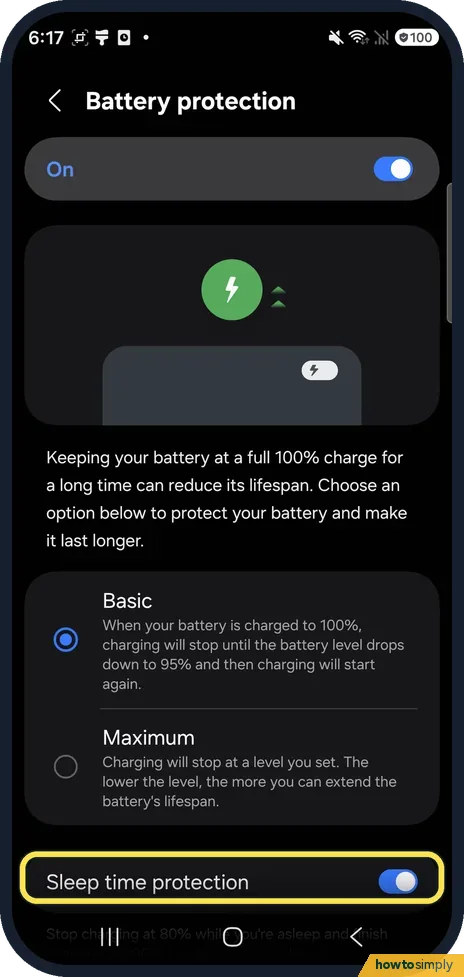
Only 80% in the morning? Check Sleep time protection
Sleep time protection, at the bottom of the Battery protection page, stops at 80% while you are asleep and finishes to 100% just before you wake up. It was on on our Galaxy S26. Samsung says it learns your sleep pattern over about 2 weeks and may not work if your sleep is irregular. If your mornings vary, switch it off and use Basic or Maximum instead.
- 6
Still not reaching 100% with it off
Try another wall charger and cable, clean fluff out of the port, and check the battery health. An old battery can also stop short.
Illustration
Where we checked these steps
- Galaxy S26, One UI 9.0 (Android 17)
- Galaxy A57, One UI 9 (Android 17)
We have not checked other phones or older versions. If a menu looks different on yours, the notes under each step and the fixes further down cover the differences we found.
If you do not see this option
- There is no Basic or Maximum Samsung's One UI 6.1 page says that below One UI 6.1 the only choice is to limit charging to 85%. Source: Galaxy Battery protection feature in One UI 6.1
- You see Adaptive too Samsung says Adaptive charges to 100% about an hour before you usually wake, and might not work well if your sleep times are irregular. Source: Galaxy Battery protection feature in One UI 6.1
If this does not work
- Basic is on, but it shows 100% for hours Samsung says this is normal: at 100% the phone runs on the charger's power instead of the battery, so the level can stay there.
- Maximum is at 80%, but it shows 78% That is not an error. Samsung says that with Maximum, charging starts again when the level drops about 2% below the limit, so a small dip is normal.
- Sleep time protection does nothing Give it time before you give up on it. Samsung says it needs about 2 weeks to learn your sleep pattern and needs Customisation Service turned on. In multi-user mode, or without that consent, it can switch itself to Basic.
Good to know
If you have read about an Adaptive option and cannot find it, don't worry. Samsung's older One UI 6.1 page calls a similar option by that name, and Samsung says menu names vary by device and software version.
To set a limit on purpose: how to limit charging to 80% on a Samsung Galaxy phone.
Check the battery itself: how to check battery health on a Samsung Galaxy phone.
About this guide
It is a little worrying when your phone keeps stopping short of a full charge. The good news is that Samsung added these limits to reduce strain on the battery, so stopping short can simply be the phone following a setting. Battery protection was on on our phones, set to Basic.
- Device
- Android
- Shown on
- Samsung Galaxy S26 (SM-S942N, Korean model), One UI 9.0, Android 17 (build CP2A.260605.016.S942NKSU5BZJB), Samsung Galaxy A57 (SM-A576B), One UI 9, Android 17 (build A576BXXU6BZIE)
- App
- Settings
- Path
- Settings › Battery
- Real screenshots
- 5 of 6 steps
- Checked
- November 2026
- Sources
- 3 official, linked below
The screenshots are from a Samsung Galaxy S26 with One UI 9.0 and Android 17, in Dark mode. Samsung says the names of menus and how things work can change with the phone and software version. Step 4 is from our Galaxy A57 after its One UI 9 update, where we selected Maximum for one picture and set it back to Basic. On the S26 we only looked.
Sources
Links checked October 2026. Menus and features can change with updates.What to do next
Make your Galaxy battery last Step 6 of 6
Did this guide work for you?
Sorry about that. What happened?
Get new guides by email
Our newest guides, sent to your inbox. Free, and you can unsubscribe in one click.
We'll email you to confirm. How we use your email
Follow howtosimply on Facebook
We share our new guides on our Facebook page, so the next fix turns up in your feed.
Follow on Facebook