How to set a sleep timer in YouTube on Android
- Shown on
- Galaxy A57 5GSM-A576B
- Software
- One UI 8.5Android 16
- Checked
- October 2026
- Real screenshots
- 4 of 4 steps
- Where it is
- Player settings › More › Sleep timer
Quick answer
Tap the video, the gear, More and Sleep timer, then choose 10 minutes up to 1 hour or End of video. For a general nudge, YouTube Settings, Time management has Remind me to take a break.
Watch these steps
 Watch on YouTubeA video of this task from our YouTube channel · opens YouTube
Steps
- 1
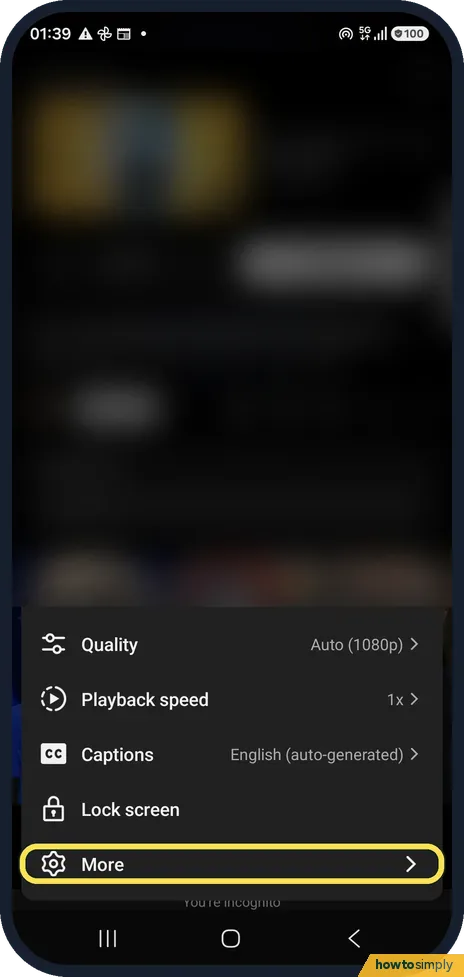
Open More in the player
Tap the video, then the gear, and tap More at the bottom.
- 2
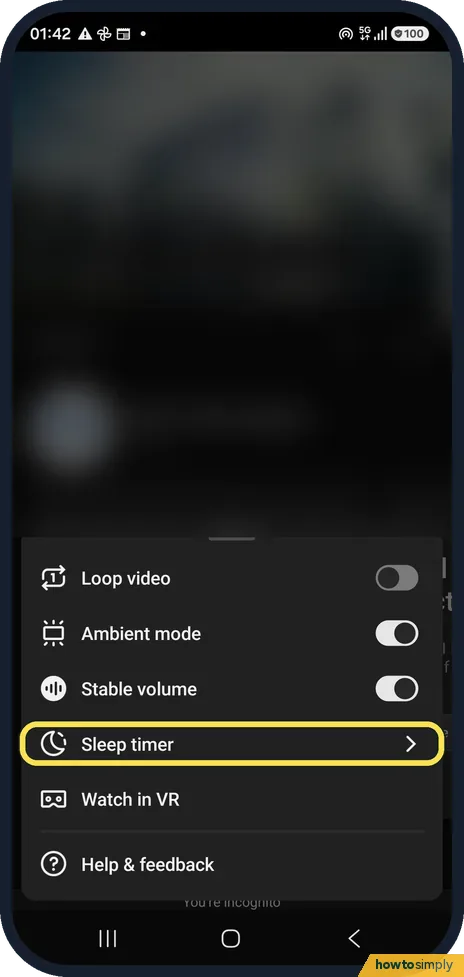
Tap Sleep timer
It sits between Stable volume and Watch in VR.
- 3
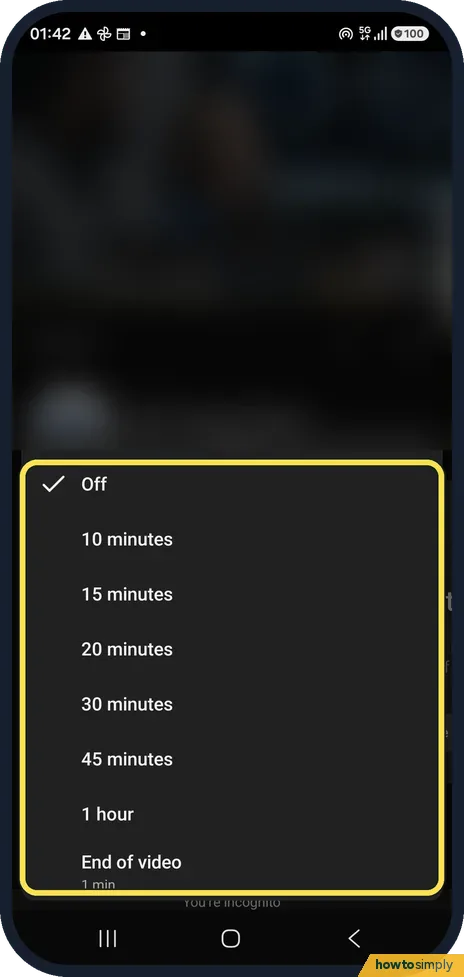
Choose the time
Off, 10, 15, 20, 30 or 45 minutes, 1 hour, or End of video.
- 4
Or set a break reminder
In YouTube tap You at the bottom right, then the gear at the top right. Tap Time management. Remind me to take a break shows a reminder after the time you choose and pauses the video until you dismiss it.
If you do not see this option
- There is no Sleep timer under More YouTube Help gives the route as Settings in the player, then Sleep timer. On our app, version 21.39.522, it was under More; on other versions look for it directly in the player settings. Source: Set a sleep timer (Android)
- You want a reminder, not a pause YouTube Help points to the bedtime reminder for a nudge when it is time to go to bed; it does not stop the video. Source: Set a sleep timer (Android)
If this does not work
- The video paused but you are still awake YouTube says you get a silent notification when the timer pauses the video, and you can reset the timer to keep watching.
- You want more or less time YouTube says to follow the same steps again, Settings in the player then Sleep timer, to change a timer that is already running.
- Break reminder never shows up? YouTube says the take a break timer starts over if you close the app, sign out, move to another device or leave a video paused for over 30 minutes. It also does not run while you watch offline videos or cast from your phone.
Good to know
Turning off autoplay as well stops a new video starting once the current one ends.
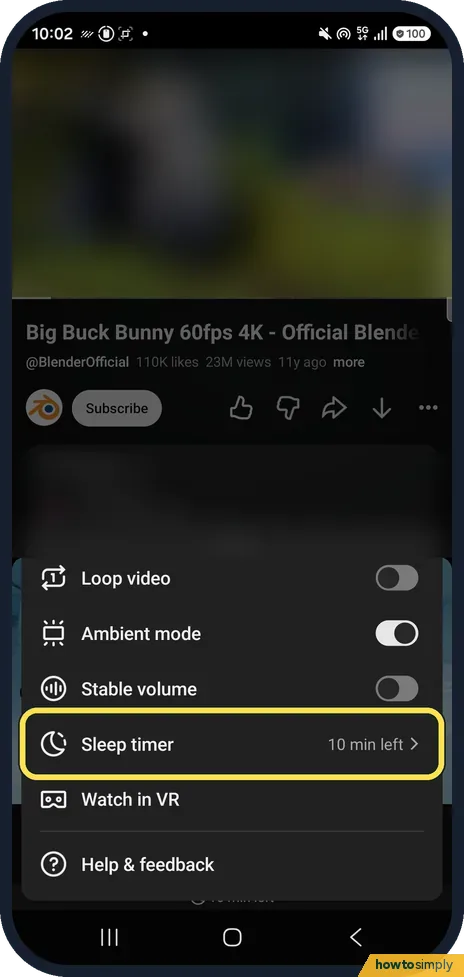
When the timer runs out the video automatically pauses. Nothing else in YouTube changes: your history, quality and caption settings stay as they were. YouTube says the same steps let you change the timer after it's already running.
About this guide
Falling asleep to a video and waking to autoplay hours later. The sleep timer stops playback for you.
- Device
- Android
- Shown on
- Samsung Galaxy A57 5G (SM-A576B), One UI 8.5, Android 16
- App
- YouTube
- Path
- Player settings › More › Sleep timer
- Real screenshots
- 4 of 4 steps
- Checked
- October 2026
- Sources
- 2 official, linked below
The screenshots are from the YouTube app, version 21.39.522, on a Samsung Galaxy A57 5G with Android 16 and One UI 8.5, in dark mode. Other people's videos, ads and comments are blurred.
Sources
Links checked October 2026. Menus and features can change with updates.Did this guide work for you?
Sorry about that. What happened?
Get new guides by email
Our newest guides, sent to your inbox. Free, and you can unsubscribe in one click.
We'll email you to confirm. How we use your email
Follow howtosimply on Facebook
We share our new guides on our Facebook page, so the next fix turns up in your feed.
Follow on Facebook