How to change playback speed in YouTube on Android
- Shown on
- Pixel 10a
- Software
- Android 17More Android 17 guides
- Checked
- October 2026
- Real screenshots
- 5 of 5 steps
Quick answer
Tap the video, the gear at the top right and Playback speed. Tap 0.25, 1.0 (Normal), 1.25, 1.5 or 2.0, or use the minus and plus buttons or the slider for steps in between.
Watch these steps
 Watch on YouTubeA video of this task from our YouTube channel · opens YouTube
Steps
- 1
Open the player settings
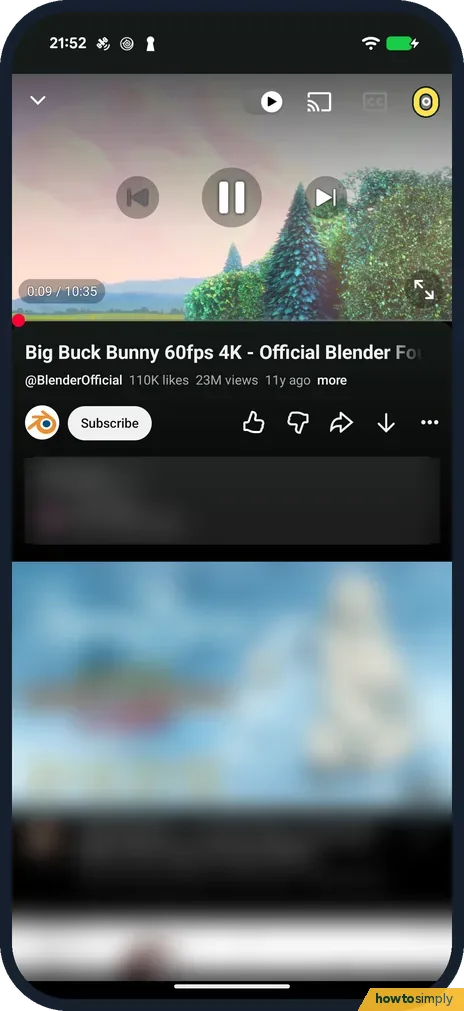
Tap the video once so the controls appear, then tap the gear at the top right of the player.
- 2
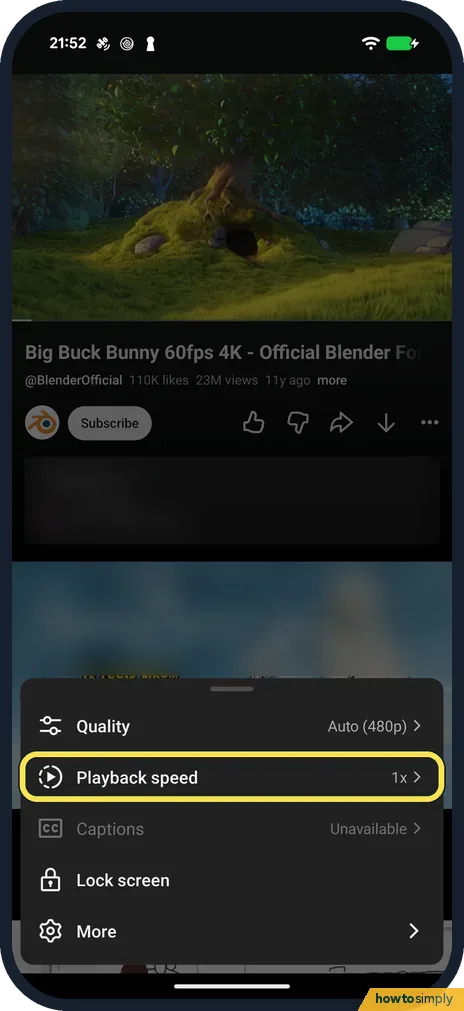
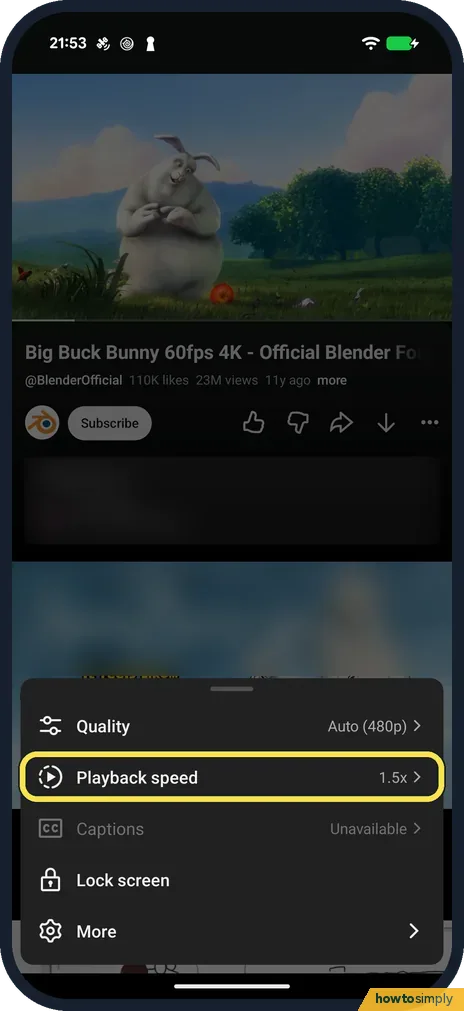
Tap Playback speed
Our sheet listed Quality, Playback speed, Captions, Lock screen and More. Playback speed read 1x.
- 3
Pick a speed
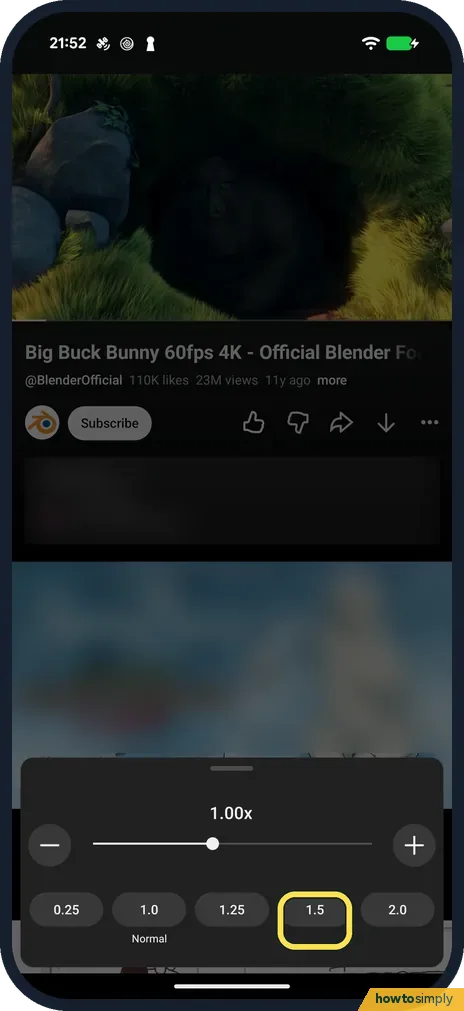
The current speed is shown above a slider, with minus and plus buttons at the ends. Below are 0.25, 1.0 (marked Normal), 1.25, 1.5 and 2.0. Tap one, or drag the slider for a speed in between.
- 4
Check the speed
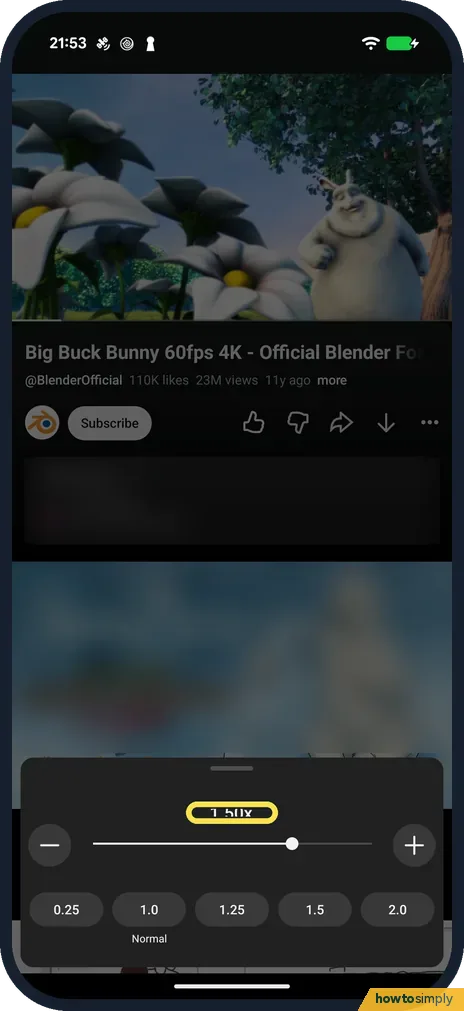
The value above the slider changes straight away: ours read 1.50x after tapping 1.5, and the video played faster.
- 5
Close the sheet
Tap outside the sheet. When you open the gear again, the Playback speed row shows the new speed, 1.5x on ours. We set it back to 1.0 the same way.
If you do not see this option
- Playback speed is not offered YouTube says some smart TVs and streaming devices may not offer playback speed. Source: Speed up or slow down YouTube videos (Android)
- You only want to skip ahead YouTube says touch and hold the video to play it at 2x until you let go. Source: Speed up or slow down YouTube videos (Android)
- An Auto speed switch in Playback speed? YouTube Help lists Auto speed as something only YouTube Premium members get. It changes the speed during slow speech or long introductions, starting from a lowest speed you choose between 1.0 and 4x. It is only for English videos in the Android app. Source: Use your YouTube Premium benefits (Android)
If this does not work
- Speed goes back to normal when you let go That is the hold shortcut, not your setting. Touch and hold plays at 2x only while your finger is on the video, YouTube says. For a fixed speed, use Playback speed.
- There is no speed option on your TV YouTube says some smart TVs and streaming devices may not offer playback speed.
- Auto speed switched itself off? That is how it is meant to work, annoying as it is. YouTube Help says it stays on only until you close the app, so turn it on again after reopening YouTube. It does not work on Shorts, premieres, live streams, music, films or shows.
- A video plays at an odd speed? Open the gear again and look at the Playback speed row: it shows the speed in use, as in step 5. Tap 1.0 (Normal) to go back to the usual speed.
Good to know
The video above was recorded earlier on our Galaxy A57 with One UI 8.5; the speed sheet works the same way there.
To stop the next video starting by itself, turn off autoplay.
At higher speeds, captions make fast speech easier to follow, and they keep up with the video: see how to turn on captions in YouTube on Android. If you watch long videos at a faster speed, a sleep timer stops playback after a set time: set a sleep timer in YouTube.
About this guide
Well, nobody enjoys sitting through a slow lecture at its own pace, or chasing a tutorial that moves faster than your hands. You can speed up the one and slow down the other from the player, and the speed is set for the video you are watching.
- Device
- Android
- Shown on
- Google Pixel 10a, Android 17 (build CP3A.261005.005)
- App
- YouTube
- Real screenshots
- 5 of 5 steps
- Checked
- October 2026
- Sources
- 3 official, linked below
The screenshots are from the YouTube app on our Google Pixel 10a with Android 17 (build CP3A.261005.005), in dark mode, signed out of YouTube. The video is Big Buck Bunny from the Blender Foundation.
Sources
Links checked October 2026. Menus and features can change with updates.Did this guide work for you?
Sorry about that. What happened?
Get new guides by email
Our newest guides, sent to your inbox. Free, and you can unsubscribe in one click.
We'll email you to confirm. How we use your email
Follow howtosimply on Facebook
We share our new guides on our Facebook page, so the next fix turns up in your feed.
Follow on Facebook