How to back up an iPhone to iCloud
- Shown on
- iPhone 17e
- Software
- iOS 27.0.1More iOS 27 guides
- Checked
- October 2026
- Real screenshots
- 5 of 5 steps
Quick answer
Connect to Wi-Fi, open Settings, tap your name, then iCloud, then iCloud Backup. Switch on Back Up This iPhone and tap Back Up Now.
Steps
- 1
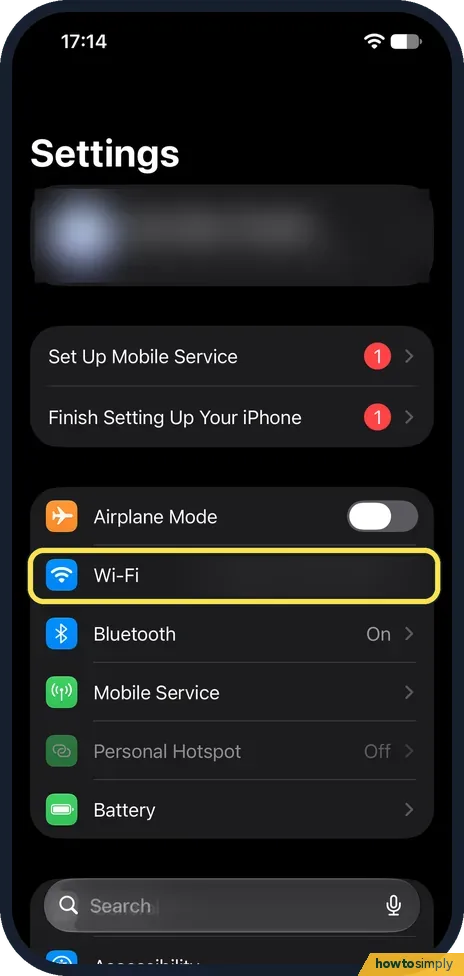
Connect to Wi-Fi and power
Backups can be large. Settings shows the Wi-Fi row near the top; we blurred our network name. A charger keeps the phone awake until it finishes.
- 2
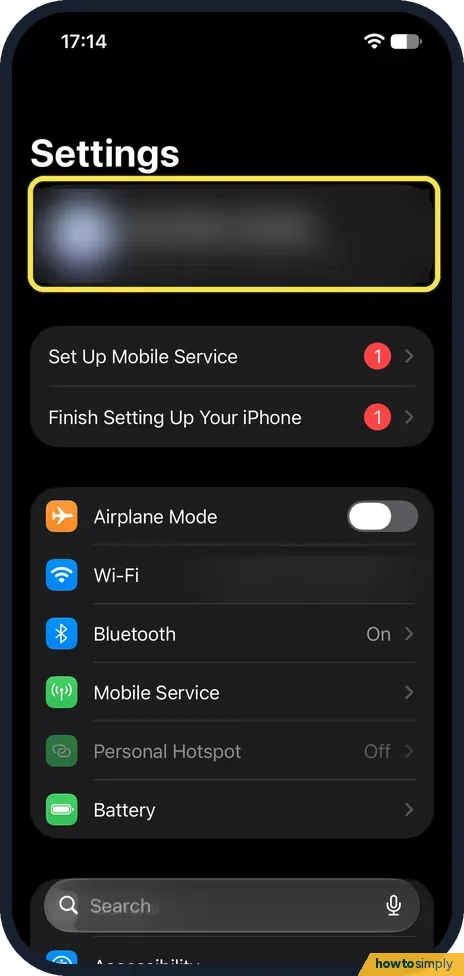
Open Settings and tap your name
Your name is at the very top of Settings, with your account picture. We blurred ours.
- 3
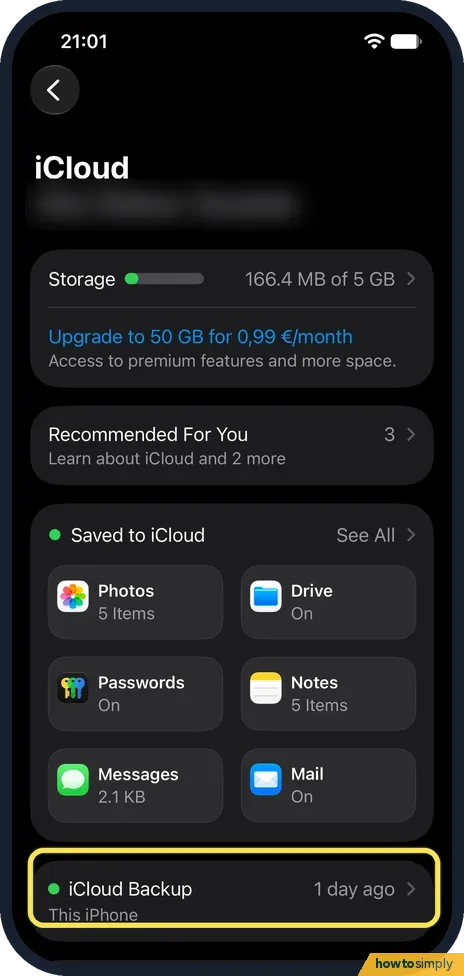
Tap iCloud, then iCloud Backup
On iOS 27 the iCloud Backup row is near the bottom of the iCloud page and shows when the last backup was made; ours read 1 day ago. The Storage row at the top showed 166.4 MB of 5 GB in use.
- 4
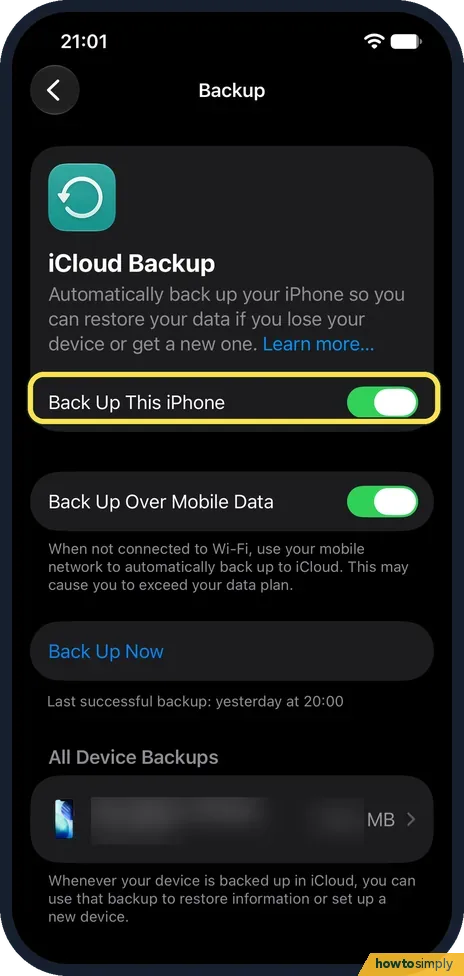
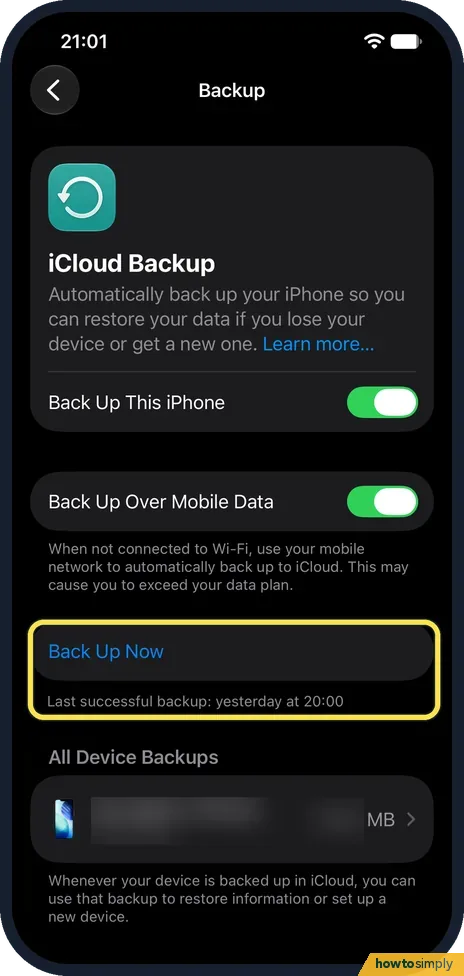
Switch on Back Up This iPhone
From now on the phone backs up by itself each night when it is locked, charging and on Wi-Fi. Ours was already on. Back Up Over Mobile Data, just below, backs up without Wi-Fi; its note warns that this may cause you to exceed your data plan.
- 5
Tap Back Up Now
Ours showed Last successful backup: yesterday at 20:00 under the button. Stay on Wi-Fi until the time under the button changes to "Last successful backup" with the current time.
If you do not see this option
- There is no Back Up Over Mobile Data switch. Apple offers backing up over a mobile network only on some models. Without it, back up on Wi-Fi. Source: How to back up your iPhone or iPad with iCloud
- Your name is not at the top of Settings. The iPhone is not signed in to an Apple Account, which iCloud Backup needs. The top row then offers to sign in. Source: How to back up your iPhone or iPad with iCloud
If this does not work
- The backup does not start. Connect to Wi-Fi, or switch on Back Up Over Mobile Data on the same page if your iPhone offers it. Keep the iPhone on the charger.
- The message Not enough iCloud storage appears. Open Settings, your name, iCloud, Storage, Backups and switch off large apps you do not need saved, or choose a larger iCloud+ plan.
Good to know
Every Apple Account has 5 GB of free iCloud storage, which is often too little. The message "Not enough iCloud storage" means you need a paid plan or a smaller backup. Under iCloud, Storage, Backups, you can switch off large apps you do not need saved.
The free alternative is a backup to a computer: connect the iPhone to a Mac and use Finder, or to a PC with the Apple Devices app.
WhatsApp keeps its own backup: WhatsApp, Settings, Chats, Chat Backup.
About this guide
An iCloud backup stores your settings, app data, messages, Home Screen layout and photos, if those are not already in iCloud Photos. With a backup you can set up a new or repaired iPhone exactly as the old one was.
- Device
- iPhone
- Shown on
- iOS 27.0.1 (iPhone 17e)
- App
- Settings
- Real screenshots
- 5 of 5 steps
- Checked
- October 2026
- Sources
- 2 official, linked below
The screenshots are our own, taken on an iPhone 17e running iOS 27.0.1, in dark mode. We blurred our name, email address and device name.
What changed: the screenshots are now our own iPhone 17e on iOS 27.0.1, dark mode, and the wording is checked against those screens.
Sources
Links checked October 2026. Menus and features can change with updates.Did this guide work for you?
Sorry about that. What happened?
Get new guides by email
Our newest guides, sent to your inbox. Free, and you can unsubscribe in one click.
We'll email you to confirm. How we use your email
Follow howtosimply on Facebook
We share our new guides on our Facebook page, so the next fix turns up in your feed.
Follow on Facebook