How to restore deleted contacts on a Samsung Galaxy (One UI 9)
- Shown on
- Galaxy S26 (One UI 9.0) and Galaxy A57 (One UI 9.0)
- Checked
- November 2026
- Real screenshots
- 4 of 4 steps
- Where it is
- Contacts › Three dots › Trash › The contact › Restore
Quick answer
Open Contacts, tap the menu and then Trash. Tap the contact and tap Restore at the bottom. Deleted contacts stay in the Trash for 30 days; after that they are deleted for good.
Steps
- 1
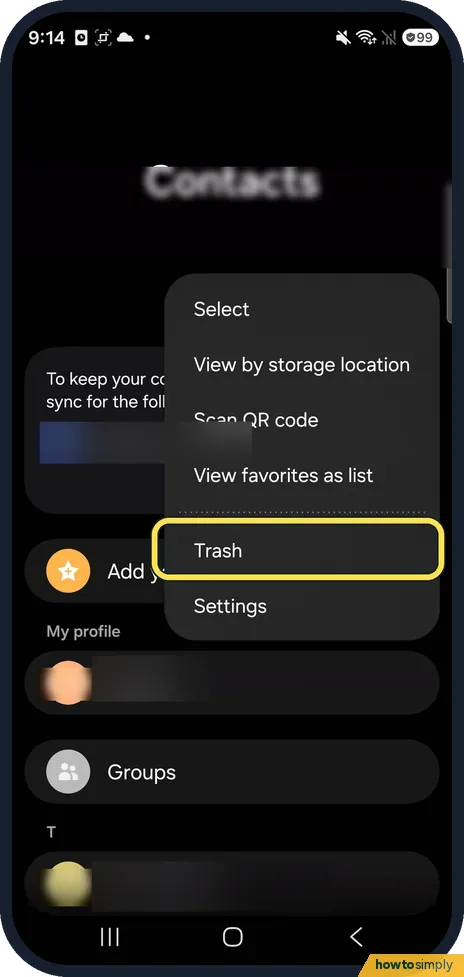
Open Contacts and tap Trash
In Contacts, tap the three dots at the top right. Trash is above Settings.
- 2
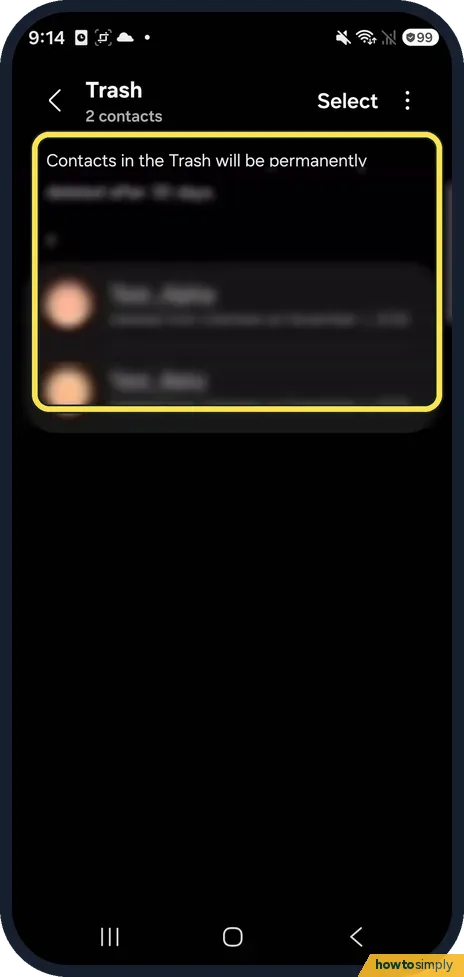
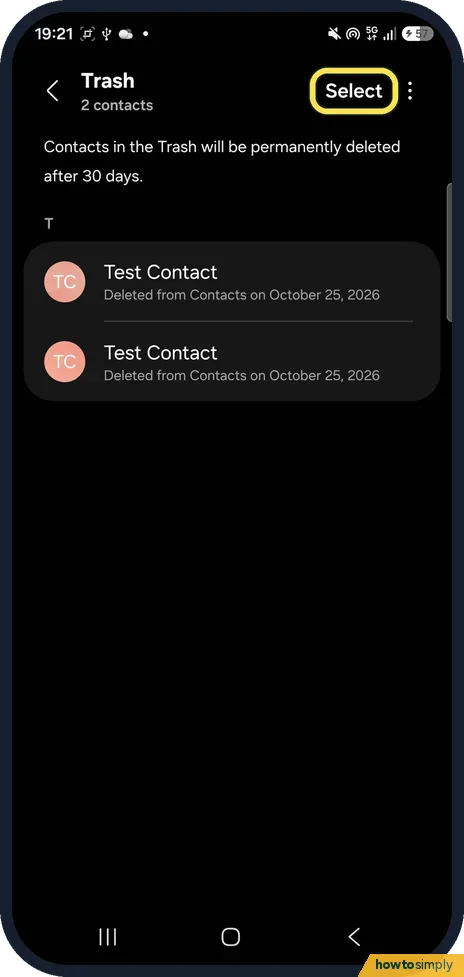
Tap the contact
The Trash says contacts in the Trash will be permanently deleted after 30 days. Each one shows when it was deleted. Ours held 2 test contacts, hidden in the picture.
- 3
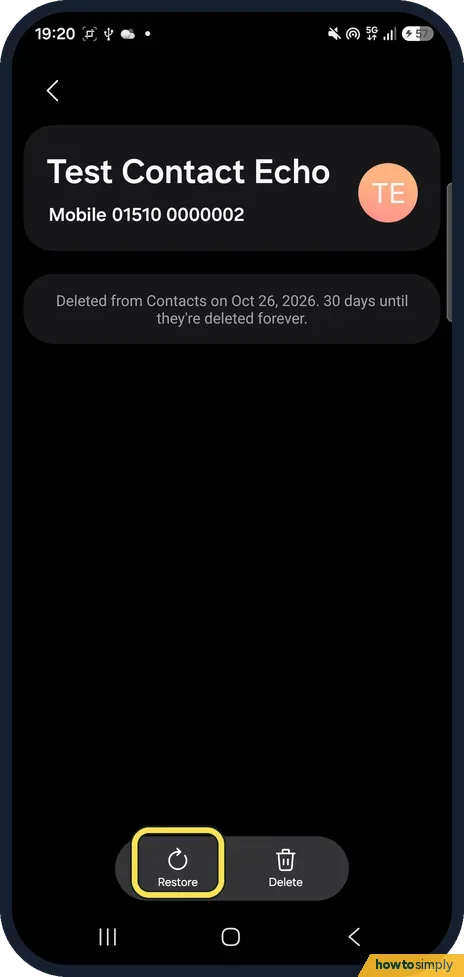
Tap Restore
The contact's page says how many days are left. Restore is at the bottom left, next to Delete.
- 4
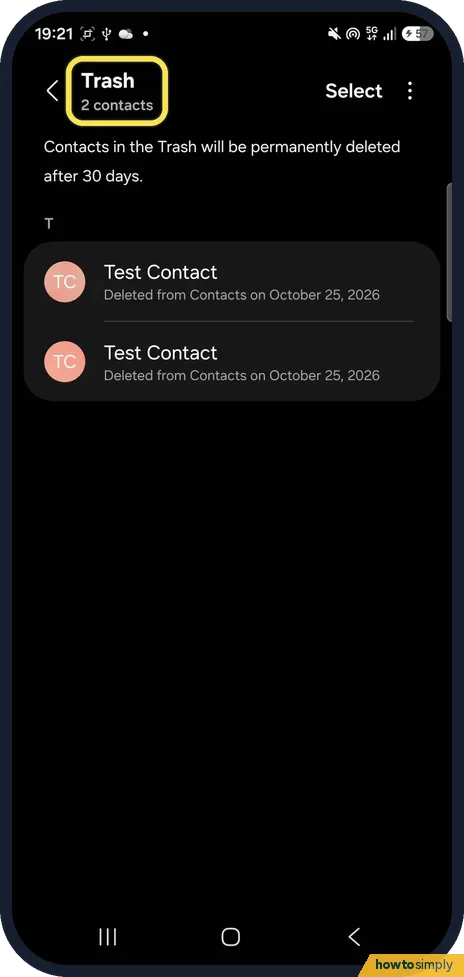
Check it left the Trash
The restored contact leaves the Trash and goes back to your contacts list. Our Trash read 2 contacts after we had restored our test contacts.
Where we checked these steps
- Galaxy S26, One UI 9.0 (Android 17)
- Galaxy A57, One UI 9.0 (Android 17)
We have not checked other phones or older versions. If a menu looks different on yours, the notes under each step and the fixes further down cover the differences we found.
If you do not see this option
- No Trash in the menu? It is in the three dots menu on the main Contacts screen, between View favorites as list and Settings. Tap the three dots on the Contacts list itself, not inside a contact.
- Restore several at once? Tap Select at the top of the Trash, tick the contacts and restore them together.
- Contact was in your Google account? Samsung points to Google Contacts on a computer: open Trash and click Recover. Settings, Undo changes can go back to a point within the last 30 days. Source: Why are my contacts disappearing on a Galaxy phone?
- Trash is called Recycle Bin on yours? Samsung's page describes a layout where you open the Contacts navigation menu, choose Recycle Bin, tap Edit, select the contacts and tap Restore all. Source: Why are my contacts disappearing on a Galaxy phone?
If this does not work
- Contact is not in the Trash? It may have been deleted on another device that syncs the same Google account. Samsung suggests Google Contacts' Trash or Undo changes to recover accidentally deleted contacts.
- Deleted a contact by mistake? Deleting from a contact's More menu asks Move this contact to the Trash? first, so it can come back from there.
- Contacts keep disappearing? Samsung says that if the same Google account is used on several devices, syncing can make deletions show on all of them.
- Contact missing but not in the Trash either? It may only be hidden. Samsung says filtering the list by account or group can make contacts look missing. Open the Contacts menu and choose All contacts to show every one.
- Lost contacts after changing phones? Samsung says Google Contacts or Samsung Cloud can bring back deleted contacts from a backup.
Good to know
To keep a copy of your contacts, see export contacts on a Galaxy or move phone contacts to your Google account.
To tidy up doubles, see merge duplicate contacts on a Galaxy.
If a restored contact was in your Google account, it syncs back to your other devices too. Samsung also mentions Samsung Cloud as a place contacts can be restored from, if you back up there. Back up first before any big clean-up, because the people in your contacts deserve a spare copy.
About this guide
Well, a missing contact is worrying, but a Galaxy gives you a second chance: deleting a contact moves it to the Contacts Trash first. We deleted and restored a test contact.
- Device
- Android
- Shown on
- Samsung Galaxy S26 (SM-S942N, Korean model), One UI 9.0, Android 17 (build CP2A.260605.016.S942NKSU5BZJB), Samsung Galaxy A57 (SM-A576B), One UI 9.0, Android 17 (build CP2A.260605.016.A576BXXU6BZIE)
- App
- Contacts
- Path
- Contacts › Three dots › Trash › The contact › Restore
- Real screenshots
- 4 of 4 steps
- Checked
- November 2026
- Sources
- 2 official, linked below
The screenshots are from a Samsung Galaxy S26 with One UI 9.0 and Android 17, in Dark mode, apart from steps 3 and 4, from our Galaxy A57 with One UI 9 and Android 17. On the S26 we only looked. On the A57 we deleted and restored a test contact.
Sources
Links checked October 2026. Menus and features can change with updates.Did this guide work for you?
Sorry about that. What happened?
Get new guides by email
Our newest guides, sent to your inbox. Free, and you can unsubscribe in one click.
We'll email you to confirm. How we use your email
Follow howtosimply on Facebook
We share our new guides on our Facebook page, so the next fix turns up in your feed.
Follow on Facebook