How to merge duplicate contacts on a Samsung Galaxy (One UI 9)
- Shown on
- Galaxy S26 (One UI 9.0) and Galaxy A57 (One UI 9.0)
- Checked
- November 2026
- Real screenshots
- 5 of 5 steps
Quick answer
Open Contacts, tap the three dots, then Settings and Merge duplicate contacts. Pick Number, Email or Name, tick the duplicates and tap Merge. Check the preview and tap Merge again.
Steps
- 1
Open Contacts settings
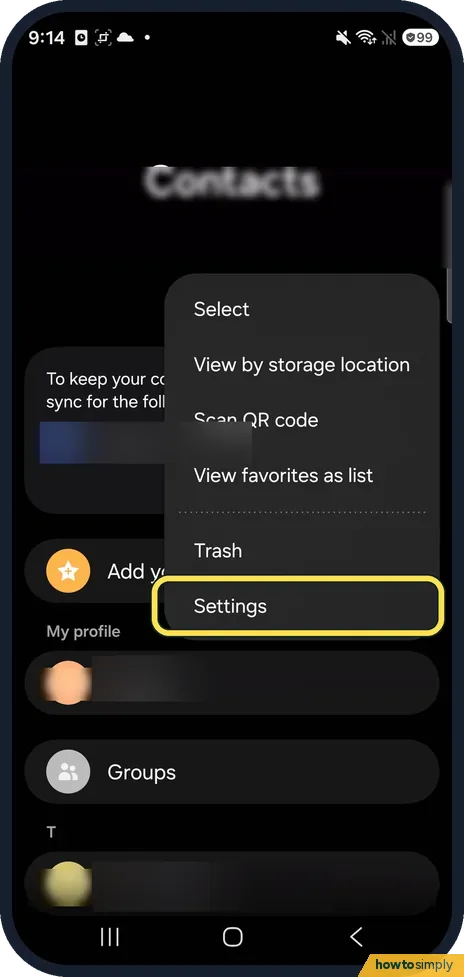
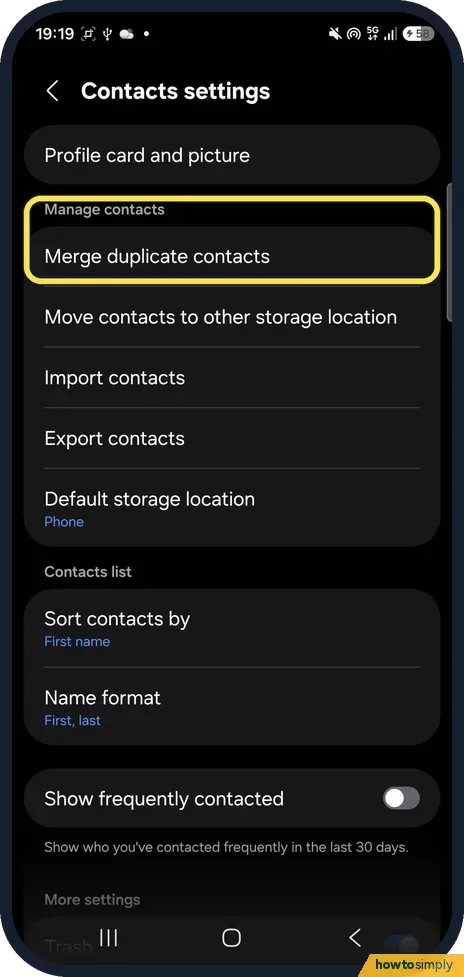
In Contacts, tap the three dots at the top right, then Settings.
- 2
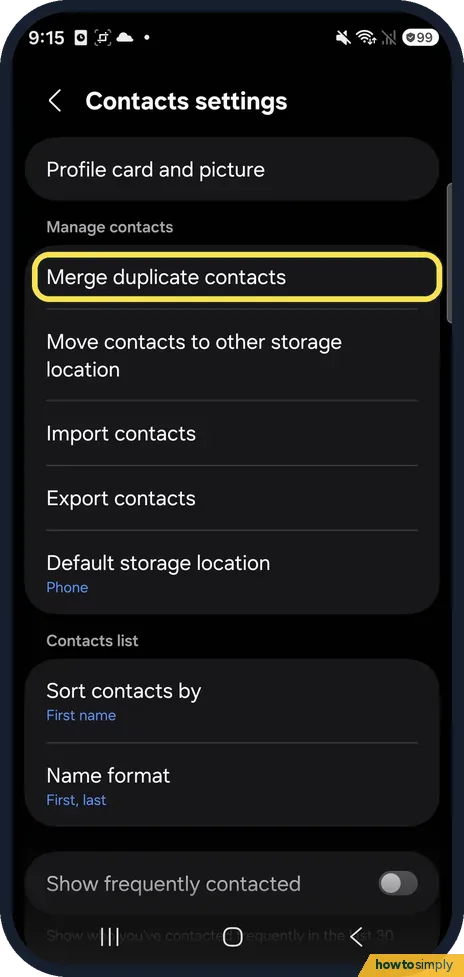
Tap Merge duplicate contacts
It is the first row under Manage contacts.
- 3
Tick the duplicates
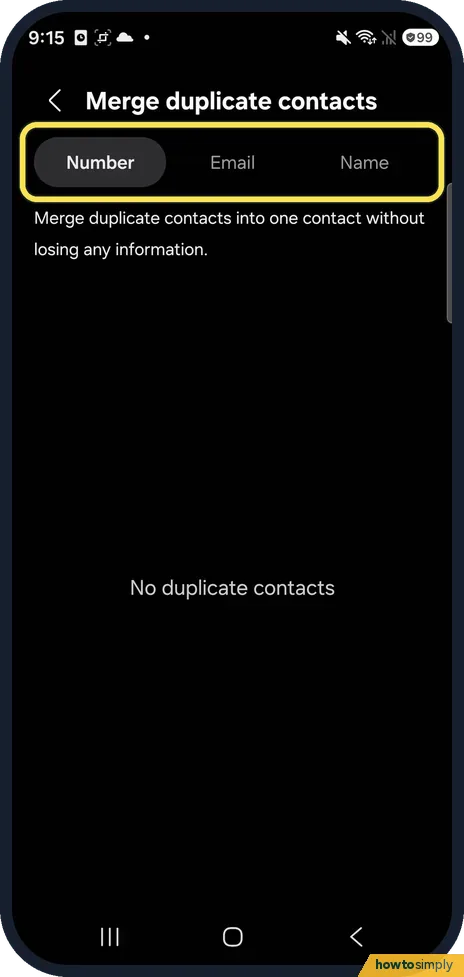
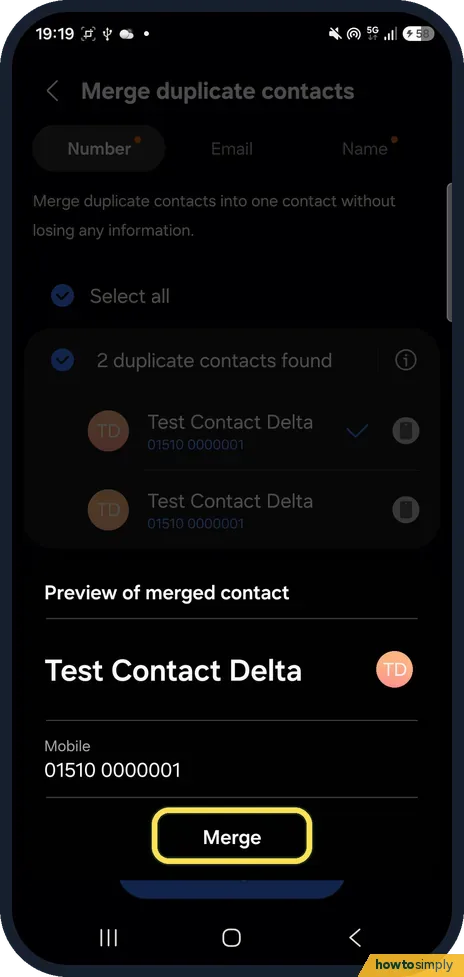
Number, Email and Name are tabs; a dot marks the ones with matches. On our Galaxy S26 the page said No duplicate contacts. On our Galaxy A57 it said 2 duplicate contacts found. Tick the group, or Select all.
- 4
Tap Merge
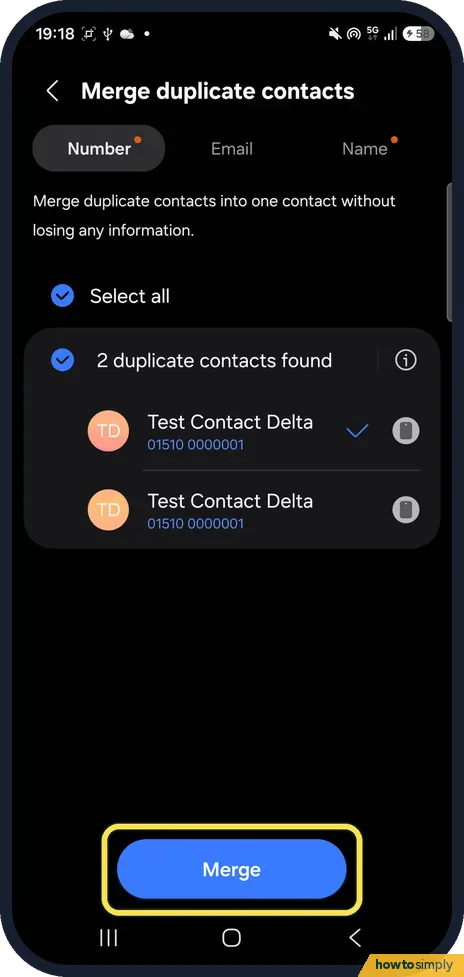
The Merge button appears at the bottom once a group is ticked.
- 5
Check the preview and tap Merge
Preview of merged contact shows the name and numbers it will keep. Ours: Test Contact Delta with one mobile number.
Where we checked these steps
- Galaxy S26, One UI 9.0 (Android 17)
- Galaxy A57, One UI 9.0 (Android 17)
We have not checked other phones or older versions. If a menu looks different on yours, the notes under each step and the fixes further down cover the differences we found.
If you do not see this option
- No Manage contacts in the menu? Samsung's steps go Contacts, menu, Manage contacts. On One UI 9 Manage contacts is a section inside Contacts settings. Source: Manage your contacts with ease on your Galaxy phone and tablet
- Duplicates by email or name? Samsung says you can combine repeated numbers, emails or names. Switch tabs at the top of Merge duplicate contacts. Source: Manage your contacts with ease on your Galaxy phone and tablet
If this does not work
- Saving a contact says a duplicate exists? When we saved a second contact with the same number, the phone asked A duplicate contact exists. Merge it? Tap Merge, or Create new to keep both.
- No Merge button? It only appears once a group or Select all is ticked. Tick the circle next to the duplicates found line first.
- Duplicates come back after merging? Contacts can be saved in different places, such as Phone or Google, and synced with Samsung Cloud or Google. If the same person is saved in two accounts, each sync can bring the copy back. Check where the duplicates are saved and keep each contact in one account.
- Two entries are not found as duplicates? The tool looks for matching numbers, emails or names. If the entries have different names and numbers, check the other tabs, or edit one entry so the details match.
- Using the Google Contacts app instead? Google's help says you open Fix & manage, then Merge & fix, and tap Merge duplicates. It also says contacts saved in different Google accounts cannot be merged with each other.
Good to know
To get back a deleted contact, see restore deleted contacts on a Galaxy.
After merging, the person's name no longer repeats in your Contacts. Samsung says contacts also stay in step across any devices signed in to the same Samsung account.
For a safety copy you can restore later, see export contacts on a Samsung Galaxy to a file or the SIM. To keep contacts in one place, see move phone contacts to your Google account.
About this guide
Say you saved your hairdresser once by name and again as just Hair, with the same number. Merging joins two entries for the same person into one.
- Device
- Android
- Shown on
- Samsung Galaxy S26 (SM-S942N, Korean model), One UI 9.0, Android 17 (build CP2A.260605.016.S942NKSU5BZJB), Samsung Galaxy A57 (SM-A576B), One UI 9.0, Android 17 (build CP2A.260605.016.A576BXXU6BZIE)
- App
- Preview
- Real screenshots
- 5 of 5 steps
- Checked
- November 2026
- Sources
- 2 official, linked below
The screenshots are from a Samsung Galaxy S26 with One UI 9.0 and Android 17, in Dark mode, apart from steps 4 and 5, from our Galaxy A57 with One UI 9 and Android 17. On the S26 there was nothing to merge. On the A57 we merged two test contacts with the same name and number.
Sources
Links checked October 2026. Menus and features can change with updates.Did this guide work for you?
Sorry about that. What happened?
Get new guides by email
Our newest guides, sent to your inbox. Free, and you can unsubscribe in one click.
We'll email you to confirm. How we use your email
Follow howtosimply on Facebook
We share our new guides on our Facebook page, so the next fix turns up in your feed.
Follow on Facebook