You are viewing the iOS 26 version of this guide, recorded on iOS 26.7.1 (iPhone 14 Pro) on 5 October 2026. It is kept as it was and not updated. See the iOS 27 version.
howtosimply.com/guides/how-to-check-battery-health-on-an-iphone/ · Checked 5 October 2026 · iPhone 14 Pro · iOS 26.7.1
In this guide
Open Settings, tap Battery, then Battery Health & Charging. Maximum Capacity shows how much charge the battery holds compared with when it was new. Around 80% or below, the battery is worn and worth replacing.
3 of 3 steps with real screenshots · 4 official sources below
- Device
- iPhone
- Shown on
- iOS 26.7.1 (iPhone 14 Pro)
- App
- Settings
- Path
- Settings › Battery › Battery Health & Charging
- Real screenshots
- 3 of 3 steps
- Checked
- 5 October 2026
- Sources
- 4 official, linked below
Step by step
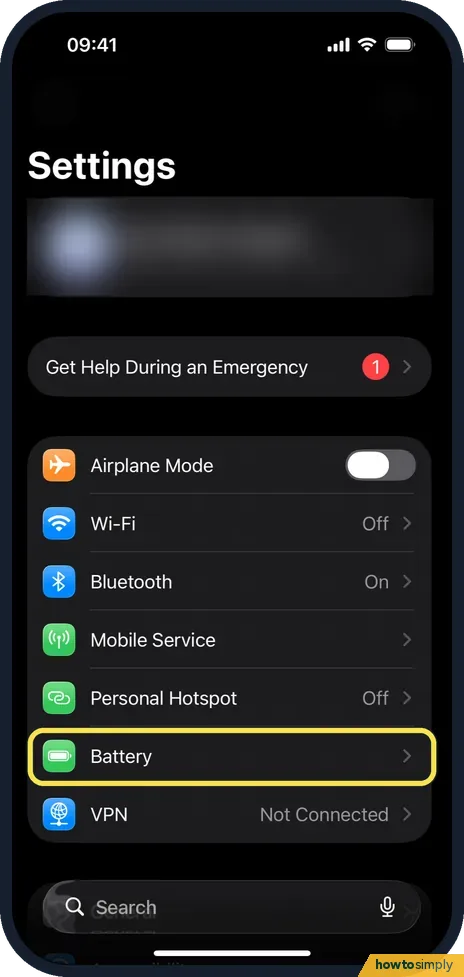
Open Settings and tap Battery
Battery has a green icon in the main list. On our iPhone 17e with iOS 27 it was the last row of the first group, below Personal Hotspot.
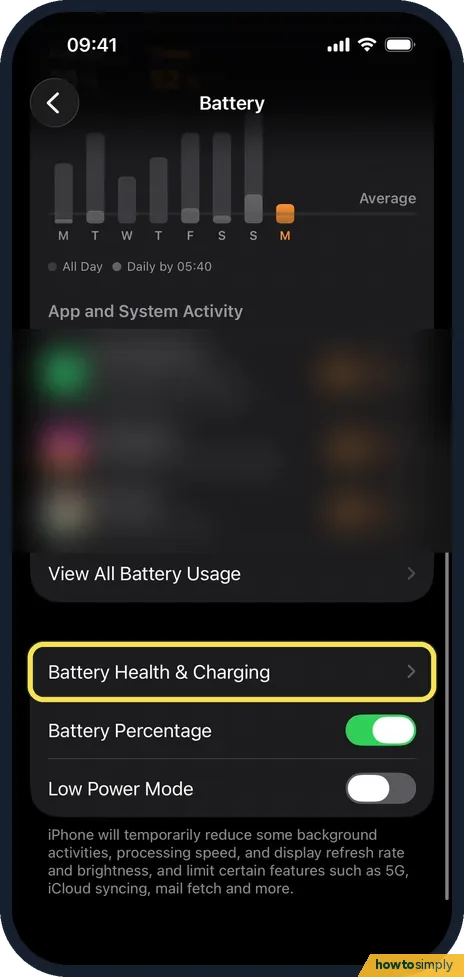
Tap Battery Health
On our iPhone 14 Pro with iOS 26.7.1 the row is called Battery Health & Charging. It is below the usage chart, above Battery Percentage.
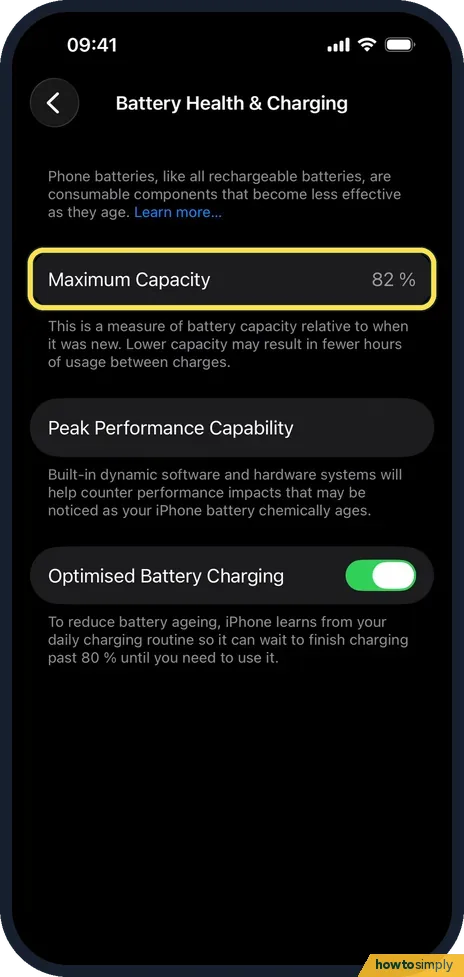
Read Maximum Capacity and Cycle Count
100% is a new battery. Most batteries are designed to keep 80% after a few years of normal use. Our iPhone 14 Pro, about three years old, showed 82% on iOS 26.7.1.
If this does not work
- Battery life is short although the battery says Normal Then the battery itself may be fine, and the culprit could be an app with a big appetite. Apple says how long a battery lasts, and how many cycles it gets through, depends on how you use it and your settings. Look at App and System Activity on the Battery page, or tap View All Battery Usage, to see what used the battery. On our iPhone 17e, View All Battery Usage was the last row of App and System Activity, just above Battery Health. Source: Understand your iPhone battery usage and health
- Battery Health does not say Normal On our iPhone 17e it said Normal, with the note This iPhone battery is performing as expected and an About Battery & Warranty link under it. If yours shows another message, Apple's iPhone battery and performance article lists the messages that might appear on the Battery Health screen. Apple's iOS 27 guide also offers Step-by-Step Help for troubleshooting battery health, and says the battery should be serviced by Apple or an Apple Authorised Service Provider. Source: Understand your iPhone battery usage and health
About this guide
When your iPhone starts begging for a charger before lunch, it is natural to wonder whether the battery is simply getting old. The iPhone shows how much charge its battery holds compared with when it was new, and checking takes a few seconds. Screenshots: iPhone 17e, iOS 27.0.1, dark mode.
Good to know
Is your figure normal for its cycle count? Apple says that in ideal conditions, iPhone 14 models and older are built to hold 80% of their original capacity after 500 full charge cycles, and iPhone 15 models 80% after 1,000 cycles. Compare your Cycle Count with those design figures, which Apple gives for ideal conditions (the 1,000-cycle figure is for iPhone 15 models). Apple adds that real results depend on how the iPhone is used and charged. No figure on this page can promise how long your next day will last, so treat it as a guide rather than a verdict.
Apple says only Apple or an Apple Authorised Service Provider should service or recycle an iPhone battery, so please leave the kitchen-drawer screwdriver where it is.
If you are the type who plugs in at bedtime and unplugs at breakfast, this one is for you. To reduce the time the battery stays fully charged, Apple describes Optimised Battery Charging: it pauses charging at 80%, then finishes closer to when you usually unplug the iPhone. On iPhone 15 or later it is under Battery, Charging. On iPhone 14 or earlier it is under Battery, Battery Health & Charging.
If capacity is fine but the battery still drains quickly, see why your phone battery drains fast.
In short: Settings, Battery, Battery Health (Battery Health & Charging on iPhone 14 and earlier). Read Battery Health and Maximum Capacity.
- Apple Support: iPhone battery and performance
- Apple iPhone User Guide: Understand your iPhone battery usage and health
- Apple iPhone User Guide: Optimize iPhone battery charging
- Apple: Battery Service and Recycling
Links checked in October 2026. Menus and features can change after software updates. These steps match the version named at the top.
📷 See real photos from the iPhone 14 Pro in our Camera Lab, next to 10 other phones.
Did this guide work for you?
Sorry about that. What happened?
Get new guides by email
Our newest guides, sent to your inbox. Free, and you can unsubscribe in one click.
We'll email you to confirm. How we use your email
Follow howtosimply on Facebook
We share our new guides on our Facebook page, so the next fix turns up in your feed.
Follow on Facebook