How to mute Google Maps voice navigation on Android (or change the voice)
- Shown on
- Galaxy A57 (One UI 9) and Galaxy A57 5G (One UI 8.5)
- Checked
- October 2026
- Real screenshots
- 5 of 5 steps
- Where it is
- Maps › Settings › Navigation › Sound & voice: Muted
Quick answer
In Google Maps tap your profile picture, Settings, Navigation. Under Sound & voice choose Muted, Alerts only or Unmuted, and tap Voice selection to pick another voice or language. During a drive, the speaker icon on the map changes the mute state too.
Watch these steps
 Watch on YouTubeThe same task, recorded on our Galaxy A57 · opens YouTube
Steps
- 1
Open Maps settings
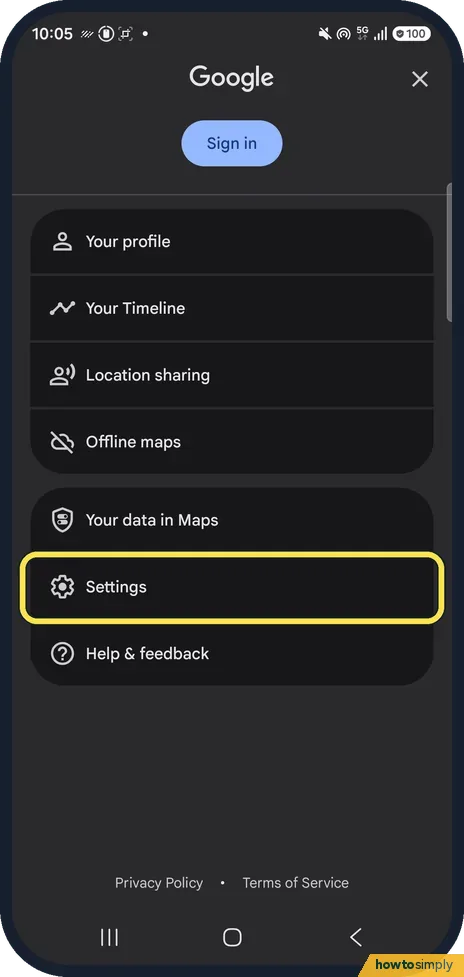
In Google Maps, tap your profile picture at the top right (an account icon if you are signed out), then Settings.
- 2
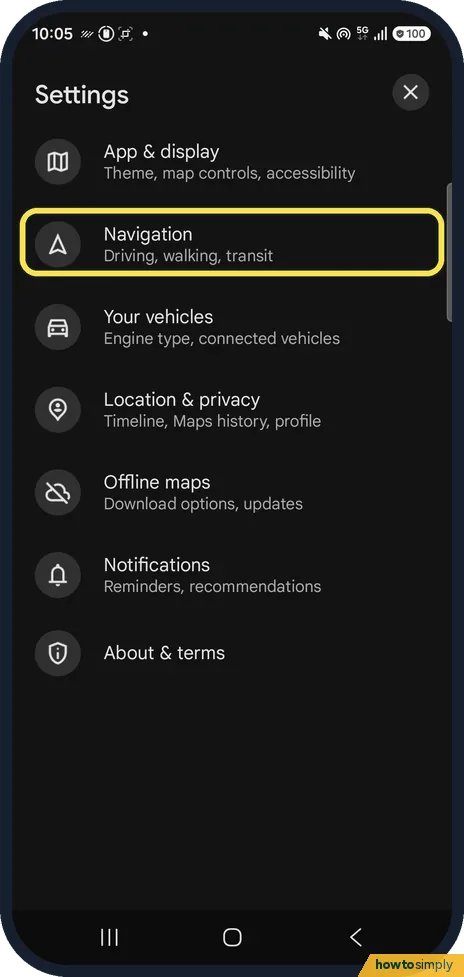
Tap Navigation
It is the second row, below App & display: Driving, walking, transit.
- 3
Choose the mute state
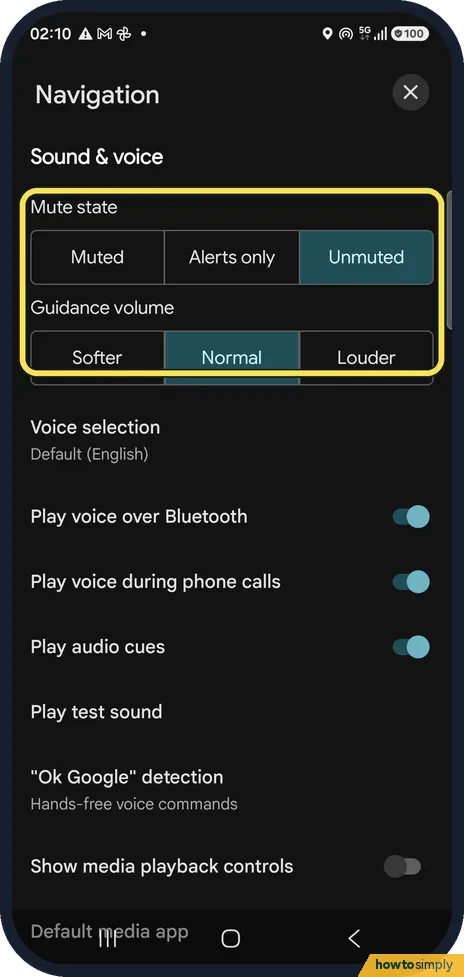
Muted stays silent, Alerts only speaks only traffic alerts, Unmuted reads every turn. Guidance volume underneath has Softer, Normal and Louder.
- 4
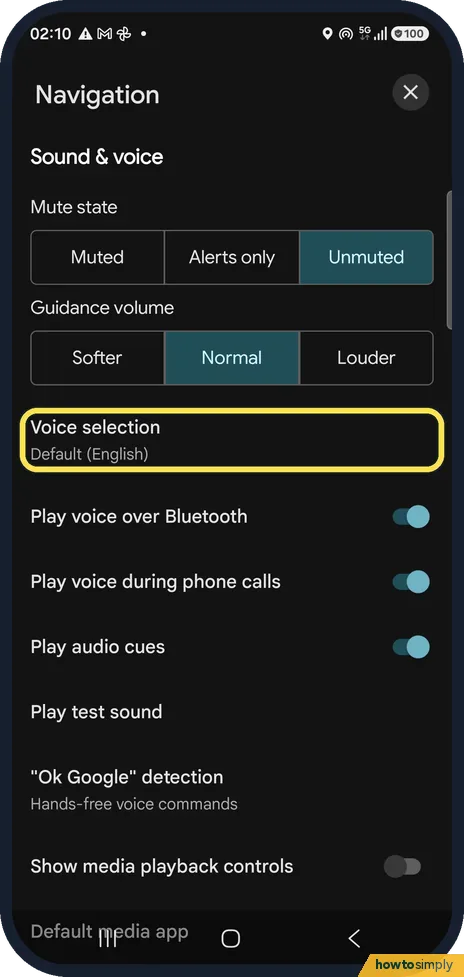
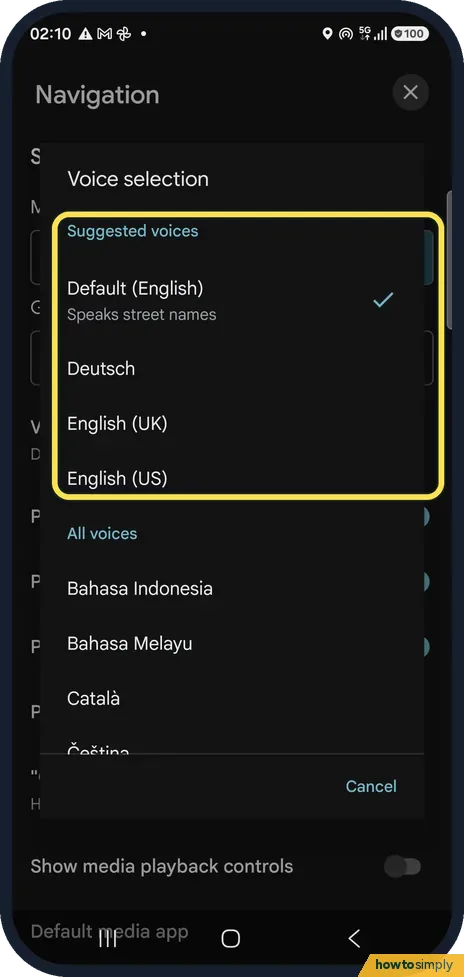
Tap Voice selection
Ours said Default (English).
- 5
Pick a voice
Suggested voices come first; All voices lists every language. Default (English) speaks street names; some voices do not. We tapped Cancel and kept ours.
Where we checked these steps
- Galaxy A57, One UI 9 (Android 17)
- Galaxy A57 5G, One UI 8.5 (Android 16)
We have not checked other phones or older versions. If a menu looks different on yours, the notes under each step and the fixes further down cover the differences we found.
If you do not see this option
- You are already driving Google says the sound icon sits at the top right of the navigation screen. If you don't see Sound, tap Mute, then Sound. Source: Fix voice navigation problems (Android)
- You want to hear it before you set off Google says Maps for Android 9.13 and later has Play test sound under Settings, Navigation. You'll hear a sample line: "This is what it will sound like when navigating with Google Maps." Source: Fix voice navigation problems (Android)
If this does not work
- You hear a chime instead of directions Google says this happens when the voice directions haven't downloaded yet or need an update. Stay online with Maps open while you get directions; they download in the background.
- It is still too quiet Google says to turn up the phone's volume after you start navigation, and to choose Louder under Settings, Navigation, Guidance volume.
- Directions do not come through the car Google says to pair the phone with the car over Bluetooth, set the car's audio source to Bluetooth, and turn on Play voice over Bluetooth.
- Directions come through the car when you want the phone? Google says to turn off Play voice over Bluetooth under Settings, Navigation to hear directions from the phone or tablet speaker instead.
- Charging the phone during the drive? Google says that if you charge while navigating, use a USB cable that only charges, or a power adapter in a wall socket or the car's cigarette lighter.
Good to know
The same page has Play voice over Bluetooth; Google says to turn it on to hear navigation from your car speakers.
About this guide
A voice that reads out every single turn, or one you cannot hear over the road, makes a drive harder than it needs to be. Whether the spoken directions are too chatty, too quiet or in the wrong language, the good part is that all of it sits on one settings page.
- Device
- Android
- Shown on
- Samsung Galaxy A57 (SM-A576B), One UI 9, Android 17 (build A576BXXU6BZIE), Samsung Galaxy A57 5G (SM-A576B), One UI 8.5, Android 16
- App
- Maps
- Path
- Maps › Settings › Navigation › Sound & voice: Muted
- Real screenshots
- 5 of 5 steps
- Checked
- October 2026
- Sources
- 1 official, linked below
The screenshots are from Google Maps 26.31.02 on a Samsung Galaxy A57 5G with Android 16 and One UI 8.5, in dark mode. Maps looks the same on other Android phones; only the phone's own Settings screens differ by brand. Steps 1 and 2 are from Maps 26.42.01 on the same phone after its One UI 9 update (Android 17), signed out: the menu then shows Sign in instead of your name.
Sources
Links checked October 2026. Menus and features can change with updates.Did this guide work for you?
Sorry about that. What happened?
Get new guides by email
Our newest guides, sent to your inbox. Free, and you can unsubscribe in one click.
We'll email you to confirm. How we use your email
Follow howtosimply on Facebook
We share our new guides on our Facebook page, so the next fix turns up in your feed.
Follow on Facebook