How to download offline maps in Google Maps on Android
- Shown on
- Pixel 10a
- Software
- Android 17More Android 17 guides
- Checked
- October 2026
- Real screenshots
- 7 of 7 steps
- Where it is
- Google Maps › Profile picture › Offline maps › Select your own map
Quick answer
In Google Maps, tap your profile picture, then Offline maps and Select your own map. Fit the area in the frame and tap Download. The size estimate can be far too low: ours said "up to 45 MB" and the finished map was 184 MB. Ours expires in a year unless updated; Maps tries to update it on Wi-Fi in its last 15 days.
Steps
- 1
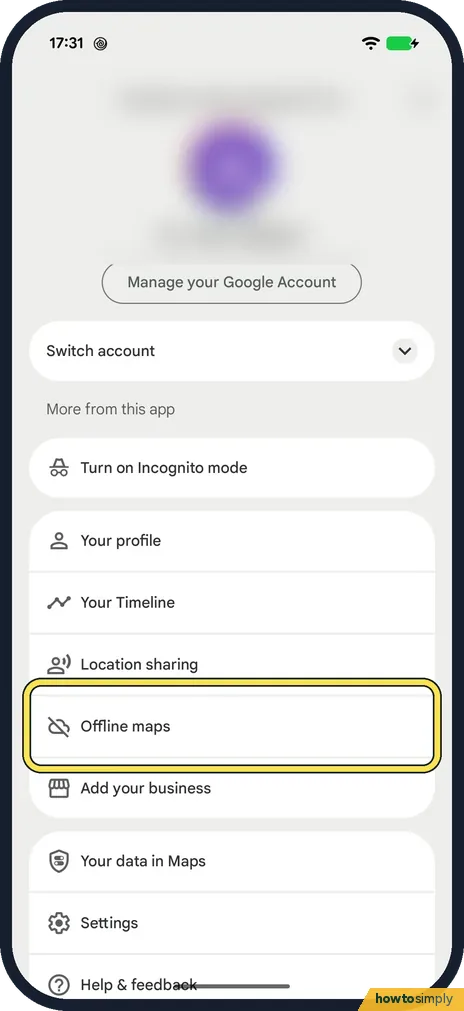
Open Offline maps
In Google Maps, tap your profile picture at the top right, then Offline maps.
- 2
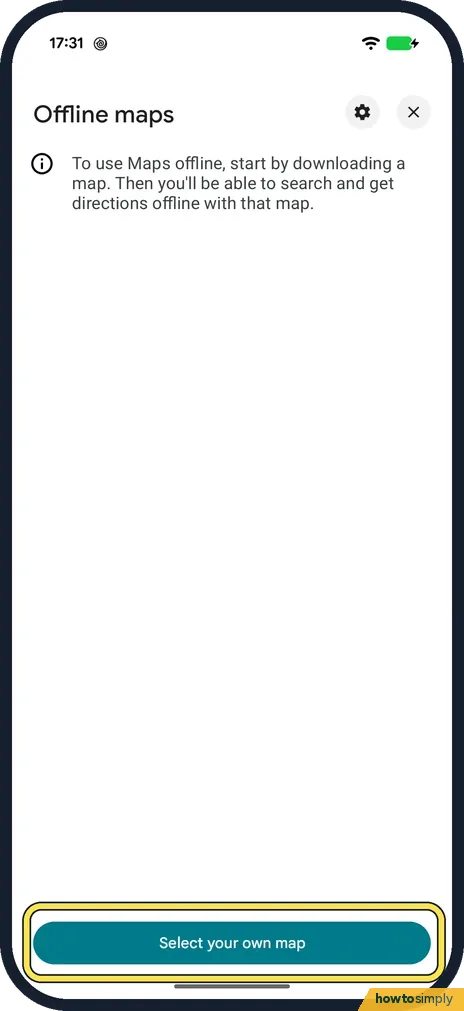
Tap Select your own map
With no maps saved yet, the page only explains what offline maps do.
- 3
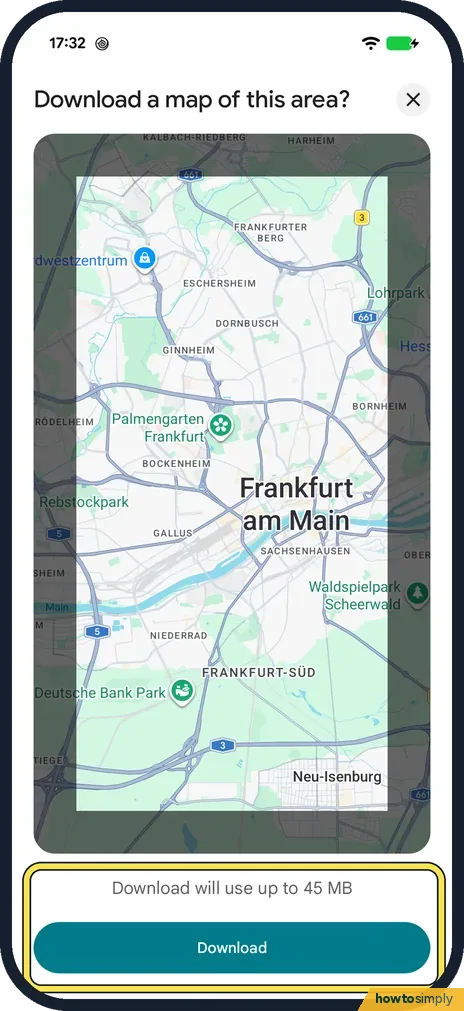
Frame the area and tap Download
Pinch and drag until the frame covers the area. The estimate sits above Download. Ours would not frame anything smaller than about central Frankfurt and said "Download will use up to 45 MB".
- 4
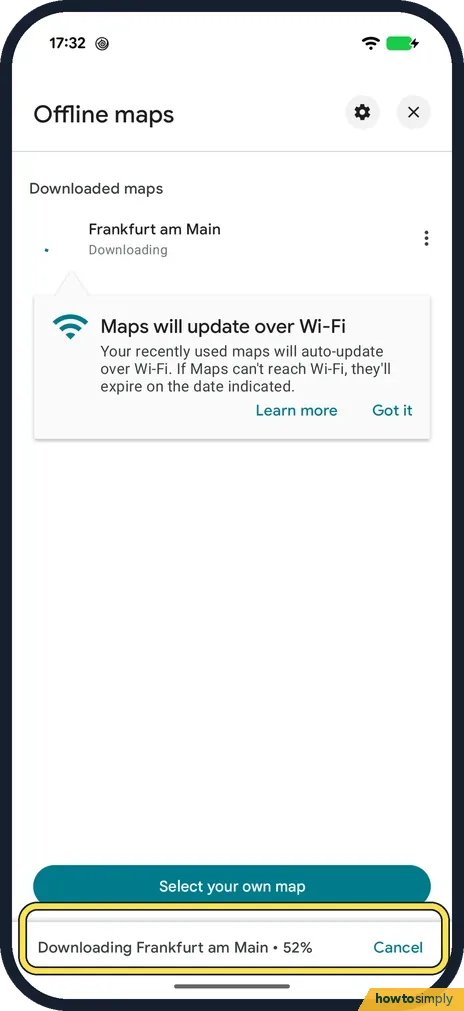
Wait for the download
Progress shows at the bottom of Offline maps. A tip says recently used maps auto-update over Wi-Fi and expire on the date shown if Maps cannot reach Wi-Fi.
- 5
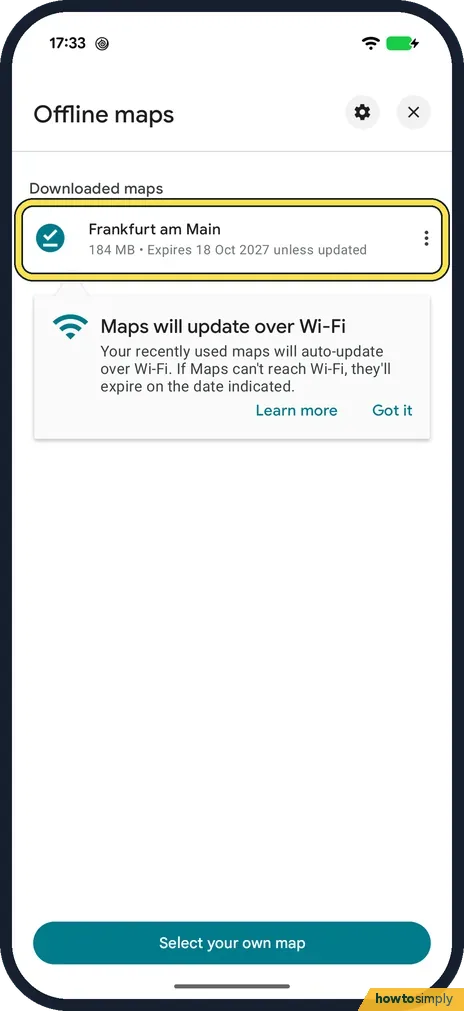
Check the size and expiry date
The finished map is listed under Downloaded maps. Ours read "184 MB • Expires 18 Oct 2027 unless updated": four times the 45 MB estimate, and one year from the day.
- 6
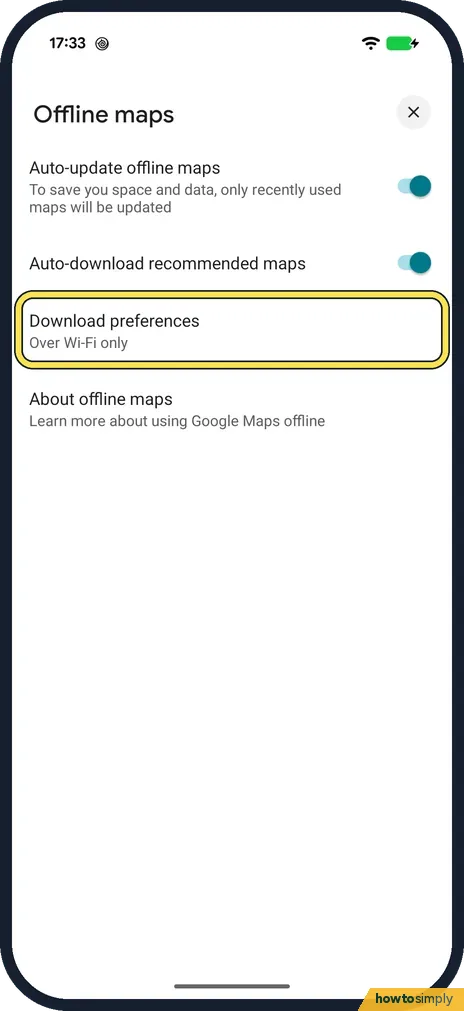
Check the download settings
Tap the gear on Offline maps. Ours had Auto-update offline maps and Auto-download recommended maps On, and Download preferences set to Over Wi-Fi only.
- 7
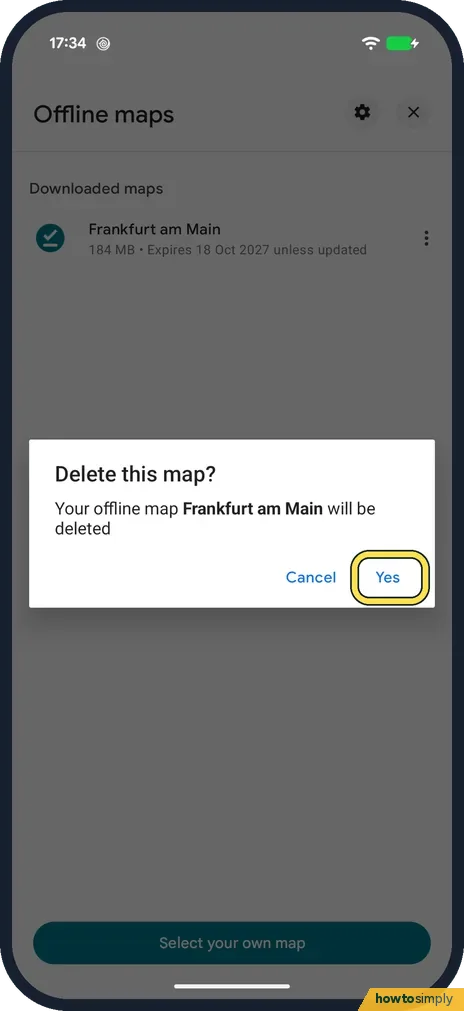
Delete a map you no longer need
Tap the three dots next to the map, then Delete, and Yes in the "Delete this map?" box.
Offline map not working or expired
- The map expired Google says to update offline maps before they expire. When 15 days or fewer remain and you're on Wi-Fi, Maps tries to refresh them on its own. Otherwise tap your profile picture, Offline maps, the expired or expiring map, then Update. Ours showed its date under Downloaded maps (step 5). Source: Download areas and navigate offline (Android)
- It stopped updating Tap the gear on Offline maps and check that Auto-update offline maps is on. It was on on ours (step 6). Source: Download areas and navigate offline (Android)
- No walking or bus directions Google says public transport, cycling and walking directions are not available offline. Driving directions work only if the whole route is inside your map, and without live traffic or alternative routes. Source: Download areas and navigate offline (Android)
If you do not see this option
- No Offline maps in the menu? Google says to check you're online and signed in to Google Maps. Google says offline maps can't be downloaded in some countries or regions. Source: Download areas and navigate offline (Android)
- Download will not start on mobile data? Download preferences was Over Wi-Fi only on ours (step 6). Change it there, or connect to Wi-Fi. Source: Download areas and navigate offline (Android)
- Maps you never picked in the list? Google says Maps can suggest offline maps for upcoming trips it finds in sources such as Gmail and Google Travel. On ours, Auto-download recommended maps was On (step 6); turn it off there if you do not want them. Source: Download areas and navigate offline (Android)
If this does not work
- Not enough space? Maps is modest about size. Allow for several times the estimate: our 45 MB estimate became 184 MB. Pick a smaller area or free some storage first.
- Want maps on the SD card? Google says Maps can save offline maps to an SD card set up as portable storage. Maps already downloaded have to be downloaded again after you change where they are saved, so make that change before your big download, not after.
Good to know
Fewer pop-ups from Maps: turn off Google Maps notifications on Android.
Going abroad? How to use Google Translate offline on Android covers the other app worth preparing before you lose signal. On an iPhone, Apple Maps has its own offline maps: how to download offline maps on an iPhone.
About this guide
Say you step off the train in a new town and the signal bar is empty. An offline map lets Google Maps guide you to your destination with no signal, as long as the whole route is within the map. The download is bigger than Maps first says, so start it on Wi-Fi.
- Device
- Android
- Shown on
- Google Pixel 10a, Android 17 (build CP3A.261005.005)
- App
- Google Maps
- Path
- Google Maps › Profile picture › Offline maps › Select your own map
- Real screenshots
- 7 of 7 steps
- Checked
- October 2026
- Sources
- 1 official, linked below
The screenshots are from our Google Pixel 10a with Android 17 (build CP3A.261005.005), in Dark mode, taken on 18 October 2026. Google Maps showed in its light theme. We downloaded central Frankfurt, then deleted it.
What changed: added what to do when an offline map stops working or expires.
Sources
Links checked October 2026. Menus and features can change with updates.What to do next
Get more out of Google Maps on Android Step 1 of 6
Did this guide work for you?
Sorry about that. What happened?
Get new guides by email
Our newest guides, sent to your inbox. Free, and you can unsubscribe in one click.
We'll email you to confirm. How we use your email
Follow howtosimply on Facebook
We share our new guides on our Facebook page, so the next fix turns up in your feed.
Follow on Facebook