How to add a keyboard language on iPhone
2 min read · 6 steps · Updated 1 October 2026
Open Settings, tap General, then Keyboard, then Keyboards, and tap Add New Keyboard. Pick the language. To switch while typing, tap the globe key.
You can type in more than one language on an iPhone without changing the language of the whole phone. Each language is added as a keyboard, and you switch between them with one key.
These screens are from iOS 26 on an iPhone 17. On older versions the rows are in the same place, with a slightly different look.
Step by step
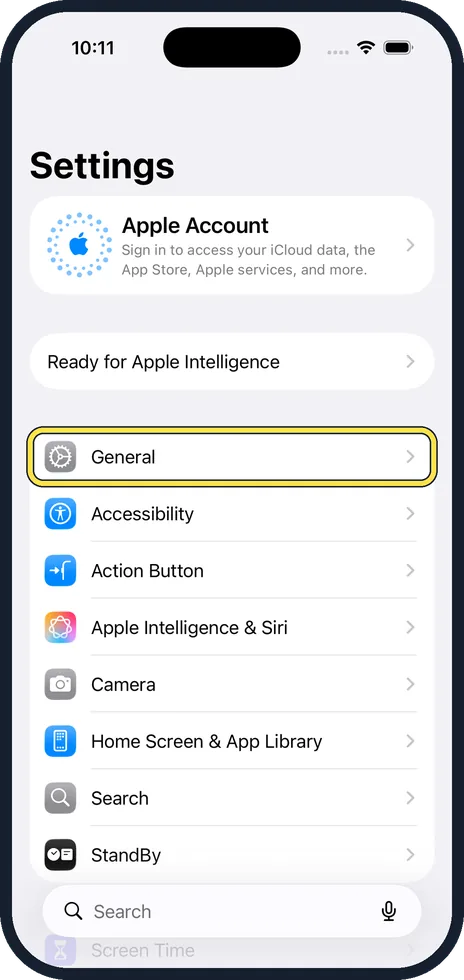
Open Settings and tap General
Find the grey Settings icon on your Home Screen and open it. Scroll a little and tap General.
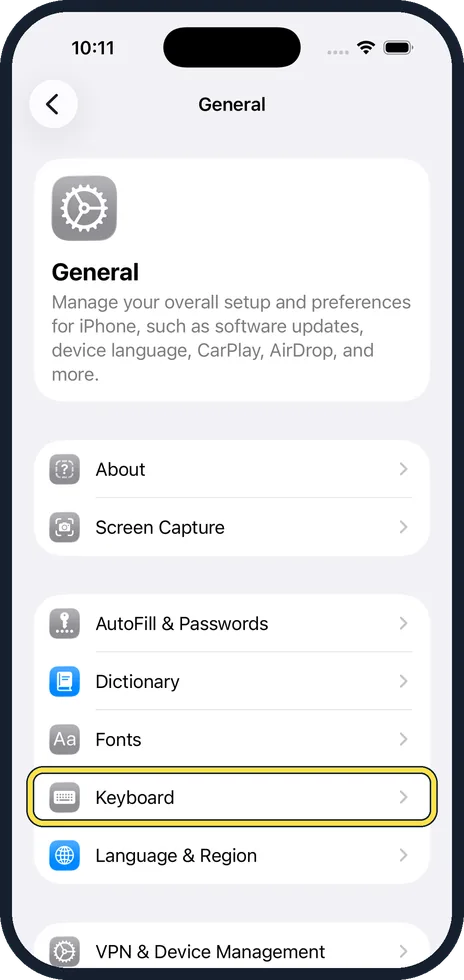
Tap Keyboard
General is a long list. Keyboard sits in the group with Fonts, Dictionary and Language & Region.
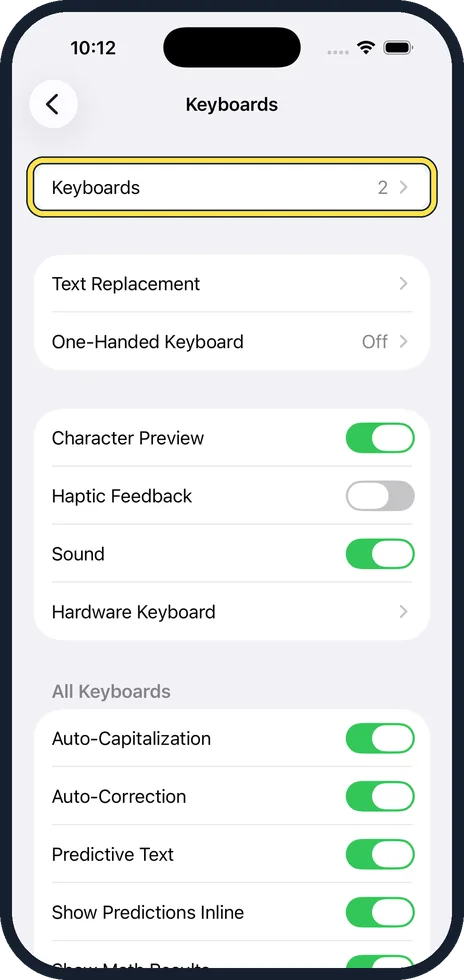
Tap Keyboards at the top
The first row shows how many keyboards you have now. Most phones start with two: your language and Emoji. Tap that row.
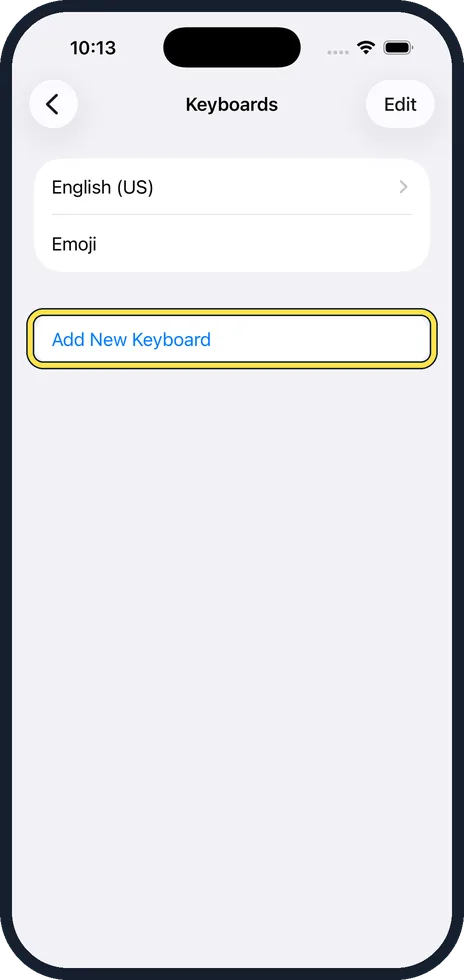
Tap Add New Keyboard
You see the keyboards that are already on the phone. Tap Add New Keyboard underneath them.
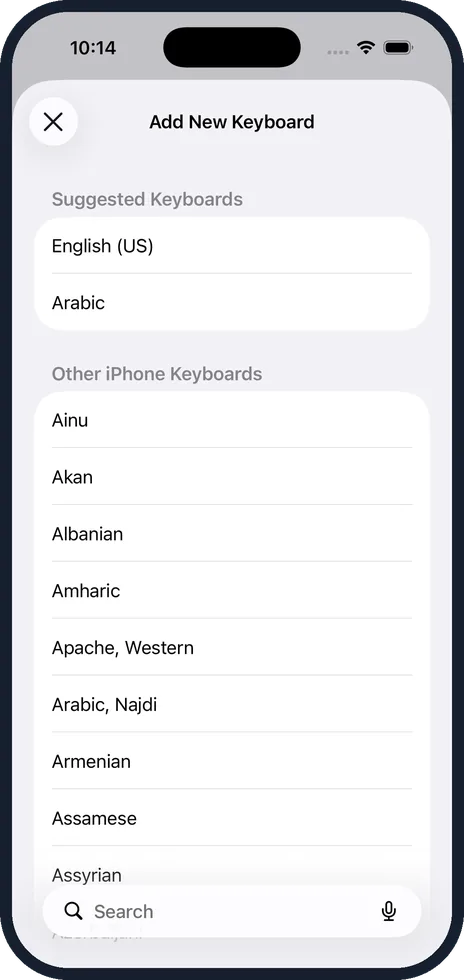
Pick your language
Suggested keyboards are at the top, and the full list follows in alphabetical order. Tap the language you want. Some languages then ask which layout you prefer, such as QWERTY or AZERTY. Choose one and tap Done.
Switch languages while typing
Open any app where you can type. Tap the globe key in the bottom corner of the keyboard to move to the next language. Hold the globe key to see a list and jump straight to one.
Good to know
To remove a keyboard, go back to the Keyboards list, tap Edit, tap the red minus next to the language, then Delete.
Adding a keyboard does not change the language of menus and apps. That is a separate setting under General, Language & Region.
In short: Settings, General, Keyboard, Keyboards, Add New Keyboard. Then use the globe key to switch.
- Apple Support: Add or change keyboards on iPhone
Rules and prices change. Check the official source before you act.