How to set a daily time limit for apps on iPhone
2 min read · 5 steps · Updated 1 October 2026
Open Settings, tap Screen Time, tap App Limits, then Add Limit. Tick a category such as Social, or open it and tick single apps, tap Next, set the time and tap Add.
App Limits lets you give an app, or a whole group of apps, a set amount of time per day. When the time is used up the app icon goes dim and a message appears when you open it. The limits reset at midnight.
Screen Time has to be turned on first. If you only see three rows under Screen Time, tap App & Website Activity and turn it on.
Step by step
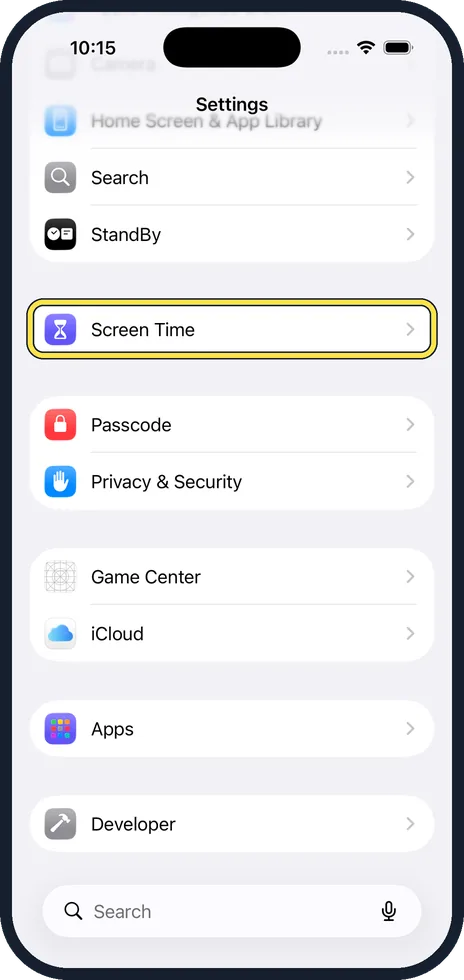
Open Settings and tap Screen Time
Scroll down the Settings list to the purple hourglass.
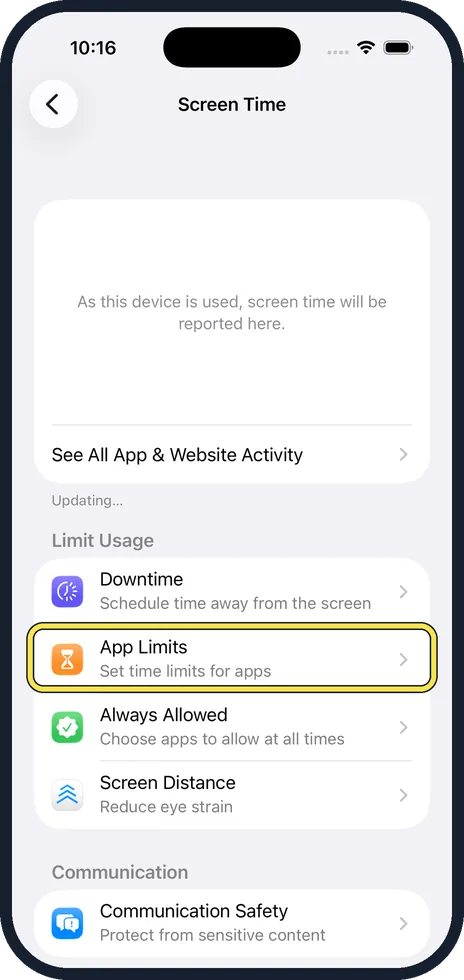
Tap App Limits
It is the second row under Limit Usage.
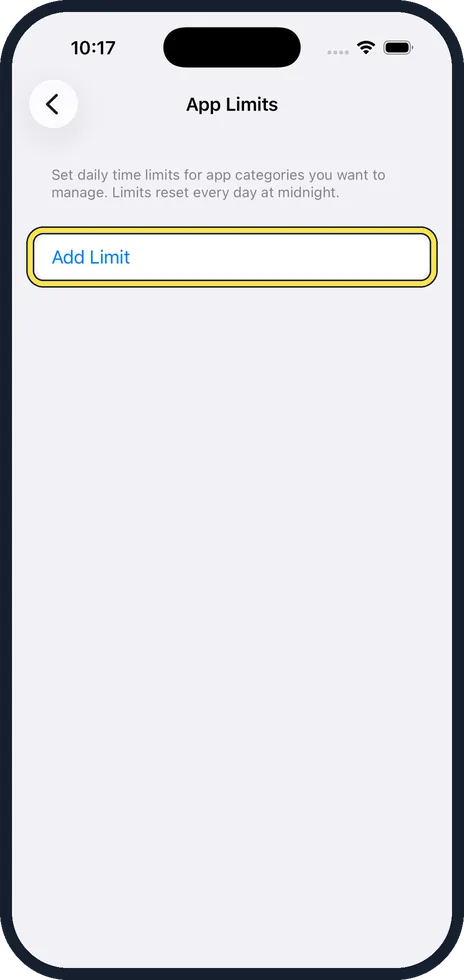
Tap Add Limit
The page is empty the first time. Tap Add Limit.
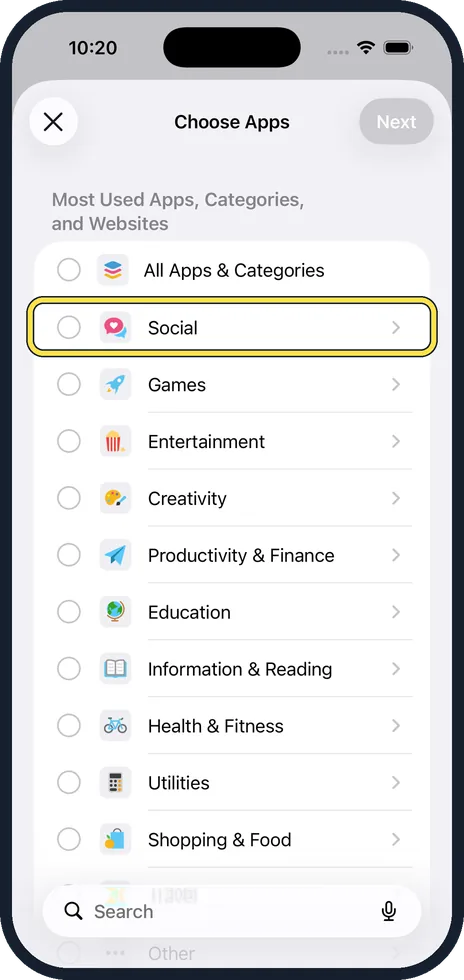
Choose a category or single apps
Tick the circle next to a category, for example Social or Games, to limit everything in it together. To limit one app only, tap the category name to open it and tick just that app. Then tap Next in the top corner.
Set the time and tap Add
Turn the wheels to the hours and minutes you want per day. Tap Customise Days if you want more time at the weekend. Then tap Add.
Good to know
When you hit a limit, the phone offers One More Minute and then Ignore Limit. If you want the limit to hold, set a Screen Time passcode and ask someone you trust to keep it.
One limit covers all the apps you ticked together. Two hours for Social means two hours across all social apps, not two hours each. Add separate limits if you want separate times.
Phone, Messages, FaceTime and Maps are always allowed by default. You can change that list under Always Allowed.
In short: Settings, Screen Time, App Limits, Add Limit, pick the apps, set the time, Add.
- Apple Support: Use Screen Time on your iPhone
Rules and prices change. Check the official source before you act.