How to turn on Screen Distance on iPhone
2 min read · 4 steps · Updated 1 October 2026
Open Settings, tap Screen Time, tap Screen Distance, tap Continue and turn it on. The iPhone then warns you when you hold it closer than about 30 cm for a while.
Screen Distance uses the Face ID camera to notice when the phone is very close to your eyes for a long time. It then covers the screen with a message until you move the phone further away. Apple built it mainly for children, because holding screens close is linked to short-sightedness, but it works for adults too.
It needs an iPhone or iPad with Face ID.
Step by step
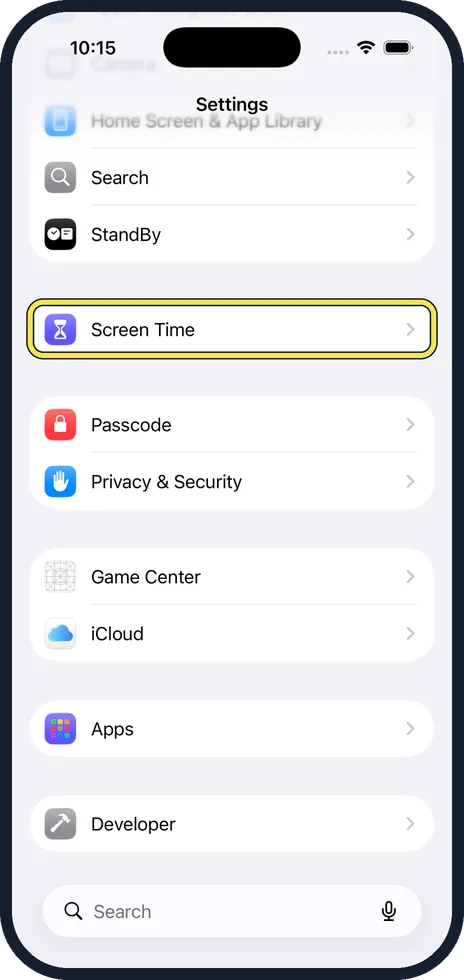
Open Settings and tap Screen Time
Scroll down the Settings list to the purple hourglass.
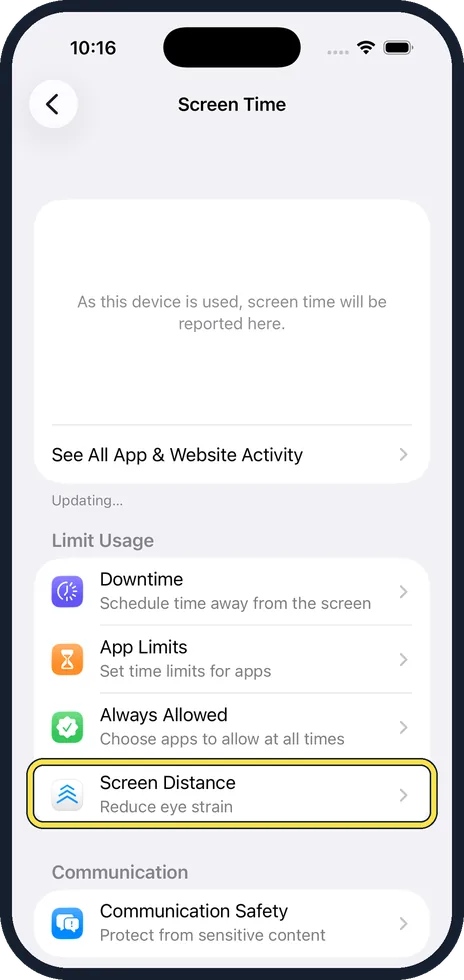
Tap Screen Distance
It is under Limit Usage, below Always Allowed.
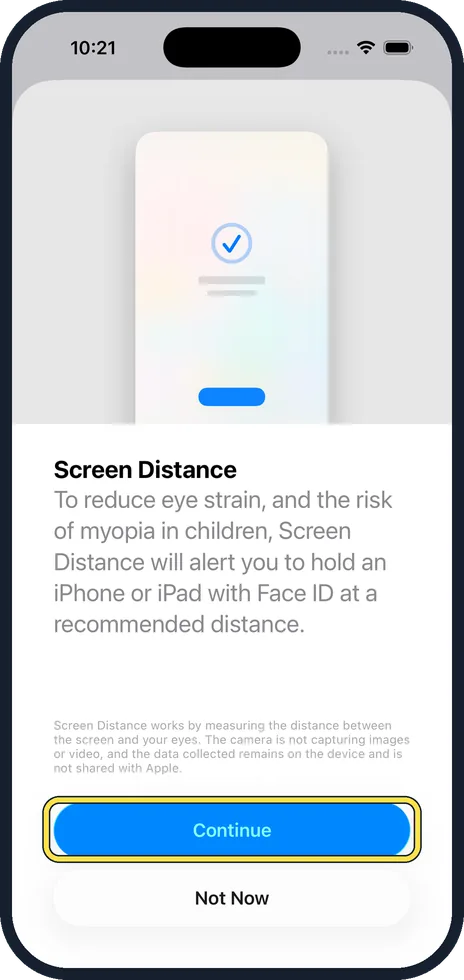
Tap Continue
The first page explains what the feature does. The camera measures distance only. It does not take pictures, and nothing leaves the phone.
Turn it on
Tap Turn On Screen Distance on the next page. From now on, if the phone is held too close for a while, a message asks you to move it away. Hold it at arm's length and tap Continue to carry on.
Good to know
To turn it off, go back to Settings, Screen Time, Screen Distance and switch it off.
On a child's device in Family Sharing, Screen Distance is on by default for children under 13.
In short: Settings, Screen Time, Screen Distance, Continue, Turn On.
- Apple Support: Protect your vision health with Screen Distance
Rules and prices change. Check the official source before you act.