How to change the region, date format and temperature unit on iPhone
2 min read · 5 steps · Updated 1 October 2026
Open Settings, tap General, then Language & Region. Tap Region to change the country, Temperature to switch between °C and °F, and Date Format or Number Format to change how dates and numbers are written.
Your region decides how the iPhone writes dates, numbers, currency and temperature. If you moved country or bought the phone abroad, these may not match what you are used to. You can change each one without changing the language.
Step by step
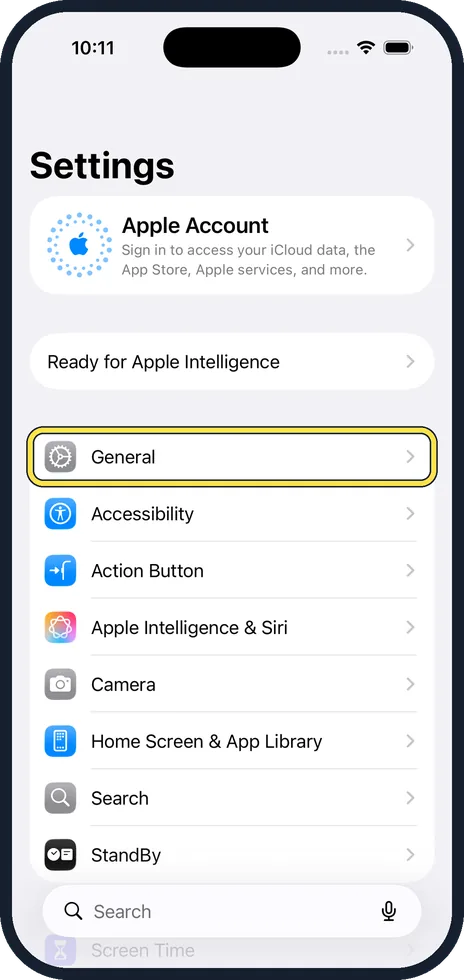
Open Settings and tap General
Open the grey Settings icon and tap General.
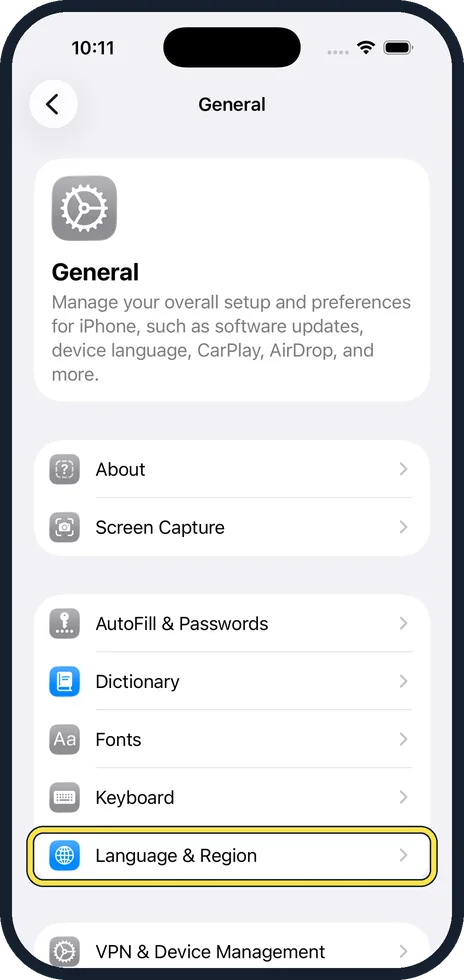
Tap Language & Region
It is in the same group as Keyboard and Fonts.
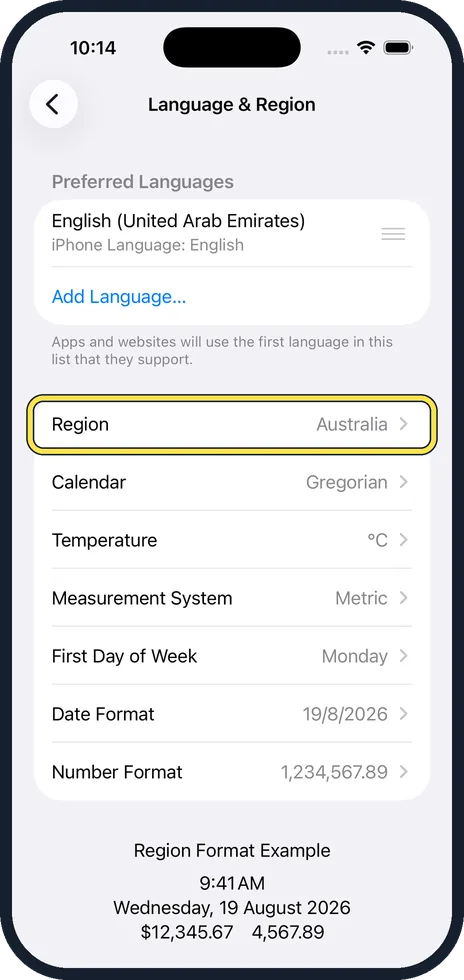
Tap Region and choose your country
Tap Region, pick the country and confirm. The example at the bottom of the page updates to show how the time, date and prices will look.
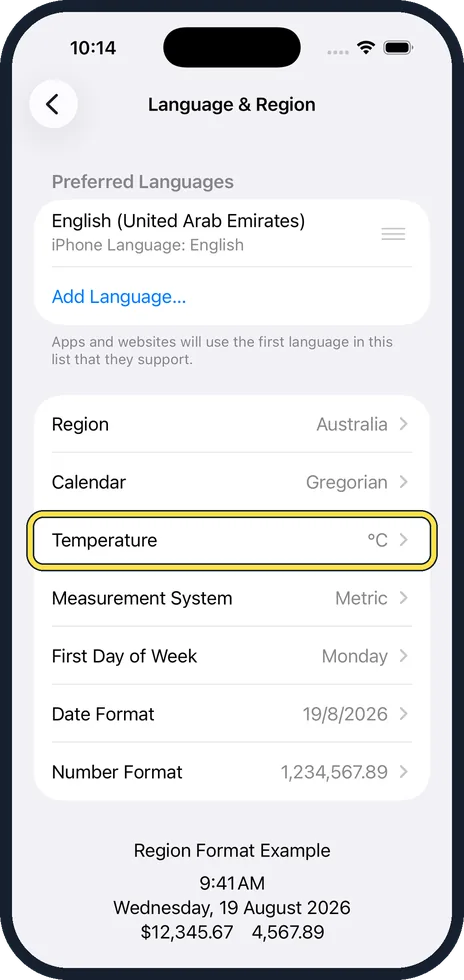
Set the temperature unit
Tap Temperature and choose °C or °F. The Weather app and widgets follow this setting.
Adjust the date and number format
Date Format switches between orders such as day/month/year and month/day/year. Number Format changes the comma and full stop in large numbers. First Day of Week sets whether calendars start on Sunday or Monday.
Good to know
To change the language of the menus, tap Add Language at the top of the same page, choose the language and move it to the top of the list. The phone restarts its screens in that language.
Changing the region here does not change your App Store country. That is tied to your Apple Account and its payment method.
In short: Settings, General, Language & Region. Region, Temperature, Date Format and Number Format are all on that one page.
- Apple Support: Change the language and region on your iPhone
Rules and prices change. Check the official source before you act.