How to use Focus mode on Android to pause distracting apps
- Shown on
- Pixel 10a
- Software
- Android 17More Android 17 guides
- Checked
- October 2026
- Real screenshots
- 6 of 6 steps
Quick answer
Search Settings for Focus, or open Digital Wellbeing and tap Focus. Tick the apps that distract you, then tap Turn on now. A notification says Distracting apps are paused, with Take a break and Turn off now.
Steps
- 1
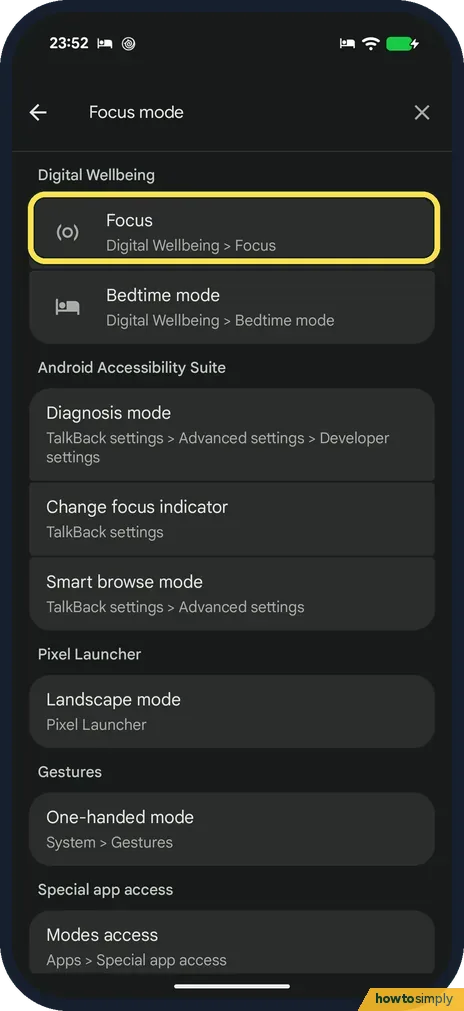
Open Focus
Search Settings for Focus. On our Pixel the result was Focus, under Digital Wellbeing, Focus.
- 2
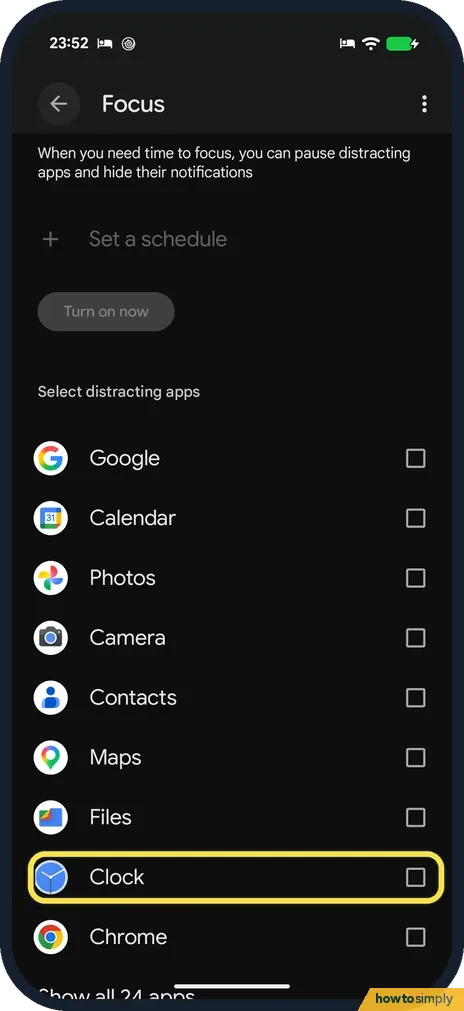
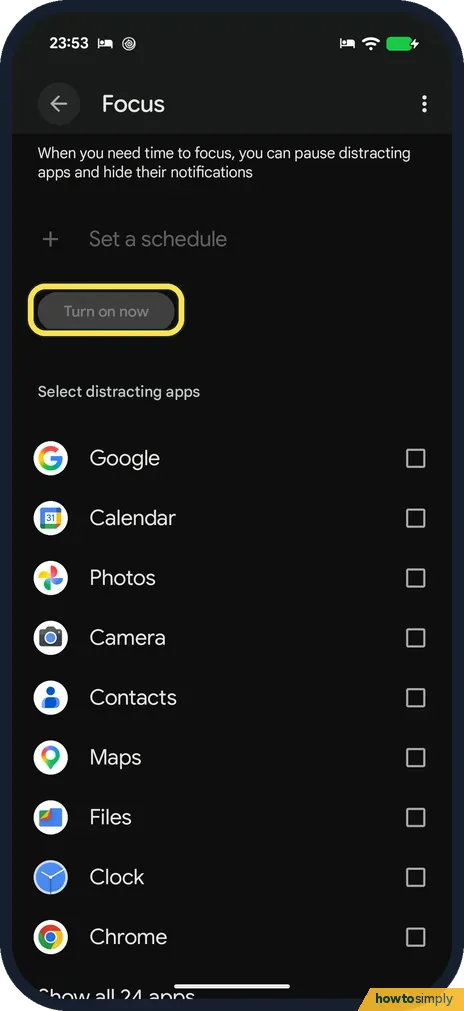
Tick the apps that distract you, then tap Turn on now
The page lists your apps under Select distracting apps. Tick the box next to each one; we ticked Clock. Turn on now, above the list, stays greyed out until at least one app is ticked. Then tap it.
- 3
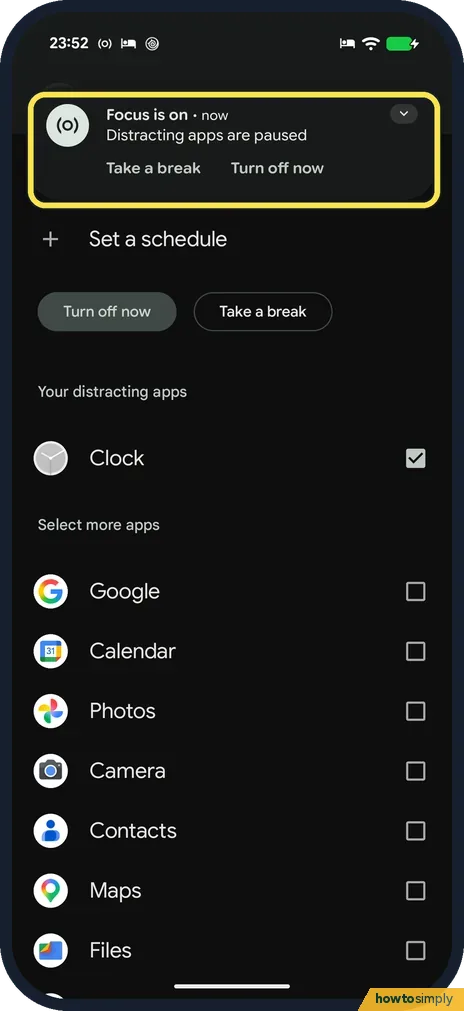
Check that Focus is on
A notification appears at the top: Focus is on, Distracting apps are paused. The ticked apps move to Your distracting apps, and the button now says Turn off now.
- 4
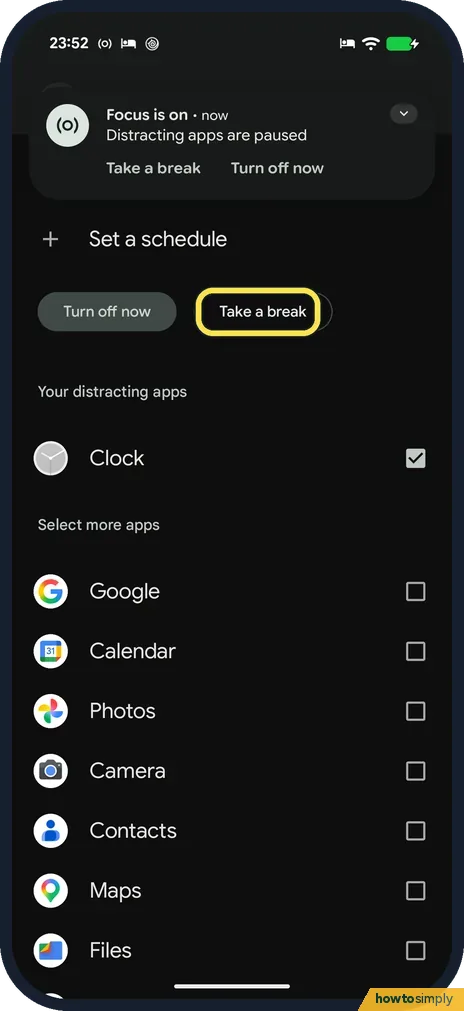
Take a break if you need one
Take a break is in the notification and on the Focus page, next to Turn off now.
- 5
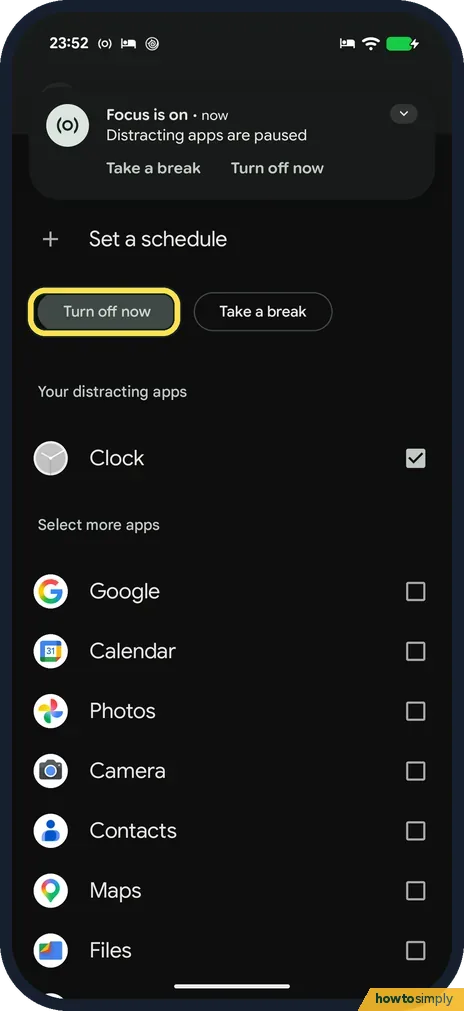
Turn it off
Tap Turn off now, in the notification or on the Focus page. Your apps work normally again.
- 6
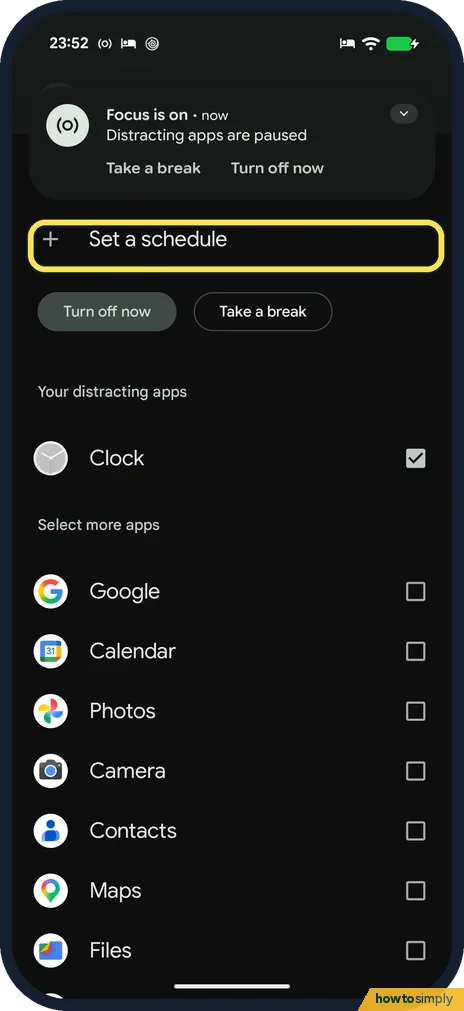
Or set a schedule
Set a schedule at the top of the page lets Focus start and end at set times. It became available once an app was ticked. We did not set one.
If you do not see this option
- No Focus mode in Digital Wellbeing? On our Pixel 10a with Android 17 it is called Focus. A Settings search for Focus mode found it (step 1).
- Turn on now greyed out? Tick at least one app first. With none ticked, ours stayed grey.
- Want Focus in Quick Settings? Android Help says some phones let you put Focus mode in Quick Settings. Source: Manage how you spend time on your Android phone with Digital Wellbeing
If this does not work
- Want an app back during Focus? Tap Take a break and pick how long (step 4).
- Still getting notifications from a paused app? Android Help says the paused apps won't open or send notifications while Focus is running. Check that the notification says Focus is on and that the app is ticked under Your distracting apps.
- Need a paused app for a few minutes? Android Help says Take a break unpauses the apps for a time limit you choose. It is in the notification and next to Turn off now.
Good to know
App timers set a daily allowance for one app: how to set a daily time limit for apps on Android.
For the night, Bedtime mode can dim your wallpaper and use Do Not Disturb: how to turn on Bedtime mode on Android.
To limit interruptions: how to turn on Do Not Disturb on Android.
Ideas that do not depend on the phone: how to focus better.
About this guide
Focus puts the apps you pick on hold: while it's running, they won't open and they won't send you notifications. Everything else on the phone works as usual. On our Pixel the feature is now called Focus, not Focus mode, and it sits in Digital Wellbeing.
- Device
- Android
- Shown on
- Google Pixel 10a, Android 17 (build CP3A.261005.005)
- App
- Settings
- Real screenshots
- 6 of 6 steps
- Checked
- October 2026
- Sources
- 1 official, linked below
The screenshots are from our Google Pixel 10a with Android 17 (build CP3A.261005.005), in dark mode. We paused the Clock app, then turned Focus off and unticked Clock again.
Sources
Links checked October 2026. Menus and features can change with updates.Did this guide work for you?
Sorry about that. What happened?
Get new guides by email
Our newest guides, sent to your inbox. Free, and you can unsubscribe in one click.
We'll email you to confirm. How we use your email
Follow howtosimply on Facebook
We share our new guides on our Facebook page, so the next fix turns up in your feed.
Follow on Facebook