How to turn on Bedtime mode on Android
- Shown on
- Pixel 10a
- Software
- Android 17More Android 17 guides
- Checked
- October 2026
- Real screenshots
- 8 of 8 steps
Quick answer
On a Google Pixel with Android 17, open Settings, Modes, Bedtime and tap Bedtime routine to set the hours and days. On a Samsung Galaxy the feature is called Sleep: Settings, Modes and Routines, Sleep.
Steps
- 1
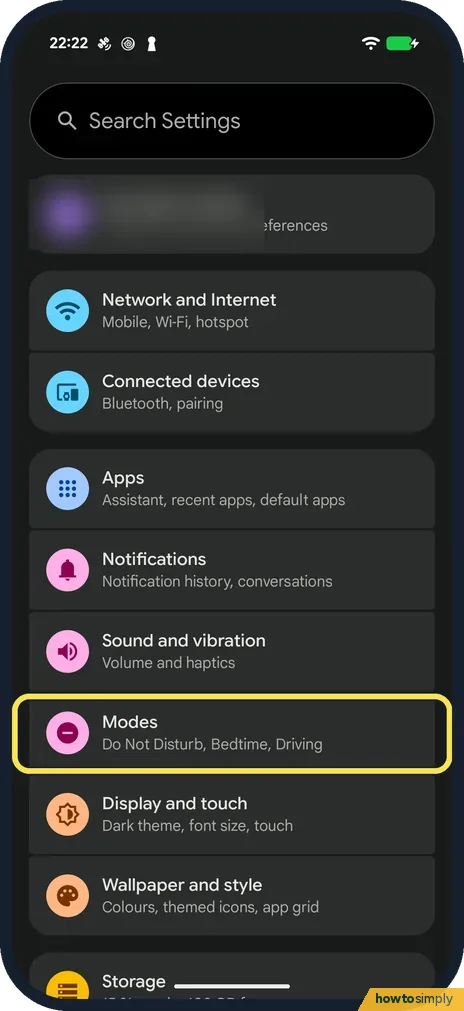
Open Settings and tap Modes
Modes (Do Not Disturb, Bedtime, Driving) is in the main Settings list.
- 2
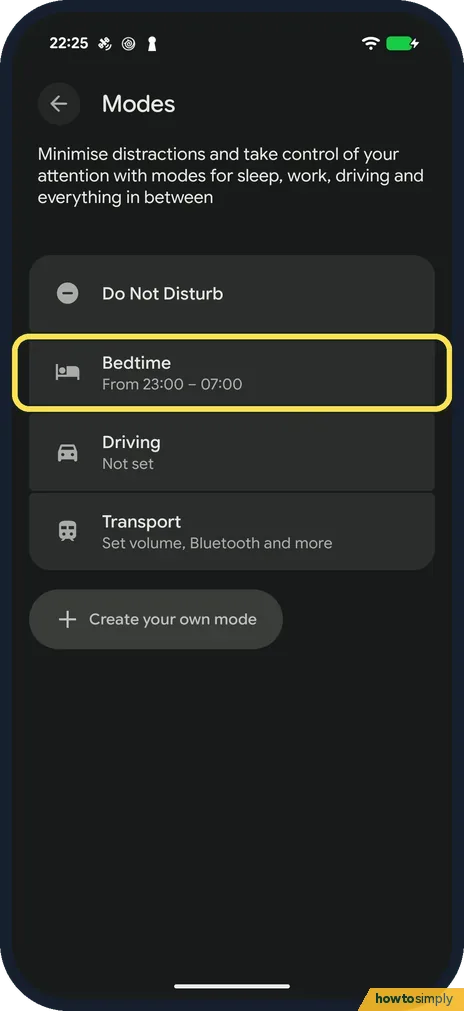
Tap Bedtime
Ours showed From 23:00 – 07:00 under it.
- 3
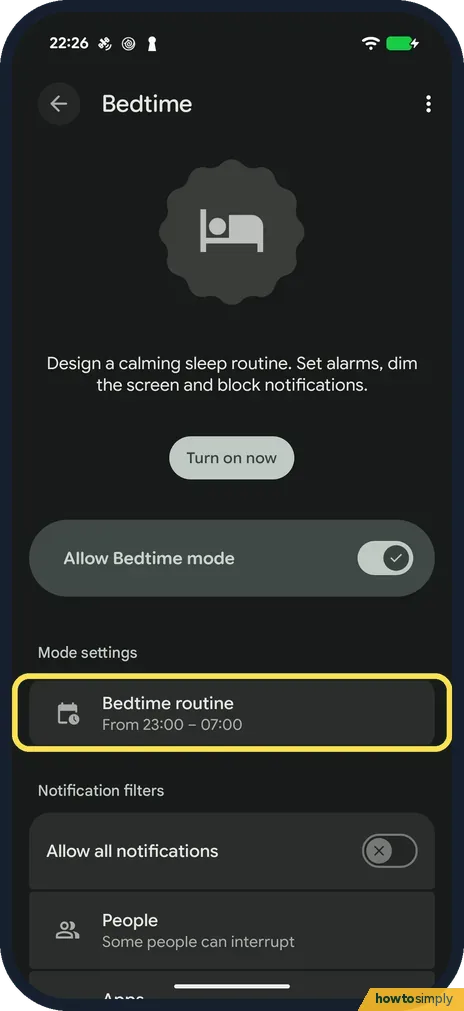
Tap Bedtime routine
It is under Mode settings on the Bedtime page. Allow Bedtime mode at the top was on.
- 4
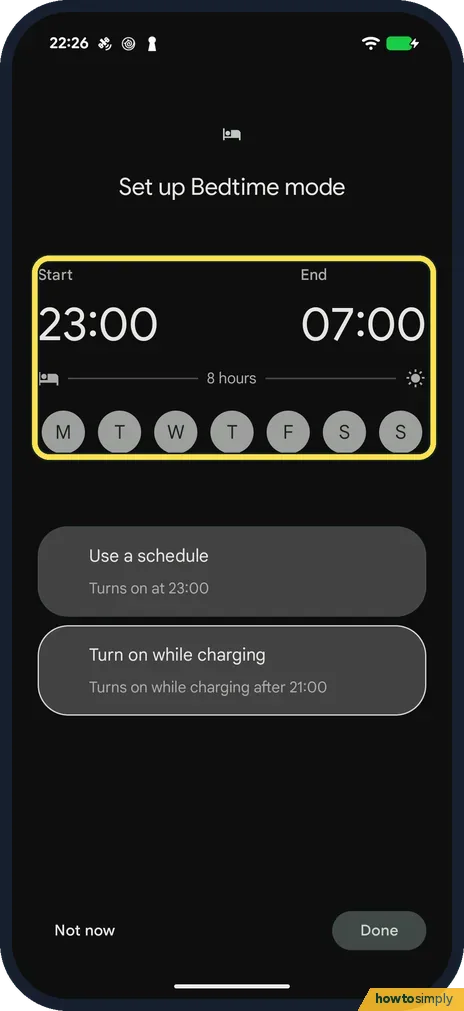
Set the hours and days
The first time, Digital Wellbeing opens Set up Bedtime mode: drag the Start and End times, tap the days, choose Use a schedule (or Turn on while charging) and tap Done.
- 5
Check the schedule
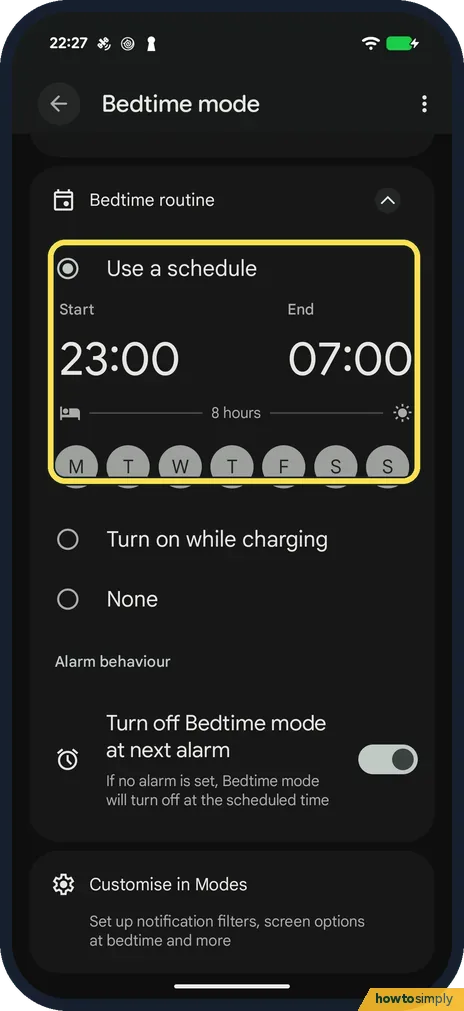
The Bedtime mode page shows the choice: ours was Use a schedule, 23:00 to 07:00 on every day, with Turn off Bedtime mode at next alarm switched on.
- 6
Choose who can reach you
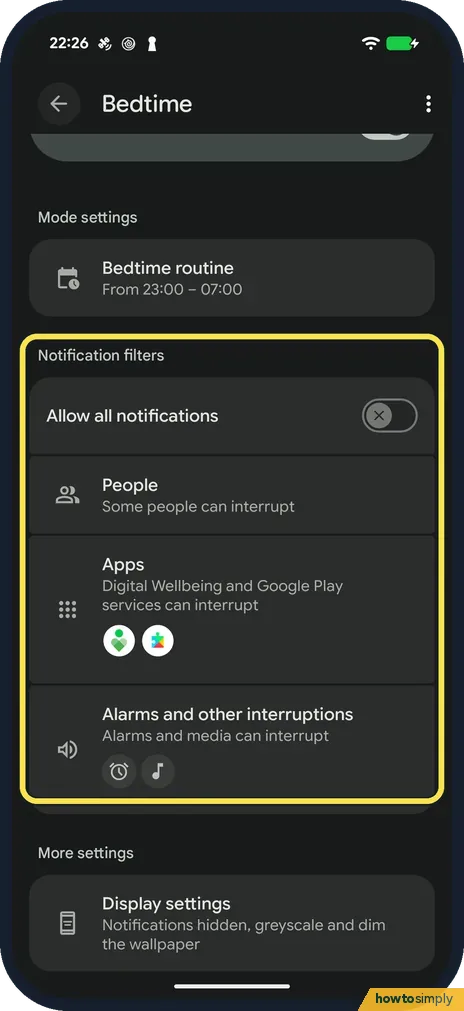
Back on the Bedtime page, Notification filters decide what still comes through: on ours, Allow all notifications was off, some people could interrupt, and alarms and media could too. Tap People to add contacts.
- 7
Change the screen at night
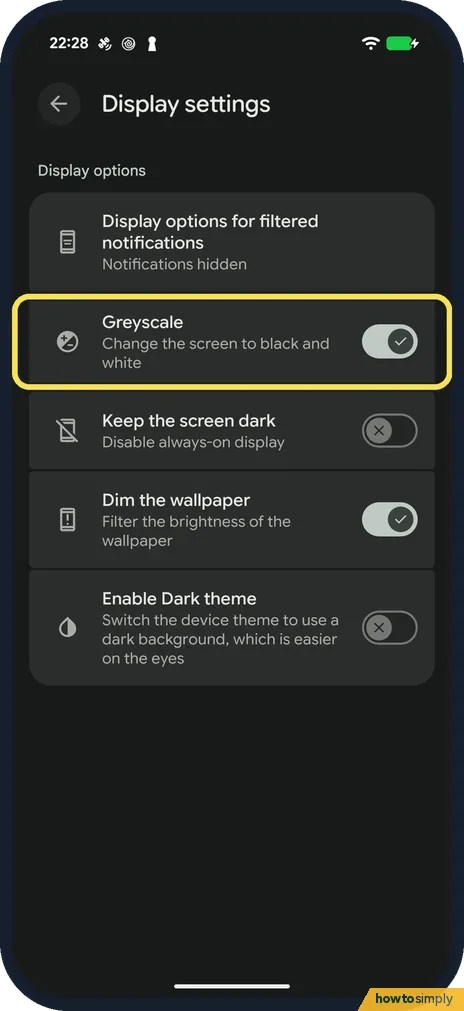
Under More settings, Display settings has Greyscale, Keep the screen dark, Dim the wallpaper and Enable Dark theme. Greyscale and Dim the wallpaper were on.
- 8
Turn it on now, if you like
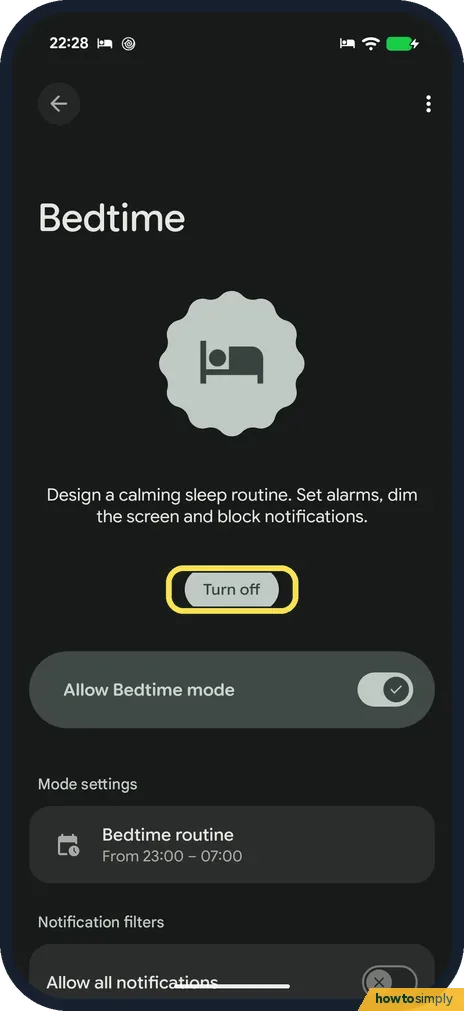
Turn on now on the Bedtime page starts it straight away. A bed icon appears in the status bar and the button changes to Turn off.
If you do not see this option
- You have a Samsung Galaxy The feature is called Sleep: open Settings, Modes and Routines, tap Sleep and set the hours under Turn on automatically. Our Galaxy A57 with One UI 8.5:
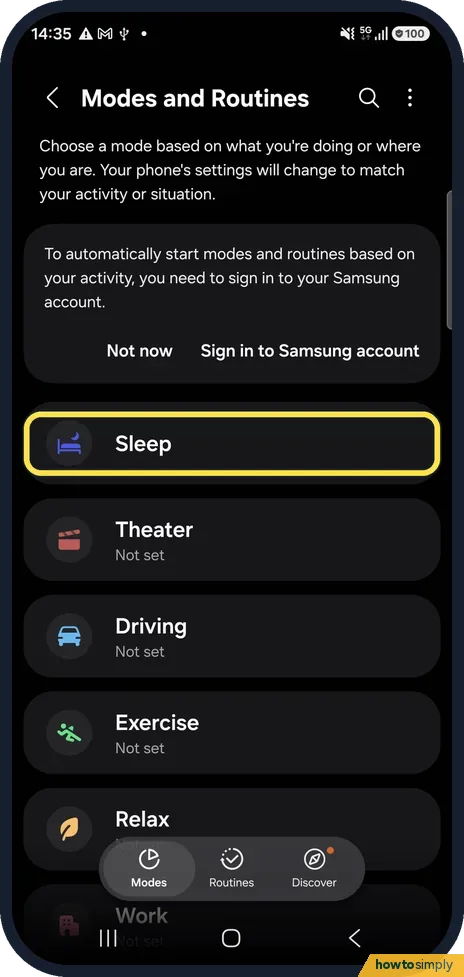
- There is no Modes row Look under Digital Wellbeing in Settings. On our Pixel its row reads Screen time, app timers, bedtime schedules, and Bedtime routine opened its setup.
If this does not work
- Two permission questions appear After Done, ours asked for access to app usage and sensor data, and for the microphone to detect coughing and snoring. We tapped Don't allow on both and the schedule was saved anyway.
- Greyscale does not show in a screenshot The phone keeps its colours to itself here. Greyscale changes your screen to black and white; our screenshots stayed in colour while it was on.
- Bedtime mode lasts past your alarm? Check that Turn off Bedtime mode at next alarm is on. Google says that with no alarm set, Bedtime mode ends at the scheduled time instead, or when you stop charging if you chose the charging routine.
- Dark theme goes away in the morning? That is expected. Google says that when you turn on Dark theme from Bedtime mode, it only applies while Bedtime mode is on. Turn on dark theme in the phone's display settings if you want it all day.
- The settings are locked or missing? Google says you can also look after a child's account if your account is set as the main parent account on their phone.
Good to know
Don't worry about the morning, because alarms still ring: on our Bedtime page, Alarms and other interruptions said Alarms and media can interrupt.
On a Pixel, Google also lets you set bedtime from the Bedtime tab in the Clock app, where you can switch on Bedtime mode with the schedule and add a sunrise alarm that brightens the screen 15 minutes before it rings. Our Pixel bedtime guide covers that route.
About this guide
It is late, the lights are off, and the screen lights up once more with a message that could easily have waited. Bedtime mode silences your phone and changes the screen at the hours you sleep. A few steps might look different on your phone.
- Device
- Android
- Shown on
- Google Pixel 10a, Android 17 (build CP3A.261005.005)
- App
- Settings
- Real screenshots
- 8 of 8 steps
- Checked
- October 2026
- Sources
- 2 official, linked below
The screenshots are from our Google Pixel 10a with Android 17 (build CP3A.261005.005), in dark mode. Before we started, the Modes list already showed Bedtime with 23:00 to 07:00, but no routine was set up. We turned Bedtime off afterwards and set the routine back to None. The Samsung route is under If you do not see this option.
Sources
Links checked October 2026. Menus and features can change with updates.Did this guide work for you?
Sorry about that. What happened?
Get new guides by email
Our newest guides, sent to your inbox. Free, and you can unsubscribe in one click.
We'll email you to confirm. How we use your email
Follow howtosimply on Facebook
We share our new guides on our Facebook page, so the next fix turns up in your feed.
Follow on Facebook