How to turn on fast charging on a Samsung Galaxy
- Shown on
- Galaxy S26 (One UI 9.0) and Galaxy A57 5G (One UI 8.5)
- Checked
- November 2026
- Real screenshots
- 3 of 3 steps
- Where it is
- Settings › Battery › Charging settings
Quick answer
Open Settings, Battery, Charging settings and turn on Fast charging. Samsung says you need a compatible charger and cable, and Super fast charging may not work if the charger lacks PPS support.
Steps
- 1
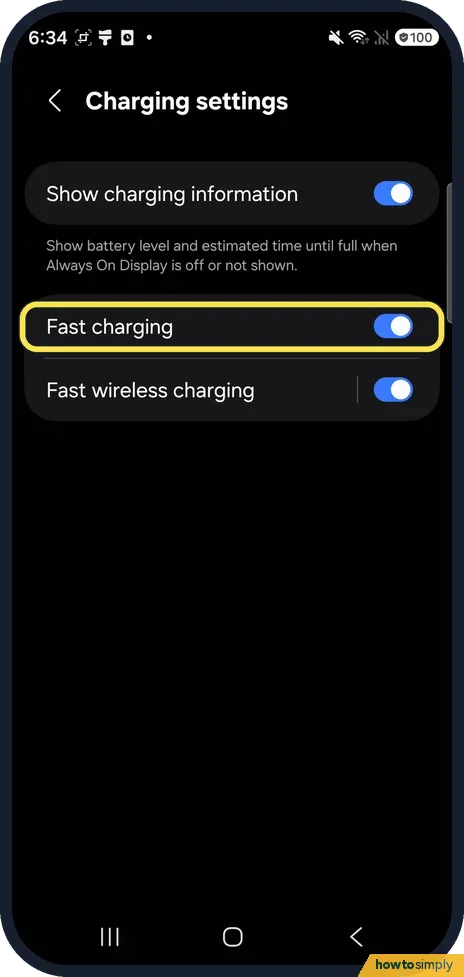
Turn on Fast charging in Charging settings
Open Settings, Battery, Charging settings. On the Charging settings page, tap the switch next to Fast charging. On our Galaxy S26 it was on, with Fast wireless charging below it. Samsung says Galaxy S23 and later phones put Fast charging and Super fast charging together under this single switch.
- 2
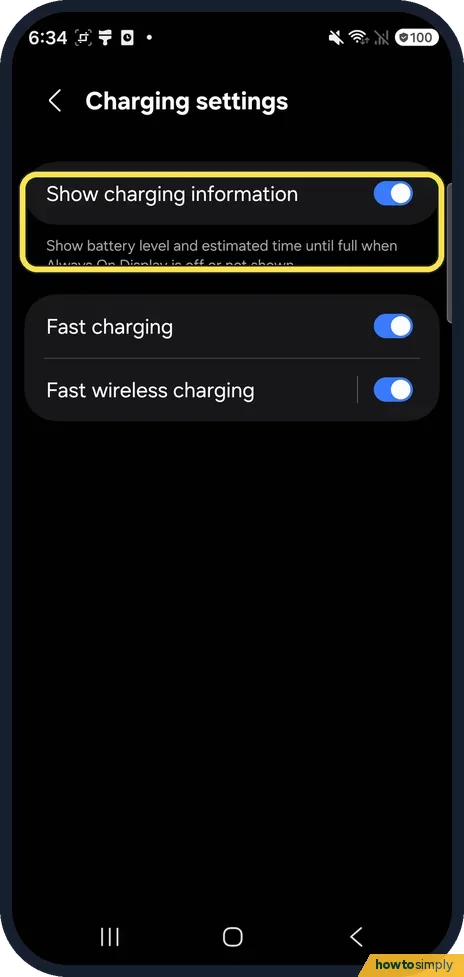
See the charging time
Show charging information shows the battery level and the estimated time until full when Always On Display is off or not shown. It was on on ours.
- 3
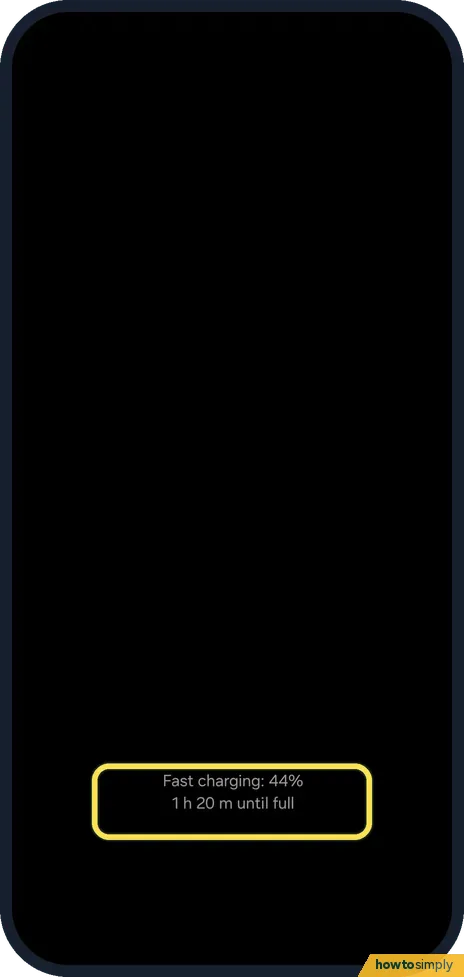
Read what the phone says while charging
With the screen off, the Always On Display shows the charging state. On our Galaxy A57, plugged into a Mac, it read Fast charging: 44% and 1 h 20 m until full.
Where we checked these steps
- Galaxy S26, One UI 9.0 (Android 17)
- Galaxy A57 5G, One UI 8.5 (Android 16)
We have not checked other phones or older versions. If a menu looks different on yours, the notes under each step and the fixes further down cover the differences we found.
If you do not see this option
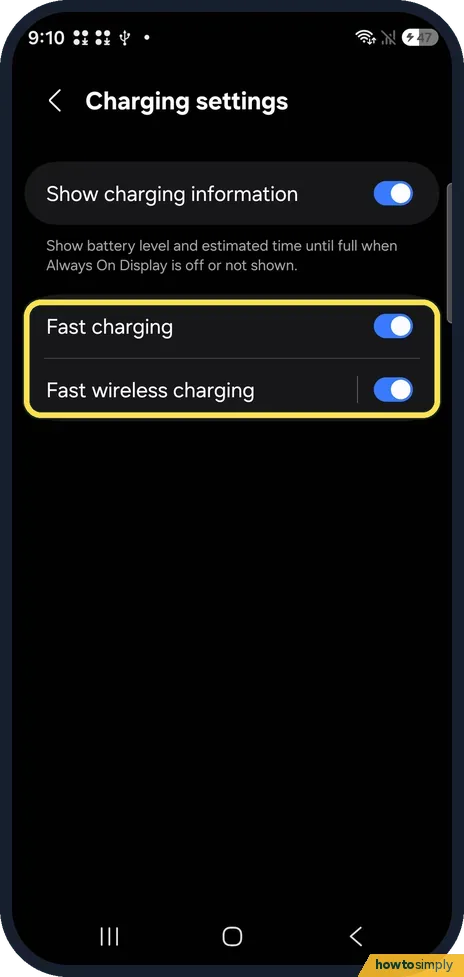
- You also see Fast wireless charging. Our Galaxy S26 (Korean model SM-S942N, One UI 9) lists Fast wireless charging under Fast charging in Charging settings; both were on. Our Galaxy A57 has only Fast charging, as it has no wireless charging.
- No Charging settings row Samsung's older page puts it under Settings, Device care, Battery, Charging; menus vary by model and software version. Source: How to fast charge on your Galaxy device
- No Fast wireless charging switch Our Galaxy A57 lists only Show charging information and Fast charging. Samsung puts Fast wireless charging beside Fast charging; switch it on if your wireless charging pad supports high-speed charging. Source: How to enable fast charging and fast wireless charging on your Samsung Galaxy device
If this does not work
- The switch will not change Samsung's older fast-charge page says you cannot turn the feature on or off while charging, so unplug first. On our Galaxy A57 the switch was not greyed out while charging.
- Still slow with the switch on Samsung says Super fast charging may not work with a charger that lacks PPS, and cables from other makers that don't meet the specification can make charging stop and start. It suggests a genuine Samsung cable.
- Charging from a computer Samsung says plugging into a PC or an ordinary USB device may stop fast charging working. On our Galaxy A57 the Mac's USB port still showed Fast charging on the Always On Display.
Good to know
When the phone or the air around it gets warm, Samsung says the charging speed may drop by itself, and that turning the phone or its screen off helps.
Still slow? See Samsung Galaxy charging slowly.
You turn Fast charging off with the same switch. If the phone always stops short of full, a charge limit may be on; see why a Galaxy will not charge to 100%.
About this guide
Well, nobody enjoys standing by the socket while the battery crawls up and the bus is due. Fast charging was already on on our phone. If your phone charges slowly, check this switch first, then the charger and the cable.
- Device
- Android
- Shown on
- Samsung Galaxy S26 (SM-S942N, Korean model), One UI 9.0, Android 17 (build CP2A.260605.016.S942NKSU5BZJB), Samsung Galaxy A57 5G (SM-A576B), One UI 8.5, Android 16
- App
- Settings
- Path
- Settings › Battery › Charging settings
- Real screenshots
- 3 of 3 steps
- What we did
- Observed: looked at each screen, changed nothing
- Checked
- November 2026
- Sources
- 3 official, linked below
The screenshots are from a Samsung Galaxy S26 with One UI 9.0 and Android 17, in Dark mode, apart from step 3, from our Galaxy A57 with One UI 8.5, charging from the USB port of a Mac. Samsung says the screens, settings and menus you see can depend on the model and software version.
What changed: a note on what our Galaxy S26 (Korean model SM-S942N, One UI 9) shows here, with its screenshot.
Sources
Links checked October 2026. Menus and features can change with updates.Did this guide work for you?
Sorry about that. What happened?
Get new guides by email
Our newest guides, sent to your inbox. Free, and you can unsubscribe in one click.
We'll email you to confirm. How we use your email
Follow howtosimply on Facebook
We share our new guides on our Facebook page, so the next fix turns up in your feed.
Follow on Facebook