How to turn off the Google Discover page on a Samsung Galaxy
- Shown on
- Galaxy S26 (One UI 9.0) and Galaxy A57 5G (One UI 8.5)
- Checked
- November 2026
- Real screenshots
- 3 of 3 steps
- Where it is
- Settings › Home screen
Quick answer
Open Settings, Home screen, scroll down and switch off Add media page to Home screen. Swiping right from the first Home screen then no longer opens Google Discover. Switch it on again to bring it back.
Steps
- 1
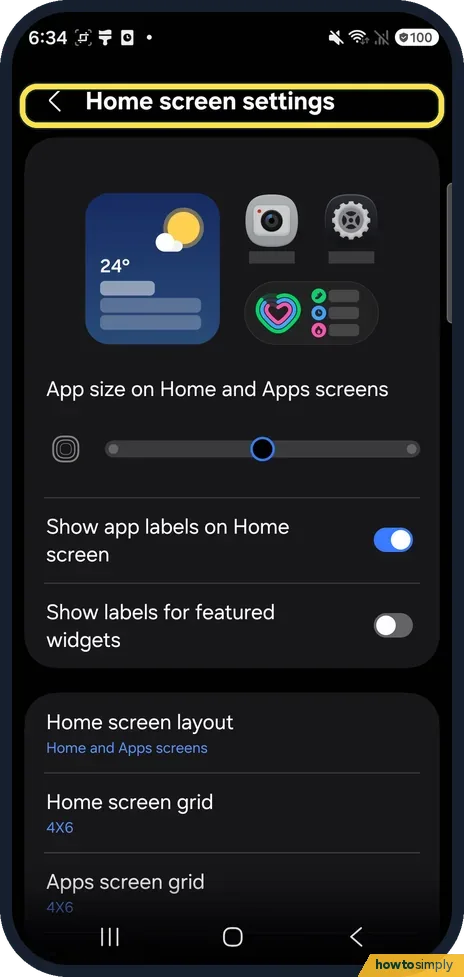
Open Home screen settings
Open Settings and tap Home screen, or touch and hold an empty part of the Home screen and tap Settings.
- 2
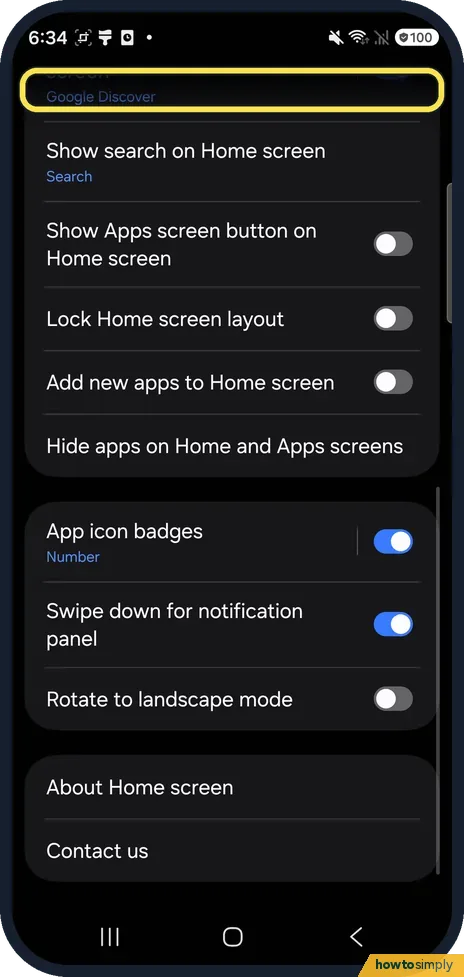
Find Add media page to Home screen
Scroll down. The row shows which feed is used; ours said Google Discover on both phones.
- 3
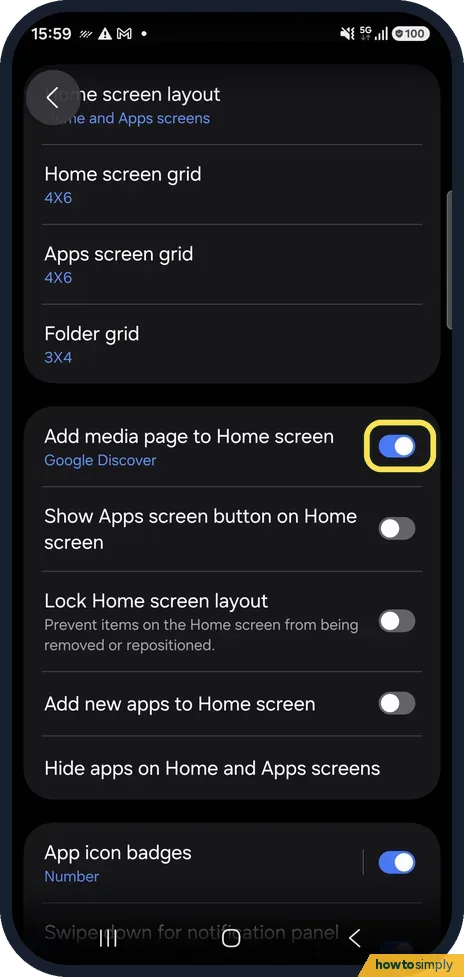
Switch it off
Tap the switch so it turns grey. The page to the left of your first Home screen disappears.
Where we checked these steps
- Galaxy S26, One UI 9.0 (Android 17)
- Galaxy A57 5G, One UI 8.5 (Android 16)
We have not checked other phones or older versions. If a menu looks different on yours, the notes under each step and the fixes further down cover the differences we found.
If you do not see this option
- Swiping right opens Samsung News instead Samsung says Galaxy phones come with both. Touch and hold an empty part of the Home screen and swipe right: the page splits between Google Discover and Samsung News, and you choose one. Source: Google Discover on Galaxy phones and tablets
- There is no Discover page at all Samsung says Google Discover depends on your country, carrier and model, and that Google's policy restricts account users under 13 from Discover on the Galaxy S24 series. Source: Google Discover on Galaxy phones and tablets
If this does not work
- You want both feeds gone Samsung says the switch at the top of the Discover or Samsung News page turns off both. Touch and hold an empty part of the Home screen and swipe right to reach it.
- You want the page back later Samsung says you cannot delete Google Discover or Samsung News, only turn them off, so switching it on again brings the page back.
- Discover still shows in the Google app? Samsung says turning it off removes it from your Home screens. Google says you can also find Discover in the Google app.
- Just tired of certain stories? You do not have to turn the whole page off just because it keeps showing you a football club you cannot stand. Google says you can tap More on a card and choose Not interested in a topic or Don't show content from a source.
Good to know
Google says you can also find Discover in the Google app.
Other Home screen options on the same page: how to hide apps on a Samsung Galaxy phone.
Samsung says that once the media page is off, swiping right won't bring up Google Discover or Samsung News any more. Switching it back on brings the page back.
If you prefer to keep Discover but make it more useful, Google says you can follow or unfollow topics in the Google app under Settings, Personalization, Manage your interests. A removed topic can be brought back from the Not interested list. To also remove the Google search bar from the Home screen, see remove the Google search bar from a Samsung Galaxy Home screen.
About this guide
Say you only meant to swipe to your first page of apps, and instead you are reading about a stranger's kitchen makeover. That page to the left of your Home screen is what Samsung calls the media page. On our phone it was on and set to Google Discover.
- Device
- Android
- Shown on
- Samsung Galaxy S26 (SM-S942N, Korean model), One UI 9.0, Android 17 (build CP2A.260605.016.S942NKSU5BZJB), Samsung Galaxy A57 5G (SM-A576B), One UI 8.5, Android 16
- App
- Settings
- Path
- Settings › Home screen
- Real screenshots
- 3 of 3 steps
- What we did
- Observed: looked at each screen, changed nothing
- Checked
- November 2026
- Sources
- 2 official, linked below
The screenshots are from a Samsung Galaxy S26 with One UI 9.0 and Android 17, in Dark mode, apart from step 3, from our Galaxy A57 with One UI 8.5. Other Galaxy phones on One UI 8.5 and 9 use similar menus; on older One UI versions a few names and positions differ.
Sources
Links checked October 2026. Menus and features can change with updates.Did this guide work for you?
Sorry about that. What happened?
Get new guides by email
Our newest guides, sent to your inbox. Free, and you can unsubscribe in one click.
We'll email you to confirm. How we use your email
Follow howtosimply on Facebook
We share our new guides on our Facebook page, so the next fix turns up in your feed.
Follow on Facebook