How to take a screenshot on Windows 11
- Shown on
- Microsoft Cloud PC
- Software
- Windows 11
- Checked
- October 2026
- Real screenshots
- 5 of 6 steps
 Real screenshot · Microsoft Cloud PC, Windows 11
Quick answer
Press Windows + Shift + S, drag over the area you want, and the picture is copied and saved. Press the PrtSc key for the same tool, or Windows + PrtSc to save the whole screen straight to your Pictures folder.
Steps
- 1
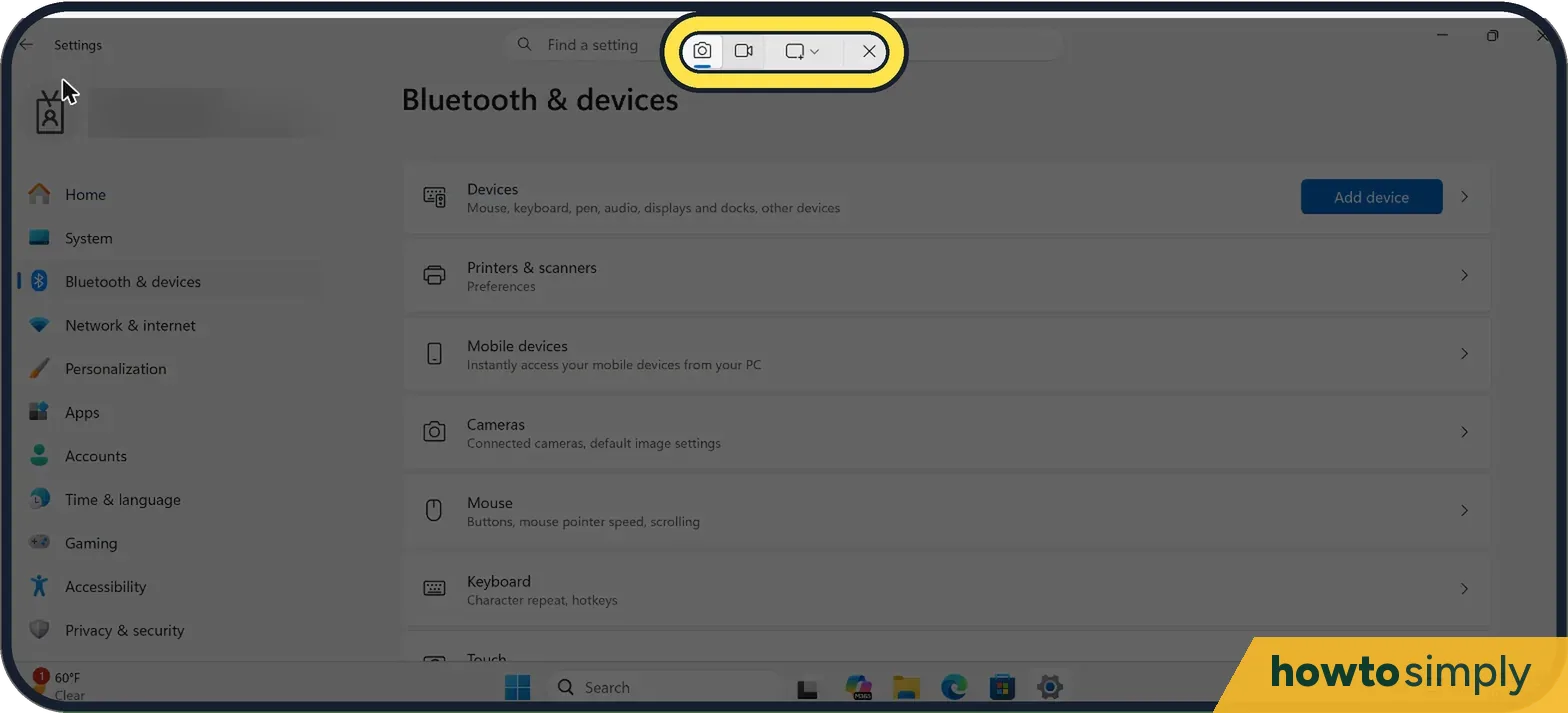
Press Windows + Shift + S
The screen dims and a small bar appears at the top.
- 2
Choose a shape and drag
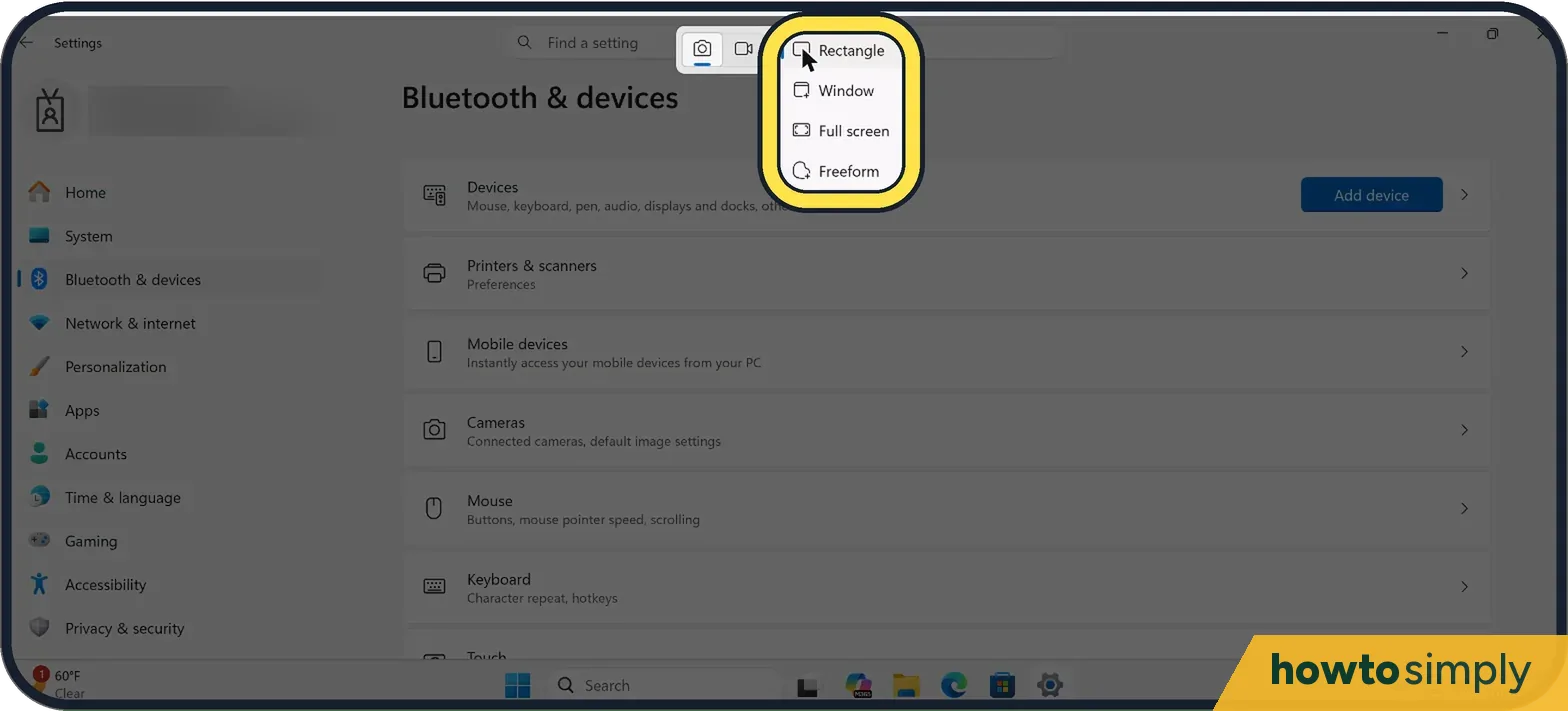
Open the shape menu on the bar. On our Cloud PC it lists four options: Rectangle, Window, Full screen and Freeform.
Rectangle is the usual choice: hold the mouse button, drag across the area and let go.
- 3
Find your screenshot
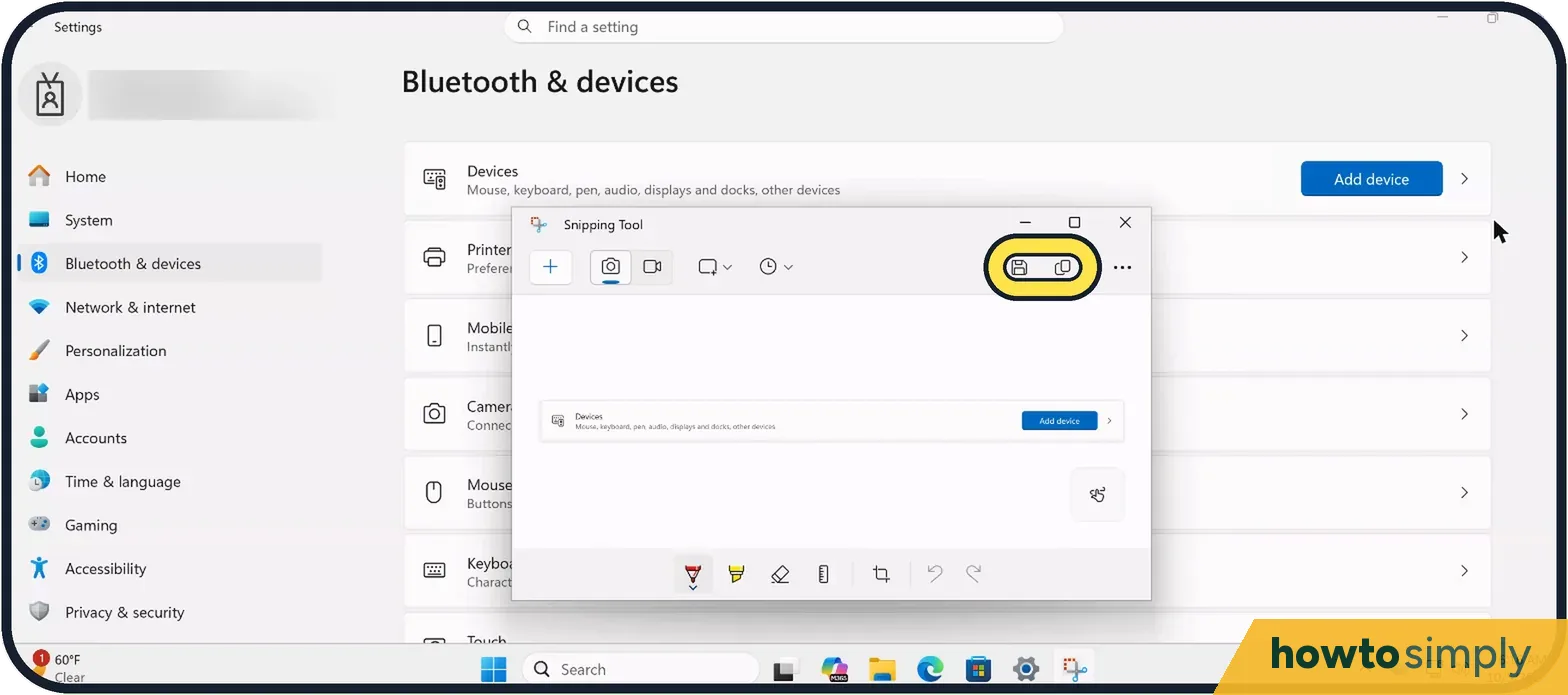
The picture is copied, so you can paste it into a chat, email or document with Ctrl + V.
Microsoft says every snip also lands in the Snipping Tool window, where you can crop or draw on it: the pens sit along the bottom, with Save and Copy in the top right corner.
- 4
Save the whole screen in one step
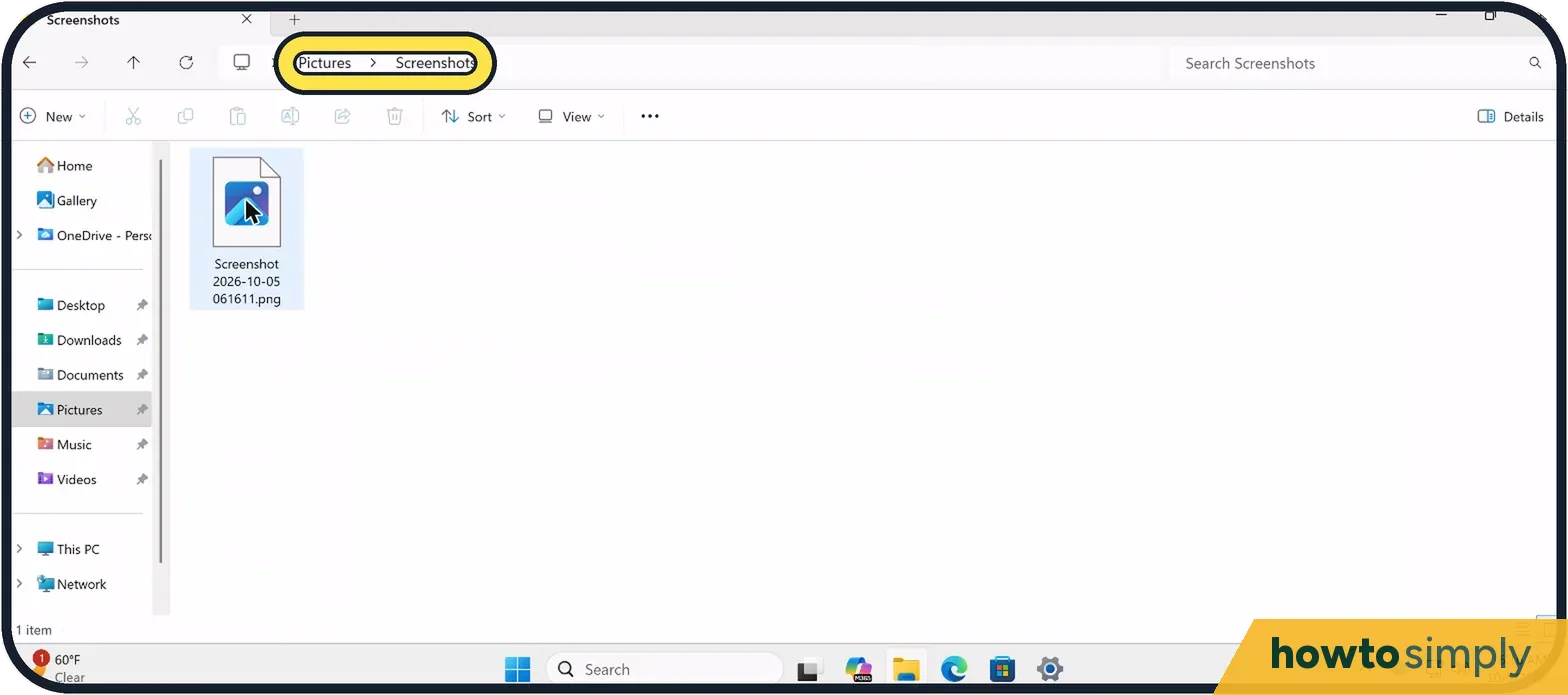
Press Windows + PrtSc. The picture is saved as a file in Pictures > Screenshots; on our Cloud PC it was named Screenshot 2026-10-05 061611.png.
- 5
Capture only the active window
Microsoft lists Alt + PrtSc as copying the active window to the clipboard; then paste it where you need it.
On our Cloud PC it captured the whole desktop over the remote session instead. In a remote session, use Windows + Shift + S and choose Window from the shape menu.
- 6
Let PrtSc open the snipping bar
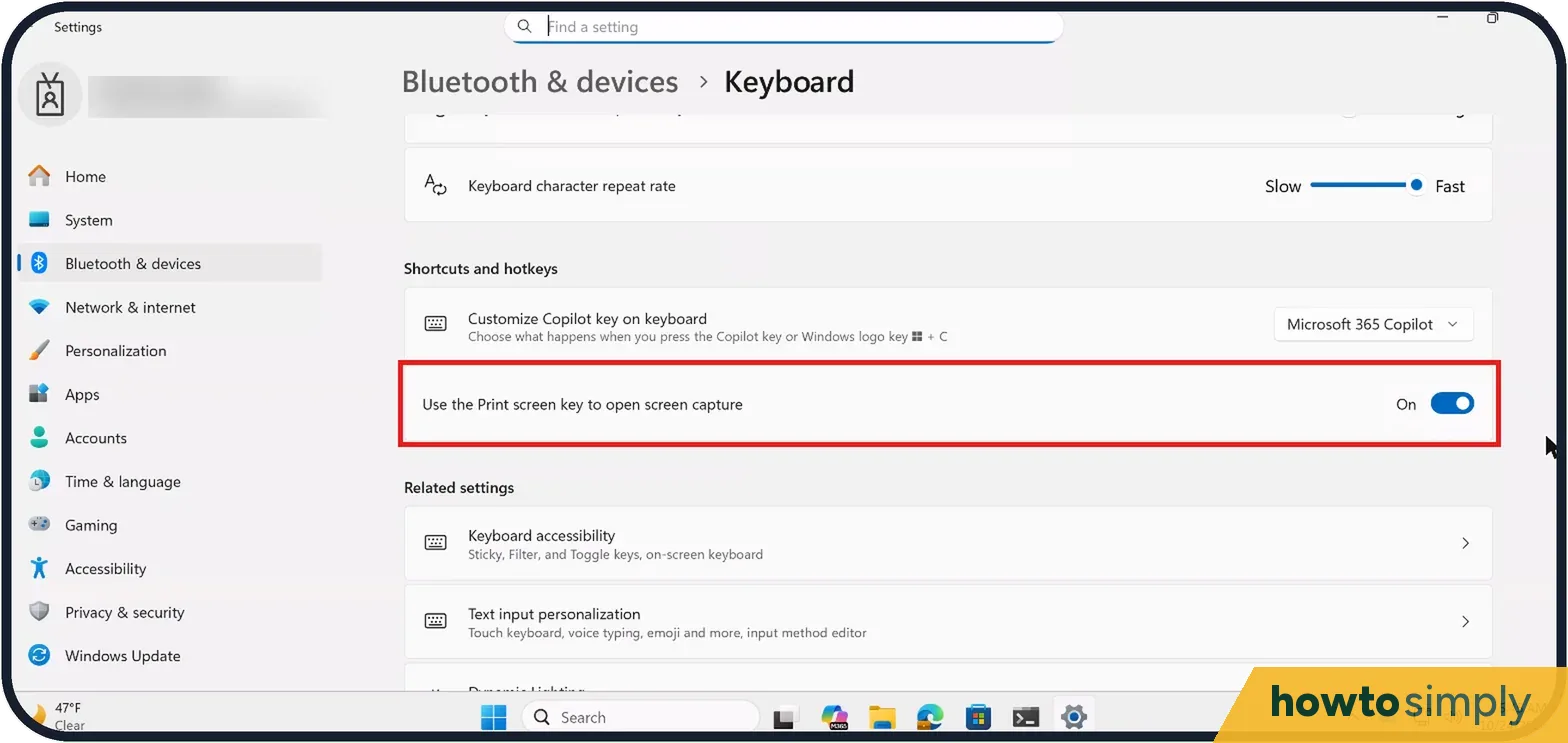
Go to Settings > Bluetooth & devices > Keyboard.
Under Shortcuts and hotkeys, set Use the Print screen key to open screen capture to On. On our Cloud PC it was already On.


If you do not see this option
- Your keyboard has no PrtSc key. Microsoft lists two other ways to open Snipping Tool: press Windows + Shift + S, or select Start, type snipping tool and select it in the results. Sources: Use Snipping Tool to capture screenshots, Keyboard shortcuts in Windows
- There is no Perfect screenshot or Color picker. Microsoft says you'll only get either of them on certain newer PCs. Sources: Use Snipping Tool to capture screenshots, Keyboard shortcuts in Windows
- The Print screen setting is not under Accessibility. On our Cloud PC it is in Settings > Bluetooth & devices > Keyboard, under Shortcuts and hotkeys, as Use the Print screen key to open screen capture.
If this does not work
- The PrtSc key does nothing. Go to Settings > Bluetooth & devices > Keyboard and set Use the Print screen key to open screen capture to On. On our Cloud PC it was already On.
- Alt + PrtSc captures the whole screen. On our Cloud PC, Alt + PrtSc captured the whole desktop over the remote session, not the active window. Use Windows + Shift + S and choose Window from the shape menu instead.
- The screenshot is not in the Screenshots folder. Microsoft says snips are saved there automatically, and that you change the automatic saving or the folder in Snipping Tool under See More, Settings.
- A menu closes before you can capture it. Microsoft says to open Snipping Tool, select Delay and choose, for example, 5 seconds, then select New and open the menu during the countdown.
Good to know
To record a video of the screen, open Snipping Tool from the Start menu and select the Record button, then select New.
If the PrtSc key does not open the snipping bar, check the switch for it. On our Cloud PC it is in Settings > Bluetooth & devices > Keyboard, under Shortcuts and hotkeys, labelled Use the Print screen key to open screen capture, and it was On. See how to change what the Print Screen key does.
About this guide
Windows 11 has a screenshot tool called Snipping Tool. You do not need to install anything. There are three shortcuts worth knowing, and they cover almost every situation.
Step 5 has no picture: on our Cloud PC, Alt + PrtSc captured the whole desktop over the remote session rather than the active window, so a screenshot would not show the step correctly.
- Device
- Windows
- Shown on
- Windows 11 Enterprise 25H2 (build 26200.9457), Microsoft Cloud PC
- App
- Settings
- Real screenshots
- 5 of 6 steps
- Checked
- October 2026
- Sources
- 2 official, linked below
The screenshots are our own, taken on Windows 11 Enterprise 25H2 running as a Microsoft Cloud PC, a Windows PC that runs in the cloud. Where the Cloud PC behaves differently, the step says so.
Sources
Links checked October 2026. Menus and features can change with updates.Did this guide work for you?
Sorry about that. What happened?
Get new guides by email
Our newest guides, sent to your inbox. Free, and you can unsubscribe in one click.
We'll email you to confirm. How we use your email
Follow howtosimply on Facebook
We share our new guides on our Facebook page, so the next fix turns up in your feed.
Follow on Facebook