How to print double-sided on a Mac
- Shown on
- MacBook Pro
- Software
- macOS 26
- Checked
- October 2026
- Real screenshots
- 3 of 6 steps
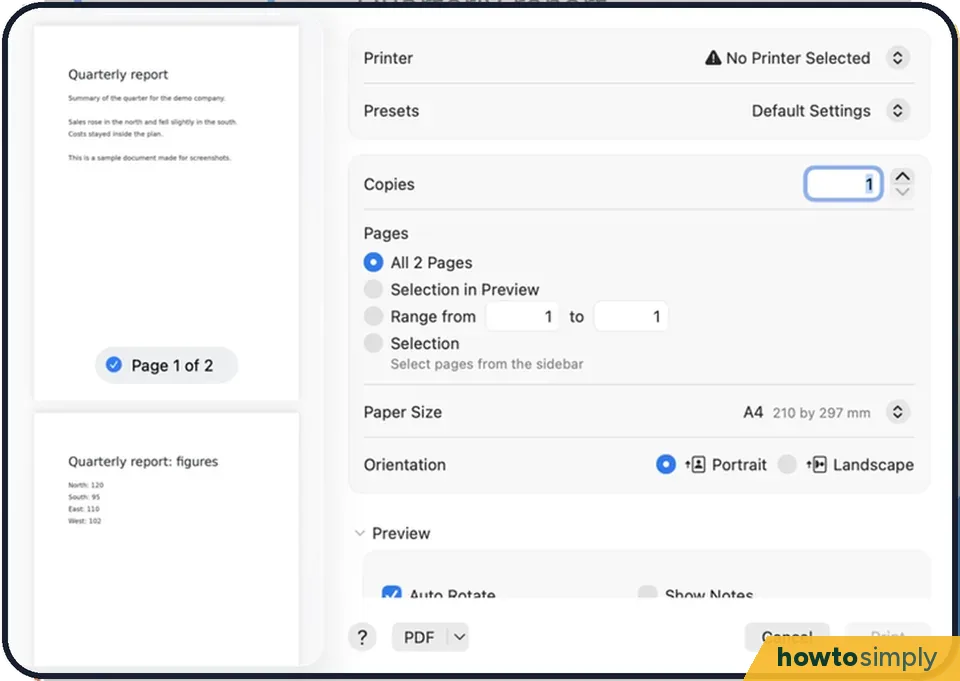 Real screenshot · MacBook Pro, macOS 26
Quick answer
Choose File, Print in the app, open the Double-sided menu in the print window and choose On. For pages that should flip like a notepad, choose On (Short Edge). Then click Print. The option only appears if the printer can print on both sides.
Steps
- 1
Open the print window
With the document open, choose File, Print, or press Command + P.
- 2
Choose the printer
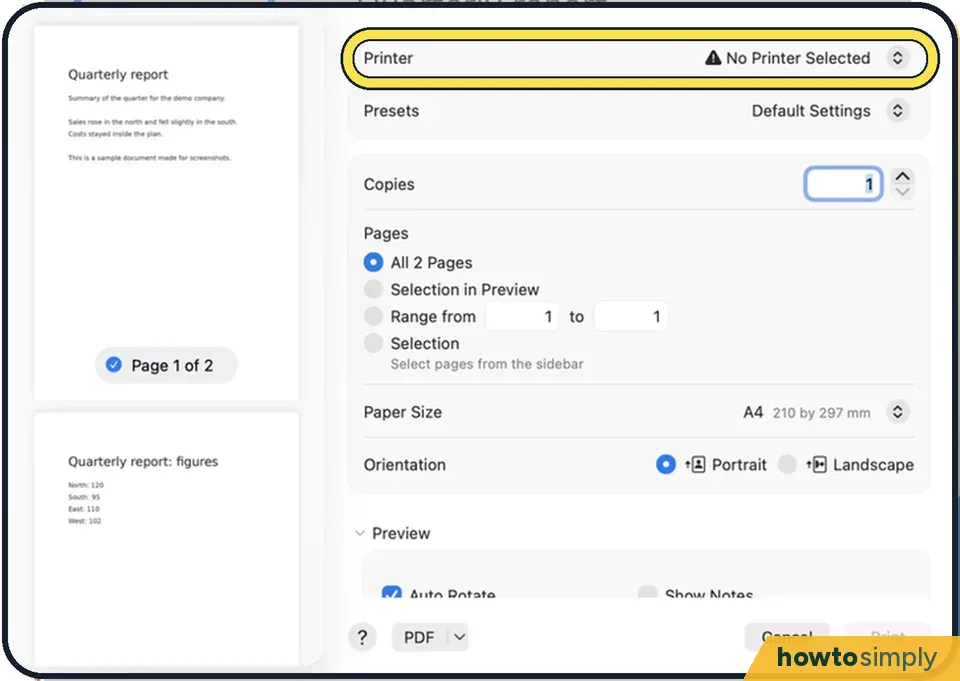
Check the Printer menu at the top. The double-sided option depends on the printer selected there. In our picture it reads No Printer Selected, which is why no Double-sided menu appears.
- 3
Open the Double-sided menu
It is in the main part of the print window. Apple says the options you see depend on the printer and the app, and that more settings appear further down the window. The print window in our pictures has no Show Details button.
Illustration - 4
Choose On
On turns the pages over on the long edge, like a book. This is right for normal upright documents.
Illustration - 5
Or choose On (Short Edge)
This turns the pages over on the short edge, like a calendar or notepad. Use it for landscape pages and slides.
Illustration - 6
Click Print
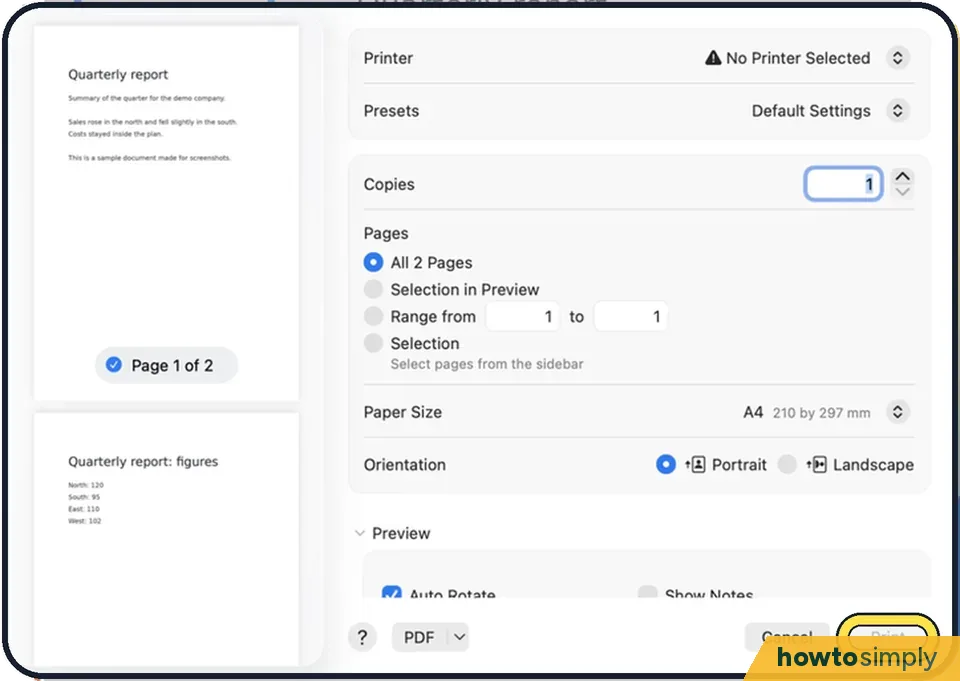
The Print button is at the bottom right. In the picture it is grey because no printer is selected on that Mac.

If you do not see this option
- There is no Double-sided menu Apple says the options in the print window depend on the printer and the app you print from. A printer that cannot print on both sides shows no such menu. Source: Choose print options before you print on Mac
- The Printer row reads No Printer Selected That is what our picture shows. Apple says the printer has to be set up with your Mac first, either by cable or wirelessly through AirPrint. Source: Print documents on your Mac
If this does not work
- The backs come out upside down Apple says On (Short Edge) lays the pages out for binding along the top. Switch between On and On (Short Edge) and print again.
- The printer cannot print on both sides Apple says you can print only odd or only even pages: click Paper Handling and set Sheets to Print.
- The Print button is grey In our picture it is grey because no printer is selected. Choose a printer in the Printer menu first.
Good to know
No Double-sided menu? Bear in mind Apple says what you see depends on the printer and the app you're printing from. Check the printer's manual. Some printers need the duplex unit switched on in System Settings, Printers & Scanners, under the printer's options.
Apple says you can also print only the odd or only the even pages: click Paper Handling and set Sheets to Print.
If the printer does not appear at all: how to add a printer to a Mac.
About this guide
On a Mac, Apple says what you see in the print window depends on the printer and on the app you're printing from.
These steps are for recent versions of macOS.
- Device
- Mac
- Shown on
- macOS Tahoe 26 (MacBook Pro)
- Real screenshots
- 3 of 6 steps
- Checked
- October 2026
- Sources
- 2 official, linked below
Sources
Links checked October 2026. Menus and features can change with updates.Did this guide work for you?
Sorry about that. What happened?
Get new guides by email
Our newest guides, sent to your inbox. Free, and you can unsubscribe in one click.
We'll email you to confirm. How we use your email
Follow howtosimply on Facebook
We share our new guides on our Facebook page, so the next fix turns up in your feed.
Follow on Facebook