How to install fonts on Windows 11
- Shown on
- Microsoft Cloud PC
- Software
- Windows 11
- Checked
- October 2026
- Real screenshots
- 4 of 4 steps
- Where it is
- Settings › Personalization
 Real screenshot · Microsoft Cloud PC, Windows 11
Quick answer
Open Settings, Personalization, Fonts and drag the font file into the Drag and drop to install box, or click Browse and install fonts and choose the file. The file filter includes .ttf, .otf, .ttc, .otc and .pfm. To remove a font, open its Options in the list and choose Uninstall.
Steps
- 1
Open the Fonts settings
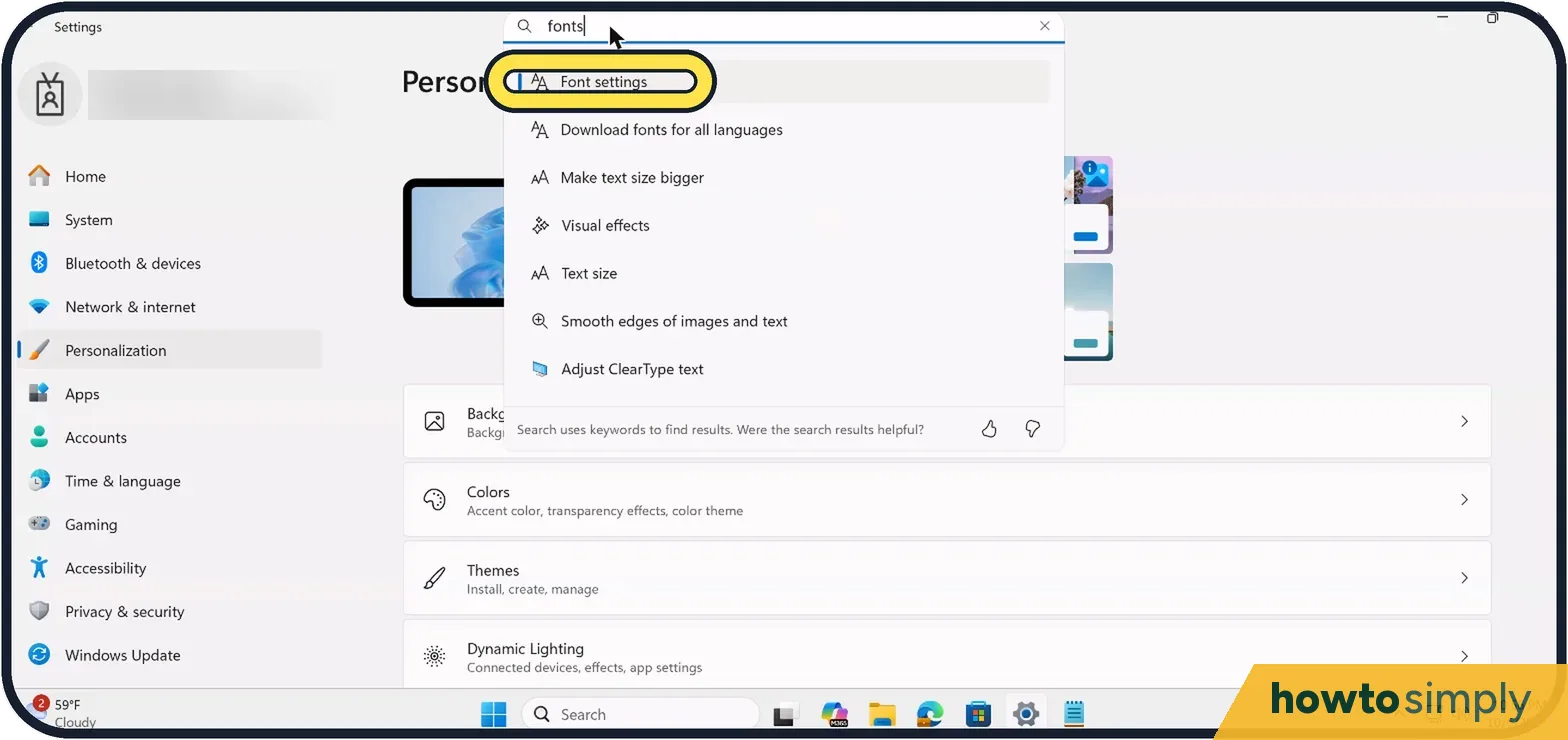
Press Windows + I and type fonts in the search box, then click Font settings. It is under Personalization, Fonts.
- 2
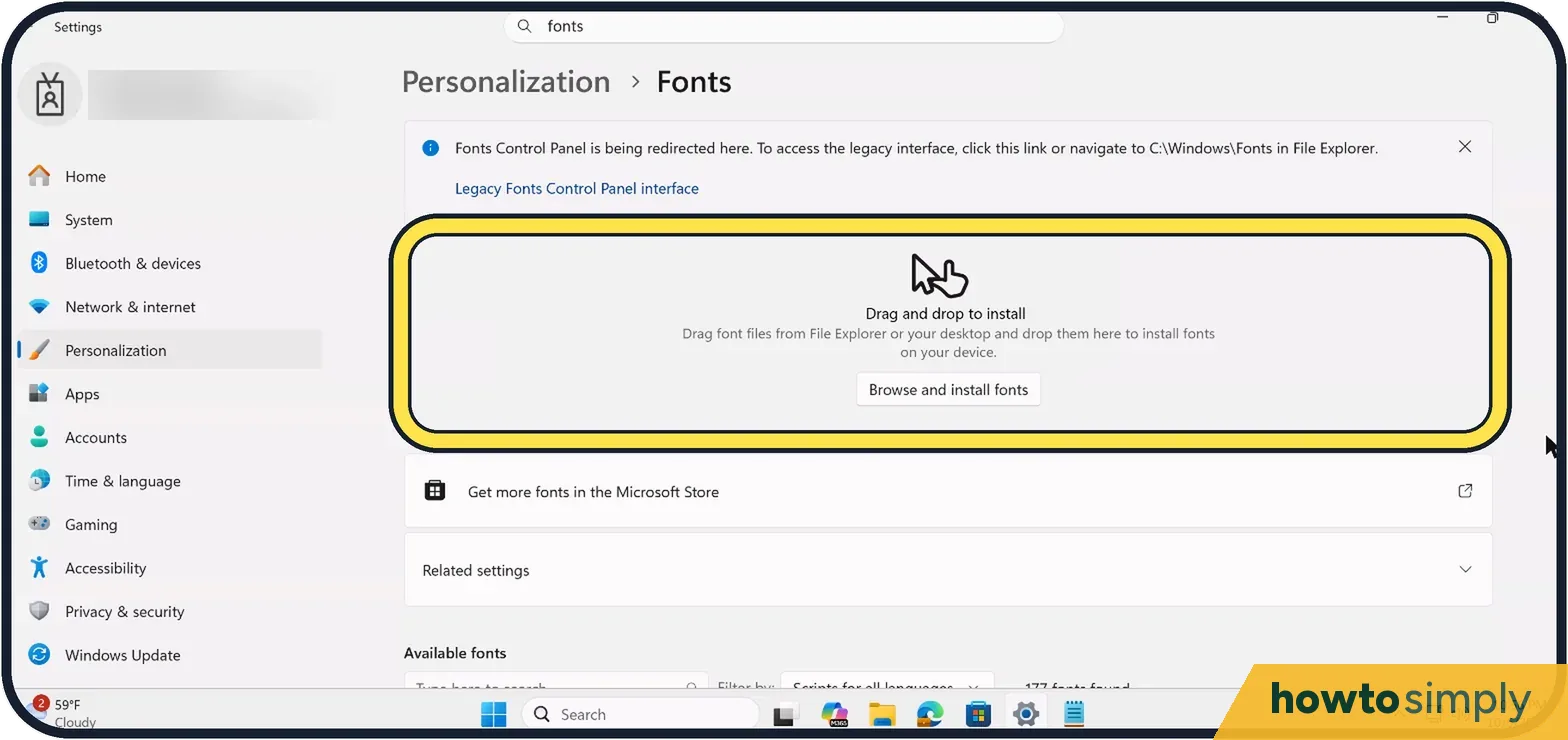
Drag the font file in
Drag a font file from File Explorer or the desktop into the box. In our version, a note says the old Fonts Control Panel now opens this page.
- 3
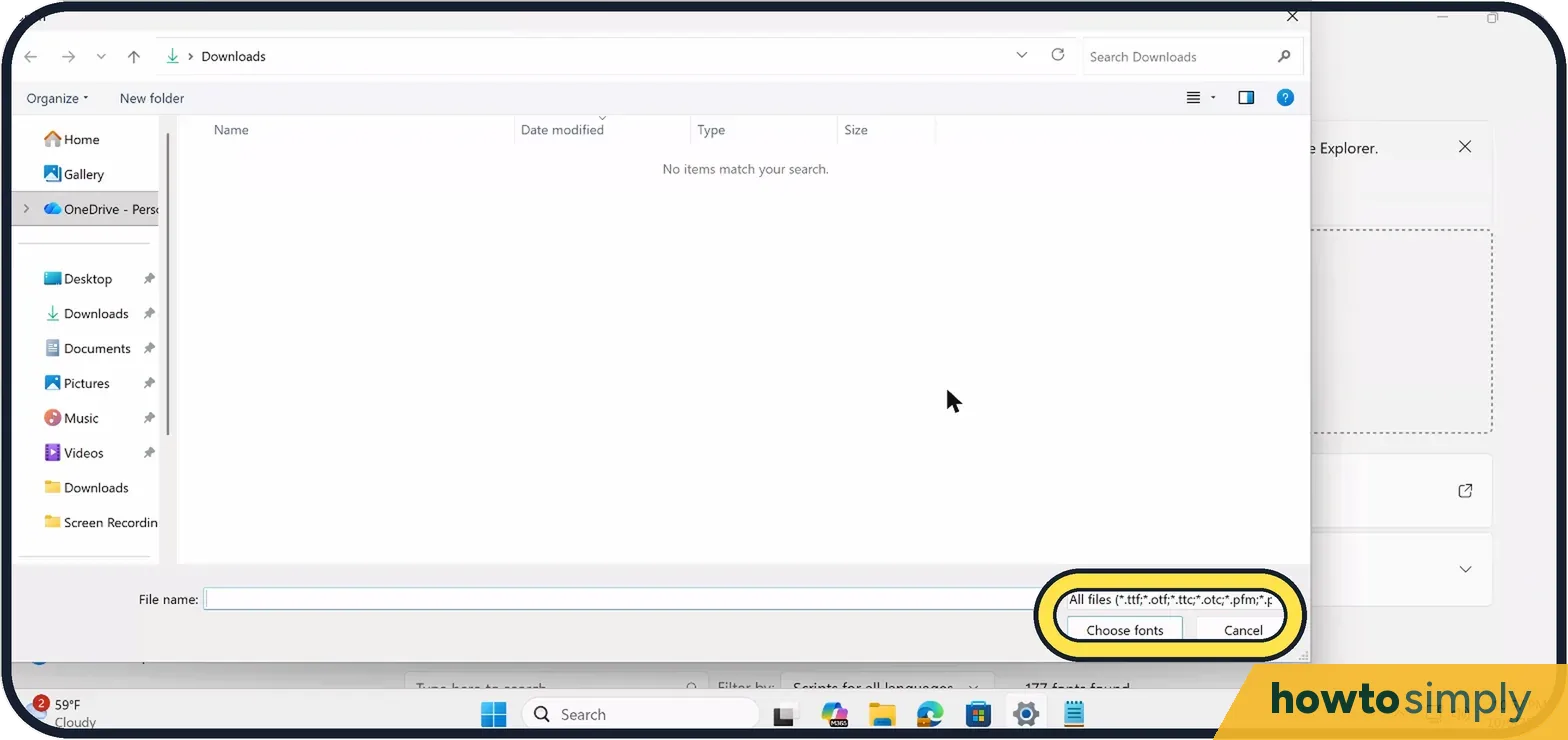
Or browse for the font file
After clicking Browse and install fonts, choose the file and click Choose fonts. The file filter lists the types Windows installs; on ours it starts .ttf, .otf, .ttc, .otc, .pfm and is cut off after that. We cancelled, because we had no font file to install.
- 4
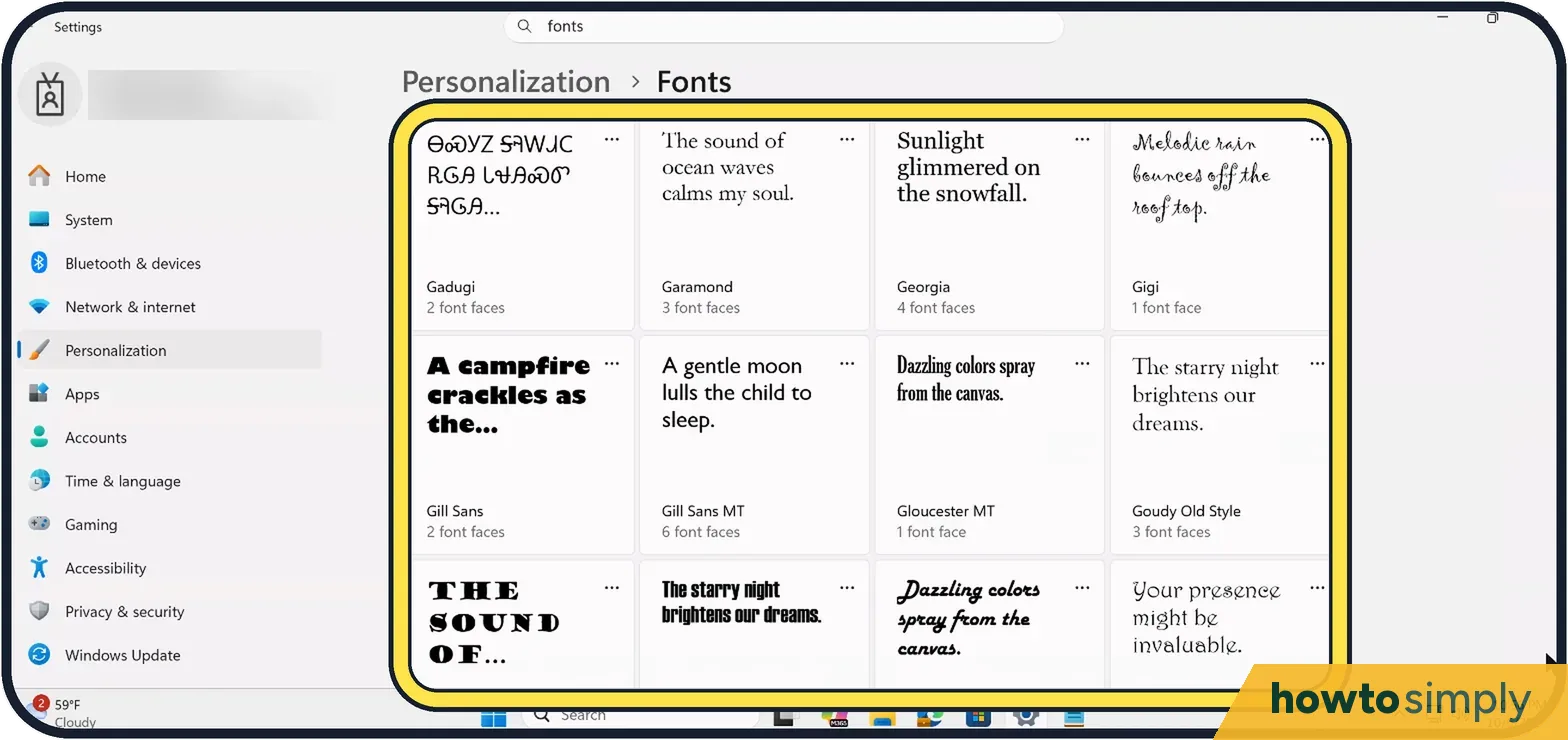
Find it in Available fonts
Installed fonts appear in the list below, each with a sample sentence and its number of font faces. Click a font to see it larger. Microsoft says each font has Options with Uninstall, and Hide for fonts you want to keep out of the list.


If you do not see this option
- You do not have a font file. Microsoft says to select Get more fonts in Microsoft Store on the Fonts page, choose a font and select Get or Buy. It installs by itself. Source: Manage Fonts in Windows
- You need fonts for another language. Microsoft says to select Download fonts for all languages under Related settings on the Fonts page, then OK. Source: Manage Fonts in Windows
If this does not work
- The font does not show up in one app. This is often the app being fussy rather than the font. Microsoft says not all apps support custom fonts. Try another app to check that the font is installed and working.
- Windows asks to allow the program to make changes. Microsoft says to select Yes only once you're sure the file came from somewhere you trust.
- Install is missing when you right-click the file. Microsoft says the file must be a TrueType (.ttf) or OpenType (.otf) file. If it is a .zip file, extract it first.
- Install fails on a work or school PC? Organisations can limit what you install on a managed PC. If the font will not install, ask your IT team to add it for you.
Good to know
You can also right-click the font file and choose Install. Install for all users makes it available to every account on the PC, and Windows may ask for permission.
If the font arrives squashed into a .zip file, right-click it, choose Extract, and install the .ttf or .otf files you find inside.
Restart an app that was open during the install before you look for the font in it, because an app that was already open will not notice the newcomer.
What changed: on Windows 11 25H2 the Fonts Control Panel redirects to Settings. The old window is still at C:\Windows\Fonts.
About this guide
There is something about a new font that makes even a shopping list feel important. Microsoft says not all apps support custom fonts. Make sure you download them only from sources you trust.
- Device
- Windows
- Shown on
- Windows 11 Enterprise 25H2 (build 26200.9457), Microsoft Cloud PC
- App
- Settings
- Path
- Settings › Personalization
- Real screenshots
- 4 of 4 steps
- Checked
- October 2026
- Sources
- 1 official, linked below
The screenshots are our own, taken on Windows 11 Enterprise 25H2 running as a Microsoft Cloud PC, a Windows PC that runs in the cloud.
Sources
Links checked October 2026. Menus and features can change with updates.Did this guide work for you?
Sorry about that. What happened?
Get new guides by email
Our newest guides, sent to your inbox. Free, and you can unsubscribe in one click.
We'll email you to confirm. How we use your email
Follow howtosimply on Facebook
We share our new guides on our Facebook page, so the next fix turns up in your feed.
Follow on Facebook