How to hide albums in Samsung Gallery
- Shown on
- Galaxy A57SM-A576B
- Software
- One UI 9Android 17More One UI 9 guides
- Checked
- October 2026
- Real screenshots
- 3 of 3 steps
- Where it is
- Gallery › Albums
Quick answer
Open Gallery, tap Albums, the three dots and Hide albums. Switch on each album you want hidden from Gallery. Hidden albums can still appear in other apps; to hide photos from every app, move them to Secure Folder or your private album.
Steps
- 1
Open Hide albums
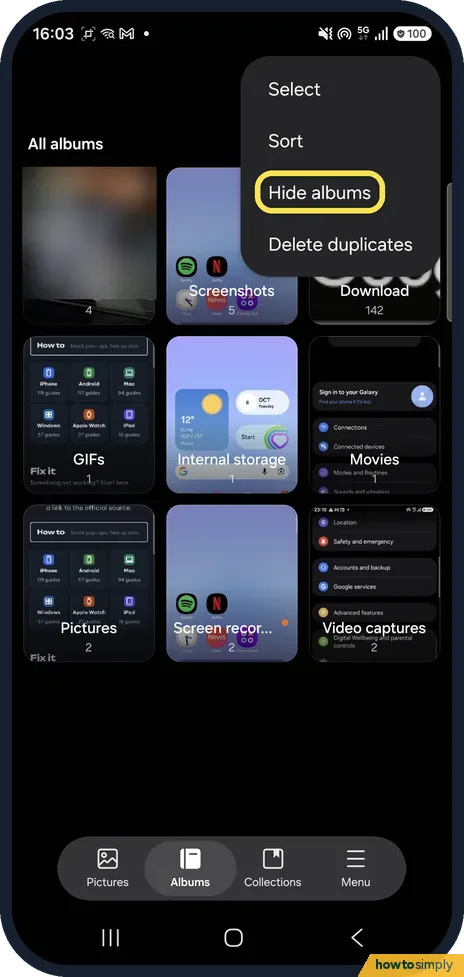
Open Gallery, tap Albums at the bottom, then the three dots and Hide albums.
- 2
Choose the albums
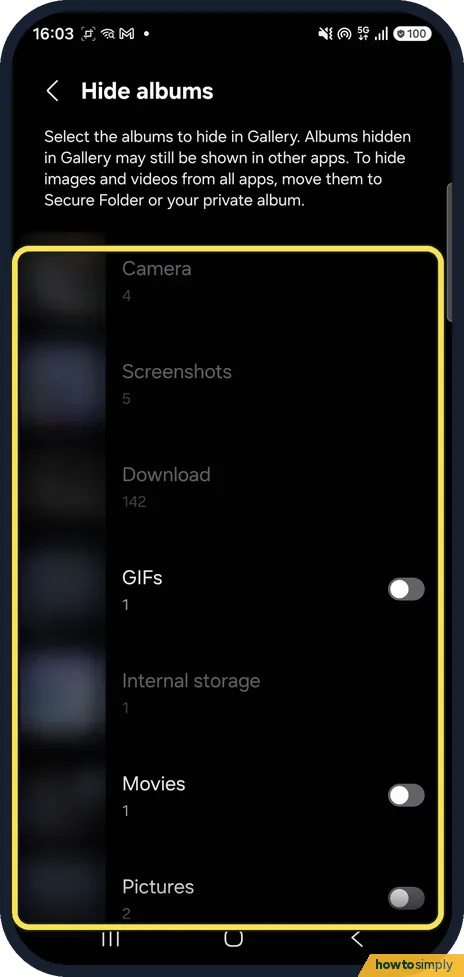
Switch on the albums to hide and go back. Ours lists Camera, Screenshots, Download, GIFs, Internal storage, Movies and Pictures; some, such as Camera and Screenshots, have no switch. We changed nothing, and the album pictures are blurred.
- 3
Know what hiding does
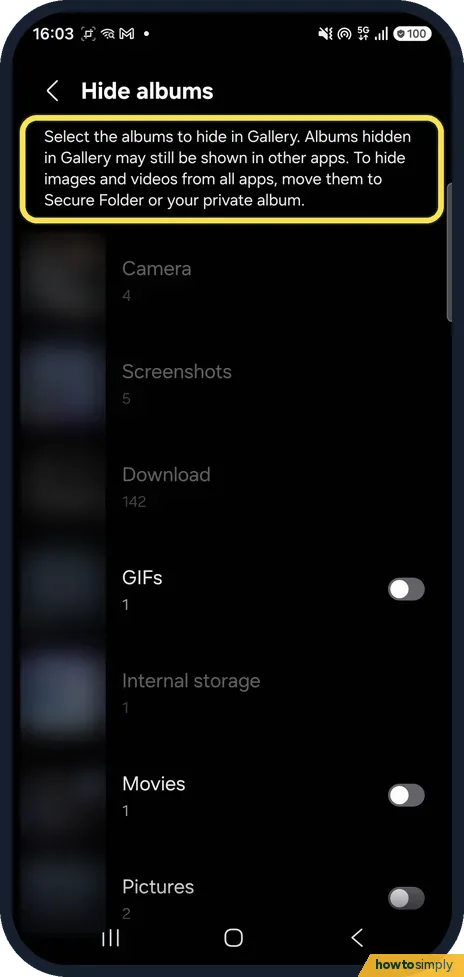
The note at the top of the same screen says it: albums hidden in Gallery may still be shown in other apps. To hide images and videos from all apps, move them to Secure Folder or your private album.
If you do not see this option
- Need them locked, not just hidden? Samsung's UK guide moves photos into Secure Folder from Gallery: select the photos, tap the more options icon and choose Move to Secure Folder. Samsung says moving shifts the original file, and Secure Folder may not work on some older phones any more. Source: What is the Secure Folder and how do I use it?
If this does not work
- Hidden photos still show in Recent? Hiding works on albums. Samsung explains that pictures in Recent aren't extra copies; they're kept in the phone's memory so they open straight away. If a photo still shows there, it is probably in another album that is not hidden.
- Photos still visible in another app? That is expected. The note on the Hide albums page says hidden albums may still show in other apps, such as a file manager or a photo backup app.
Good to know
To show an album again, open Hide albums and switch it off.
Samsung's help page describes the opposite way round, Select albums to show in Gallery settings; on our phone the option in the Albums menu is called Hide albums.
For photos you want to keep private, use Secure Folder, which you protect with a lock type you choose.
Hiding albums means Gallery only shows the ones you choose. The photos stay in the same folder, use the same storage and are not deleted, moved or renamed. Switch the album off in Hide albums to show it again.
Moving photos into Secure Folder is different: it moves the original file, and you see the photos by opening Secure Folder and selecting Gallery. Back up first if the photos matter, and remember the Secure Folder lock. To check what a photo reveals before you share it, see see when and where a photo was taken.
About this guide
If your Albums page has turned into a long scroll of folders you never open, hiding a few is a nice way to tidy it. Samsung says it lets you choose which albums show up.
- Device
- Android
- Shown on
- Samsung Galaxy A57 (SM-A576B), One UI 9, Android 17 (build A576BXXU6BZIE)
- App
- Gallery
- Path
- Gallery › Albums
- Real screenshots
- 3 of 3 steps
- What we did
- Observed: looked at each screen, changed nothing
- Checked
- October 2026
- Sources
- 3 official, linked below
The screenshots are from our Samsung Galaxy A57 with One UI 9 and Android 17 (build A576BXXU6BZIE), in Dark mode. The menus are the same as on One UI 8.5; only the note on the Hide albums page now also names the private album.
What changed: new screenshots from our own Galaxy A57 on One UI 9, dark mode, with every step checked against those screens.
Sources
Links checked October 2026. Menus and features can change with updates.Did this guide work for you?
Sorry about that. What happened?
Get new guides by email
Our newest guides, sent to your inbox. Free, and you can unsubscribe in one click.
We'll email you to confirm. How we use your email
Follow howtosimply on Facebook
We share our new guides on our Facebook page, so the next fix turns up in your feed.
Follow on Facebook