How to hide notifications on the lock screen on a OnePlus (OxygenOS 16)
- Shown on
- Nord 5CPH2709
- Software
- OxygenOS 16.0.5.1201Android 16
- Checked
- October 2026
- Real screenshots
- 4 of 4 steps
- Where it is
- Settings › Notifications & Quick Settings › Lock screen
Quick answer
Go to Settings, Notifications & Quick Settings. To hide the text, switch on Hide notification details on Lock screen. To hide them completely, tap the Lock screen tile and switch off Show Lock screen notifications, or switch off single apps there.
Steps
- 1
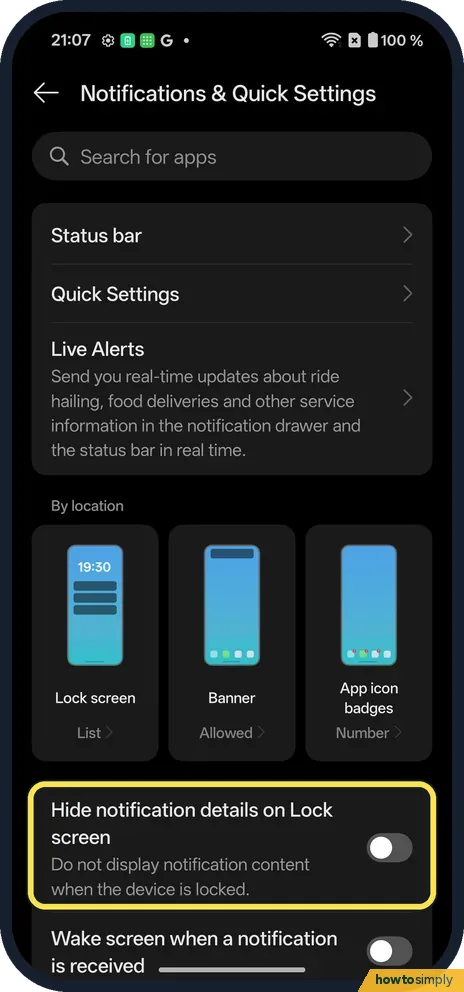
Hide the details
On Notifications & Quick Settings, switch on Hide notification details on Lock screen. Notifications still show, without their content.
- 2
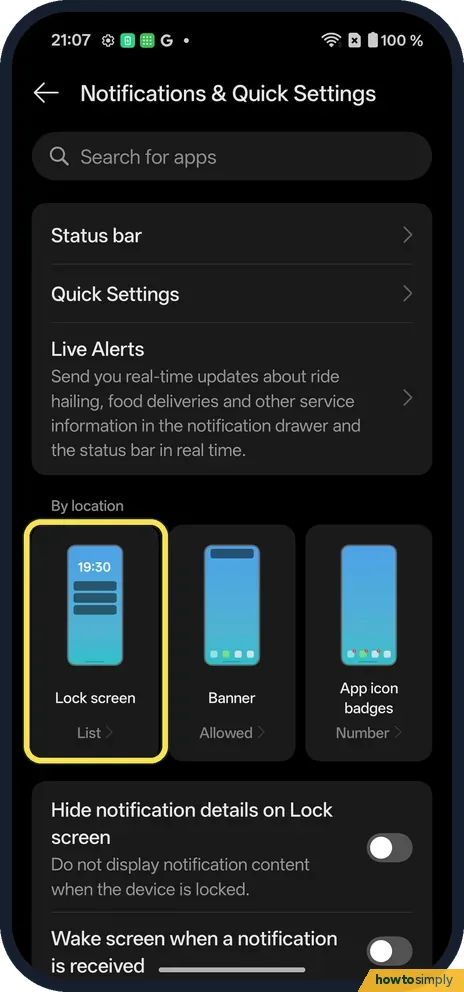
Or open Lock screen
Under By location, tap the Lock screen tile (List on ours).
- 3
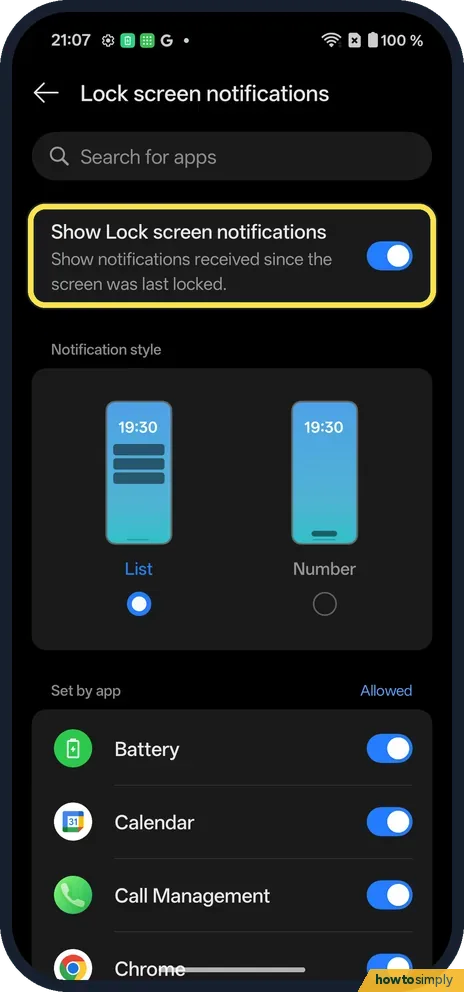
Switch them off
Show Lock screen notifications turns them all off.
- 4
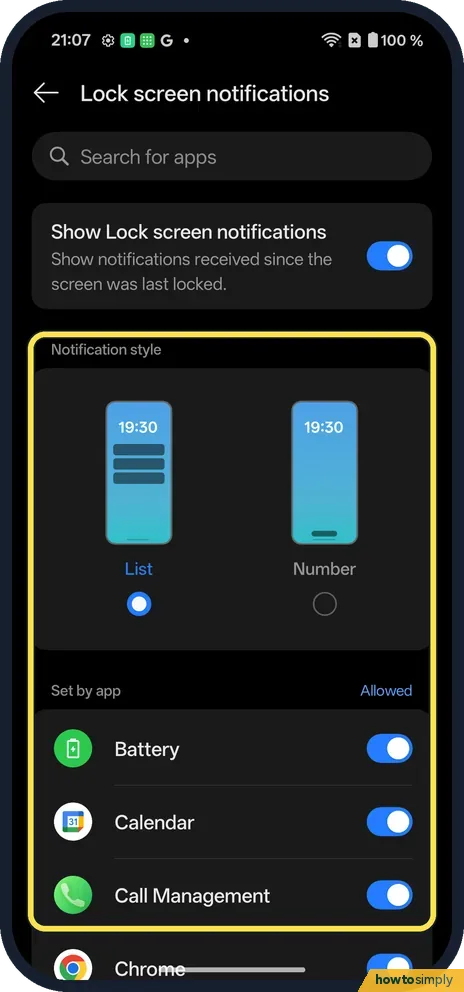
Or pick the style and apps
Notification style is List or Number. Set by app has a switch for each app.
If you do not see this option
- No "hide sensitive" choice in Lock screen? On ours it is a separate switch on the Notifications & Quick Settings page.
- Older OxygenOS? OnePlus's OxygenOS 14 manual has these under Notifications & status bar. Source: OxygenOS 14.0 User Manual
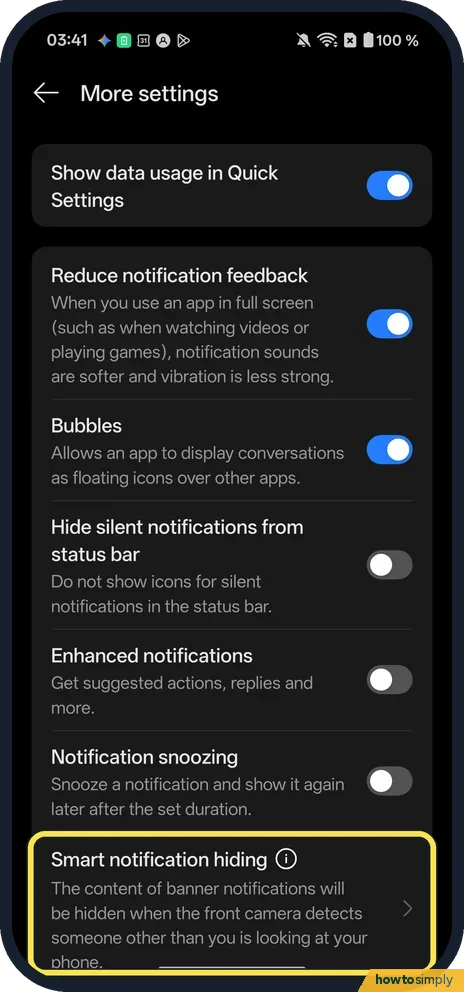
- Hide content only when others look? OnePlus's OxygenOS 14 manual describes Smart notification hiding, which uses the front camera and your face data to hide notification content when someone else is looking at the phone. On our OxygenOS 16 Nord 5 it's under Notifications & Quick Settings, More settings: it hides what banner notifications say whenever the front camera spots someone other than you looking at the phone. It was off on ours. Source: OxygenOS 14.0 User Manual
If this does not work
- Screen wakes for every message? Wake screen when a notification is received is just below; switch it off.
- One app still shows? Switch that app off under Set by app.
- Message text still shows on the lock screen? Some messaging apps put the text in their own notification style. Check that app's notification settings for a hide or private option, and Google notes apps can be set to hide sensitive notification content or not show notifications at all.
- Work apps follow different rules? A work profile or school account can have its own lock screen notification policy set by your organisation. If those notifications ignore your choice, ask your IT admin.
Good to know
Turn off notifications for one app on a OnePlus.
With details hidden, the lock screen shows which app sent a notification but not the text, so a message preview or a one-time code stays private until you unlock. That also means you need to unlock to read codes from your bank, which is the safer habit. Nothing is deleted and you can reverse each switch on the same page. If you want fewer notifications overall rather than just hiding them, turn on notification snoozing on a OnePlus lets you put one aside for later.
About this guide
Lock screen notifications can show message text to anyone who picks up your phone.
- Device
- Android
- Shown on
- OnePlus Nord 5 (CPH2709), OxygenOS 16.0.5.1201, Android 16
- App
- Settings
- Path
- Settings › Notifications & Quick Settings › Lock screen
- Real screenshots
- 4 of 4 steps
- Checked
- October 2026
- Sources
- 1 official, linked below
The screenshots are from our OnePlus Nord 5 with OxygenOS 16.0.5.1201 and Android 16, in Dark mode. Notifications showed on the Lock screen as a List, and details were not hidden. We changed nothing.
Sources
Links checked October 2026. Menus and features can change with updates.Did this guide work for you?
Sorry about that. What happened?
Get new guides by email
Our newest guides, sent to your inbox. Free, and you can unsubscribe in one click.
We'll email you to confirm. How we use your email
Follow howtosimply on Facebook
We share our new guides on our Facebook page, so the next fix turns up in your feed.
Follow on Facebook