How to check a Samsung Galaxy for harmful apps with Play Protect
- Shown on
- Galaxy S26SM-S942N
- Software
- One UI 9.0Android 17More One UI 9 guides
- Checked
- November 2026
- Real screenshots
- 6 of 6 steps
- Where it is
- Settings › Security and privacy › App security
Quick answer
Open the Play Store, tap your profile picture and Play Protect. It shows when your apps were last scanned; tap Scan to check again now. Settings, Security and privacy, App security shows the same status, and Samsung's own App protection on that page adds a second check.
Watch these steps
Video: on our Galaxy S26 (One UI 9) we open Security and privacy, then App security, where Google Play Protect shows when it last scanned (steps 1 and 2). No sound.
Steps
- 1
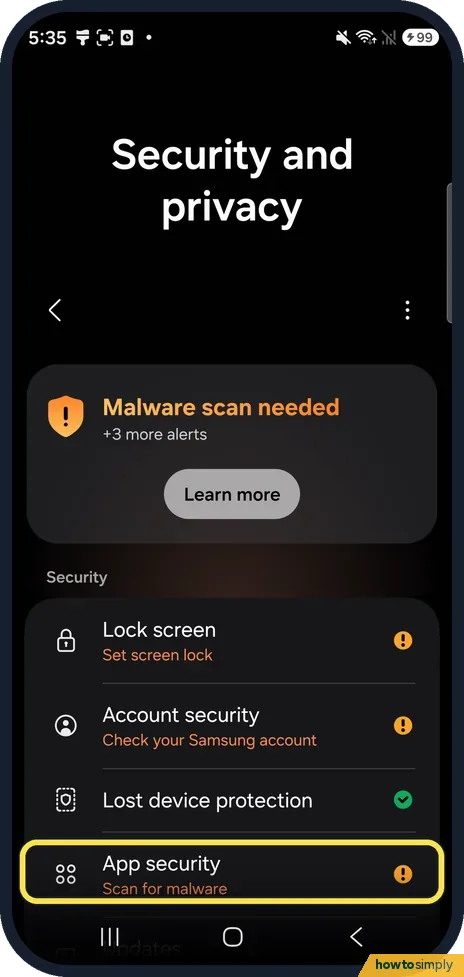
Open App security
Open Settings, Security and privacy and tap App security. It lists both protections.
- 2
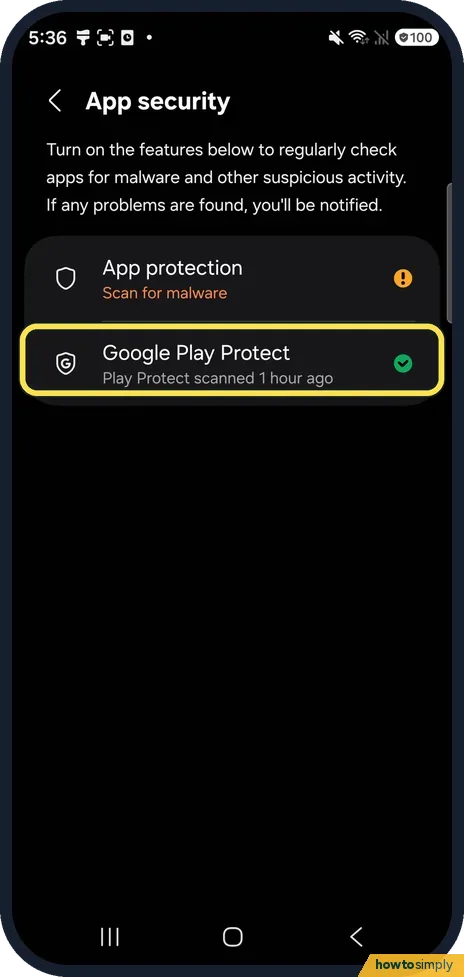
Check Google Play Protect
Under Google Play Protect, ours said Play Protect scanned 1 hour ago, with a green tick. On our Galaxy S26, tapping this row did not open anything, so open Play Protect from the Play Store instead.
- 3
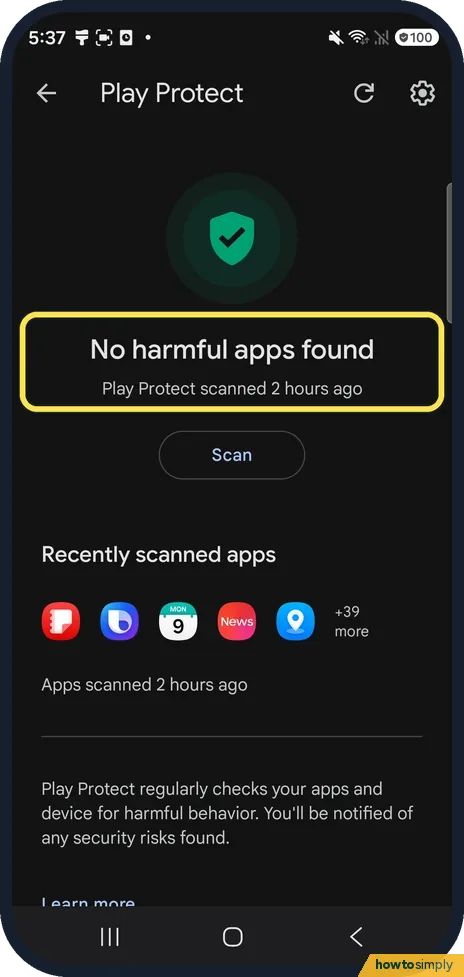
Open Play Protect in the Play Store
Open the Play Store, tap your profile picture and tap Play Protect. The page shows the result of the last scan; ours said No harmful apps found.
- 4
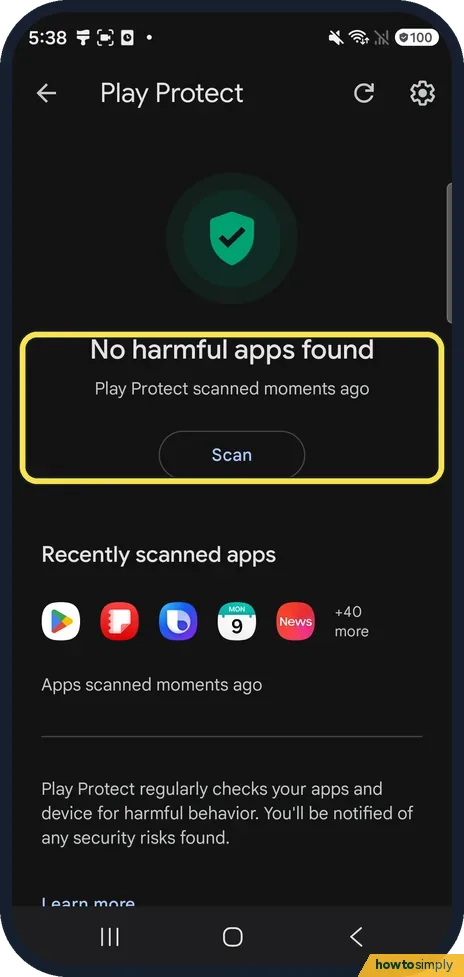
Scan now
Tap Scan to check all apps again. Ours then read scanned moments ago.
- 5
Check that scanning is on
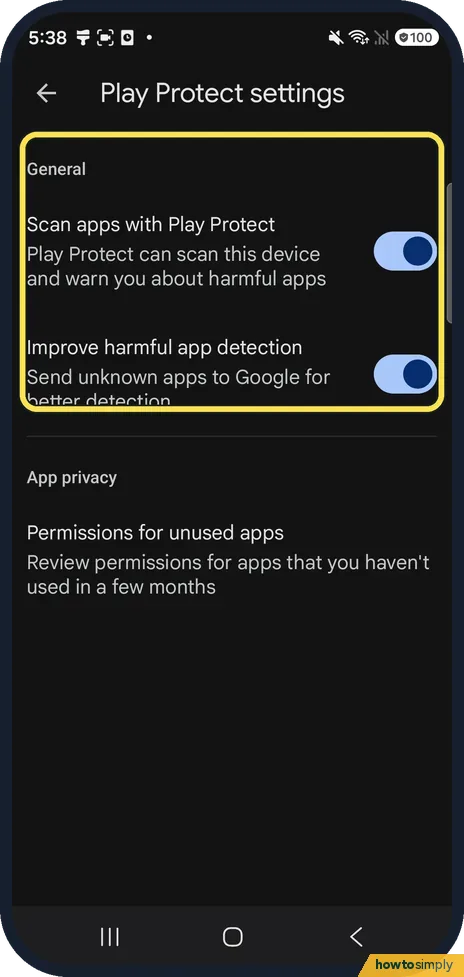
Tap the gear at the top right to open Play Protect settings. Scan apps with Play Protect should be on. Improve harmful app detection sends unknown apps to Google for a check.
- 6
Consider Samsung App protection
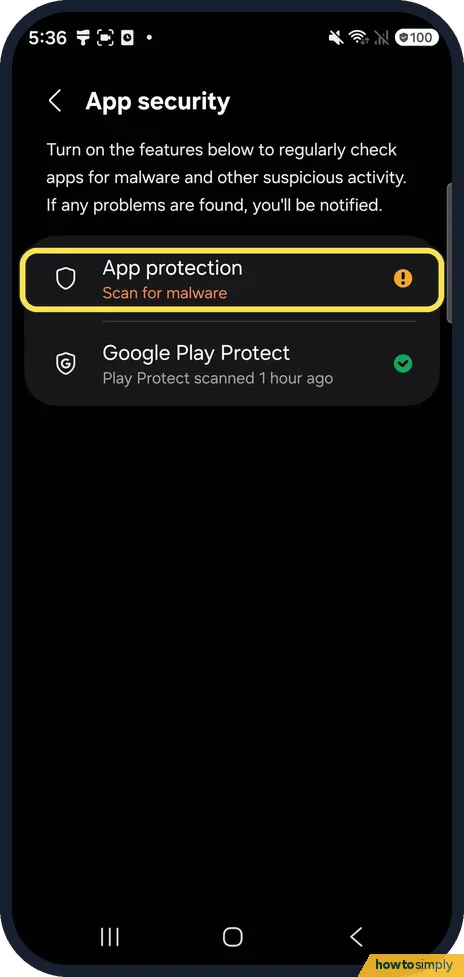
Back on App security, App protection said Scan for malware on ours, with a warning icon, because it was off. Tap it to add Samsung's scanner as well. We left it off.
If you do not see this option
- There is no App security page Google gives a route through the Play Store: open Google Play, tap your profile icon at the top right, then Play Protect. Source: Use Google Play Protect to help keep your apps safe & your data private
- Play Protect is not offered at all To check whether the phone is Play Protect certified, Google says to open the Play Store, tap the profile icon, then Settings, then About. Source: Use Google Play Protect to help keep your apps safe & your data private
If this does not work
- Scanning is switched off Google says Play Protect is on by default but can be turned off. Turn it back on: Play Store, profile icon, Play Protect, Settings, Scan apps with Play Protect.
- An app is flagged as harmful That is Play Protect doing its job. Google says Play Protect warns you about the app and may turn it off or remove it. If Play Protect has not already removed it, tap the notification, then tap Uninstall.
- An app you trust is blocked from installing? Samsung says Auto Blocker stops installs from outside the Galaxy Store or Google Play Store. If you trust the app, you can switch Auto Blocker off, install it, then switch Auto Blocker back on.
Good to know
Pop-ups and ads appearing over other apps are often caused by an app: pop-up ads on a Samsung Galaxy.
Google says Play Protect also scans the phone from time to time and checks apps as you install them, so a manual scan is mainly for peace of mind after installing something unusual. A scan does not delete your photos or files, and only flagged apps are affected. Samsung's Auto Blocker, under Security and privacy, adds another layer by stopping installs from outside the official stores and blocking suspicious commands sent over a USB cable. Samsung says more security features were added to it from One UI 6.1.1. For the full picture, see how to turn on Auto Blocker.
About this guide
If an app has started acting strangely, or you simply want to know your phone is clean, it is natural to feel uneasy until you have checked. Google Play Protect checks the apps on your phone for harmful behaviour, and a Galaxy also has Samsung's own App protection, so the checks are already built in.
- Device
- Android
- Shown on
- Samsung Galaxy S26 (SM-S942N, Korean model), One UI 9.0, Android 17 (build CP2A.260605.016.S942NKSU5BZJB)
- App
- Settings
- Path
- Settings › Security and privacy › App security
- Real screenshots
- 6 of 6 steps
- What we did
- Observed: looked at each screen, changed nothing
- Checked
- November 2026
- Sources
- 2 official, linked below
The screenshots are from a Samsung Galaxy S26 with One UI 9.0 and Android 17, in Dark mode. Samsung says what the menus and settings are called, and how the screens look, can change with the model and software version. We tapped Scan once and changed nothing else.
Sources
Links checked October 2026. Menus and features can change with updates.Did this guide work for you?
Sorry about that. What happened?
Get new guides by email
Our newest guides, sent to your inbox. Free, and you can unsubscribe in one click.
We'll email you to confirm. How we use your email
Follow howtosimply on Facebook
We share our new guides on our Facebook page, so the next fix turns up in your feed.
Follow on Facebook