How to change the font size on a Samsung Galaxy
- Shown on
- Galaxy S26SM-S942N
- Software
- One UI 9.0Android 17More One UI 9 guides
- Checked
- November 2026
- Real screenshots
- 6 of 6 steps
- Where it is
- Settings › Display
Quick answer
Open Settings, Display, Font size and style and drag the slider at the bottom. Bold font on the same page makes text heavier. To make everything bigger, not just text, use Screen zoom on the Display page.
Watch these steps
 Watch on YouTubeA video of this task from our YouTube channel · opens YouTube
Steps
- 1
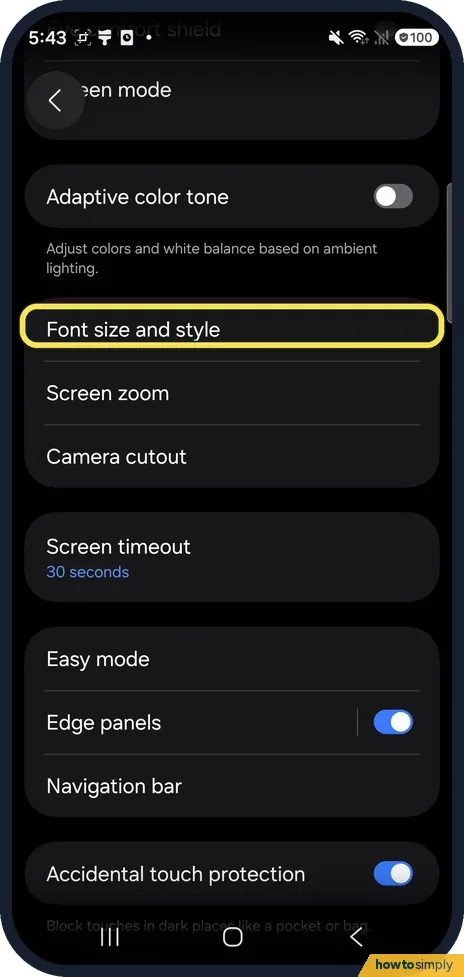
Open Font size and style
Settings, Display, then scroll to Font size and style.
- 2
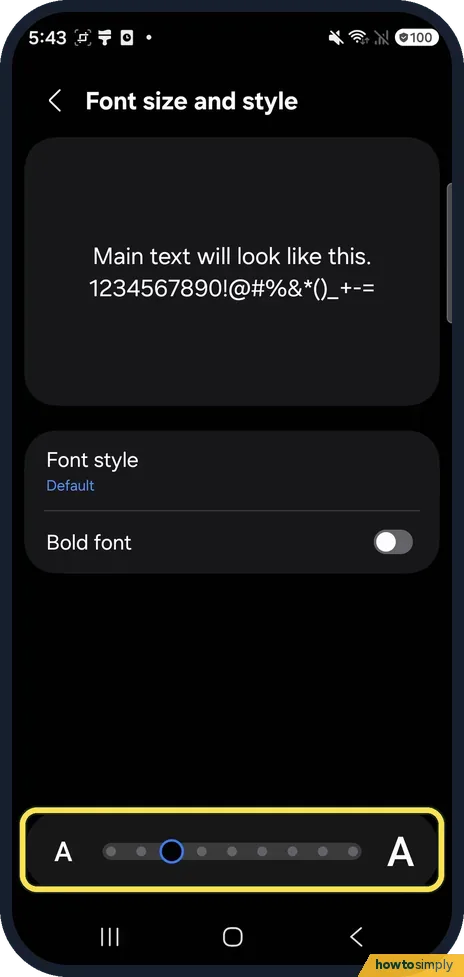
Drag the size slider
The slider at the bottom changes the size; the preview at the top shows how main text will look. Ours was on the second step.
- 3
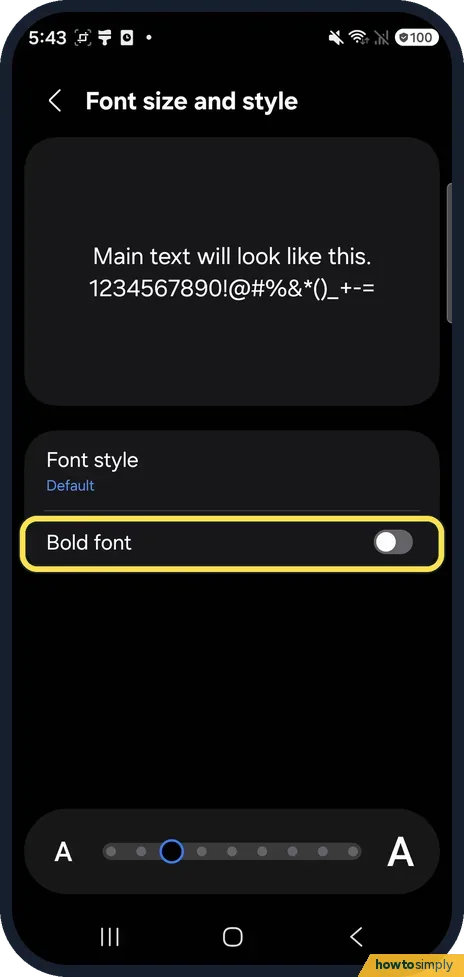
Make text bold
Bold font makes all text heavier, which can help as much as a bigger size. It was off on ours.
- 4
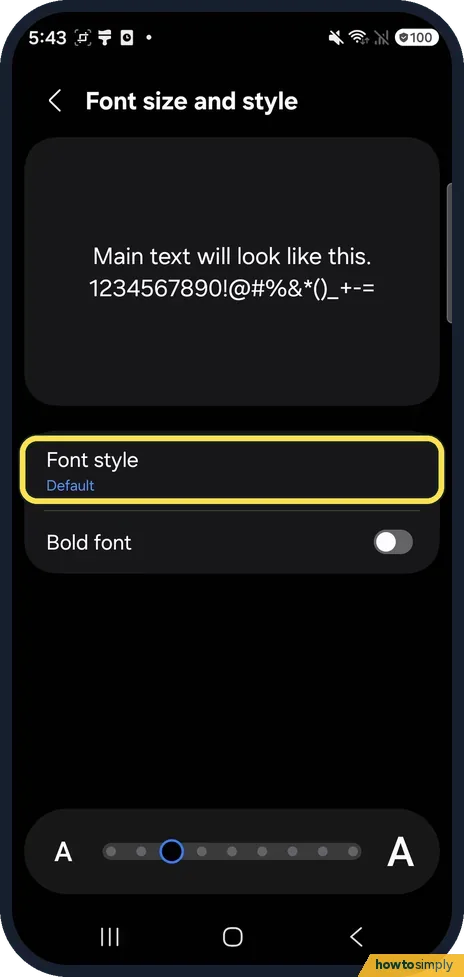
Change the font style
Font style picks the typeface. Ours was Default.
- 5
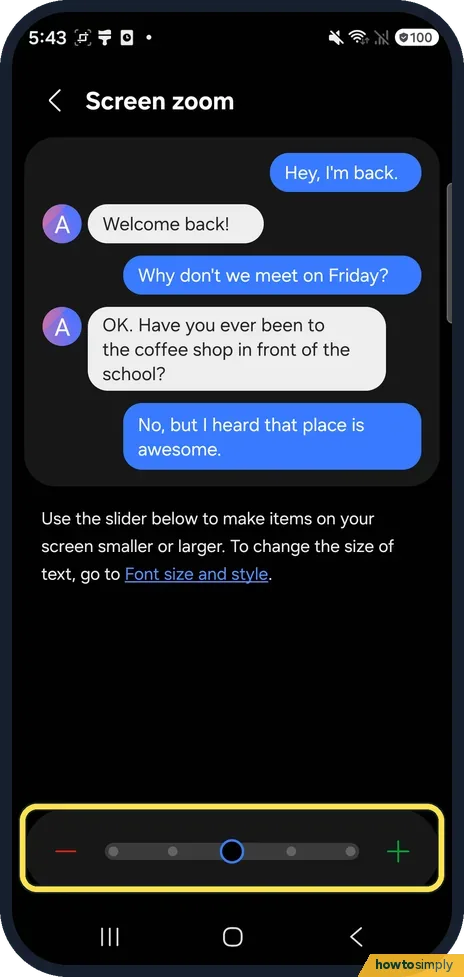
Make everything bigger with Screen zoom
Back on the Display page, Screen zoom enlarges icons, buttons and text together.
- 6
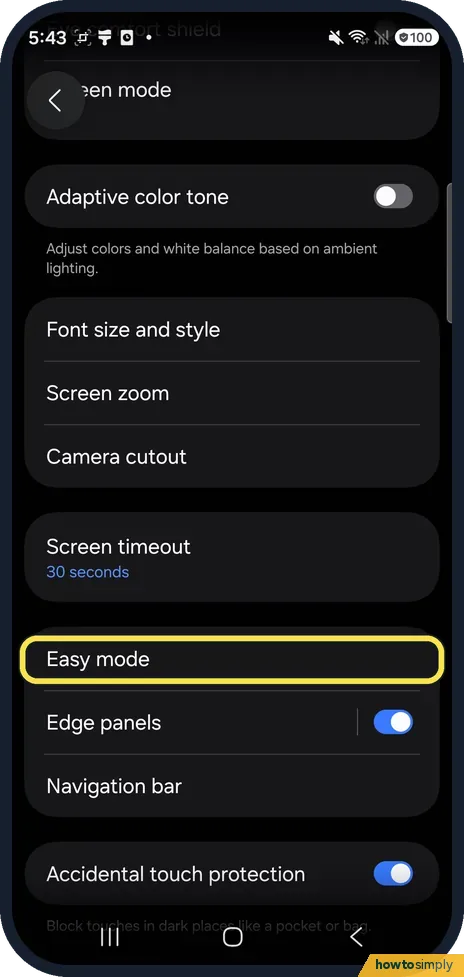
Or try Easy mode
Easy mode, further down the Display page, switches to a simpler layout with larger items.
If you do not see this option
- You want a different font Samsung says to tap Font style, then Download fonts. Galaxy Store opens with fonts to install; on mobile data the download can cost extra. Source: How to adjust the font size and style on your Galaxy phone
- The biggest size is still hard to read Samsung suggests Settings, Accessibility, Visibility enhancements and the switch for High contrast fonts, which adds an outline to all text, including the lock screen clock. Source: How to adjust the font size and style on your Galaxy phone
If this does not work
- Text in one app stays small Google notes that some apps ignore the font size setting.
- Text now too big? Drag the Font size slider back to the left to make the text smaller.
Good to know
Google notes that some apps ignore the font size setting.
Screen colours look wrong instead? Samsung Galaxy screen turned black and white? How to fix it.
The new size applies straight away across Settings, menus, notifications and most apps, and stays after a restart. To undo it, return to Font size and style and drag the slider back. Samsung suggests first making sure the phone's software and the apps involved are fully up to date. If you mainly need to read small print now and then, zooming in with Magnification may suit you better than a permanent change.
About this guide
Can't read the text on your Galaxy because it's too small? You can make it bigger and change its style.
- Device
- Android
- Shown on
- Samsung Galaxy S26 (SM-S942N, Korean model), One UI 9.0, Android 17 (build CP2A.260605.016.S942NKSU5BZJB)
- App
- Settings
- Path
- Settings › Display
- Real screenshots
- 6 of 6 steps
- What we did
- Observed: looked at each screen, changed nothing
- Checked
- November 2026
- Sources
- 2 official, linked below
The screenshots are from a Samsung Galaxy S26 with One UI 9.0 and Android 17, in Dark mode. What the menus look like can depend on the model and software version.
Sources
Links checked October 2026. Menus and features can change with updates.Did this guide work for you?
Sorry about that. What happened?
Get new guides by email
Our newest guides, sent to your inbox. Free, and you can unsubscribe in one click.
We'll email you to confirm. How we use your email
Follow howtosimply on Facebook
We share our new guides on our Facebook page, so the next fix turns up in your feed.
Follow on Facebook