Troubleshooting
"Google keeps stopping" on a Samsung Galaxy? 6 fixes
9 fixes, 8 with a real screenshot from our Galaxy A57 5G (One UI 8.5) and Galaxy S26 (One UI 9.0). Try them in order.
- Shown on
- Galaxy A57 5G (One UI 8.5) and Galaxy S26 (One UI 9.0)
- Checked
- November 2026
- Real screenshots
- 8 of 9 steps
- Where it is
- Settings › Apps › Google › Force stop

Quick answer
Restart the phone first. If the message comes back, open Settings, Apps, Google, tap Force stop, then Storage, Clear cache. Update the Google app and Android System WebView in the Play Store. Clear data only as a last resort, and install any software update.
Watch these steps
 Watch on YouTubeA video of this task from our YouTube channel · opens YouTube
Steps
- 1
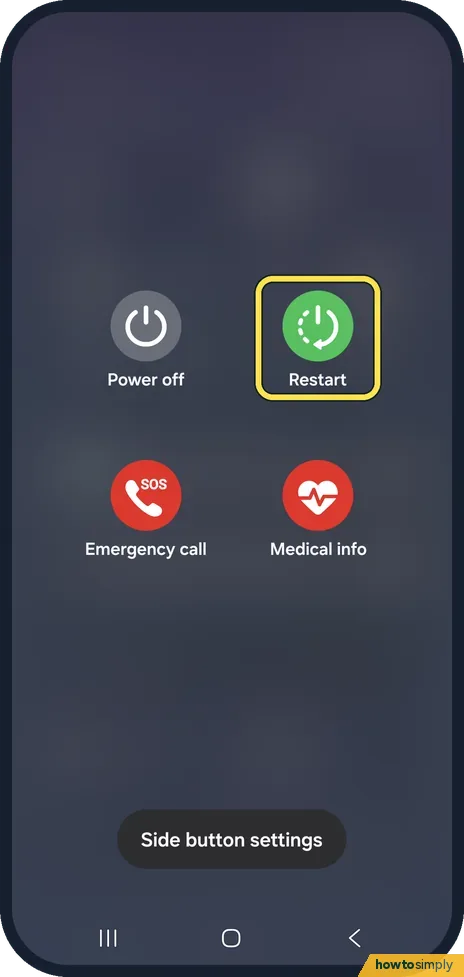
Restart the phone
Press and hold the side key and volume down, tap Restart, then try again. A restart clears a stuck process and fixes most one-off crashes.
- 2
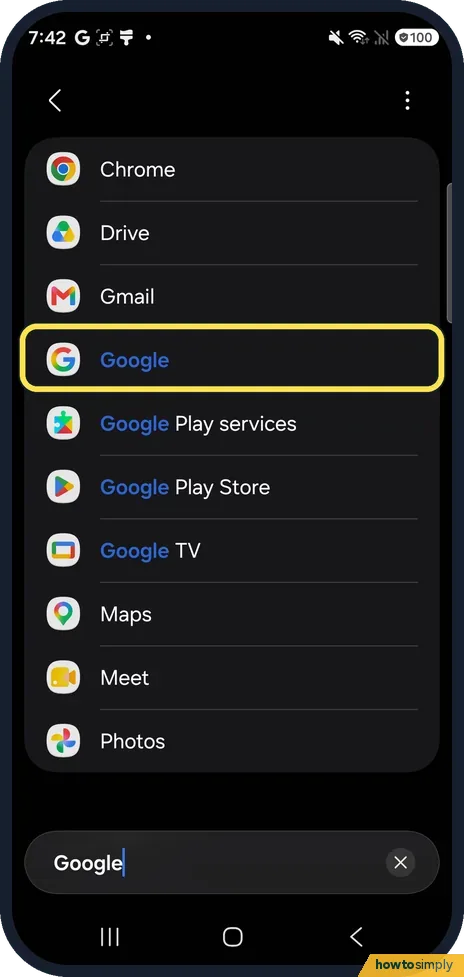
Open the Google app's App info
Open Settings, Apps and tap Google in the list. Searching for Google is quicker: on our Galaxy S26 the search box is at the bottom of the Apps list.
- 3
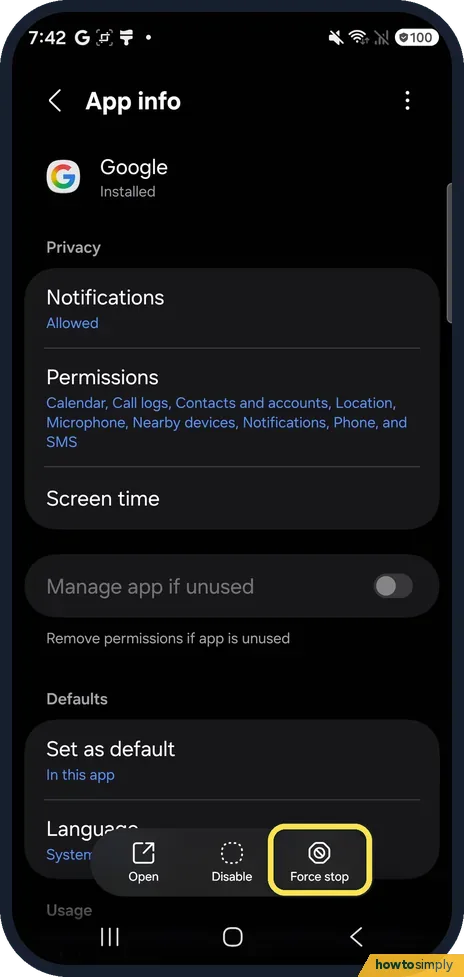
Tap Force stop
Force stop is in the bar at the bottom of App info. Confirm, then open the Google app again. We did not tap it on our phone.
- 4
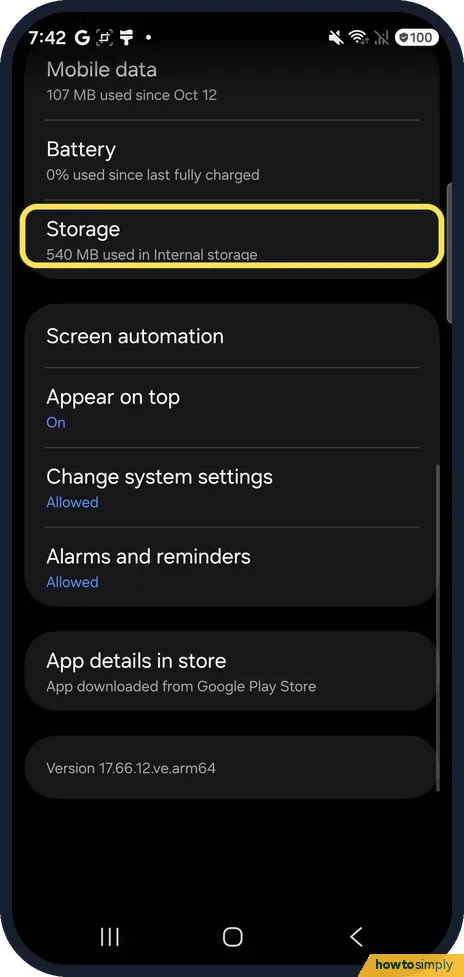
Scroll down to Storage
Storage is under Usage on App info. Ours showed 540 MB used in Internal storage. The bar at the bottom offered Open, Disable and Force stop, not Uninstall.
- 5
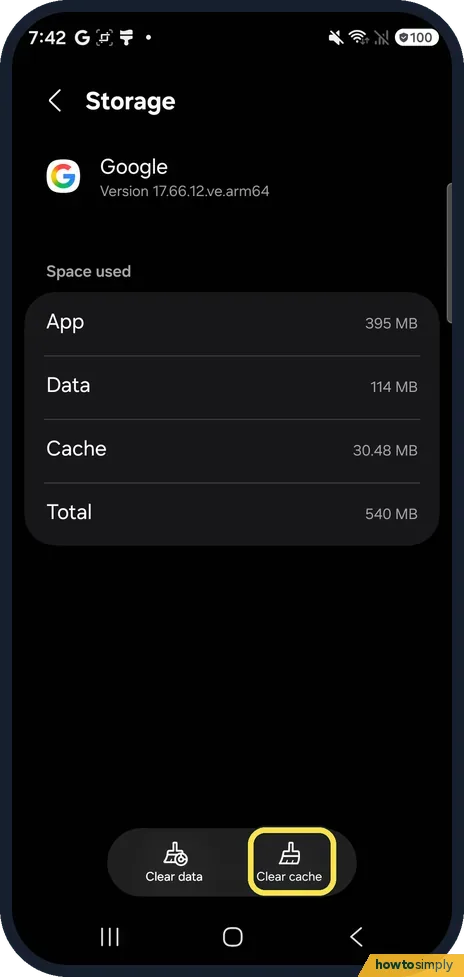
Clear the cache
On App info tap Storage, then Clear cache. Our Google app held 30.48 MB of cache. Clearing it deletes only temporary files; you stay signed in. We did not tap it.
- 6
Update the Google app and WebView
Open the Play Store, search for Google and tap Update if it appears. Do the same for Android System WebView, which many apps use to show web pages.
- 7
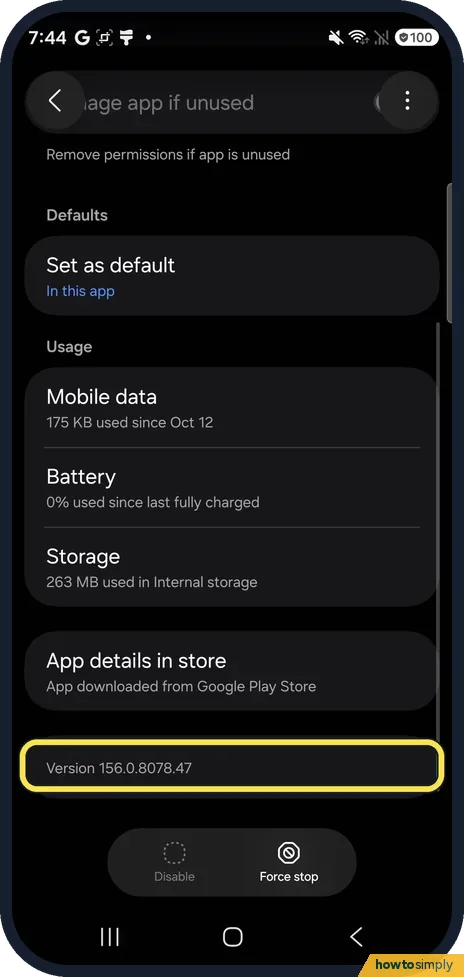
Check the WebView version
In Settings, Apps open Android System WebView and scroll to the bottom. It is a system app: if it is not in the list, tap the filter and sort button and switch on Show system apps. Ours showed Version 156.0.8078.47, and App details in store said App downloaded from Google Play Store.
- 8
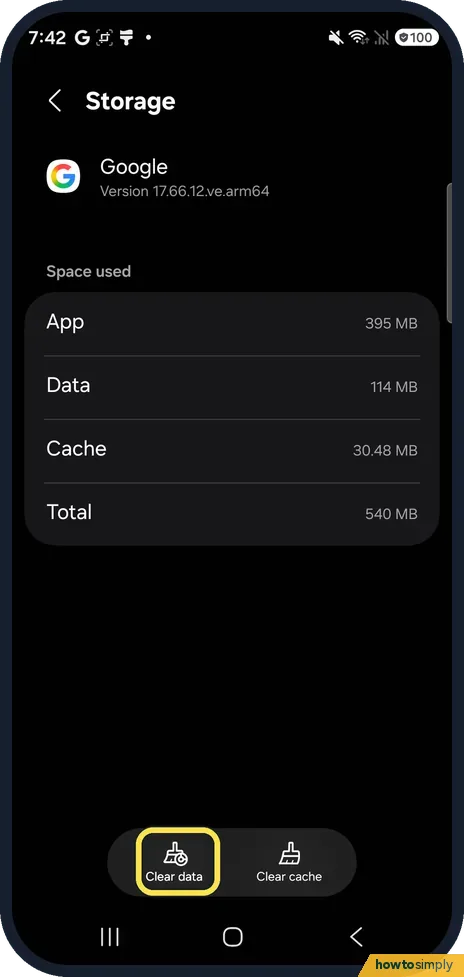
Clear data as a last resort
Clear data on the same Storage page resets the Google app to how it was when first opened, including its settings on this phone. Try it only if the crashes continue after the steps above.
- 9
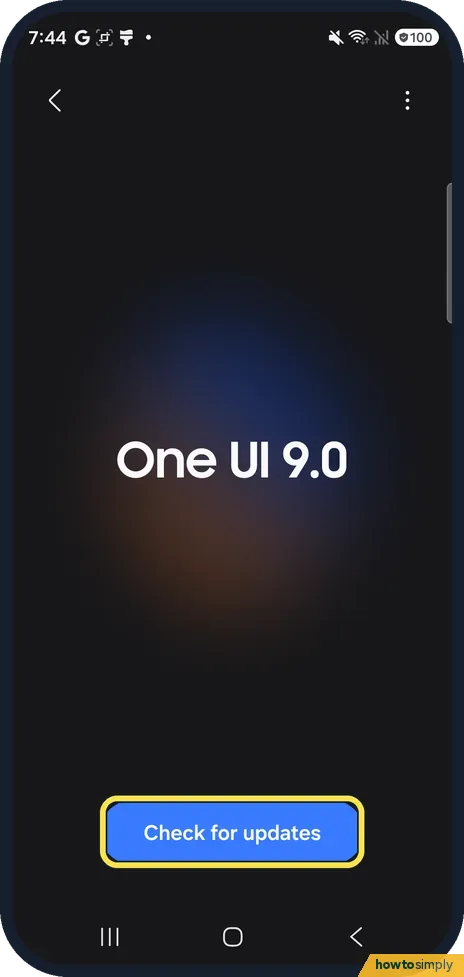
Install the latest software
Settings, Software update, then tap Check for updates. Our phone was on One UI 9.0.
Where we checked these steps
- Galaxy A57 5G, One UI 8.5 (Android 16)
- Galaxy S26, One UI 9.0 (Android 17)
We have not checked other phones or older versions. If a menu looks different on yours, the notes under each step and the fixes further down cover the differences we found.
If you do not see this option
- Software update is not under Settings Google notes that the place differs by phone: on some it is under About phone, Software update. On a Galaxy it is Settings, Software update. Source: Fix an installed Android app that isn't working
- The Google app does not show an Update button Google says to tap your profile icon in the Play Store, then Manage apps & devices. Waiting updates are listed under Updates available. Source: Fix an installed Android app that isn't working
If this does not work
- It still says Google keeps stopping There is still something to try, and yes, it involves setting the wrong date on purpose. Google suggests syncing the phone with Google's servers: in the date and time settings turn the automatic options off, set a wrong date and time, then turn the automatic options back on.
- Several Google apps fail At this point it is time to hand it to the people who make them. Google says to get in touch with Google Play if Google apps misbehave or no app will update. If only one app fails while others work, contact that app's developer.
Good to know
If many different apps keep stopping at once, it is unlikely that each of them had a bad day on its own. The shared part is usually Android System WebView or a nearly full storage: how to check and free up storage on a Samsung Galaxy phone.
If your habit is to get rid of whatever annoys you, the Google app is not one to banish. It is preinstalled: its App info offers Disable instead of Uninstall. Disabling it also turns off Google search and Discover, so use the steps above instead.
About this guide
A pop-up that says Google keeps stopping, again and again, can make it feel as if your phone has the hiccups and cannot shake them off. The message means the Google app (search, Discover and the assistant) crashed. The difference between the fixes below matters, because clearing its cache keeps your settings, while clearing its data resets the app on this phone.
- Device
- Android
- Shown on
- Samsung Galaxy A57 5G (SM-A576B), One UI 8.5, Android 16, Samsung Galaxy S26 (SM-S942N, Korean model), One UI 9.0, Android 17 (build CP2A.260605.016.S942NKSU5BZJB)
- App
- Settings
- Path
- Settings › Apps › Google › Force stop
- Real screenshots
- 8 of 9 steps
- Checked
- November 2026
- Sources
- 1 official, linked below
The screenshots are from a Samsung Galaxy S26 with One UI 9.0 and Android 17, in Dark mode, apart from step 1, from our Galaxy A57 with One UI 8.5. Other Galaxy phones on One UI 8.5 and 9 use similar menus; on older One UI versions a few names and positions differ. We only looked at these screens on our phones. The one thing we touched was a filter: to find Android System WebView we switched on Show system apps for a moment and switched it off again.
Sources
Links checked October 2026. Menus and features can change with updates.Related guides
How to clear an app's cache on a Samsung GalaxyHow to update a Google Pixel and its apps (Android 17)How to scan for harmful apps with Play Protect on a Google PixelHow to stop a Google Pixel switching to mobile data on weak Wi-Fi (Android 17)How to close apps on a Google Pixel (Android 17)How to change wireless emergency alert settings on a Google Pixel (Android 17)Did this guide work for you?
Sorry about that. What happened?
Get new guides by email
Our newest guides, sent to your inbox. Free, and you can unsubscribe in one click.
We'll email you to confirm. How we use your email
Follow howtosimply on Facebook
We share our new guides on our Facebook page, so the next fix turns up in your feed.
Follow on Facebook