Troubleshooting
"Download pending" in Google Play? 6 fixes
6 fixes, 6 with a real screenshot from our Galaxy S26 on One UI 9.0. Try them in order.
- Shown on
- Galaxy S26SM-S942N
- Software
- One UI 9.0Android 17More One UI 9 guides
- Checked
- November 2026
- Real screenshots
- 6 of 6 steps

Quick answer
Google Play installs one app at a time, so pending usually means other downloads or updates are queued. Open your profile, Manage apps & device and finish or cancel the updates. Then check the App download preference, free storage, and clear the Play Store cache.
Watch these steps
 Watch on YouTubeA video of this task from our YouTube channel · opens YouTube
Steps
- 1
Look at the queue
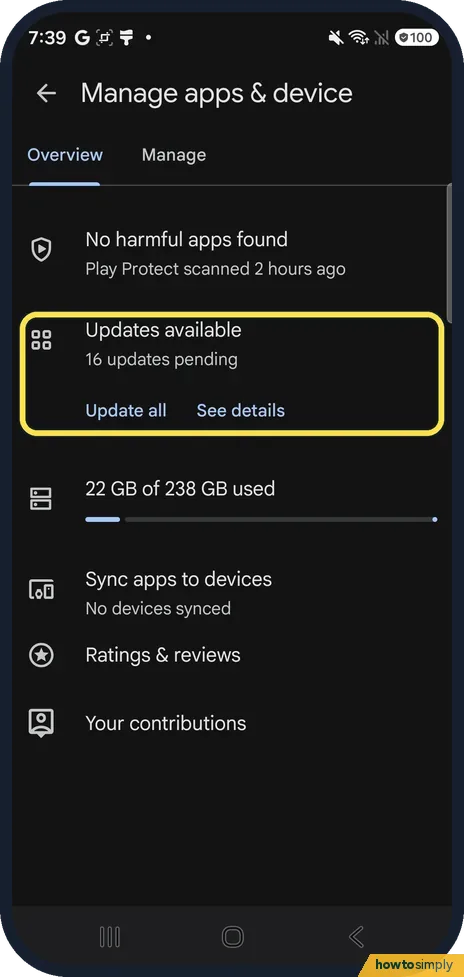
In Google Play, tap your profile picture, then Manage apps & device. Updates available shows how many are waiting; ours showed 16 updates pending. Update all, or See details to pick only the ones you need.
- 2
Check the free space
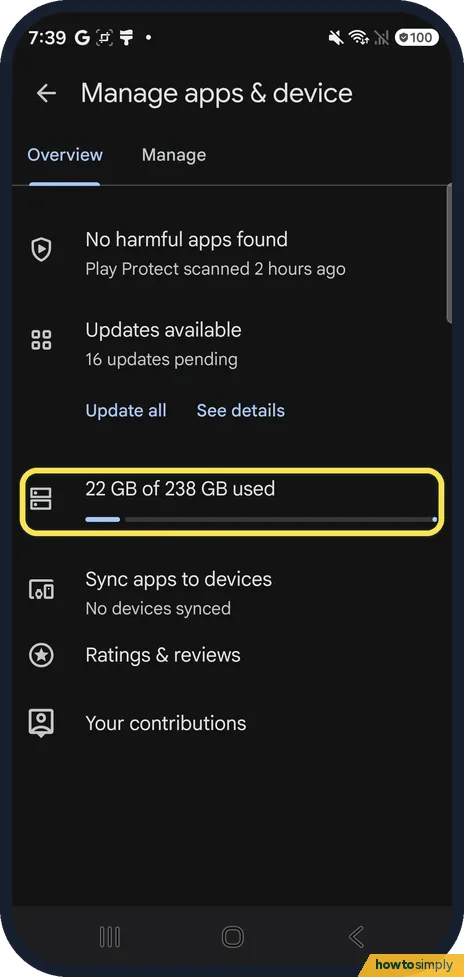
The same page shows how much storage is used; ours read 22 GB of 238 GB used. Samsung advises freeing some up when less than 1 GB is left.
- 3
Check the App download preference
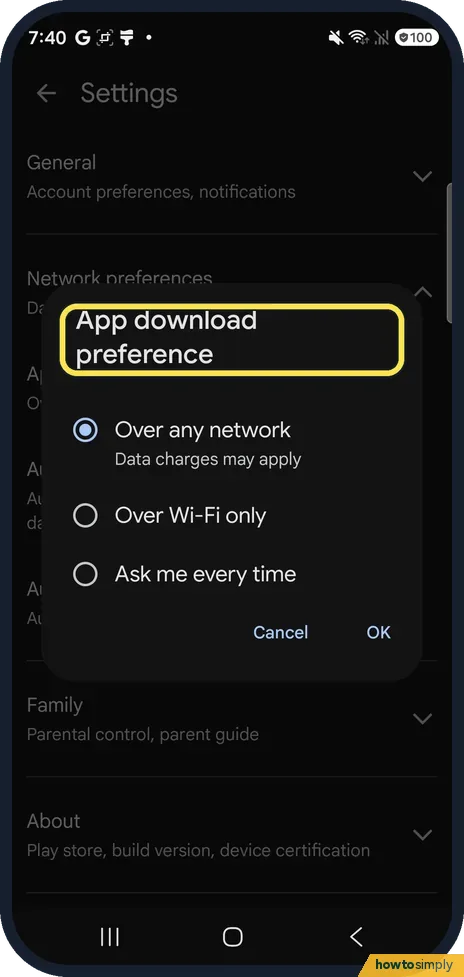
Profile, Settings, Network preferences, App download preference. If it says Over Wi-Fi only, downloads wait until you join Wi-Fi.
- 4
Choose when to download
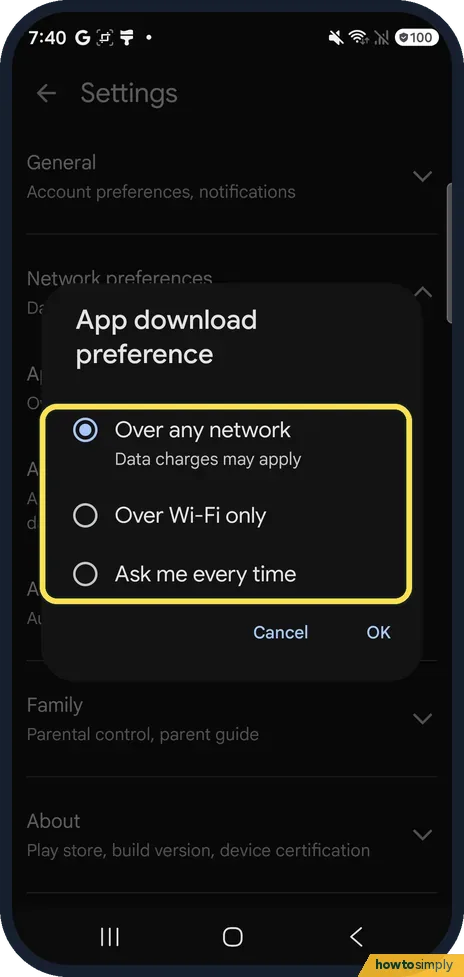
Over any network downloads straight away and may use mobile data; Over Wi-Fi only waits for Wi-Fi; Ask me every time asks before each download. To stop downloads waiting, pick Over any network. Ours was on Over any network.
- 5
Clear the Play Store cache
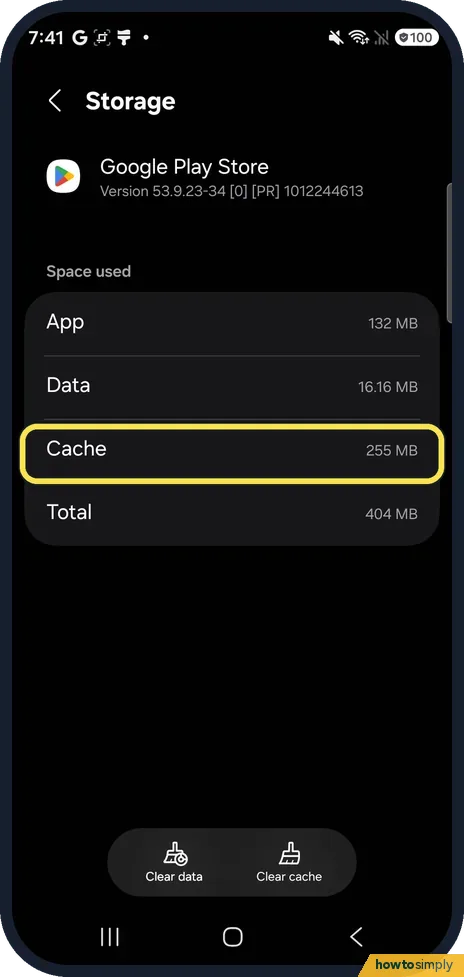
Settings, Apps, Google Play Store, Storage, Clear cache. Ours had 255 MB of cache. Clear cache keeps your apps and account. We did not tap it.
- 6
Set the date and time automatically
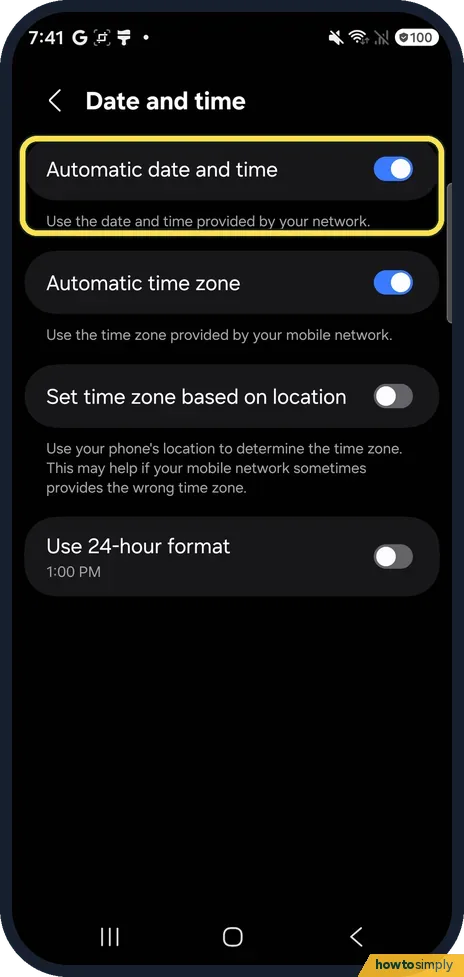
Google lists a wrong date or time as a cause of failing downloads. Settings, General management, Date and time, Automatic date and time. It was on on our phone.
If you do not see this option
- You have a Google Pixel or another phone Google gives the routes Settings, Storage for free space, and Settings, System, Date & time, where Set time automatically and the time zone Set automatically should both be on. Source: Fix problems downloading apps with basic troubleshooting steps
If this does not work
- Still pending Google suggests closing and reopening the Play Store, restarting the phone and checking for a system update.
- Only one app stays pending? If every other app installs and one just refuses, Google says to open the app's page in the Play Store and check whether it is available for your device. If it is not, no amount of waiting will change that, because it cannot be downloaded.
- The Play Store itself may be out of date? Google gives this route: in the Play Store tap your profile picture, then Settings, About, and under Play Store version tap Update Play Store.
- Mobile data is off without Wi-Fi? Samsung says to swipe down to open the Quick panel and turn on Mobile data, or connect to a strong Wi-Fi network.
Good to know
A VPN or a very weak connection can also hold downloads. Switch the VPN off for a moment and try again.
Still stuck? Then it is time for the oldest trick in the book: restart the phone, and install any system update under Settings, Software update.
If updates keep filling the queue, you can let Play update apps only on Wi-Fi: how to make Google Play update apps only on Wi-Fi.
About this guide
Well, an app that sits at Download pending and never starts can feel like standing in a queue that never moves. On our Galaxy, Play showed 16 updates waiting, which is the most common reason: everything in that queue goes first, and your app politely waits its turn.
- Device
- Android
- Shown on
- Samsung Galaxy S26 (SM-S942N, Korean model), One UI 9.0, Android 17 (build CP2A.260605.016.S942NKSU5BZJB)
- App
- Google Play
- Real screenshots
- 6 of 6 steps
- Checked
- November 2026
- Sources
- 4 official, linked below
The screenshots are from a Samsung Galaxy S26 with One UI 9.0 and Android 17, in Dark mode. Other Galaxy phones on One UI 8.5 and 9 use similar menus; on older One UI versions a few names and positions differ. We opened these screens and cancelled every dialog; no update was started.
Sources
Links checked October 2026. Menus and features can change with updates.Related guides
How to make Google Play update apps only on Wi-FiHow to play one app's sound on a different device on a Samsung GalaxyHow to scan for harmful apps with Play Protect on a Google PixelHow to download offline maps in Google Maps on AndroidHow to see screen time and set app timers on a Google Pixel (Android 17)How to turn off notifications for one app on a Google Pixel (Android 17)Did this guide work for you?
Sorry about that. What happened?
Get new guides by email
Our newest guides, sent to your inbox. Free, and you can unsubscribe in one click.
We'll email you to confirm. How we use your email
Follow howtosimply on Facebook
We share our new guides on our Facebook page, so the next fix turns up in your feed.
Follow on Facebook