Samsung Galaxy Wi-Fi turning on by itself? What to check
- Shown on
- Galaxy S26SM-S942N
- Software
- One UI 9.0Android 17More One UI 9 guides
- Checked
- November 2026
- Real screenshots
- 5 of 5 steps
Quick answer
Open Settings, Connections, Wi-Fi, tap the three dots, Intelligent Wi-Fi and switch off Turn Wi-Fi on automatically. Also check Wi-Fi scanning under Location, Location services, which lets apps scan for Wi-Fi even when Wi-Fi is off.
Watch these steps
 Watch on YouTubeA video of this task from our YouTube channel · opens YouTube
Steps
- 1
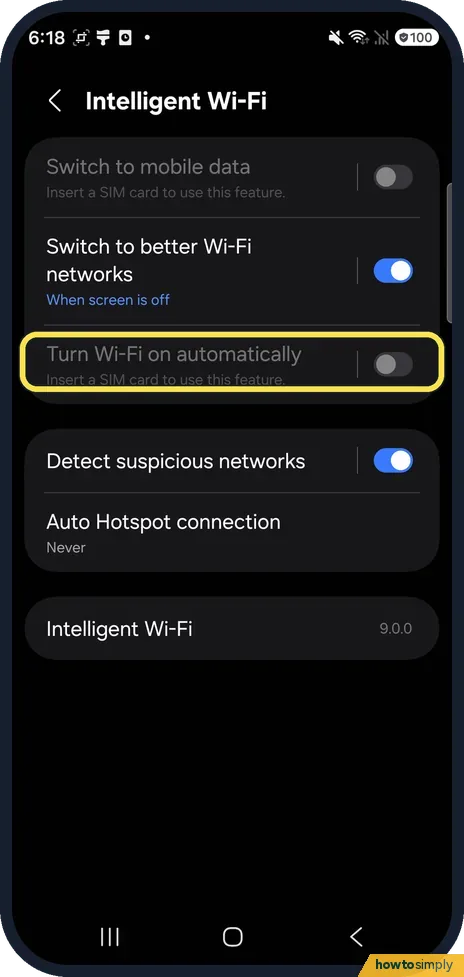
Switch off Turn Wi-Fi on automatically
Open Settings, Connections, Wi-Fi, tap the three dots at the top right and tap Intelligent Wi-Fi. This is the switch that turns Wi-Fi back on by itself. On our Galaxy S26, which had no SIM card, it was greyed out with the note Insert a SIM card to use this feature.
- 2
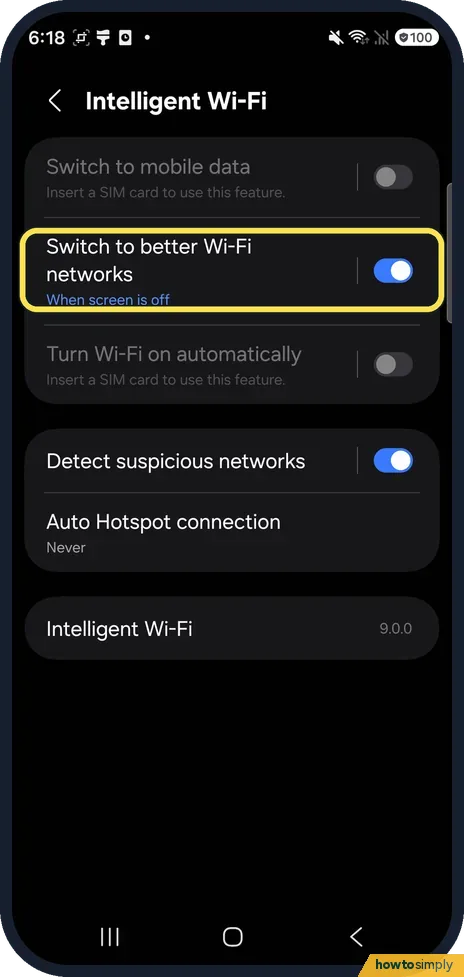
Check Switch to better Wi-Fi networks
This moves you between saved networks when another is faster or more stable. It explains Wi-Fi changing network by itself. On ours it was on, set to When screen is off.
- 3
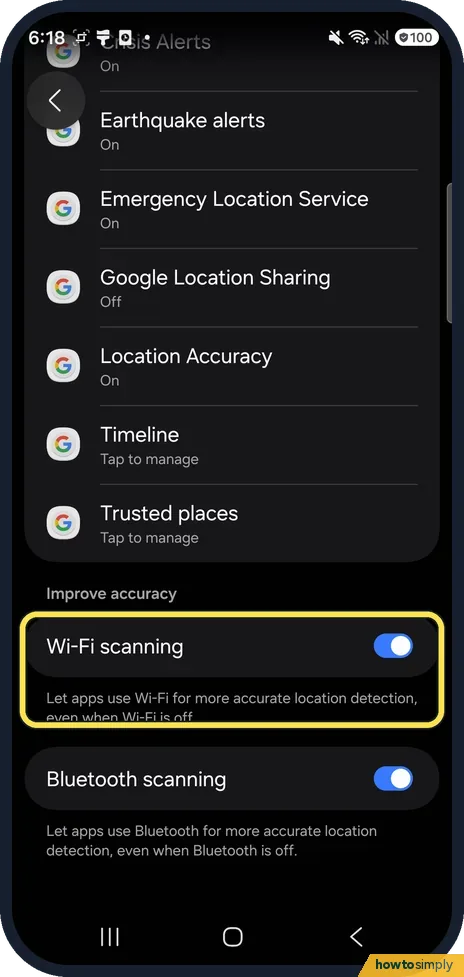
Check Wi-Fi scanning
Settings, Location, Location services. Wi-Fi scanning lets apps use Wi-Fi for location even when Wi-Fi is off. It does not switch Wi-Fi on, but the phone keeps looking for networks. It was on on ours.
- 4
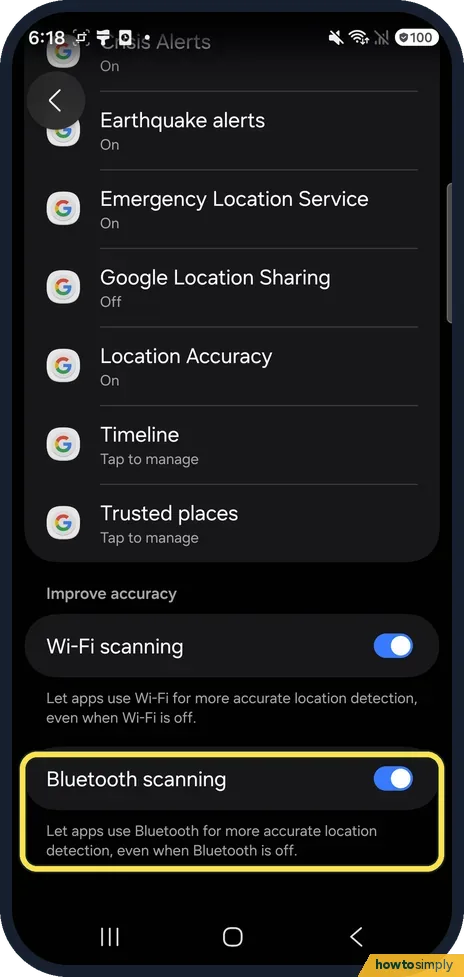
And Bluetooth scanning
The same for Bluetooth, just below. Switch both off if you want the radios fully quiet; location may then be less accurate.
- 5
Check your routines
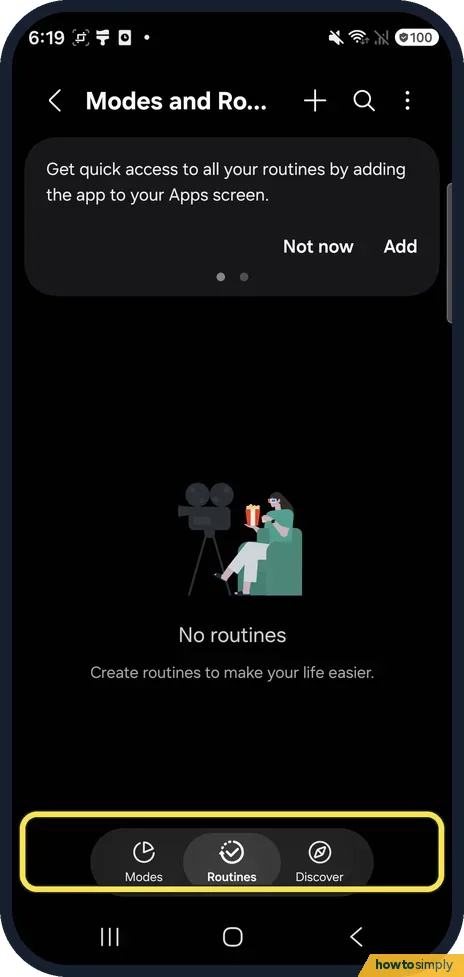
A routine in Modes and Routines can also turn Wi-Fi on, for example at home or at a set time. Open Settings, Modes and Routines and tap the Routines tab at the bottom. Ours said No routines.
If you do not see this option
- Turn Wi-Fi on automatically is greyed out or missing Samsung says this option needs a SIM card. On our phone it was greyed out until Location was on. Source: How to optimize network connectivity?
- Some Intelligent Wi-Fi switches are missing Samsung notes that some Intelligent Wi-Fi options depend on the phone model and the carrier. Source: How to optimize network connectivity?
If this does not work
- Wi-Fi moves to another network by itself Samsung says Switch to better Wi-Fi networks moves to a faster or more stable Wi-Fi network, and only while the screen is off.
- The phone switches to mobile data Samsung says Switch to mobile data moves to mobile data while Wi-Fi is unstable and back when the signal is strong. This one is a single switch too. Turn it off in Intelligent Wi-Fi.
- It only happens at home or work? Then the phone has simply learned your favourite places. Samsung says the automatic Wi-Fi option flips Wi-Fi on or off in places you go often. Wi-Fi coming on in places you use often can be this feature, so the switch in step 1 is the one to change.
- The phone joins another Galaxy's hotspot? Samsung lists Auto Hotspot connection in Intelligent Wi-Fi, where you decide when the phone joins a nearby Auto Hotspot. Change it there if the phone keeps joining an Auto Hotspot.
Good to know
Wi-Fi dropping out instead? Samsung Galaxy Wi-Fi keeps disconnecting? 6 things to check.
Location off makes Turn Wi-Fi on automatically stop too; see Samsung Galaxy location not accurate? 5 settings to check for what Location affects.
Remember to switch Wi-Fi on yourself when you get home: Samsung says Wi-Fi gets you online without eating your mobile data.
About this guide
You switch Wi-Fi off, put the phone down, and a little later it is back on, as if the phone has decided it knows better. Wi-Fi that switches back on after you turned it off can be a Galaxy feature at work: Samsung says Turn Wi-Fi on/off automatically flips Wi-Fi on or off in places you go often. Two pages decide it.
- Device
- Android
- Shown on
- Samsung Galaxy S26 (SM-S942N, Korean model), One UI 9.0, Android 17 (build CP2A.260605.016.S942NKSU5BZJB)
- App
- Settings
- Real screenshots
- 5 of 5 steps
- What we did
- Observed: looked at each screen, changed nothing
- Checked
- November 2026
- Sources
- 2 official, linked below
The screenshots are from a Samsung Galaxy S26 with One UI 9.0 and Android 17, in Dark mode. Other Galaxy phones on One UI 8.5 and 9 use similar menus; on older One UI versions a few names and positions differ. Wi-Fi names are blurred.
Sources
Links checked October 2026. Menus and features can change with updates.Did this guide work for you?
Sorry about that. What happened?
Get new guides by email
Our newest guides, sent to your inbox. Free, and you can unsubscribe in one click.
We'll email you to confirm. How we use your email
Follow howtosimply on Facebook
We share our new guides on our Facebook page, so the next fix turns up in your feed.
Follow on Facebook