Troubleshooting
NFC or tap to pay not working on a Samsung Galaxy: fixes
5 fixes, 4 with a real screenshot from our Galaxy S26 (One UI 9.0) and Galaxy A57 5G (One UI 8.5). Try them in order.
- Shown on
- Galaxy S26 (One UI 9.0) and Galaxy A57 5G (One UI 8.5)
- Checked
- November 2026
- Real screenshots
- 4 of 5 steps
- Where it is
- Settings › Connections

Quick answer
Open Settings, Connections, NFC and contactless payments and check it is On. Under Contactless payments, make sure your payment app is the Default wallet app. Then hold the part of the back marked by the circle on that page's phone picture flat against the reader for a second or two.
Watch these steps
Video: on our Galaxy S26 (One UI 9) we open NFC and contactless payments, where NFC is on and the picture shows where to hold the phone (steps 1 and 2). No sound.
Steps
- 1
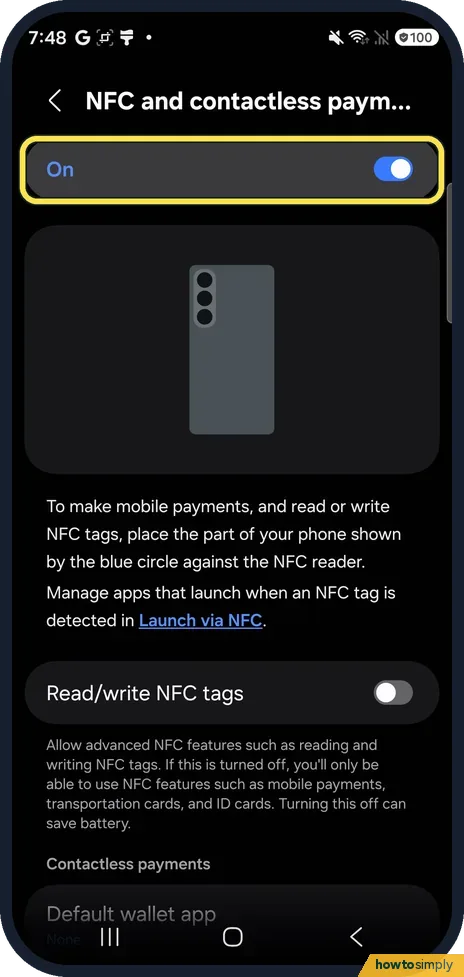
Turn on NFC
Open Settings, Connections, NFC and contactless payments. The switch at the top must say On. Ours is on.
- 2
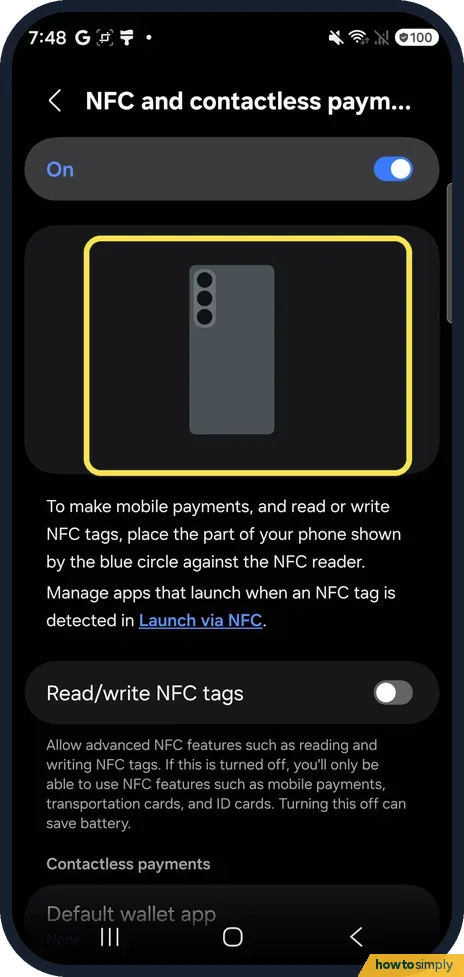
Find where to hold the phone
The picture shows where the NFC antenna sits. Hold that part of the phone against the reader, not the bottom edge.
- 3
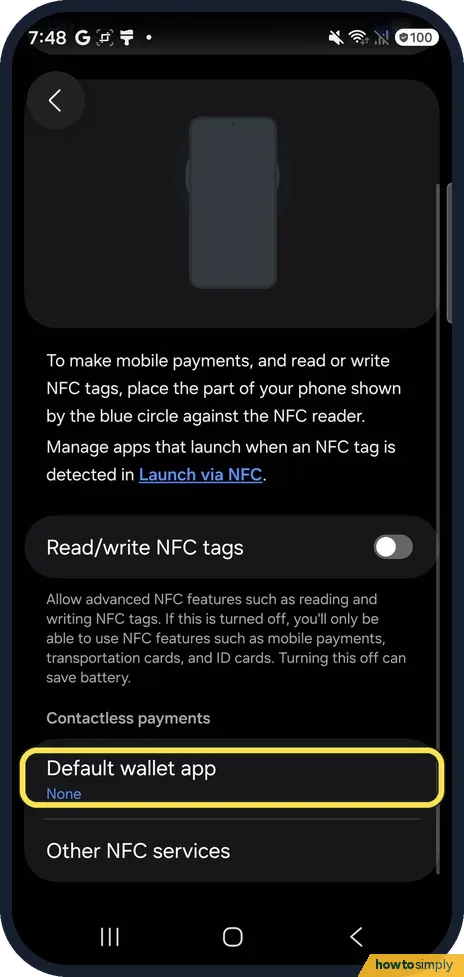
Choose the default wallet app
Under Contactless payments, tap Default wallet app and pick the app you pay with, for example Google Wallet or your bank's app. Ours said None, because no wallet is set up on our test phone.
- 4
Remove what blocks the signal
Take the phone out of a thick, metal or magnetic case and remove cards stored behind it, then try again.
Illustration - 5
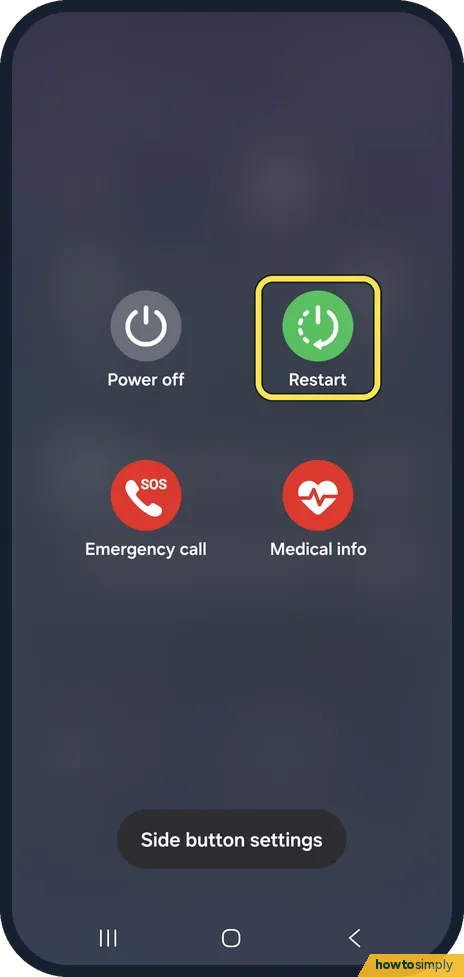
Restart and try again
Restart the phone and try the payment once more. Hold it still on the reader until it vibrates or beeps.
Where we checked these steps
- Galaxy S26, One UI 9.0 (Android 17)
- Galaxy A57 5G, One UI 8.5 (Android 16)
We have not checked other phones or older versions. If a menu looks different on yours, the notes under each step and the fixes further down cover the differences we found.
If you do not see this option
- Your payment app is not in the list Samsung says more payment apps are on the Others tab under Contactless payments. There is also a switch for Pay with currently open app. Source: Troubleshoot NFC issues on Galaxy devices
- You want NFC in the quick panel Samsung's route: open Quick settings, tap the Edit icon, pick Add a control, then NFC, move the NFC button up and tap Done. Source: What to do when NFC appears to be not working properly on your Samsung Galaxy device
If this does not work
- Payments fail with the case on Samsung US says cases with magnets, cards or metal can block NFC. Take the case off and try again. If it works without the case, the case was the problem, not your phone or your card.
- Still not working Samsung US says some NFC services keep data on the SIM card: take the SIM out, put it back, restart, and ask for a new SIM if it still fails.
- NFC stopped working suddenly Samsung suggests turning NFC off and back on, for example with the NFC button in the Quick settings panel.
- You use an LED cover Samsung says NFC does not work while an LED cover is lit.
- The till says declined? Then NFC worked and the problem is the payment itself. Google says to check whether the shop accepts mobile payments, then contact your bank, and notes that a declined transaction is not charged.
Good to know
Payment apps may refuse to pay without a screen lock, because a payment needs your fingerprint, face or PIN.
If NFC works with one reader but not another, the reader may be at fault, not your phone. In that case, try a different till or terminal.
If the phone was lost or the payment app shows a card you do not recognise, contact your bank first; they can freeze the card even if the phone itself is fine. Google says to use your screen lock if you are asked to confirm a payment.
About this guide
It is an awkward moment when your phone will not pay at the till and there is a queue behind you. Tap to pay needs only three things, so the checks are quick: NFC on, the right wallet app chosen, and the phone's NFC antenna close to the reader. A thick case, a magnetic holder or a card behind the phone can block it.
- Device
- Android
- Shown on
- Samsung Galaxy S26 (SM-S942N, Korean model), One UI 9.0, Android 17 (build CP2A.260605.016.S942NKSU5BZJB), Samsung Galaxy A57 5G (SM-A576B), One UI 8.5, Android 16
- App
- Settings
- Path
- Settings › Connections
- Real screenshots
- 4 of 5 steps
- What we did
- Observed: looked at each screen, changed nothing
- Checked
- November 2026
- Sources
- 4 official, linked below
The screenshots are from a Samsung Galaxy S26 with One UI 9.0 and Android 17, in Dark mode, apart from step 5, from our Galaxy A57 with One UI 8.5. Other Galaxy phones on One UI 8.5 and 9 use similar menus; on older One UI versions a few names and positions differ.
Sources
Links checked October 2026. Menus and features can change with updates.Related guides
Quick Share not working on a Samsung Galaxy? 6 fixesHow to reset network settings on a Samsung Galaxy phoneHow to add an eSIM on a Samsung GalaxyBluetooth audio cutting out or stuttering on a Samsung Galaxy: fixesHow to turn on NFC on a Google Pixel (Android 17)How to see who is connected to your Samsung Galaxy hotspotDid this guide work for you?
Sorry about that. What happened?
Get new guides by email
Our newest guides, sent to your inbox. Free, and you can unsubscribe in one click.
We'll email you to confirm. How we use your email
Follow howtosimply on Facebook
We share our new guides on our Facebook page, so the next fix turns up in your feed.
Follow on Facebook