How to see notification history on a Samsung Galaxy
- Shown on
- Galaxy A57 5G (One UI 8.5) and Galaxy S26 (One UI 9.0)
- Checked
- November 2026
- Real screenshots
- 4 of 4 steps
- Where it is
- Settings › Notifications › Advanced settings › Notification history
Quick answer
Open Settings, Notifications, Advanced settings, Notification history and switch it on. From then on, notifications from the last 24 hours are kept, including ones you dismissed by accident. Tap an app in the list to see them.
Steps
- 1
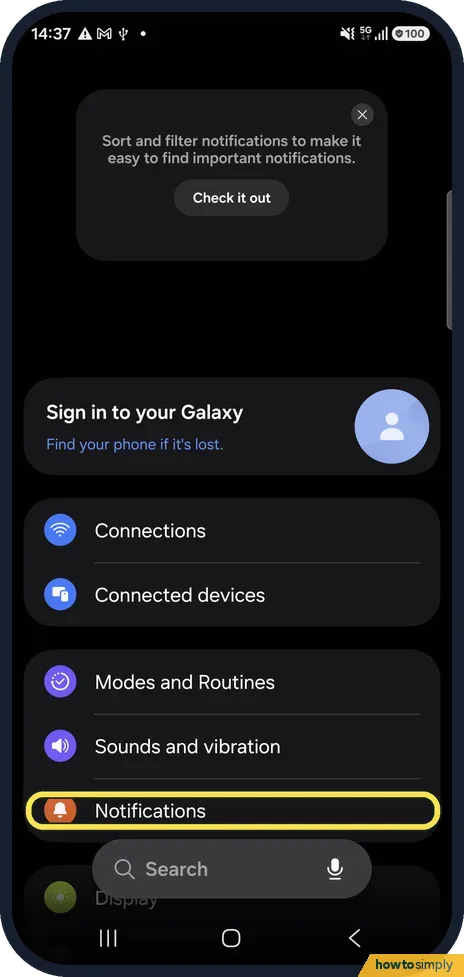
Open Notifications
Open Settings and tap Notifications.
- 2
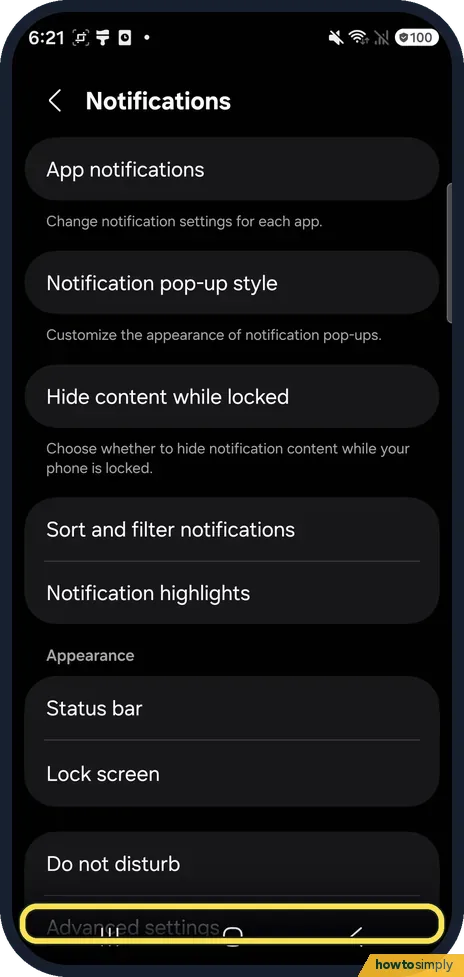
Tap Advanced settings
At the bottom of the Notifications page.
- 3
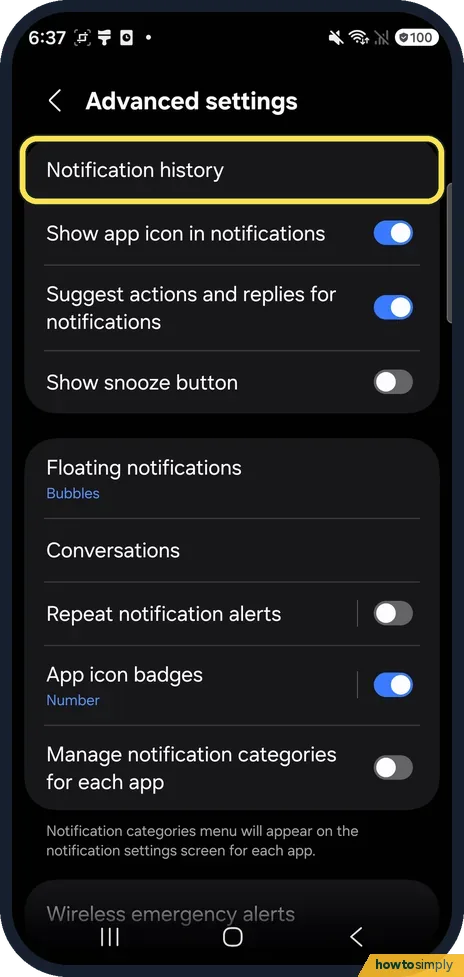
Tap Notification history
It is the first row on the Advanced settings page.
- 4
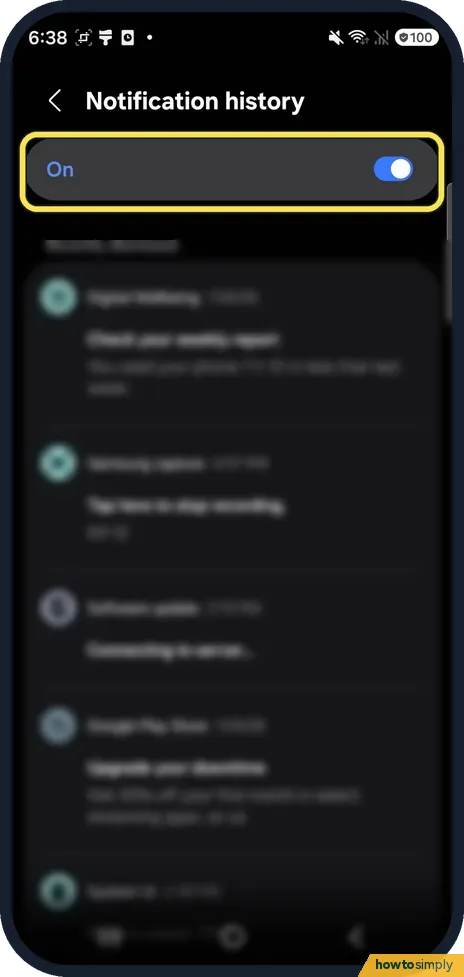
Switch it on
Tap the switch at the top so it reads On. Below, Recently dismissed and Last 24 hours list the notifications by app. Tap an app to expand them. Ours was already on.
Where we checked these steps
- Galaxy A57 5G, One UI 8.5 (Android 16)
- Galaxy S26, One UI 9.0 (Android 17)
We have not checked other phones or older versions. If a menu looks different on yours, the notes under each step and the fixes further down cover the differences we found.
If you do not see this option
- There is no Notification history row Samsung says to make sure the phone runs the latest software and to check that your model supports it, then restart the phone after switching it on. Source: How to Enable Notification History
- You cannot find Advanced settings Samsung puts Notification history under Settings, Notifications, Advanced settings. Source: How to Enable Notification History
If this does not work
- The history is empty It only keeps notifications from the moment you switch it on. Samsung also says alerts older than 24 hours might not be stored, and this varies by device.
- Some notifications are missing Samsung says it may not store notifications from apps that do not support the feature, or system notifications during critical updates.
- History cleared itself? Android's own documentation says that switching Notification history off deletes everything in it and stops new items being saved. If the switch was turned off, even briefly, the list starts again from empty when you turn it back on.
- A message shows but the chat is gone? The history keeps a copy of the notification text only. If the sender deleted the message, or you deleted the chat, the app itself may no longer have it, even if the history line is still there.
- Only a few recently dismissed items? Android describes Recently dismissed as a handful of the latest notifications. For anything older, look under Last 24 hours and tap the app to expand it.
Good to know
Notification history shows the text of messages, so anyone with your unlocked phone can read it too.
Notifications not arriving at all? Samsung Galaxy notifications not showing? 5 settings to check.
Keeping Notification history on means notifications stay in the history, by default for 24 hours. Samsung says it stores notifications even if they are dismissed or cleared.
To stop sensitive previews appearing in the first place, hide them on the lock screen or turn off notifications for that app. See turn off notifications for one app on a Samsung Galaxy.
About this guide
Well, swiping away a notification a split second before your brain caught up is one of those tiny daily disasters, and then you spend the afternoon wondering who it was from. Notification history keeps recent notifications, even ones you dismissed or cleared. It only records from the moment you switch it on, which is why it is worth switching on now, before the next one slips away.
- Device
- Android
- Shown on
- Samsung Galaxy A57 5G (SM-A576B), One UI 8.5, Android 16, Samsung Galaxy S26 (SM-S942N, Korean model), One UI 9.0, Android 17 (build CP2A.260605.016.S942NKSU5BZJB)
- App
- Settings
- Path
- Settings › Notifications › Advanced settings › Notification history
- Real screenshots
- 4 of 4 steps
- Checked
- November 2026
- Sources
- 2 official, linked below
The screenshots are from a Samsung Galaxy S26 with One UI 9.0 and Android 17, in Dark mode, apart from step 1, from our Galaxy A57 with One UI 8.5. Samsung lists the feature for the Galaxy S24, S25 and S26 series, the Galaxy Z Fold and Z Flip series and the Galaxy A series. It was already on on our phone; the list is blurred.
Sources
Links checked October 2026. Menus and features can change with updates.What to do next
Calm your Galaxy notifications Step 2 of 5
- How to stack notifications on a Samsung Galaxy (One UI 9)Group them so the screen stays tidy.
- How to use Do not disturb on a Samsung Galaxy phoneQuiet hours, with exceptions for the people who matter.
- Samsung Do not disturb turning on or off by itself? What to checkDo Not Disturb switching by itself? Here is why.
Did this guide work for you?
Sorry about that. What happened?
Get new guides by email
Our newest guides, sent to your inbox. Free, and you can unsubscribe in one click.
We'll email you to confirm. How we use your email
Follow howtosimply on Facebook
We share our new guides on our Facebook page, so the next fix turns up in your feed.
Follow on Facebook