How to check screen time on a Samsung Galaxy
- Shown on
- Galaxy S26SM-S942N
- Software
- One UI 9.0Android 17More One UI 9 guides
- Checked
- November 2026
- Real screenshots
- 3 of 3 steps
Quick answer
Open Settings, Digital Wellbeing (Digital Wellbeing and parental controls on One UI 8.5). Screen time today shows the total and the apps you used most. Below, App timers lets you set a daily limit for an app.
Watch these steps
 Watch on YouTubeThe same task, recorded on our Galaxy A57 · opens YouTube
Steps
- 1
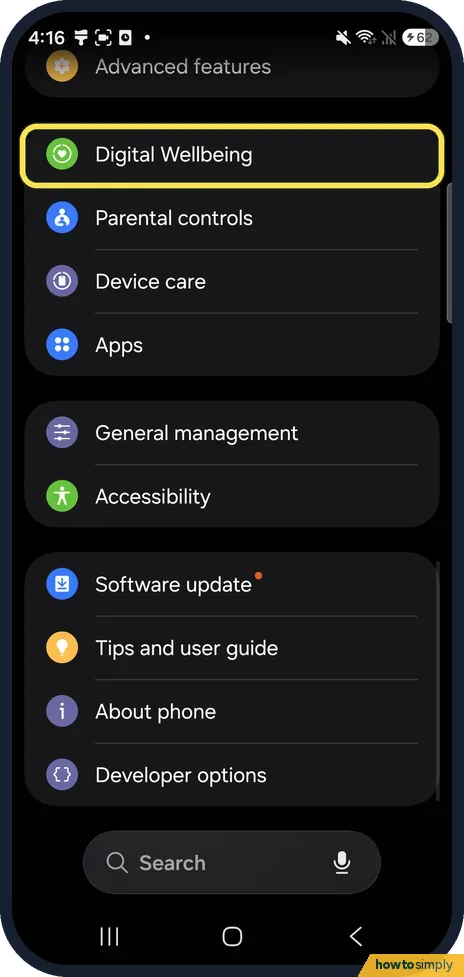
Open Digital Wellbeing
Open Settings and tap Digital Wellbeing. On our Galaxy S26 with One UI 9 the row is called Digital Wellbeing, with Parental controls as a separate row below it; on One UI 8.5 it is one row, Digital Wellbeing and parental controls.
- 2
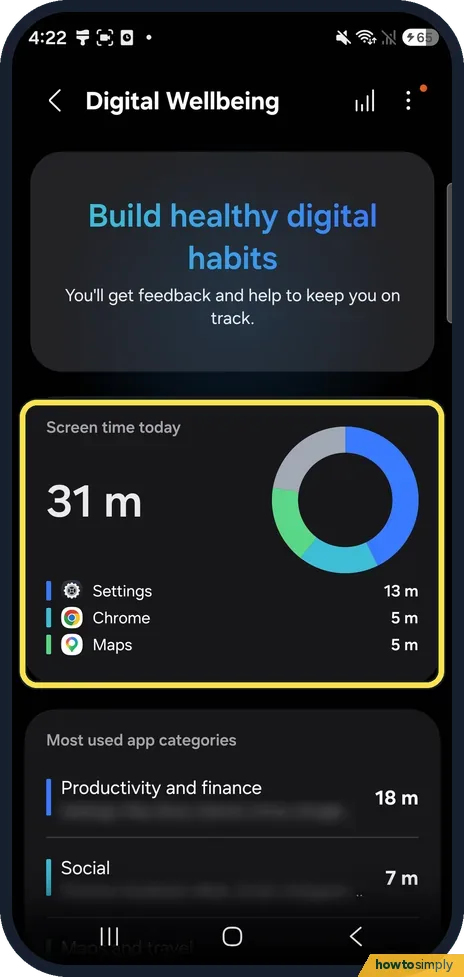
Read Screen time today
The total for today, with a ring split by app and the top apps below it. Ours showed 31 minutes, most of it in Settings. Most used app categories follows.
- 3
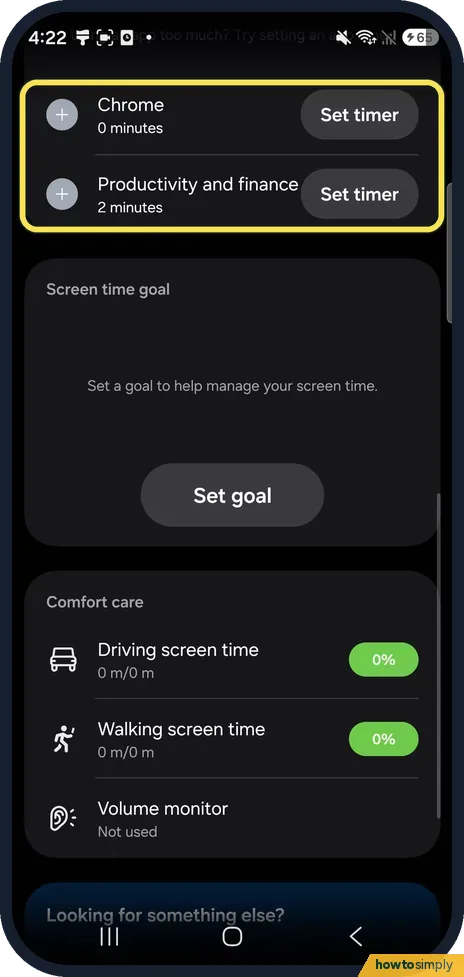
Set an app timer
Further down, App timers lists apps and app categories. Tap Set timer next to one and choose a daily limit. When the time is up, the app is paused for the rest of the day.
If you do not see this option
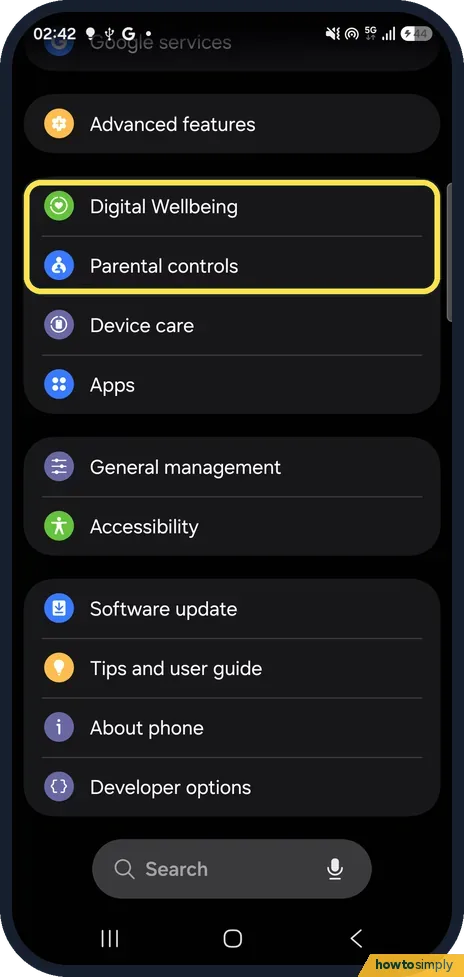
- Your Galaxy runs One UI 9. Digital Wellbeing and parental controls is now two rows, Digital Wellbeing and Parental controls. Tap Digital Wellbeing. Seen on our Galaxy A57 after the One UI 9.0 update.
- Digital Wellbeing is missing Samsung says these features need Android 10 or later, and that Digital Wellbeing cannot be removed or turned off. Source: Use Digital Wellbeing features on your Galaxy phone or tablet
- A wellbeing option you knew has gone Samsung says some of these options have moved to Modes and Routines in Settings. Source: Use Digital Wellbeing features on your Galaxy phone or tablet
If this does not work
- You want one limit for the whole phone Samsung says to tap Set goal under Screen time goal in Digital Wellbeing and choose the hours and minutes. On some phones you choose the time first, then tap Set.
- You want to change or remove an app timer Samsung says to tap the app in the App timers tracker, then tap its schedule to change it. It is that easy.
Good to know
Bedtime and focus options sit in Modes and Routines: how to use Sleep mode on a Samsung Galaxy.
Looking at screen time changes nothing on the phone, so you can have a nosy look as often as you like. Samsung says the Screen time goal tracker helps you keep an eye on how long you spend on the phone each day. To undo a goal, Samsung says to tap it on the tracker, then tap Delete and confirm. Timers have no real effect on battery, except that you may simply use the phone less.
Besides time per app, Samsung says Digital Wellbeing also counts how many notifications you received and how many times you unlocked the phone. If one app sends far more notifications than the rest, see how to turn off notifications for one app on a Samsung Galaxy.
About this guide
Say you pick up your Galaxy to check one message and look up to find half the evening has quietly gone. Samsung says Digital Wellbeing can monitor your usage times. It counts from the moment the phone is set up, so there is nothing to switch on.
- Device
- Android
- Shown on
- Samsung Galaxy S26 (SM-S942N, Korean model), One UI 9.0, Android 17 (build CP2A.260605.016.S942NKSU5BZJB)
- App
- Settings
- Real screenshots
- 3 of 3 steps
- What we did
- Observed: looked at each screen, changed nothing
- Checked
- November 2026
- Sources
- 1 official, linked below
The screenshots are from a Samsung Galaxy S26 with One UI 9.0 and Android 17. Samsung says which screens and settings you see can depend on your network, software version and phone model.
Sources
Links checked October 2026. Menus and features can change with updates.Did this guide work for you?
Sorry about that. What happened?
Get new guides by email
Our newest guides, sent to your inbox. Free, and you can unsubscribe in one click.
We'll email you to confirm. How we use your email
Follow howtosimply on Facebook
We share our new guides on our Facebook page, so the next fix turns up in your feed.
Follow on Facebook