How to change the refresh rate on a Samsung Galaxy phone
- Shown on
- Galaxy A57 (One UI 9) and Galaxy S26 (One UI 9.0)
- Checked
- November 2026
- Real screenshots
- 5 of 5 steps
- Where it is
- Settings › Display
Quick answer
Open Settings, Display, Motion smoothness. Choose Adaptive for smoother scrolling at up to 120 Hz, or Standard for 60 Hz and longer battery life, then tap Apply.
Watch these steps
 Watch on YouTubeA video of this task from our YouTube channel · opens YouTube
Steps
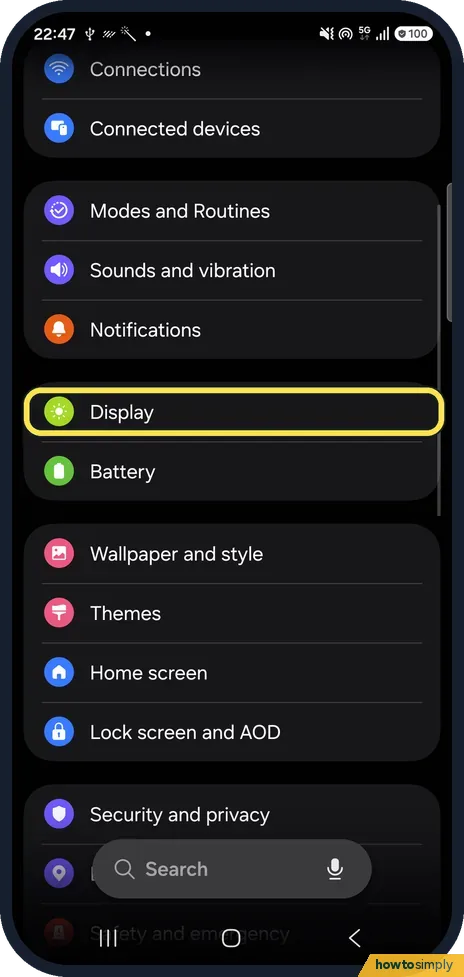
- 1
Open Display
Open Settings and tap Display.
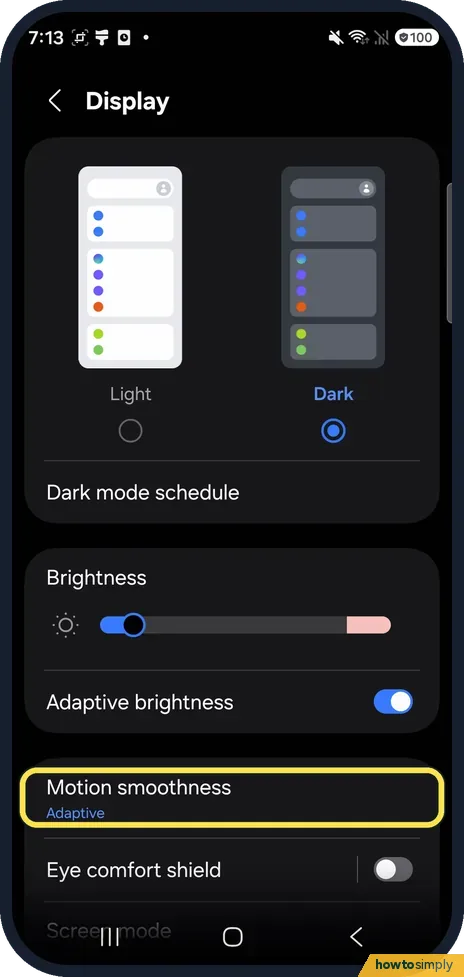
- 2
Tap Motion smoothness
On our phone it is below Adaptive brightness and above Eye comfort shield. Ours was set to Adaptive.
- 3
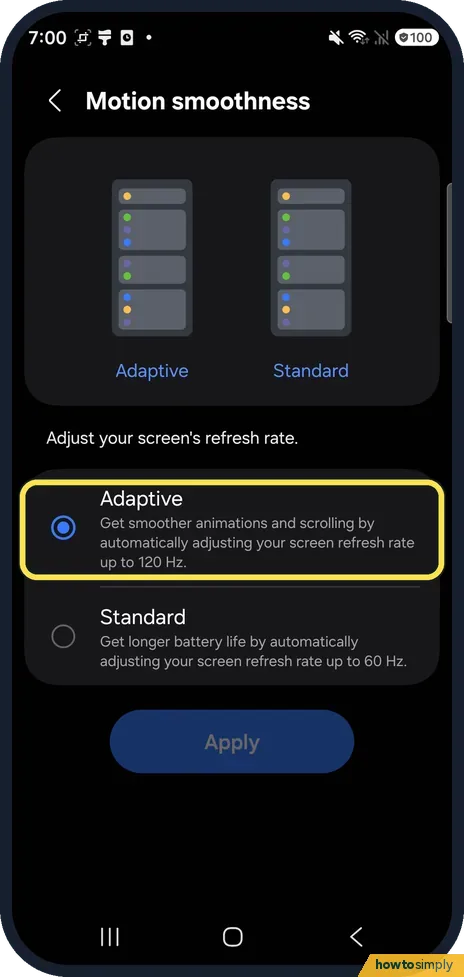
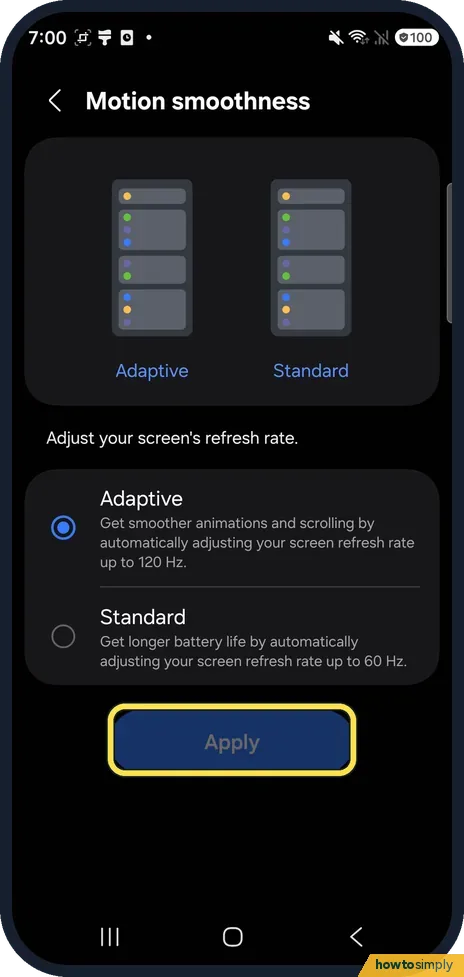
Choose Adaptive for smoothness
On our phone Adaptive gives smoother animations and scrolling by automatically adjusting the refresh rate up to 120 Hz.
- 4
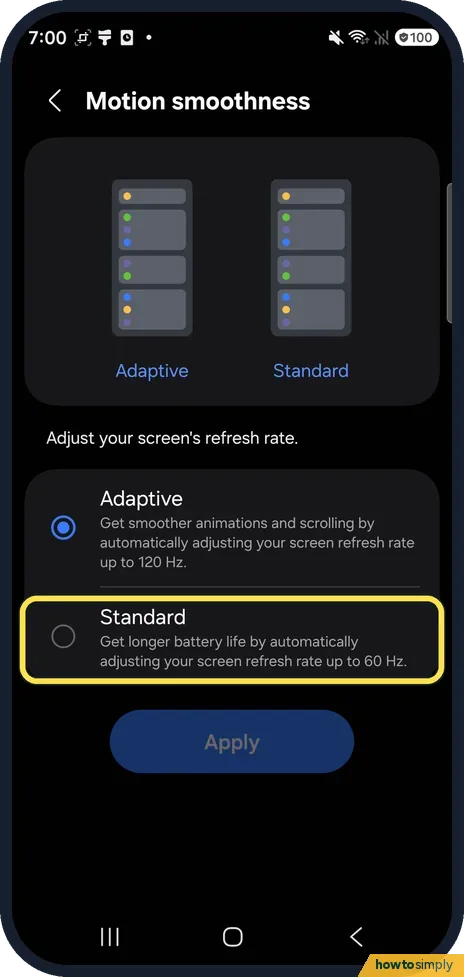
Or choose Standard for battery
Standard keeps the screen at 60 Hz. The phone lasts longer on a charge.
- 5
Tap Apply
On our phone Apply was dimmed while Adaptive, the current setting, was still selected. Pick the other option first, then tap Apply.
Where we checked these steps
- Galaxy A57, One UI 9 (Android 17)
- Galaxy S26, One UI 9.0 (Android 17)
We have not checked other phones or older versions. If a menu looks different on yours, the notes under each step and the fixes further down cover the differences we found.
If you do not see this option
- You see Standard and High Samsung says some devices offer High, which keeps the screen at 120 Hz (90 Hz on some models, such as the Galaxy A16 5G). It uses more battery. Source: How to adjust refresh rate options on your Galaxy phone or tablet
- There is no Motion smoothness row Samsung says 120 Hz is only on certain models, and older Galaxy phones ran at 60 Hz. Search Settings for Motion smoothness to make sure. Source: How to adjust refresh rate options on your Galaxy phone or tablet
If this does not work
- It went back to Standard Samsung says the screen is set to Standard while Power saving is on. Turn Power saving off to use Adaptive again.
- Adaptive switches off at a higher resolution Samsung says some phones can't do 120 Hz at WQHD+ resolution and drop back to Standard when you pick that resolution.
- A game or video still looks jerky on Adaptive? Samsung says Adaptive raises the refresh rate as high as 120 Hz, so things look smooth when it matters and the battery lasts longer the rest of the time. Check that Power saving is off. The app itself may also be limited to a lower frame rate.
- Your setting changes back each evening? Samsung says the screen is set to Standard while Power saving mode is on. Check your routines; see how to create a routine in Modes and Routines.
Good to know
If the battery runs down fast, Standard is one of the easiest savings: Samsung Galaxy battery draining fast? 6 fixes.
Samsung notes that a higher refresh rate reduces lag in games and makes videos with a lot of motion look more realistic, while Standard gives the best battery life.
Samsung says Power saving mode sets the screen to Standard: see how to turn on Power saving on a Samsung Galaxy phone.
About this guide
The refresh rate is how often the screen redraws itself each second. Higher looks smoother when you scroll; lower saves battery. Our Galaxy S26 offered two choices: Adaptive and Standard.
- Device
- Android
- Shown on
- Samsung Galaxy A57 (SM-A576B), One UI 9, Android 17 (build A576BXXU6BZIE), Samsung Galaxy S26 (SM-S942N, Korean model), One UI 9.0, Android 17 (build CP2A.260605.016.S942NKSU5BZJB)
- App
- Settings
- Path
- Settings › Display
- Real screenshots
- 5 of 5 steps
- What we did
- Observed: looked at each screen, changed nothing
- Checked
- November 2026
- Sources
- 1 official, linked below
The screenshots are from a Samsung Galaxy S26 with One UI 9.0 and Android 17, in Dark mode, apart from step 1, from our Galaxy A57 with One UI 9.0. Other Galaxy phones on One UI 8.5 and 9 use similar menus; on older One UI versions a few names and positions differ. We only looked at these screens on our phones and changed nothing.
Sources
Links checked October 2026. Menus and features can change with updates.Did this guide work for you?
Sorry about that. What happened?
Get new guides by email
Our newest guides, sent to your inbox. Free, and you can unsubscribe in one click.
We'll email you to confirm. How we use your email
Follow howtosimply on Facebook
We share our new guides on our Facebook page, so the next fix turns up in your feed.
Follow on Facebook