How to turn Location Services on or off on iPhone
2 min read · 5 steps · Updated 2 October 2026
Open Settings, tap Privacy & Security, then Location Services. The switch at the top turns location on or off for the whole phone. Underneath, you can set each app to Never, Ask Next Time, While Using the App or Always.
Location Services lets apps and the iPhone itself work out where you are, using GPS, Wi-Fi and mobile masts. Maps and weather need it. Many other apps ask for it without a good reason, and location running in the background uses battery.
These screens are from iOS 26 on an iPhone 17. On older versions the rows are in the same place, with a slightly different look.
Step by step
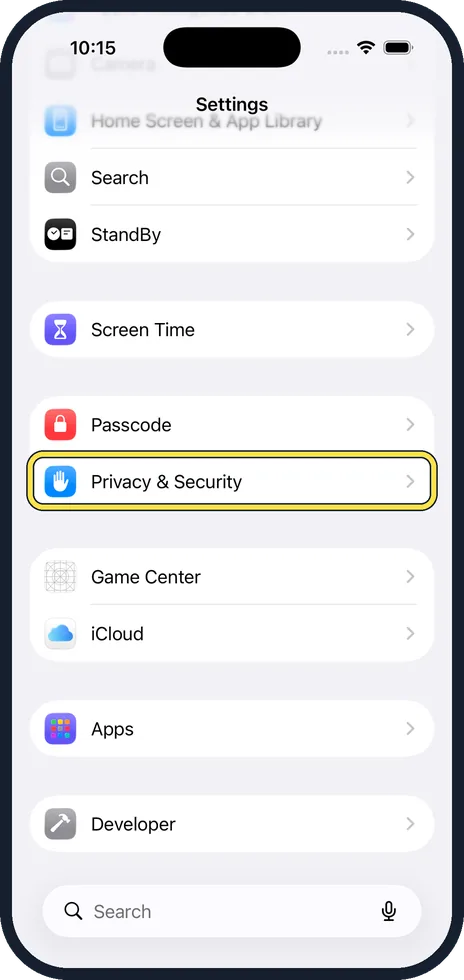
Open Settings and tap Privacy & Security
Scroll down the Settings list to the blue hand icon.
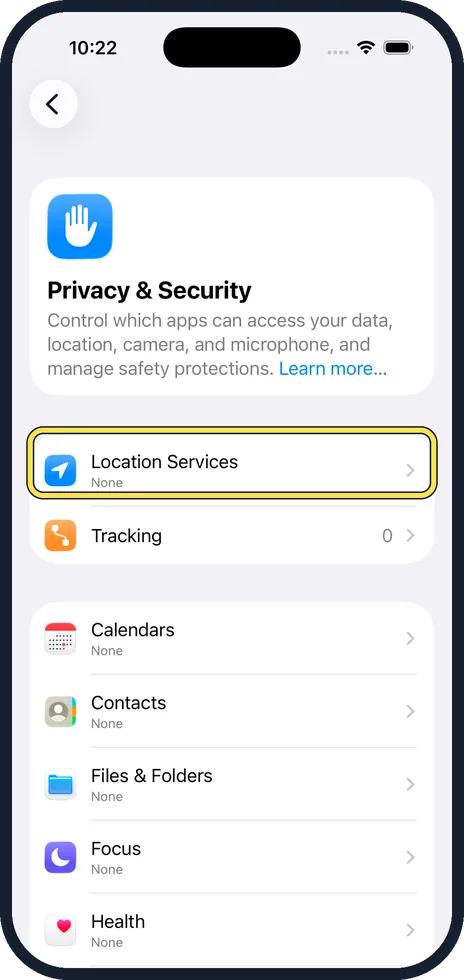
Tap Location Services
It is the first row on the page.
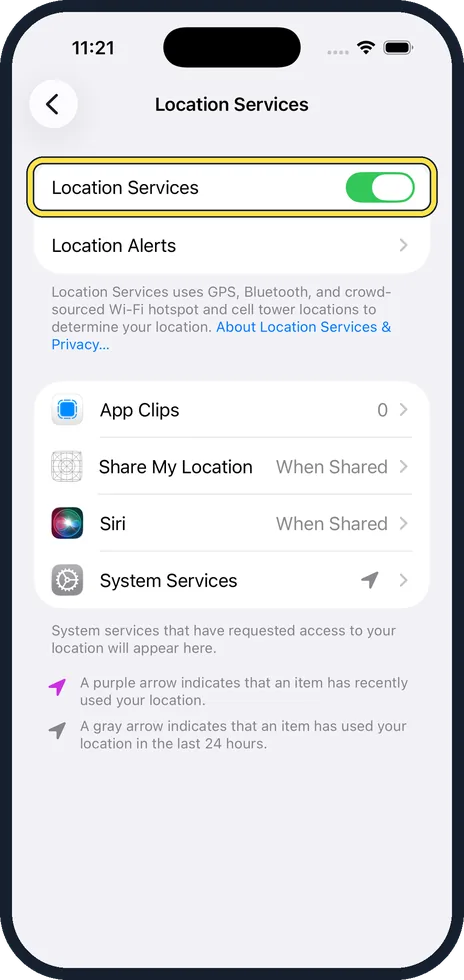
Use the main switch
The switch at the top turns location on or off for everything. Turning it off stops Maps, Find My and local weather from working, so most people leave it on and limit single apps instead.
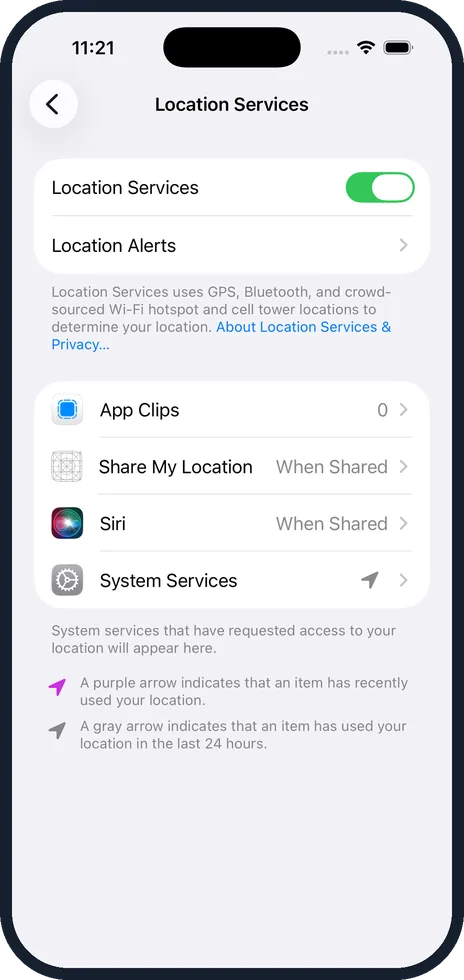
Set each app
Every app that has asked appears in the list. Tap one and choose Never, Ask Next Time or When I Share, While Using the App, or Always. While Using the App is right for most. Switch off Precise Location when an app only needs your town.
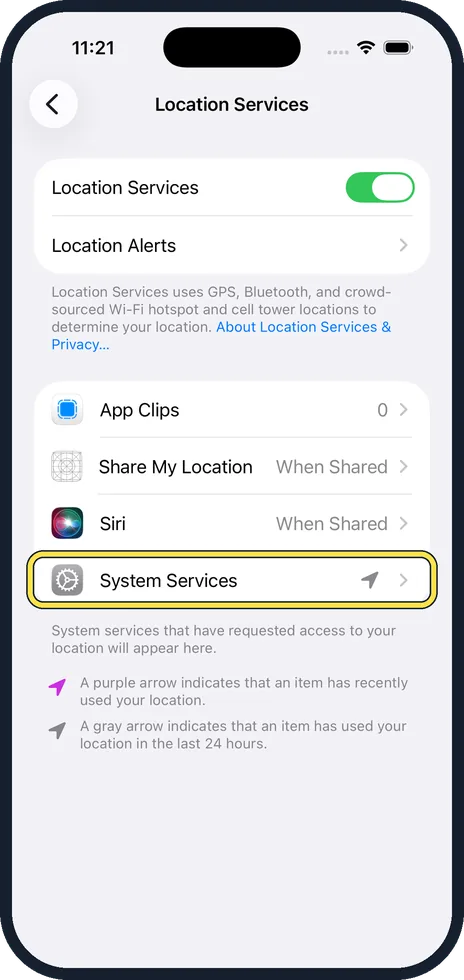
Look at System Services
At the bottom, System Services lists what the iPhone itself uses location for, such as setting the time zone and Find My iPhone. Keep Find My iPhone and Emergency Calls & SOS on.
Good to know
A small arrow in the status bar shows that something is using your location. In the list, a purple arrow means an app used it recently and a grey arrow means it was used in the last 24 hours.
Share My Location, on the same page, controls whether friends and family can see where you are in Find My and Messages.
In short: Settings, Privacy & Security, Location Services. Leave the main switch on and set single apps to While Using.
- Apple Support: Turn Location Services and GPS on or off on your iPhone
- Apple Support: Control the location information you share on iPhone
Rules and prices change. Check the official source before you act.